
Upload SSL Certificates for HTTPS Sites in OpenResty Edge
To upload an SSL certificate in OpenResty Edge, open your application’s SSL page in the Admin web console, paste or upload the private key and the certificate in PEM format, save the pair, and make a new release. The certificate reaches every gateway server without an nginx reload, restart, or binary upgrade.
Below we walk through that manual upload for our sample test-edge.com application, and then verify the certificate that is actually being served, from one specific gateway server, with curl --resolve.
Upload the SSL Certificate and Private Key in the Edge Console
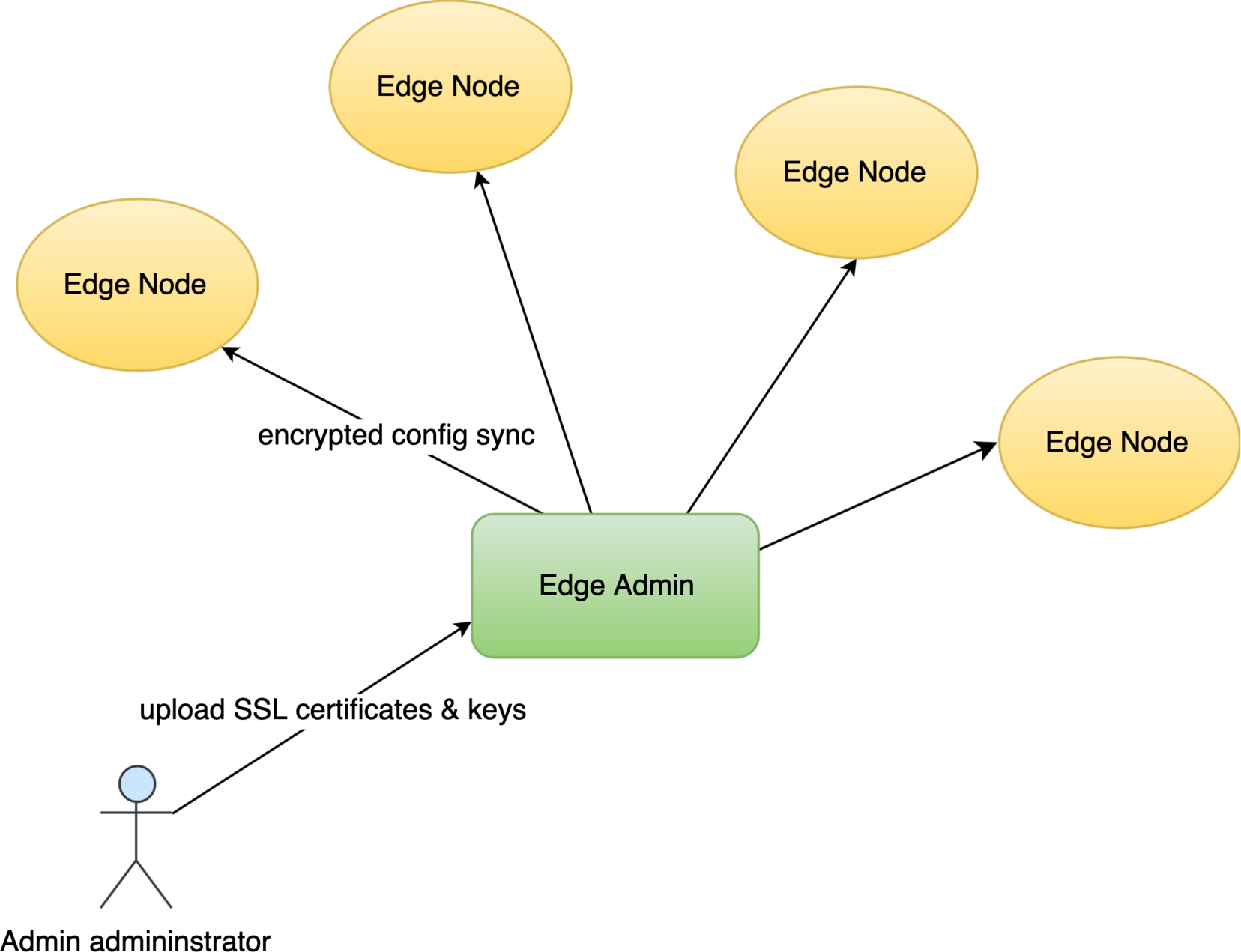
As always, let’s go to the OpenResty Edge’s Admin web console. This is our sample deployment of the console. Every user has her own local deployment.
This time we use our continuing sample application for the test-edge.com domain.
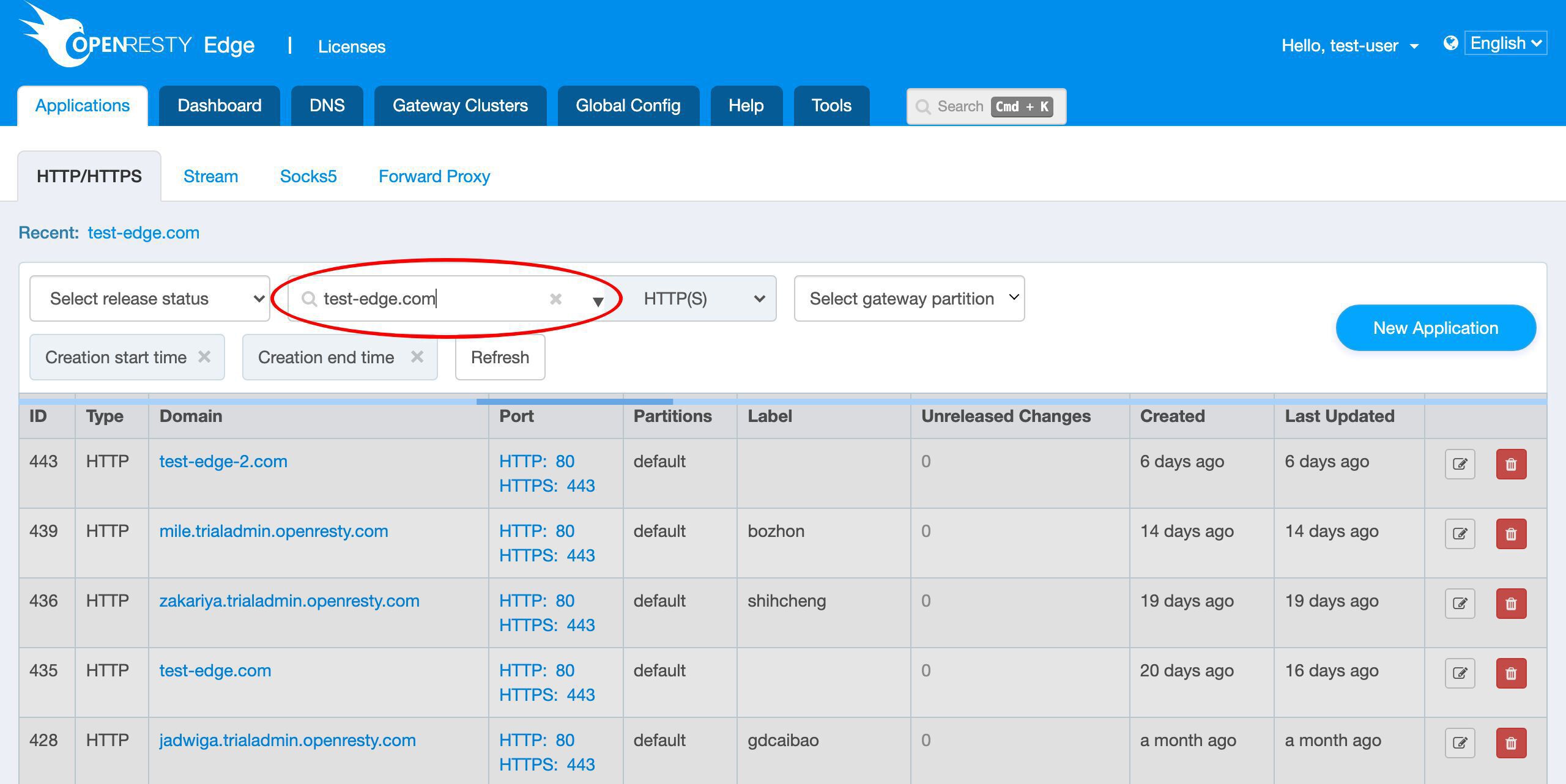
We can see that it already listens on the 443 port for SSL.
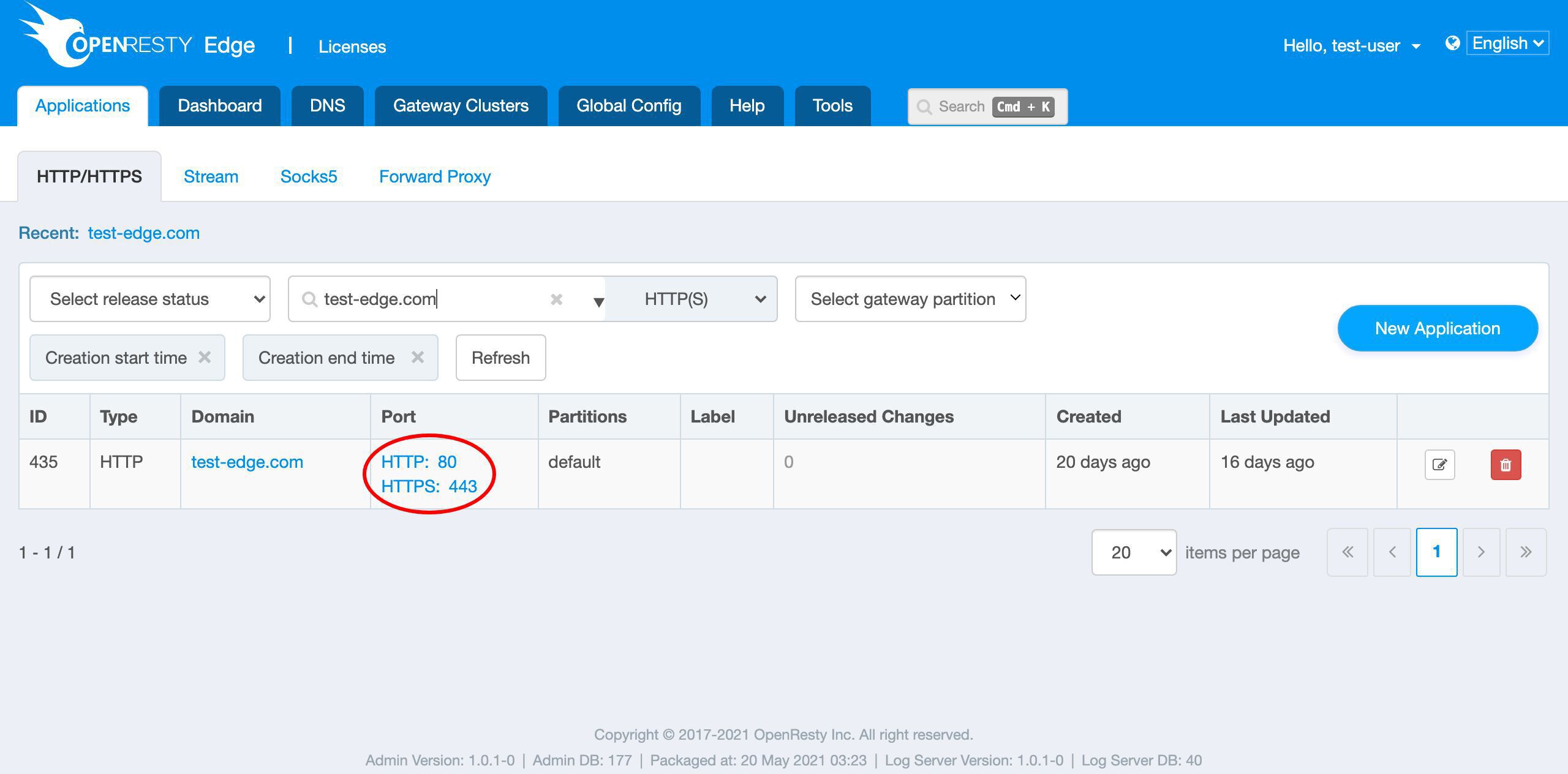
Let’s enter this application.
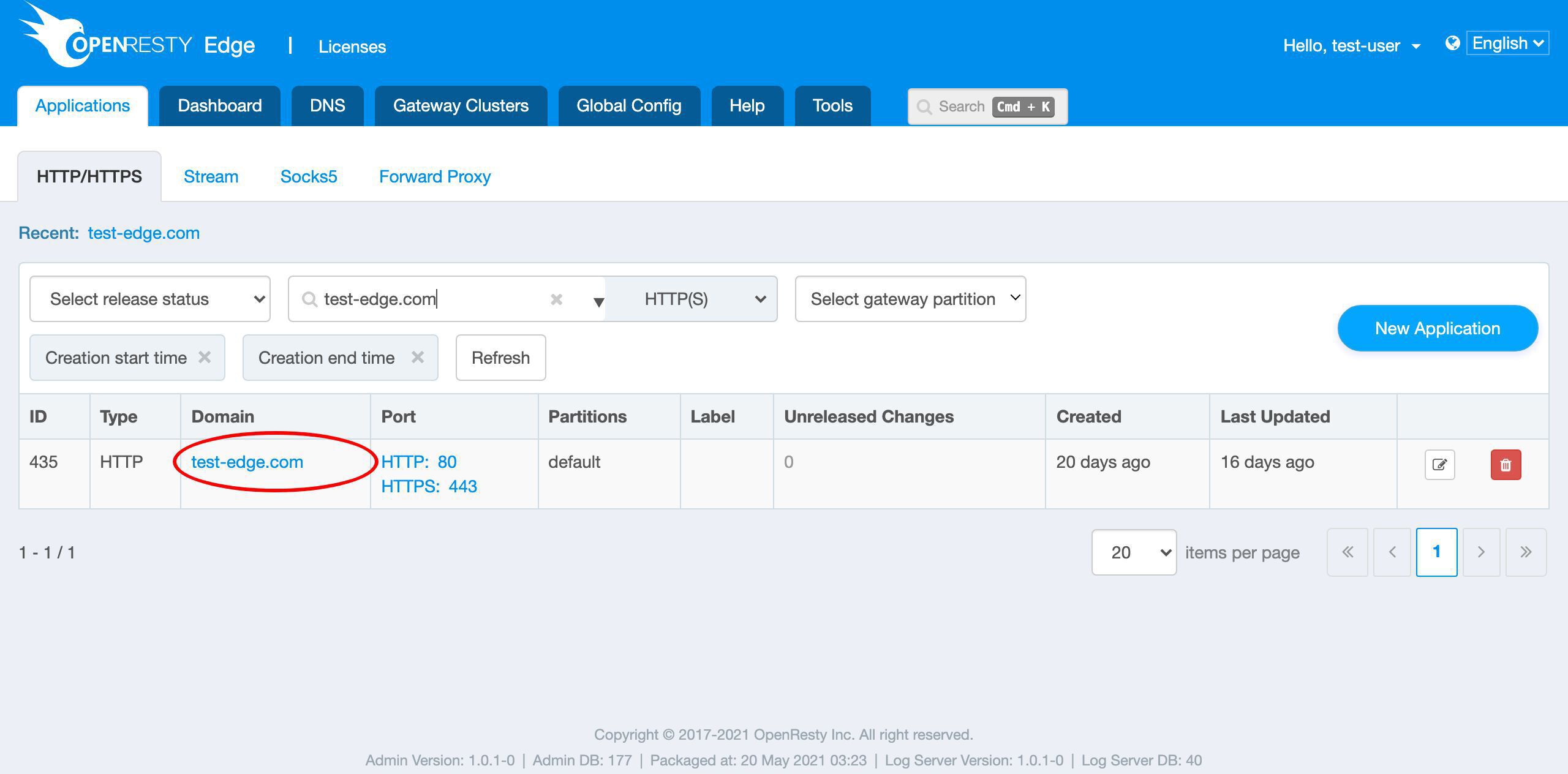
Goto the SSL page.
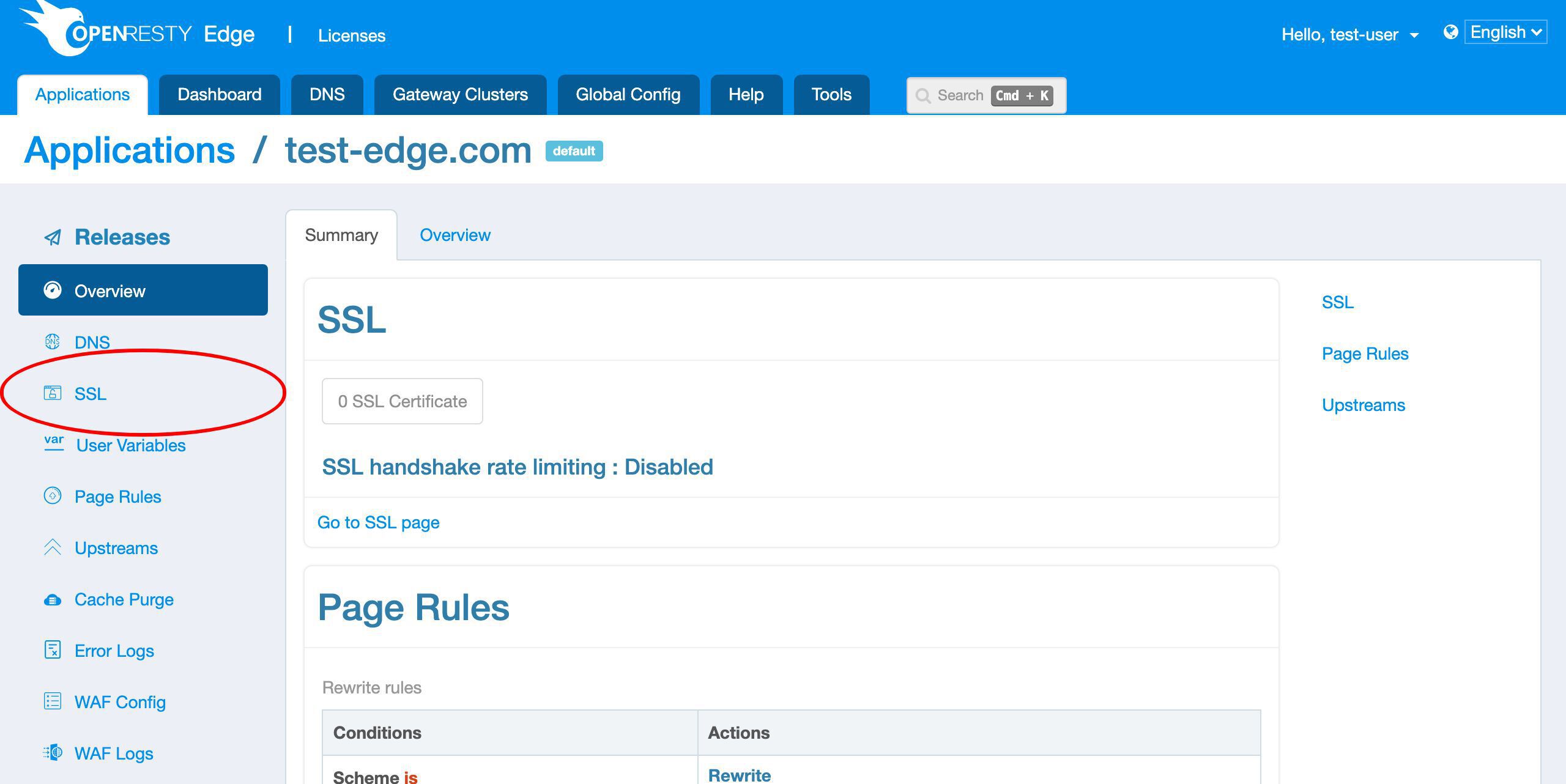
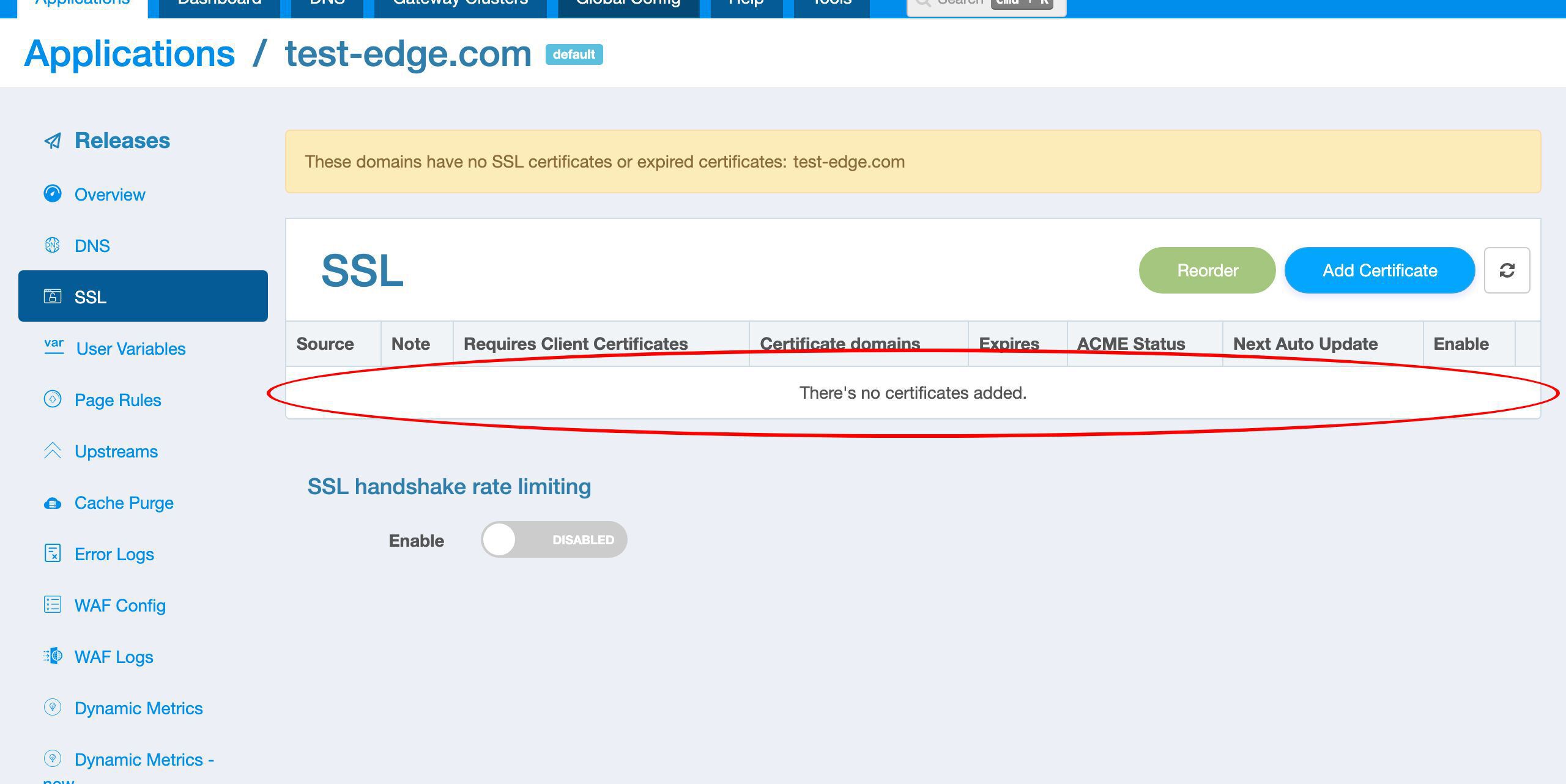
We can see that there are no SSL certificates defined yet.
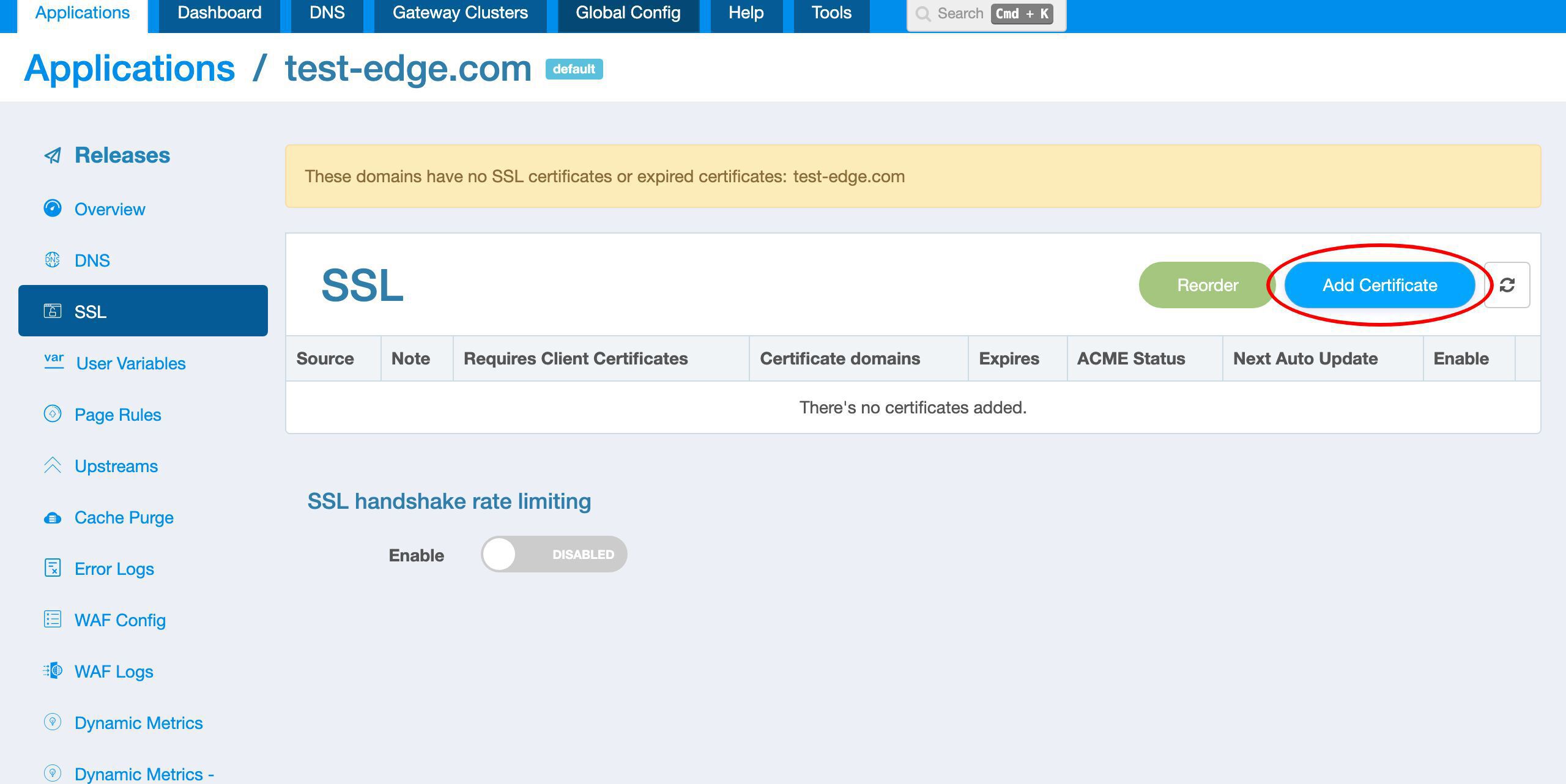
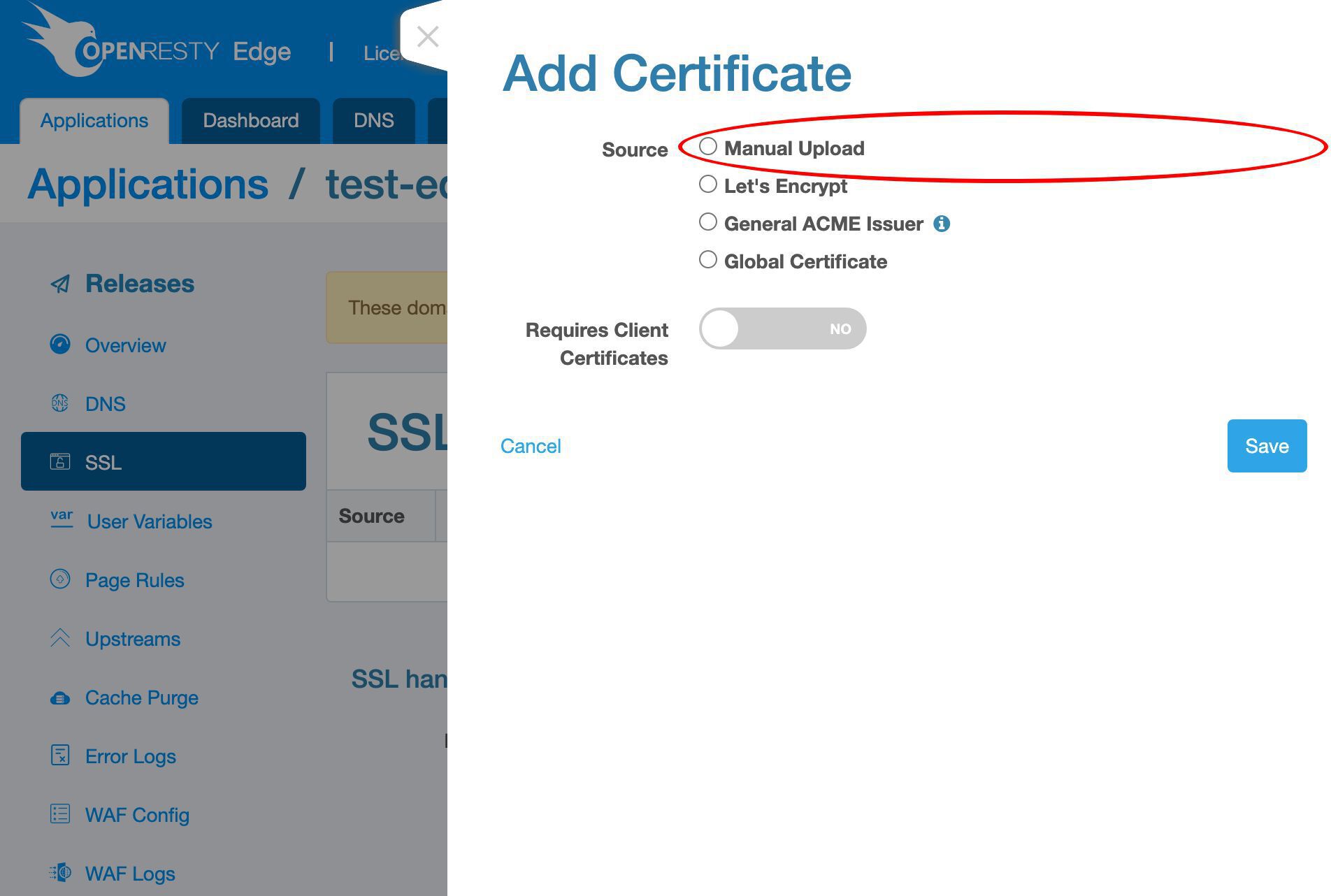
Let’s add a new certificate.
We support various ways to add a new SSL certificate, including Let’s Encrypt and full SSL certificate automation via the ACME protocol.
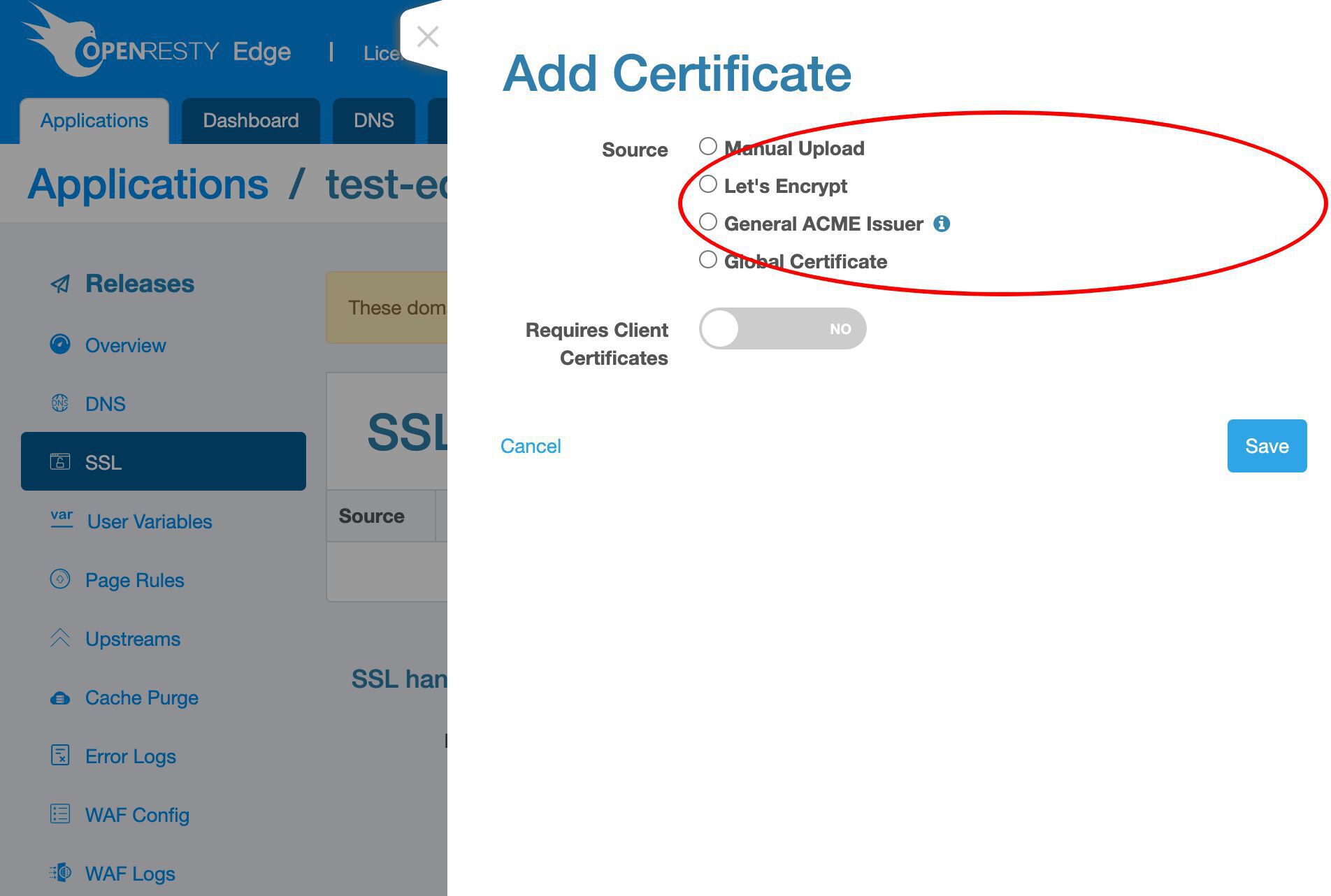
Here we’d just demonstrate the manual uploading way.
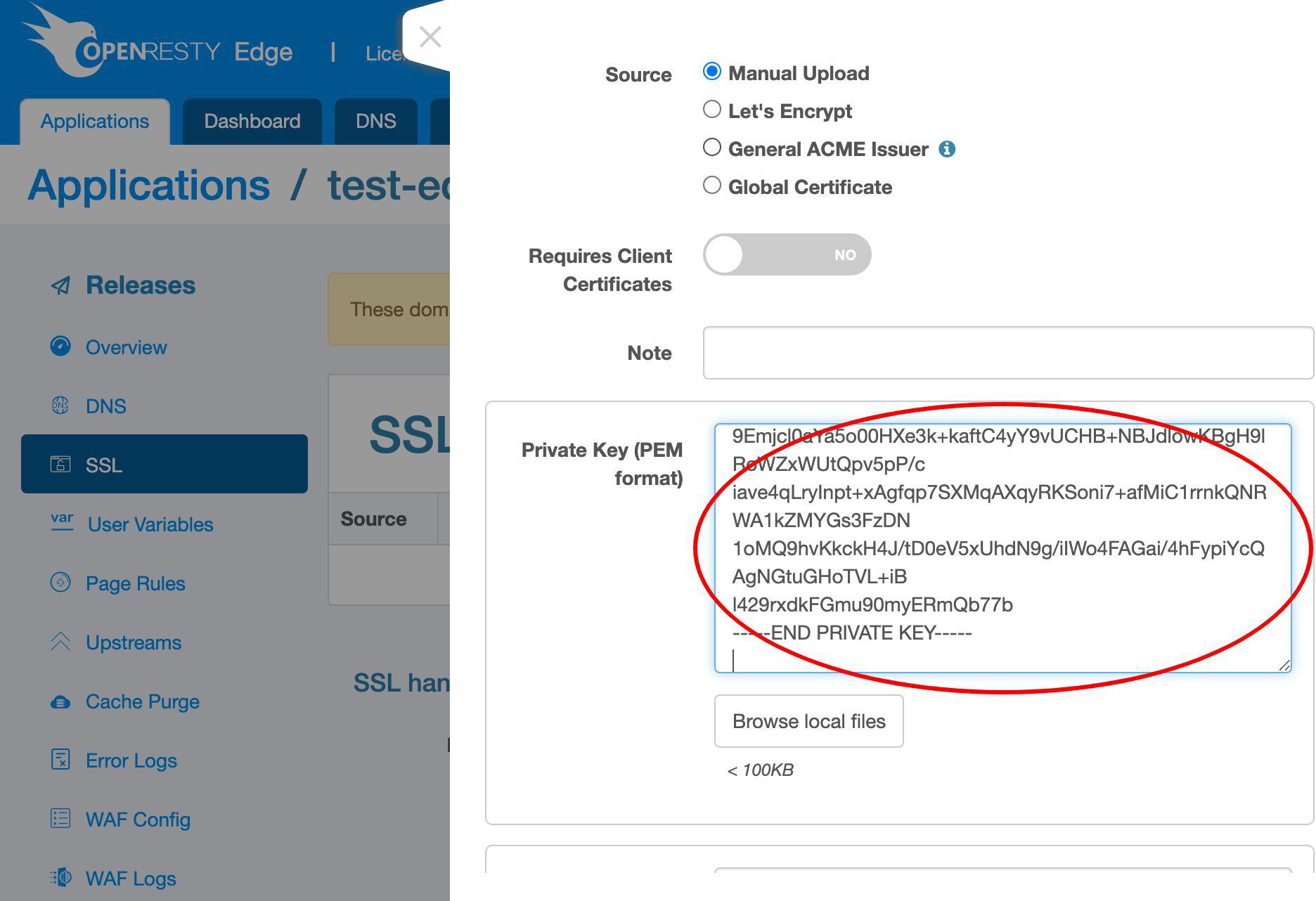
We can copy and paste our SSL private key in the PEM format here.
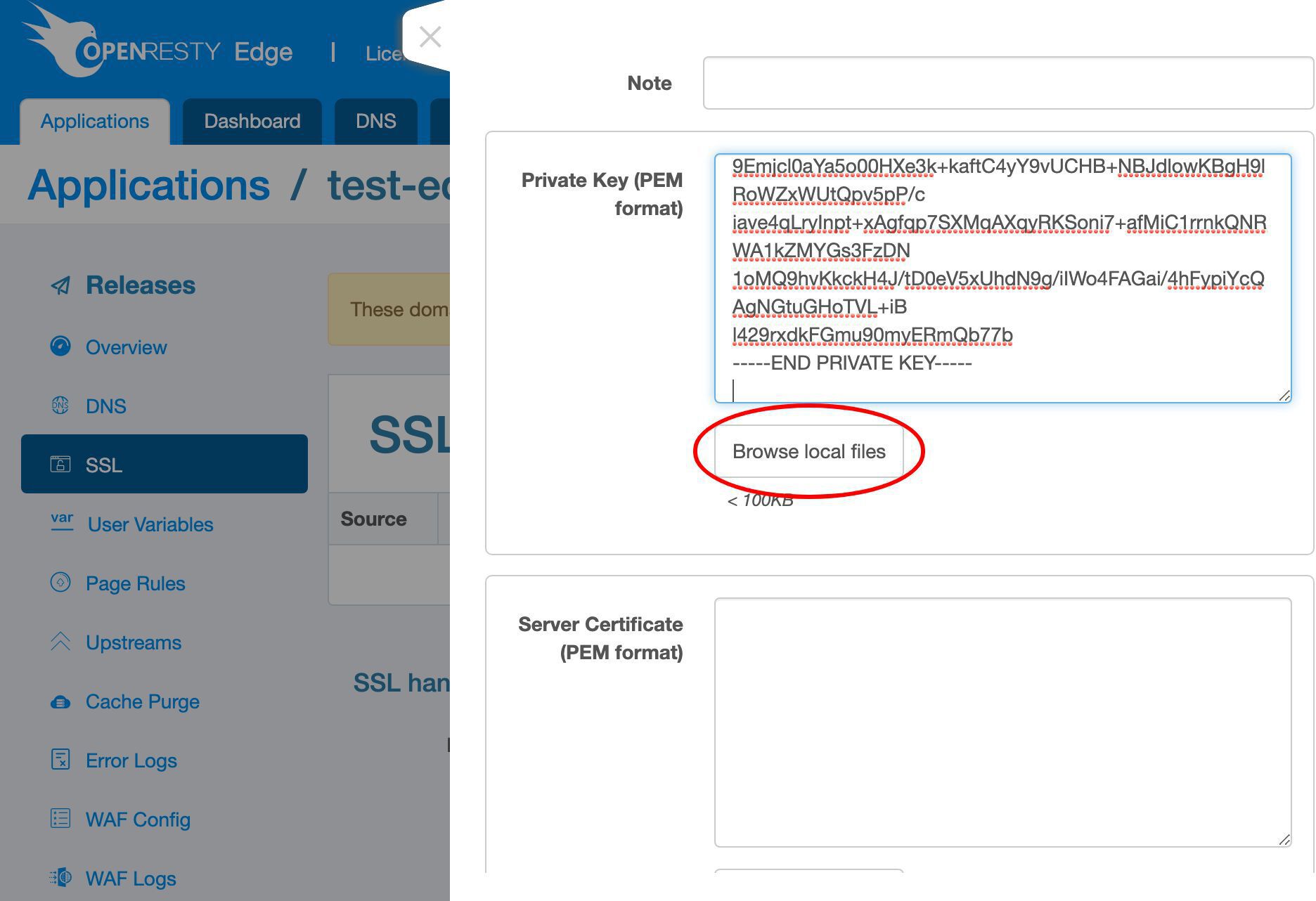
We could browse the local file system and upload a local file instead.
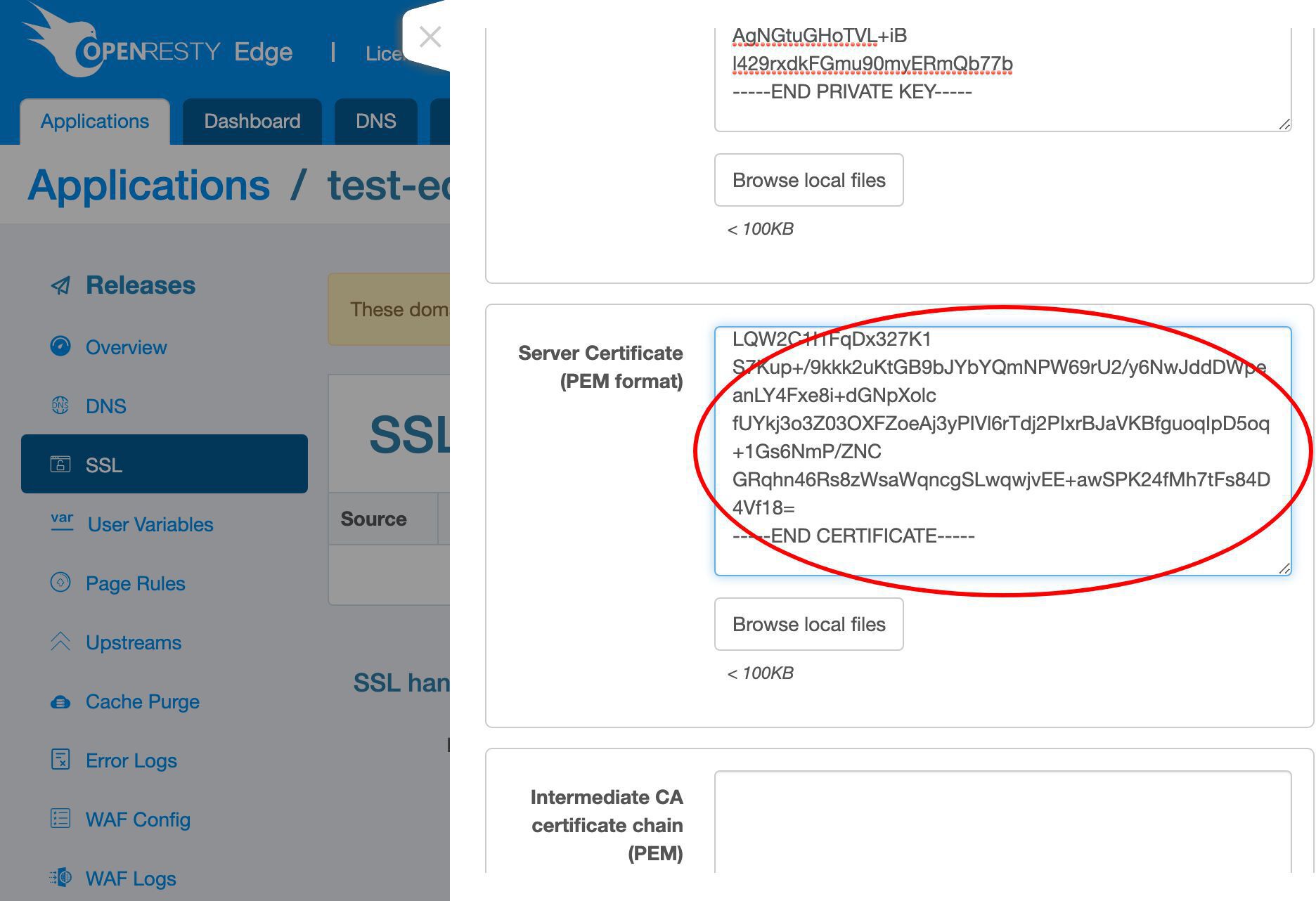
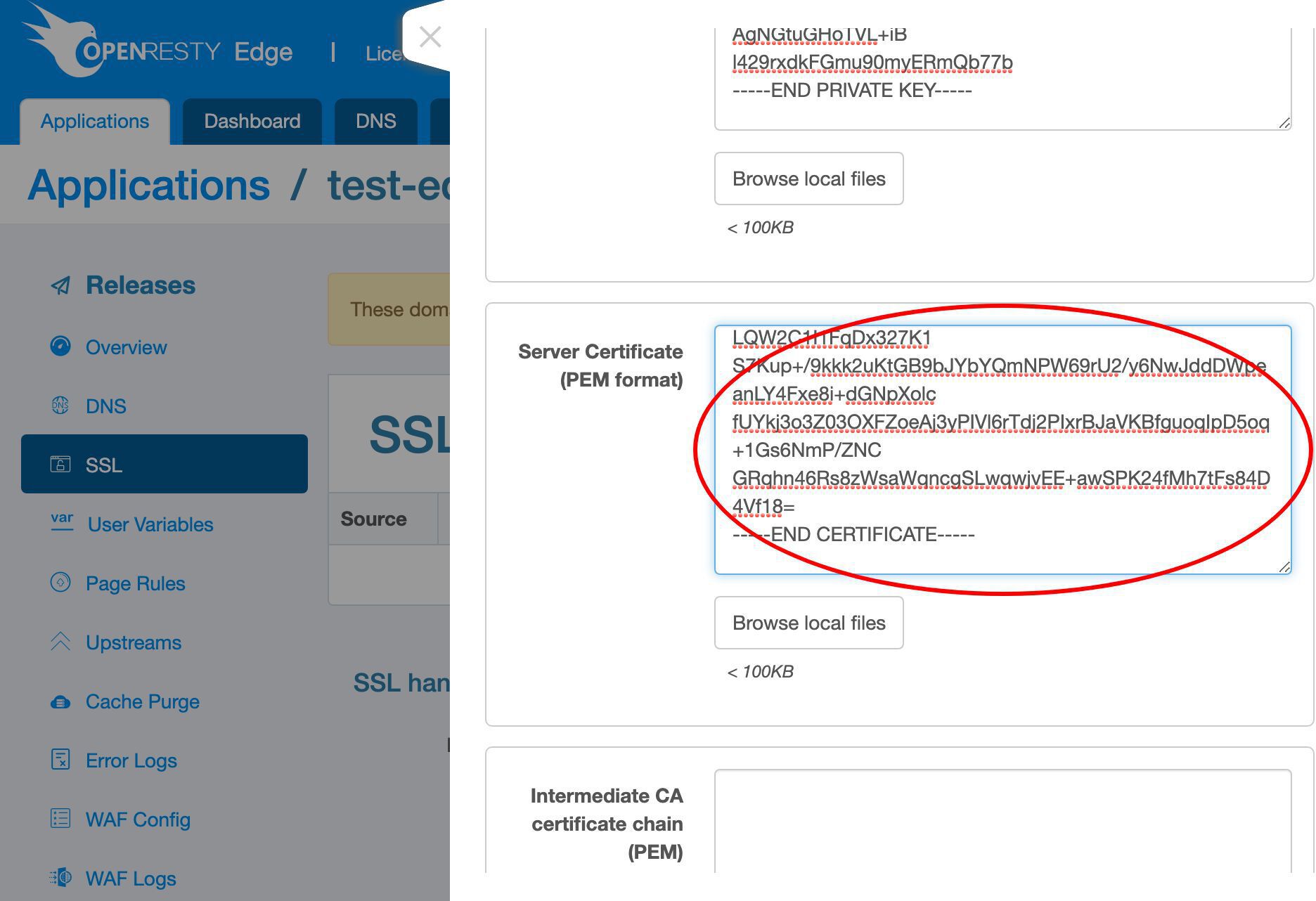
And also paste the corresponding SSL certificate in the PEM format.
Again, we could browse and upload a local certificate file instead.
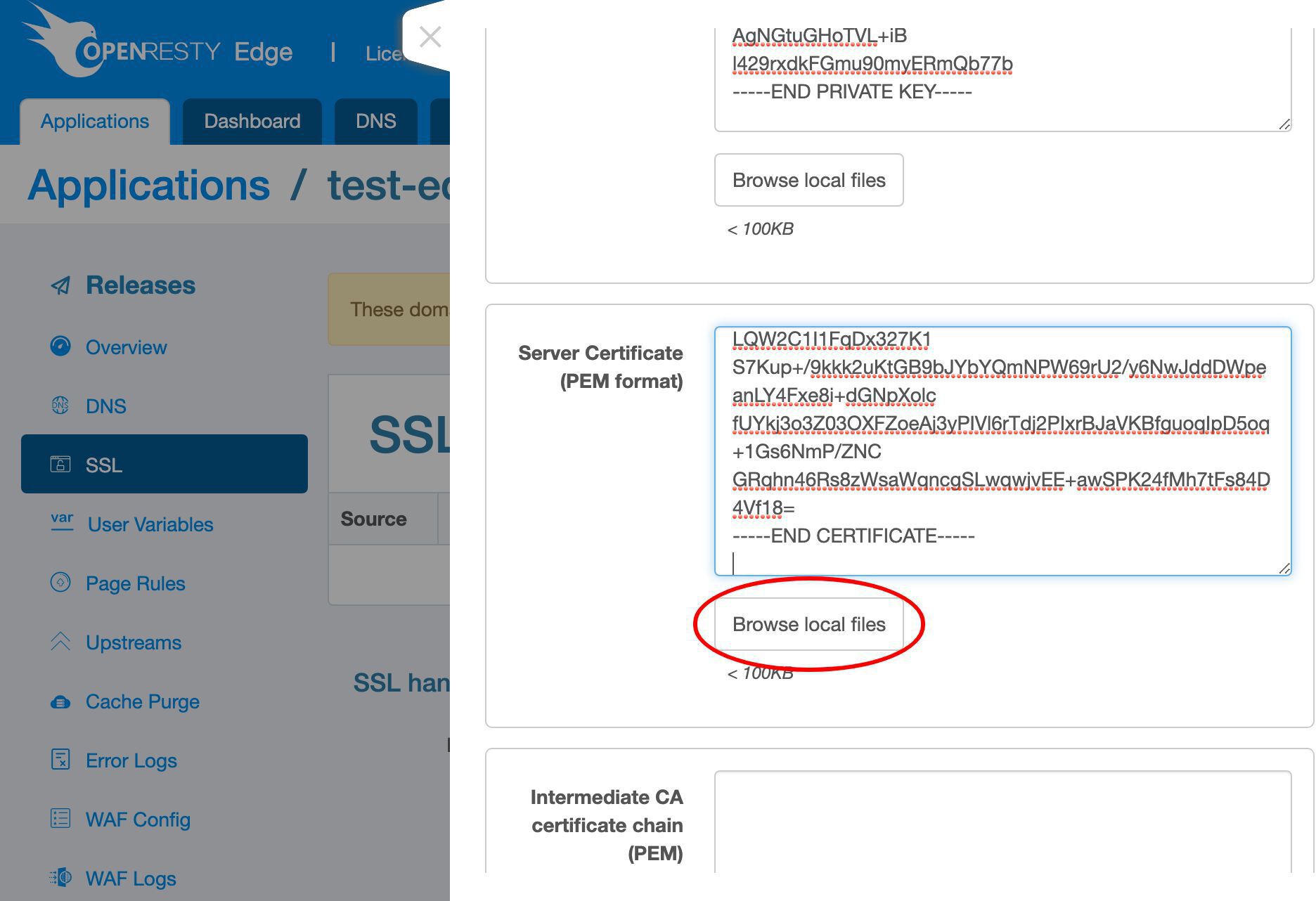
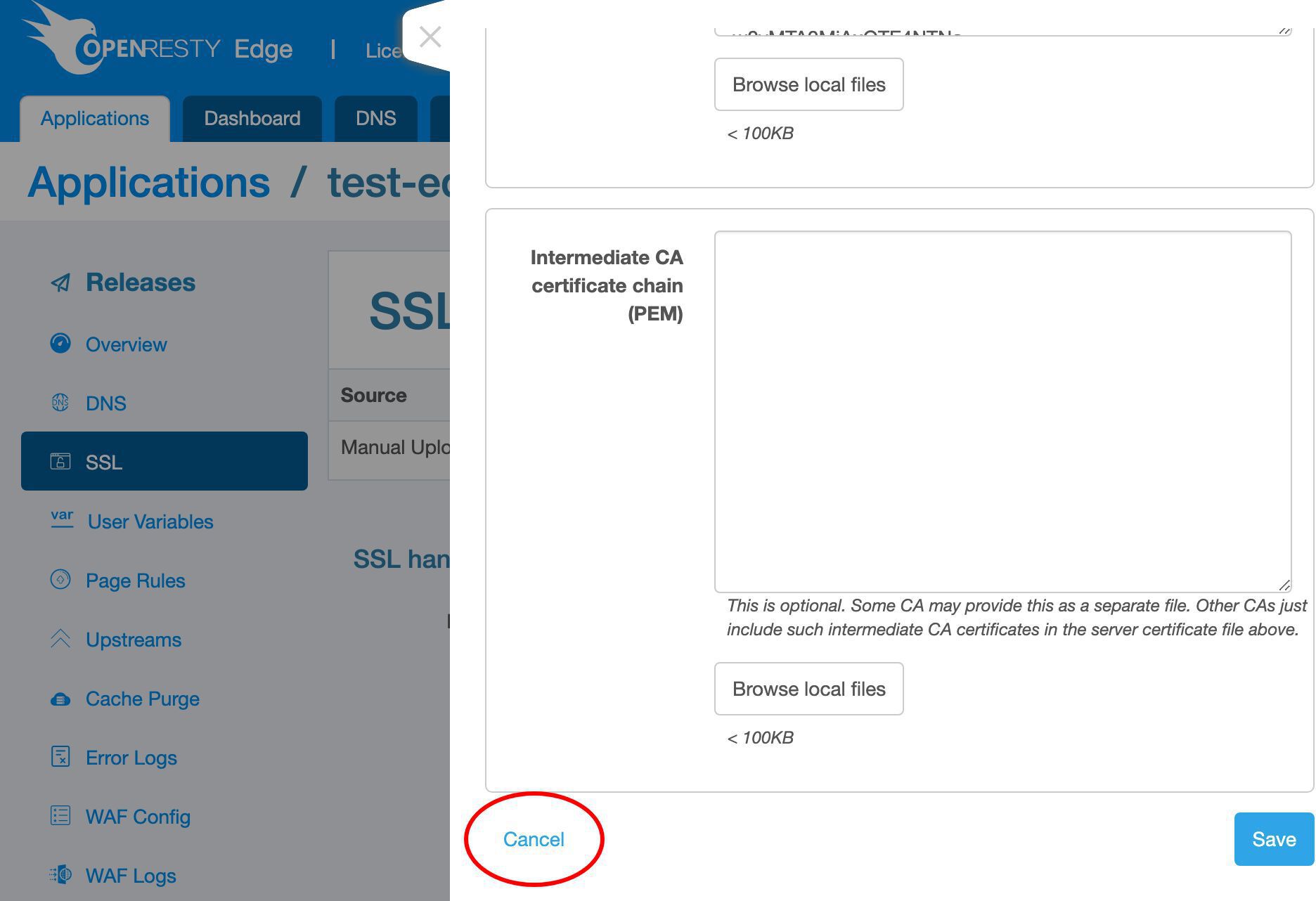
Sometimes the CA may provide a separate file containing intermediate trusted CA certificate chain.
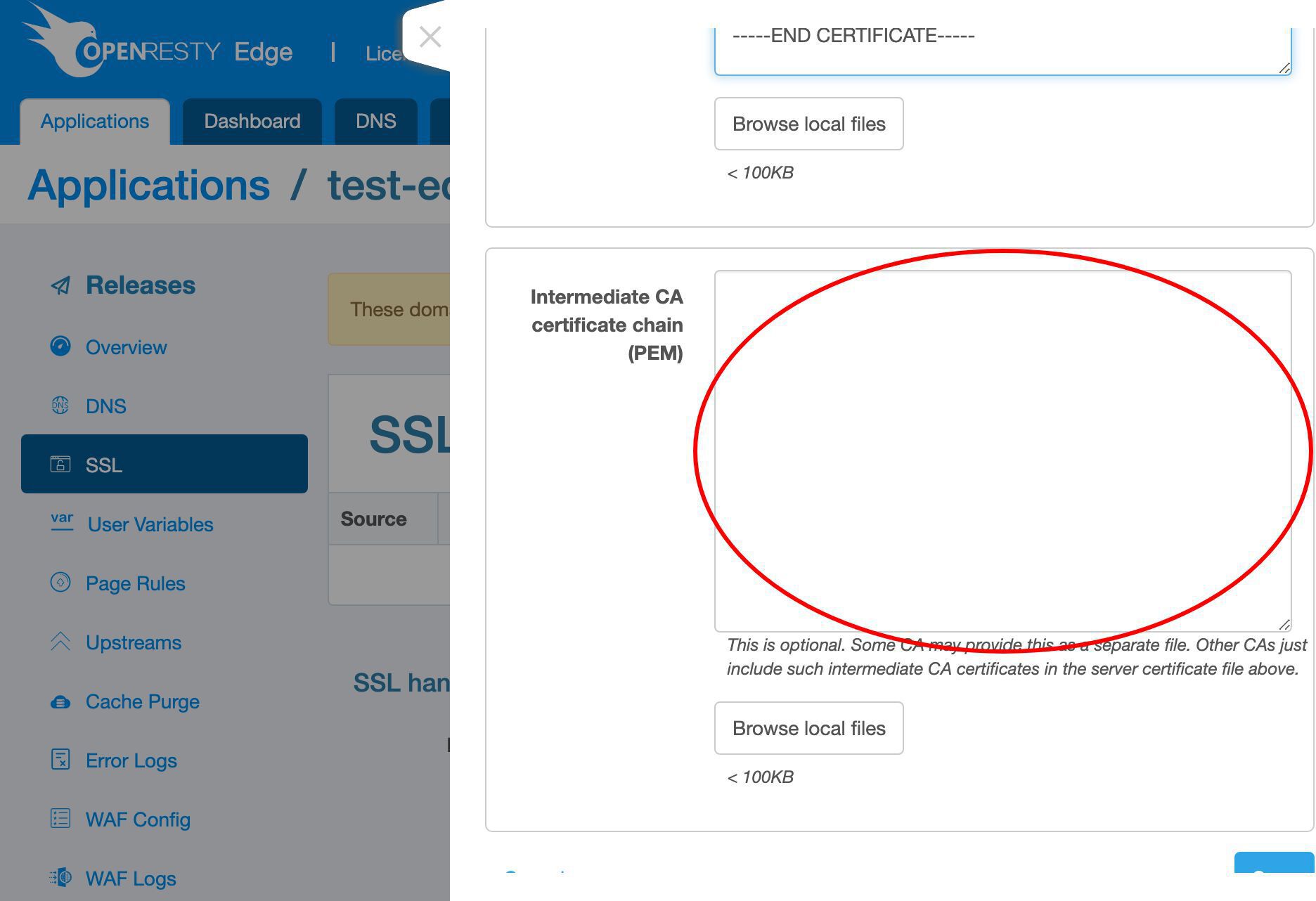
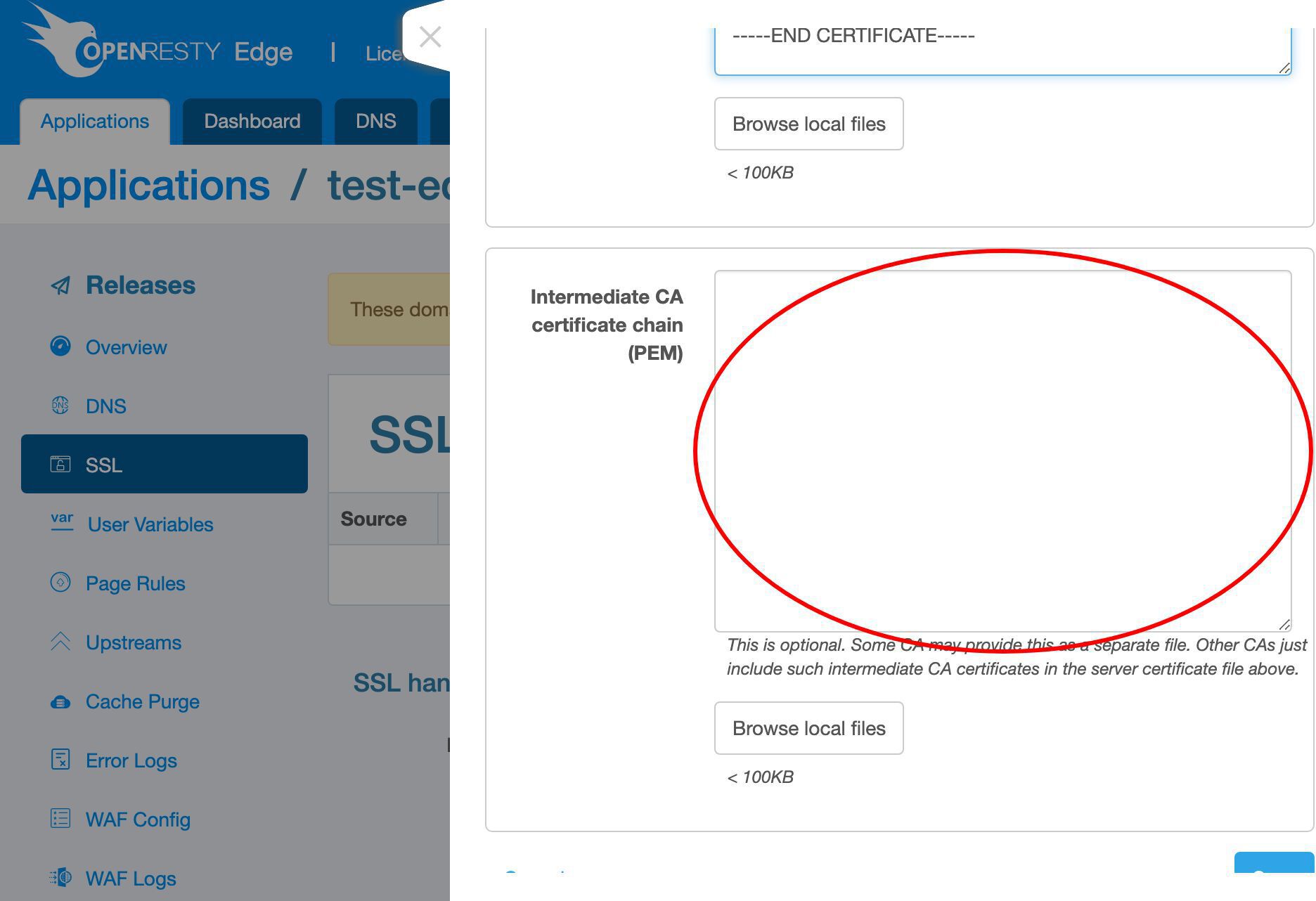
But more often the chain is already included in the server certificate file here.
We leave it blank for this example since we don’t have any.
Save our certificate and key pair.
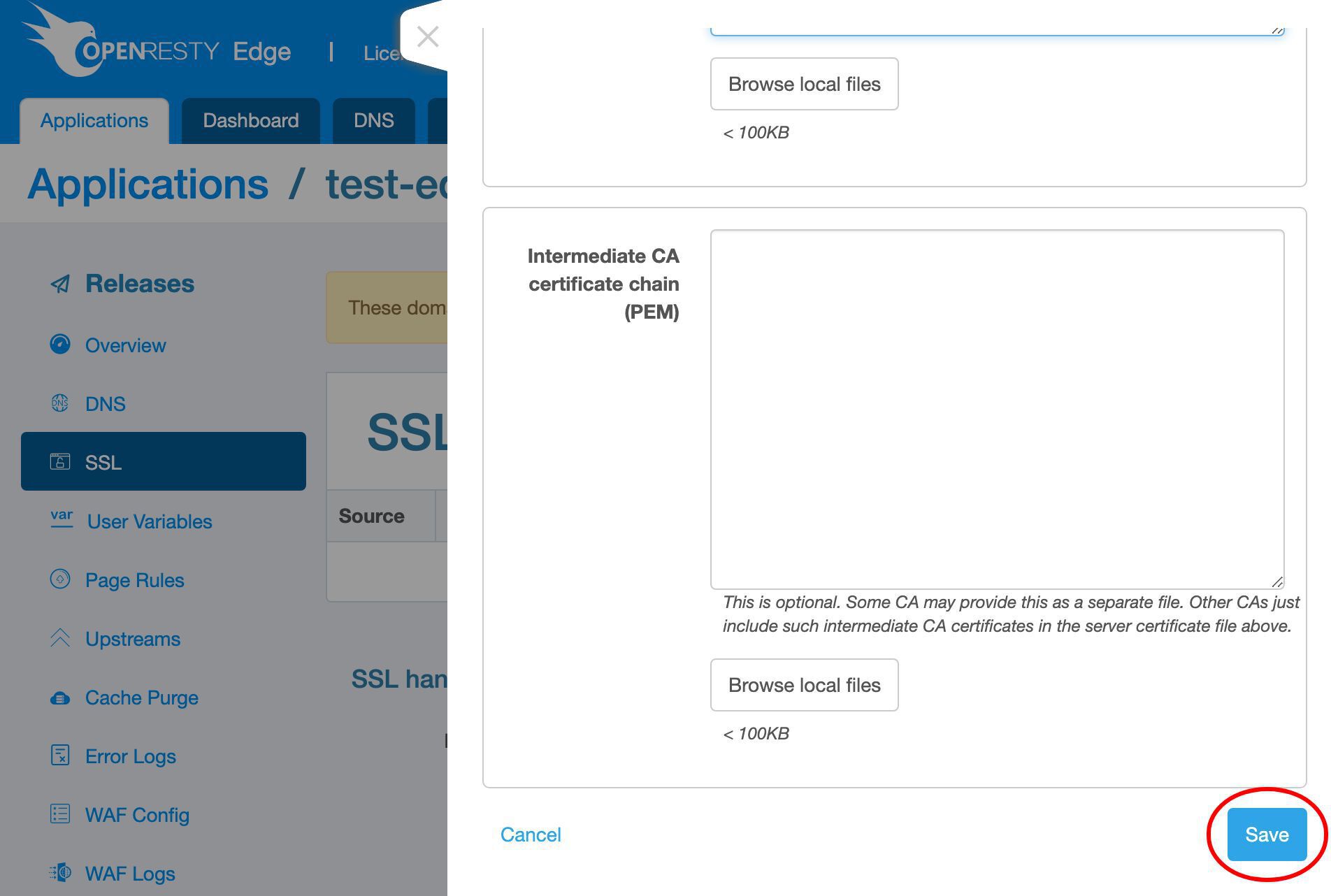
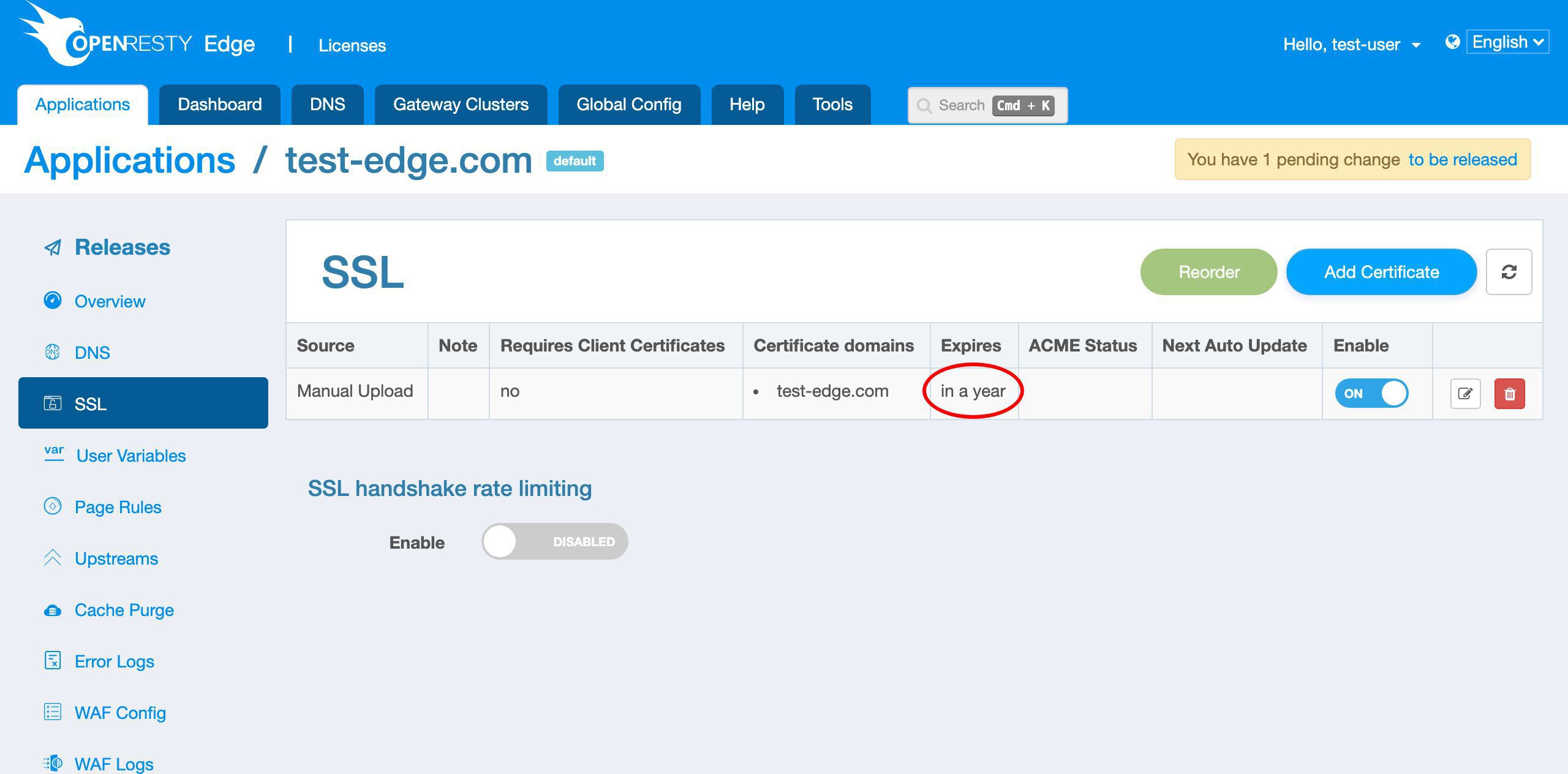
We can see the record for our newly created certificate and key pair.
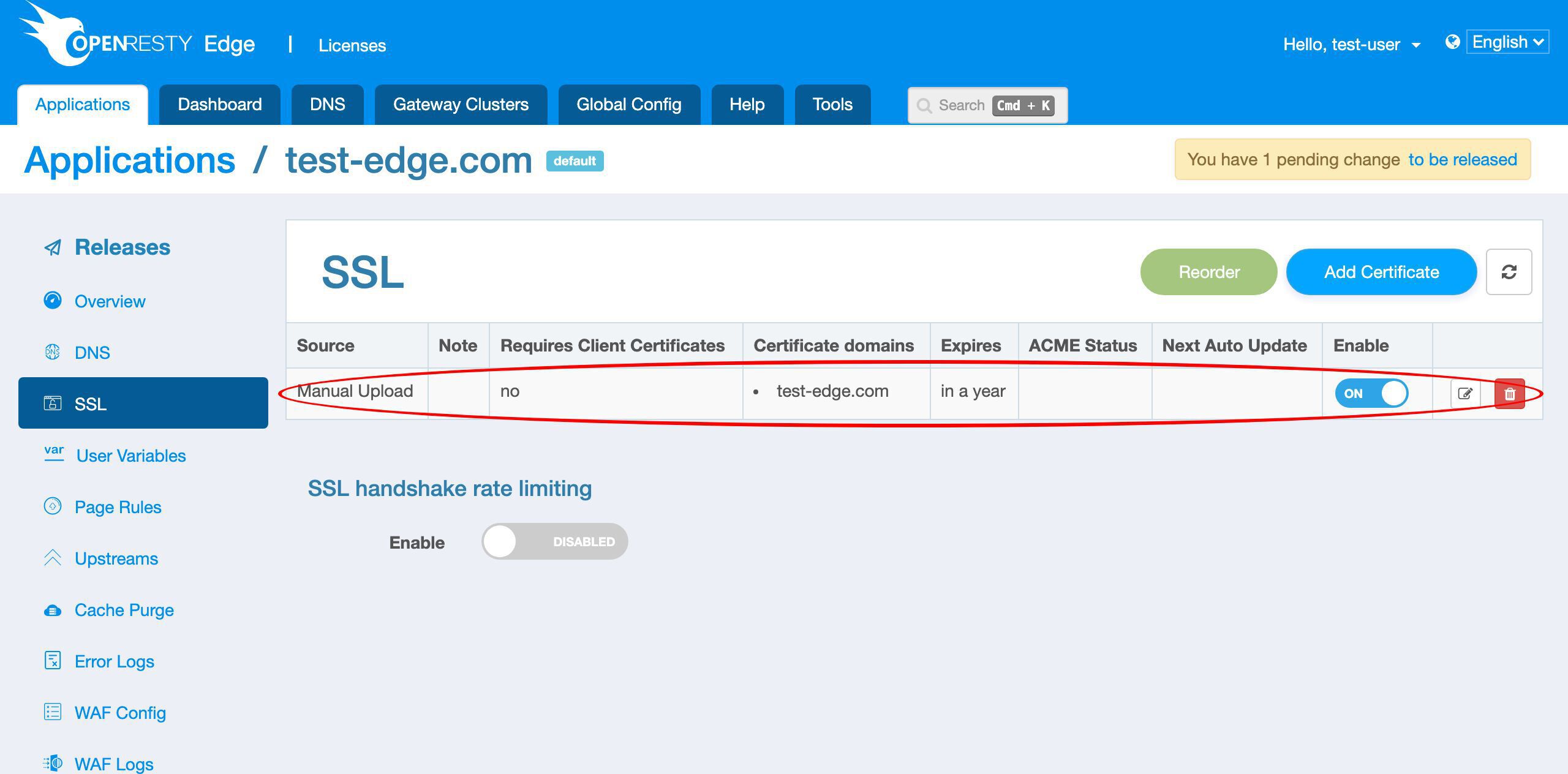
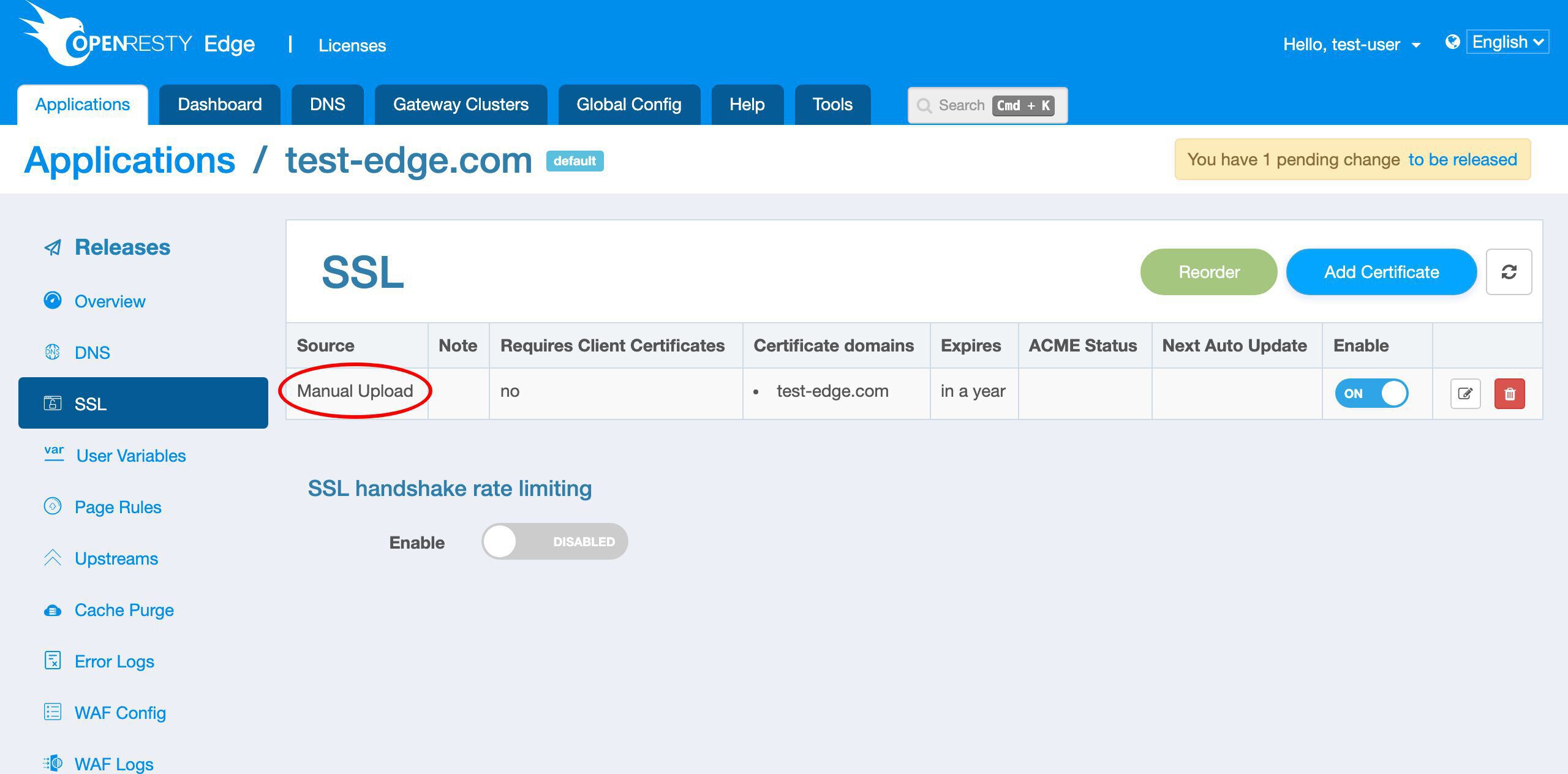
The certificate issuing source is manual upload.
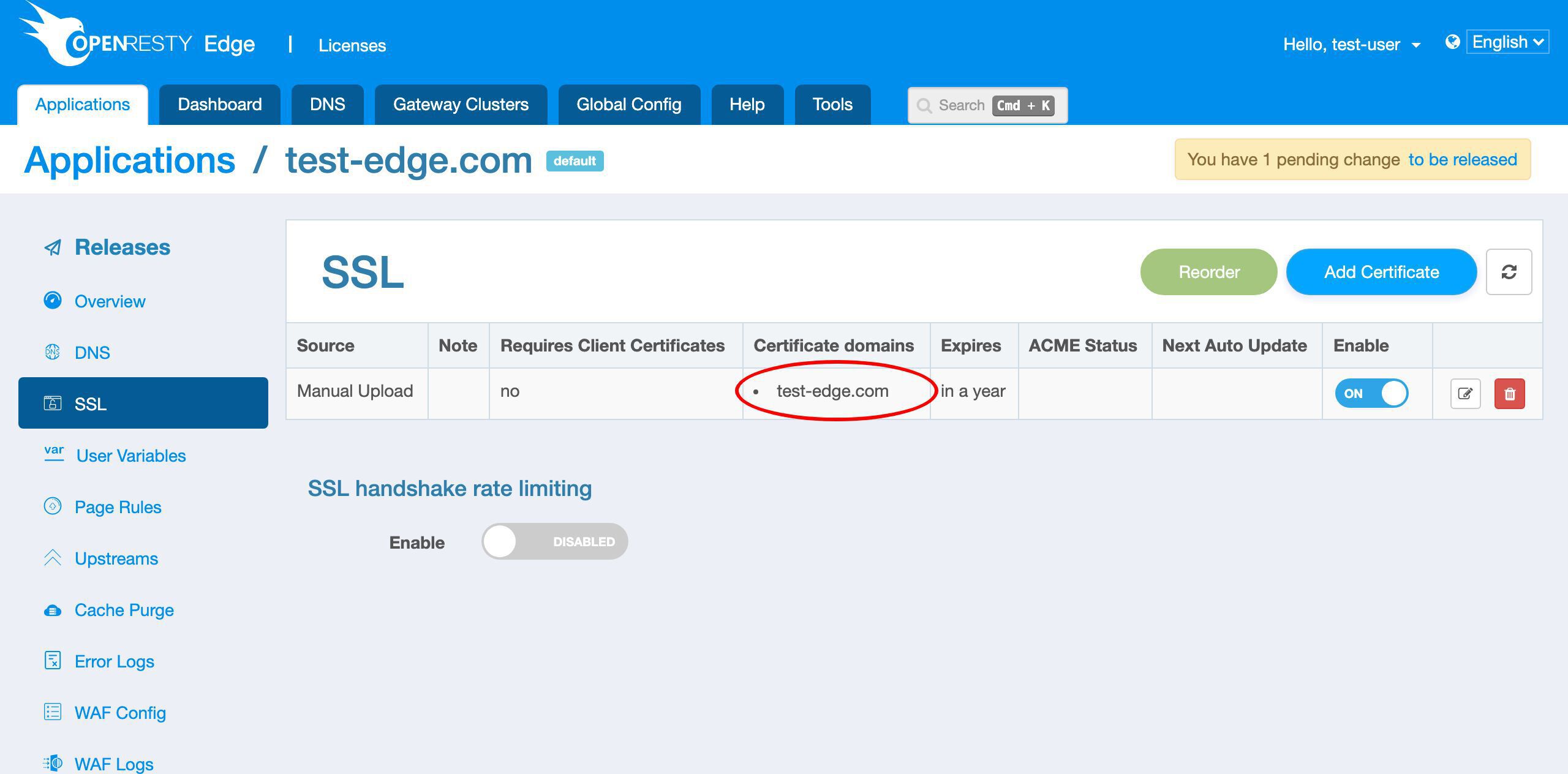
And the certificate is for a single domain, test-edge.com.
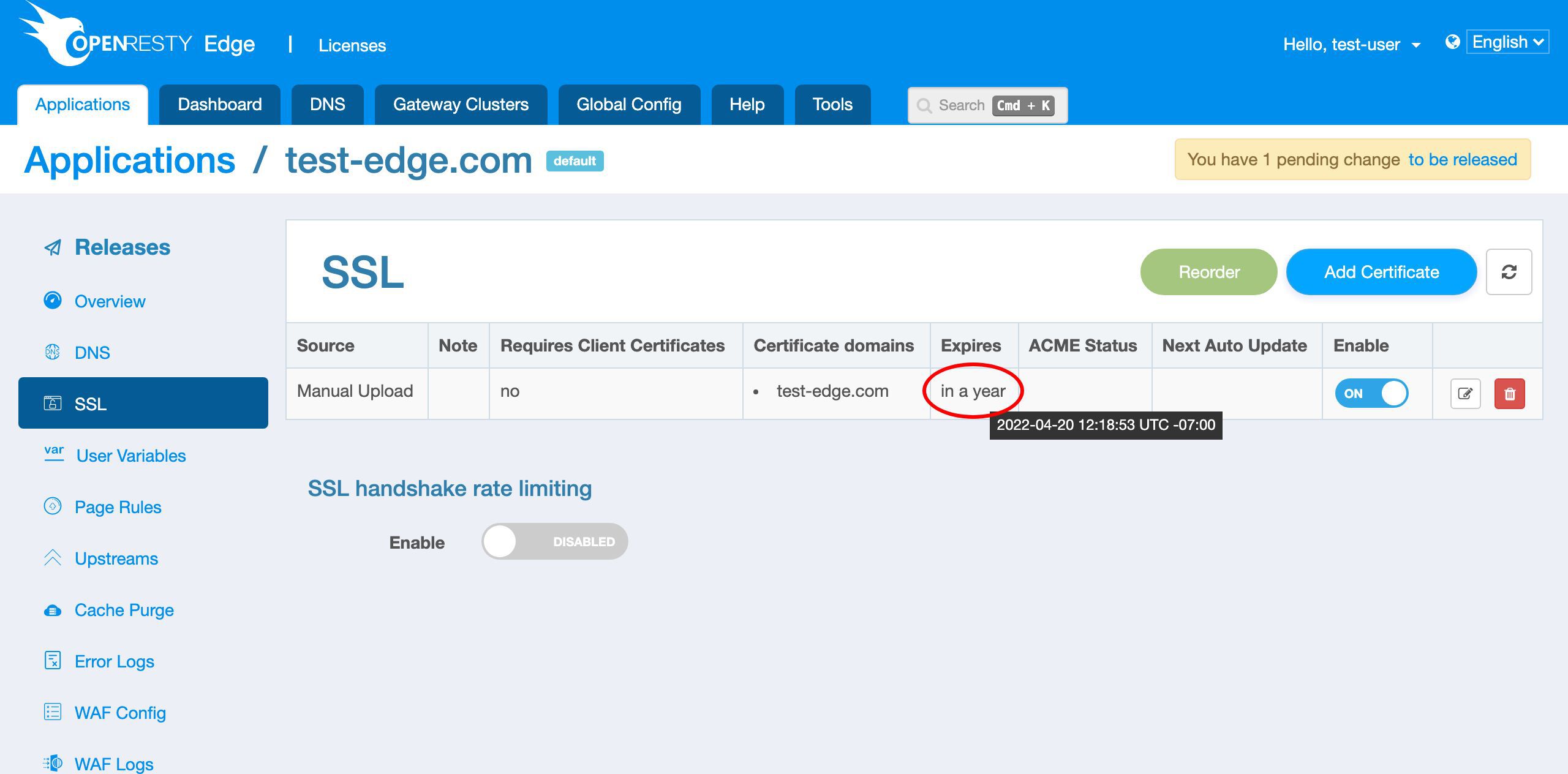
And it will expire in about a year.
We can see the exact expiration time by hovering the mouse over it.
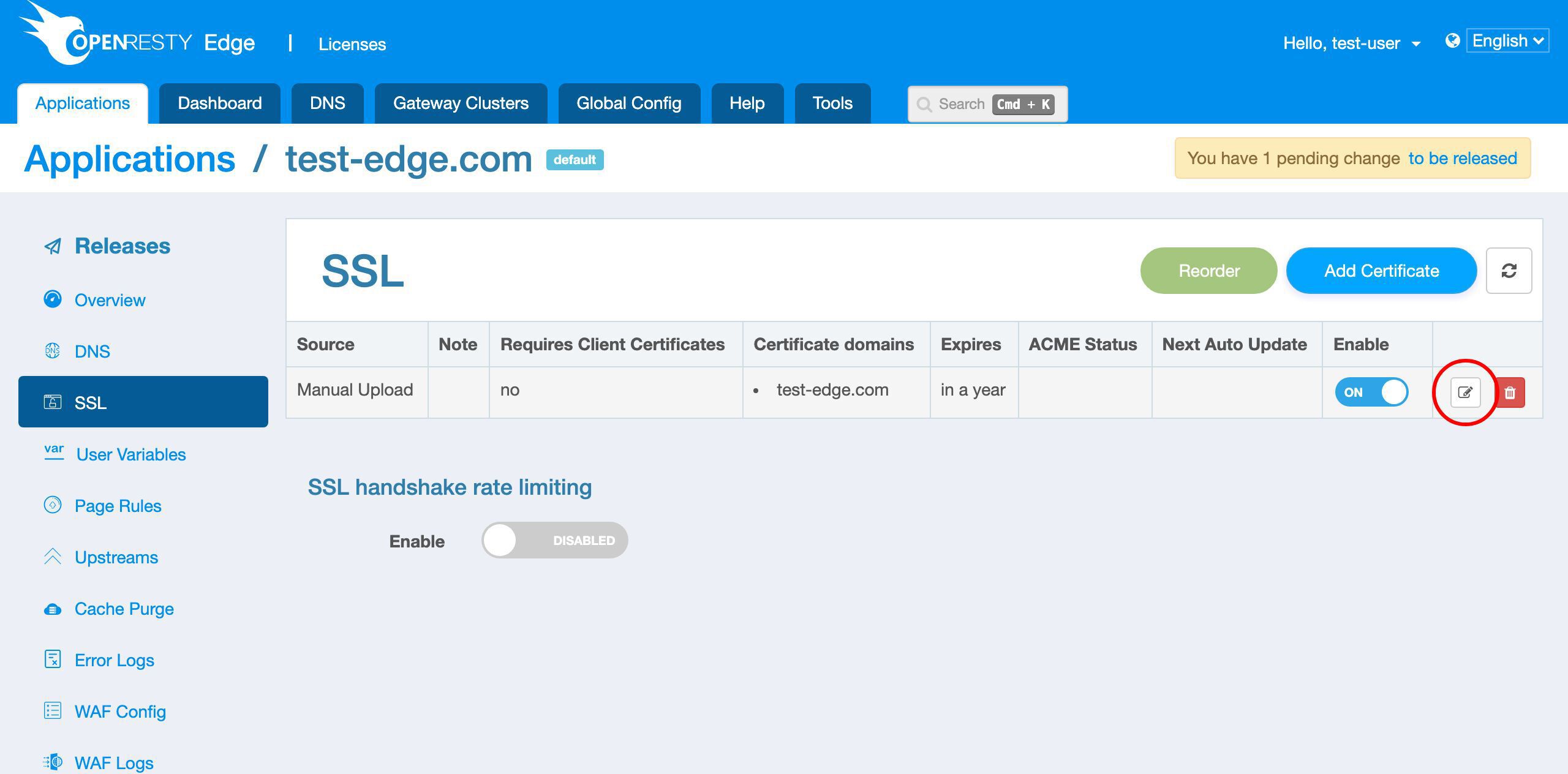
We can also edit an existing certificate.
We don’t make any changes here.
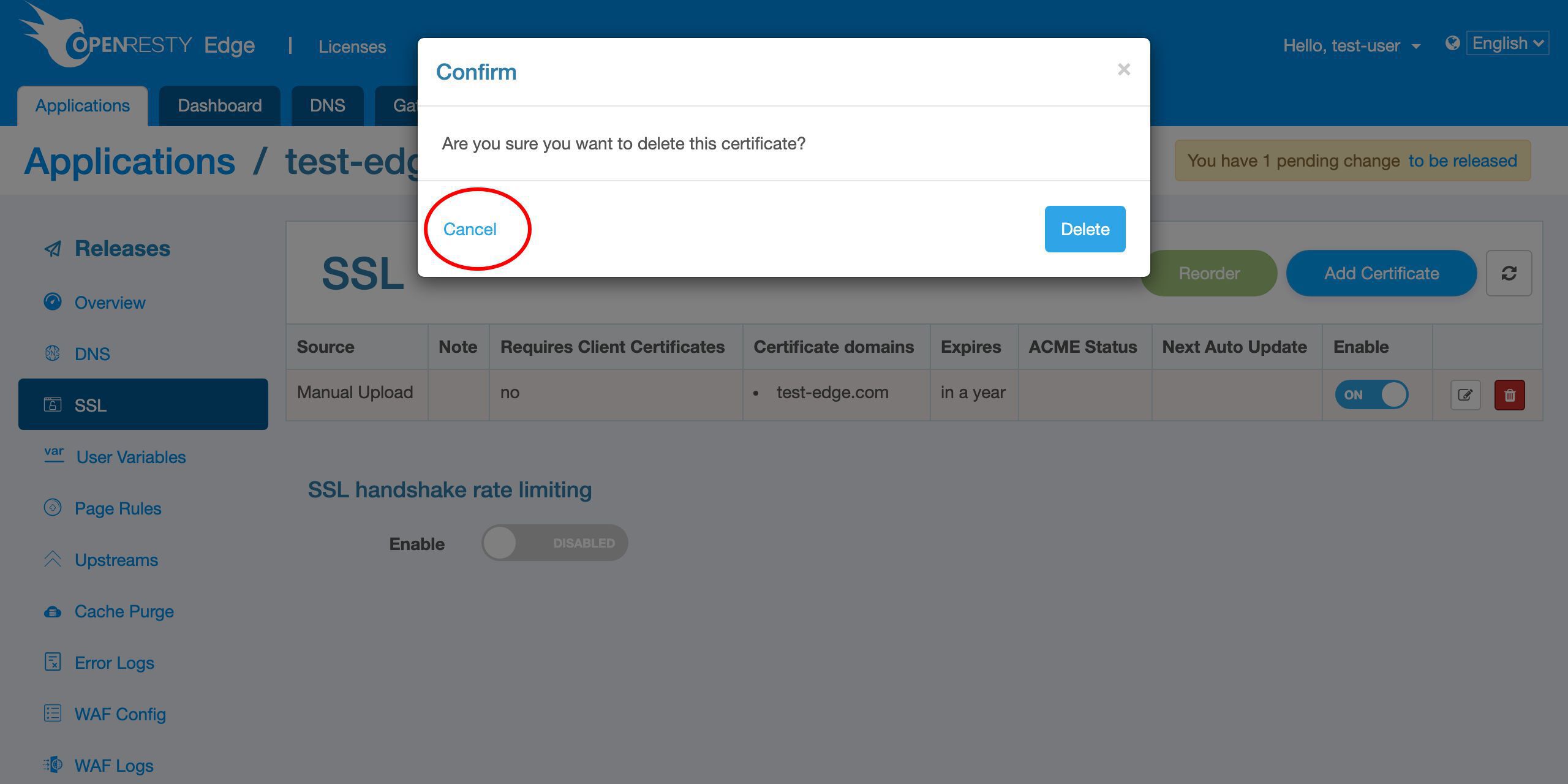
Or we can delete this certificate.
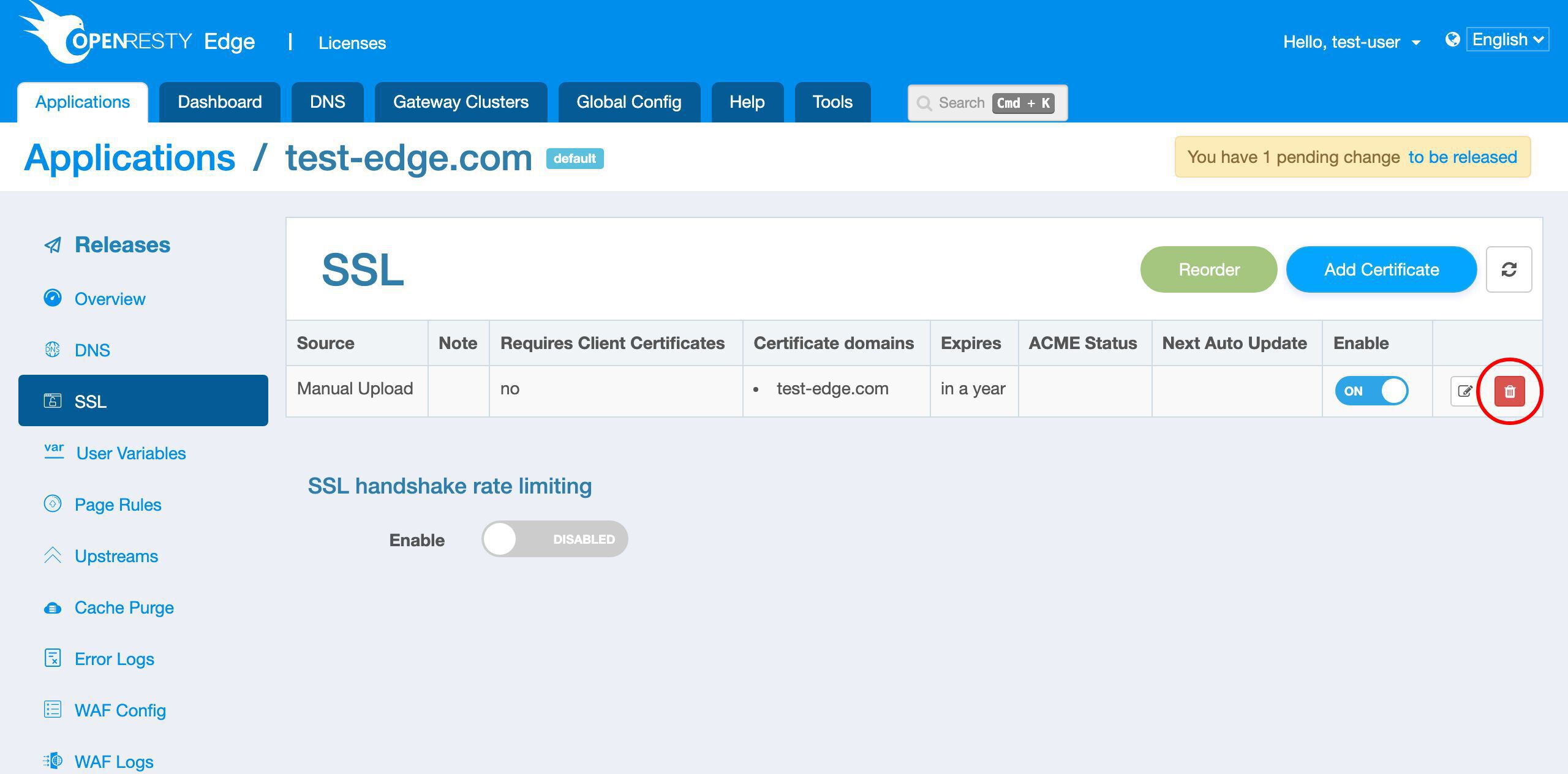
We don’t want to delete it now.
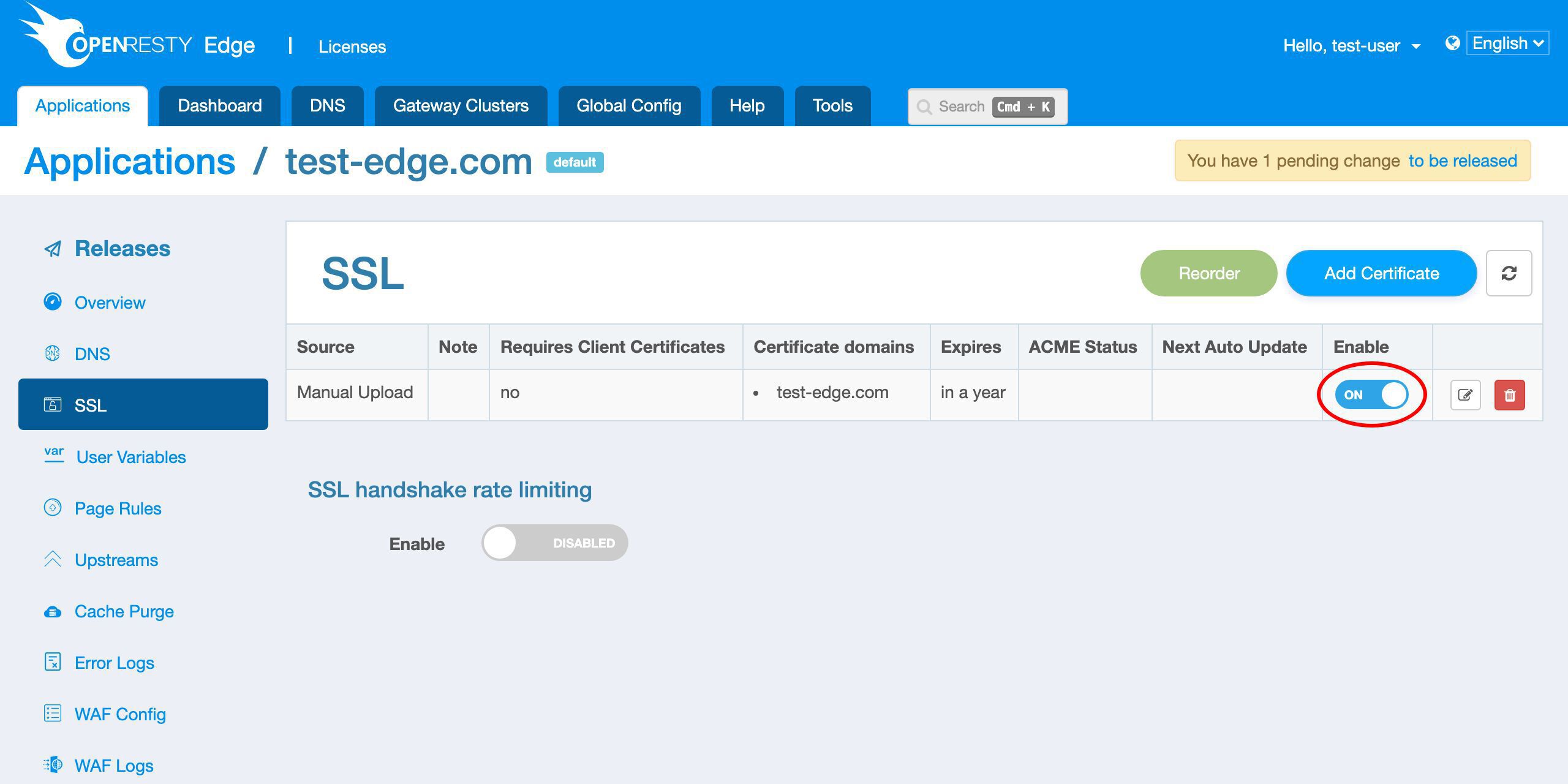
We can also disable a certificate without removing it.
Push the New Certificate Without a Server Reload or Restart
The certificate is saved, but it is not live yet. Like every other configuration change in OpenResty Edge, it takes effect through a release.
We need to make a new release to push out our new certificate, as always.
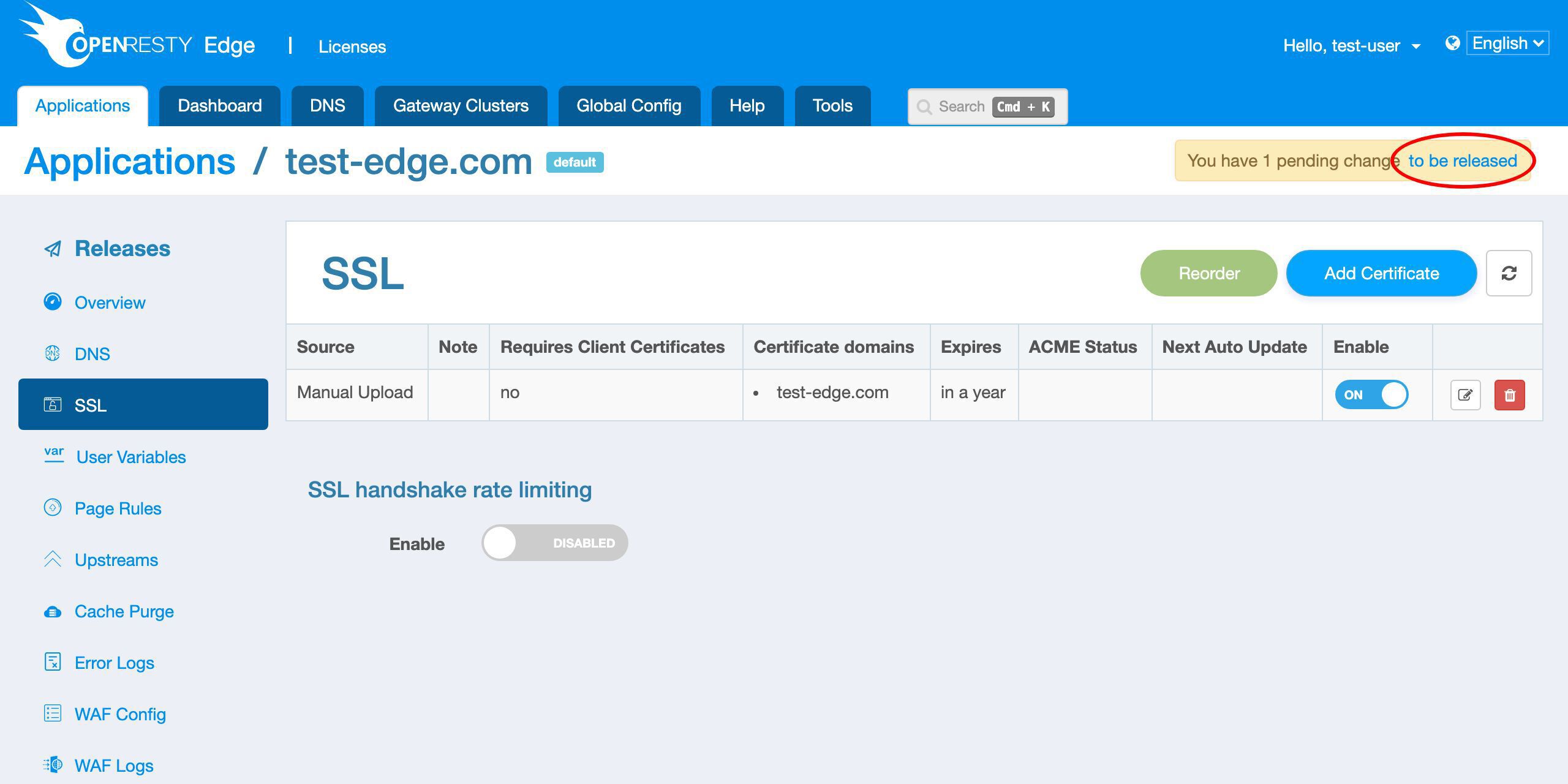
Click on this button.
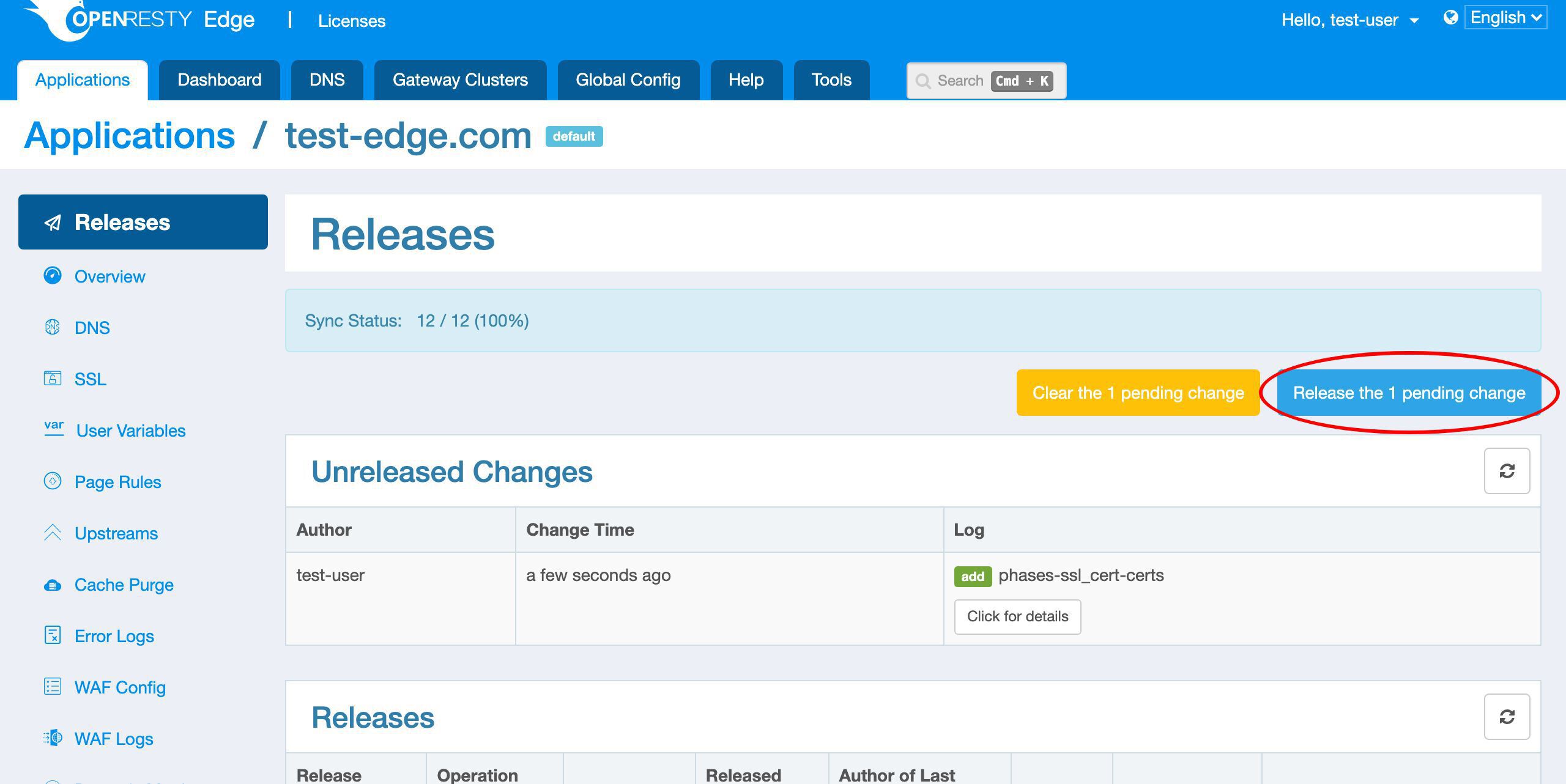
Ship it!
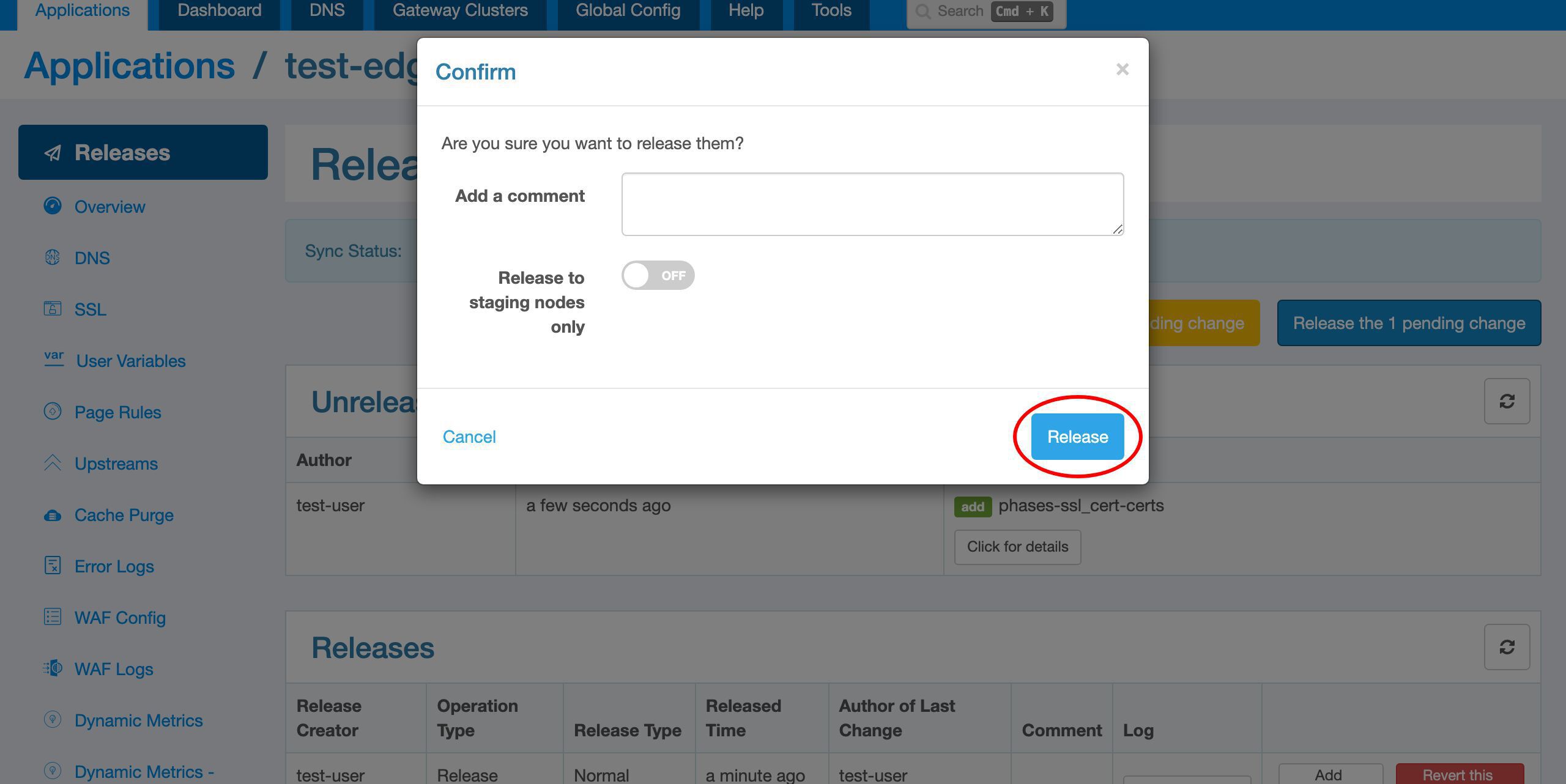
It is done now!
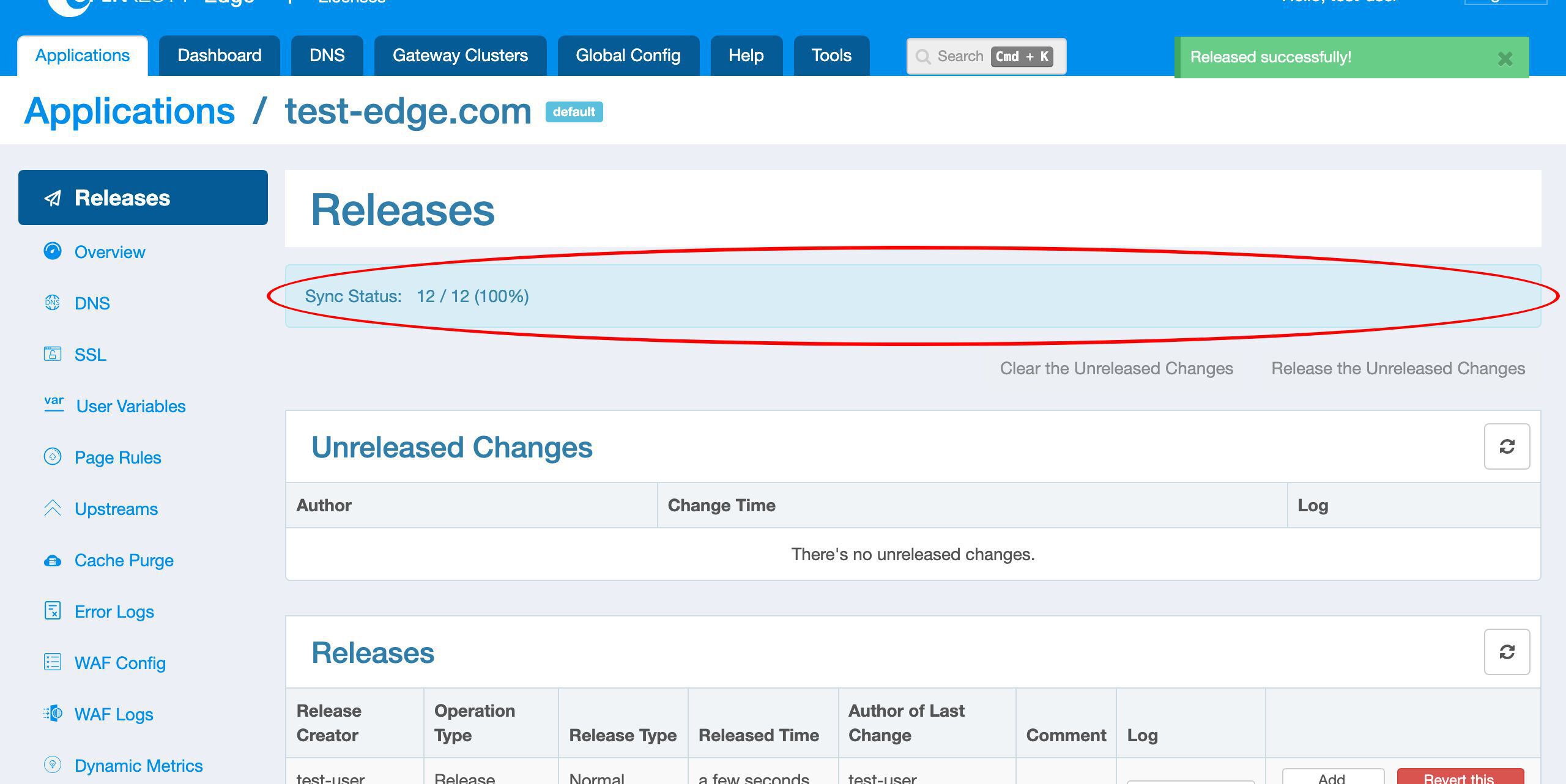
Now the new certificate has been pushed to all the gateway clusters and servers.
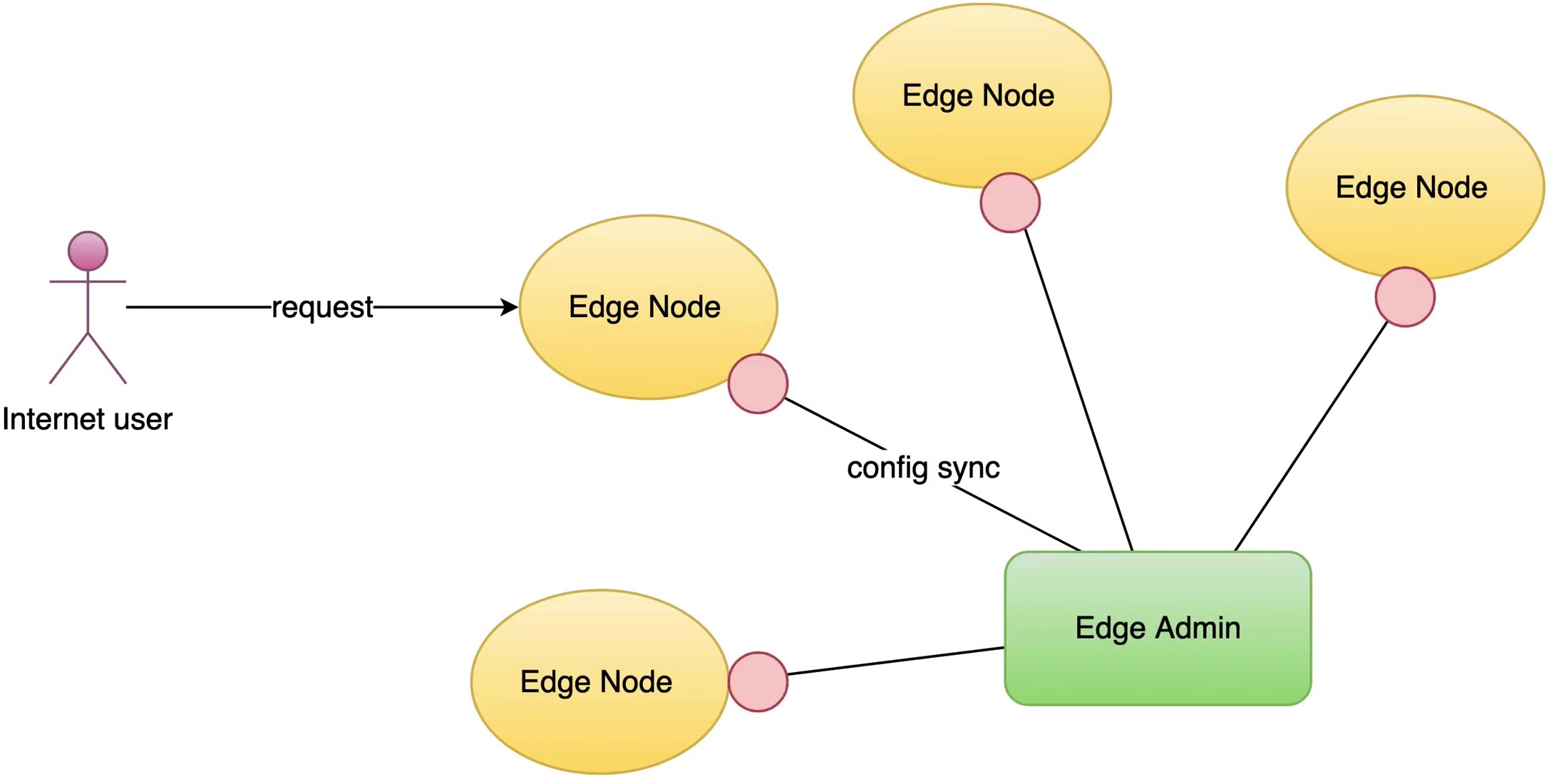
Our configuration changes do NOT require server reload, restart, or binary upgrade. So it’s very efficient and scalable.
Test the Uploaded Certificate with curl –resolve
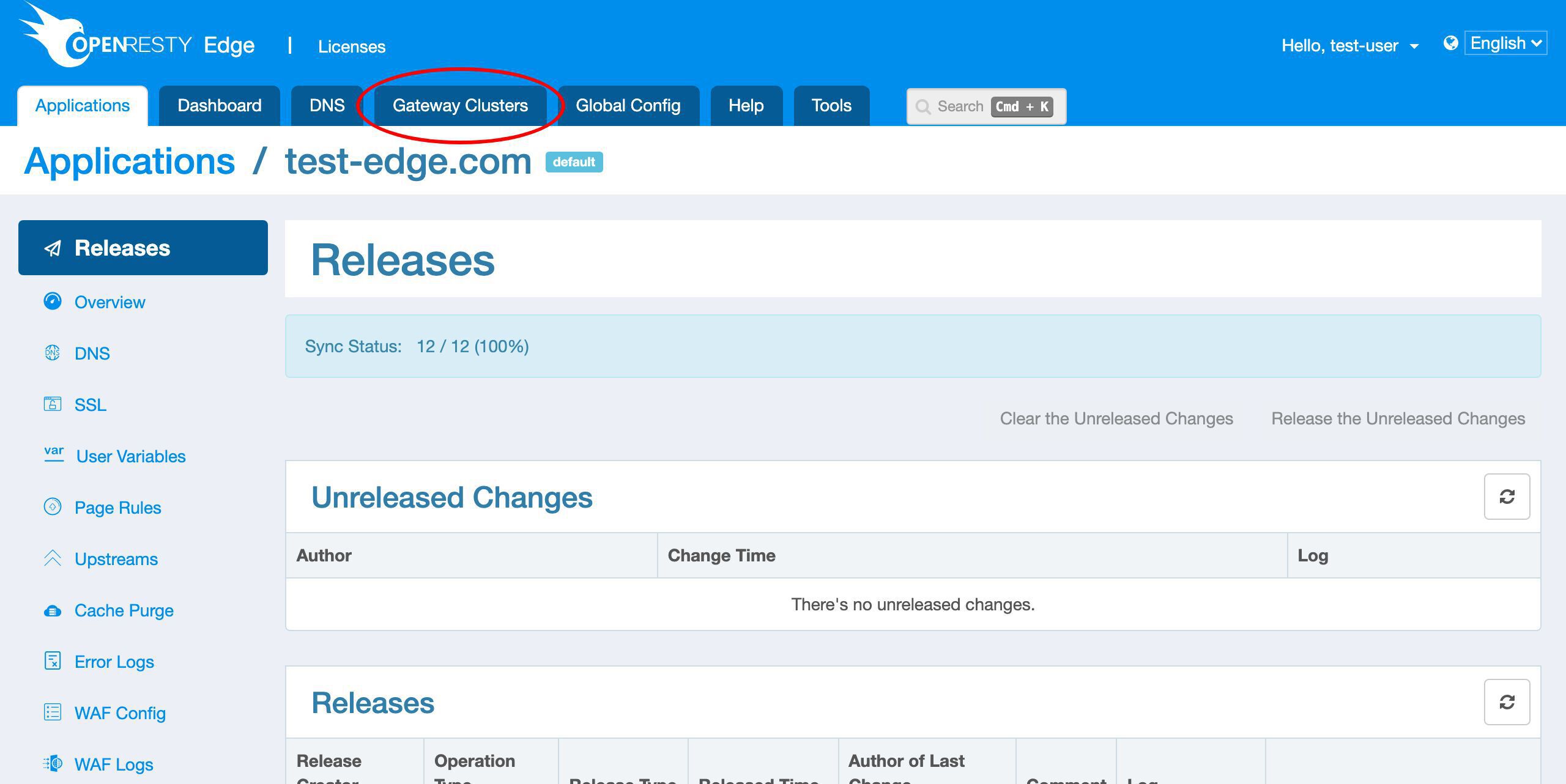
Then we can pick up a gateway cluster server to test our new certificate.
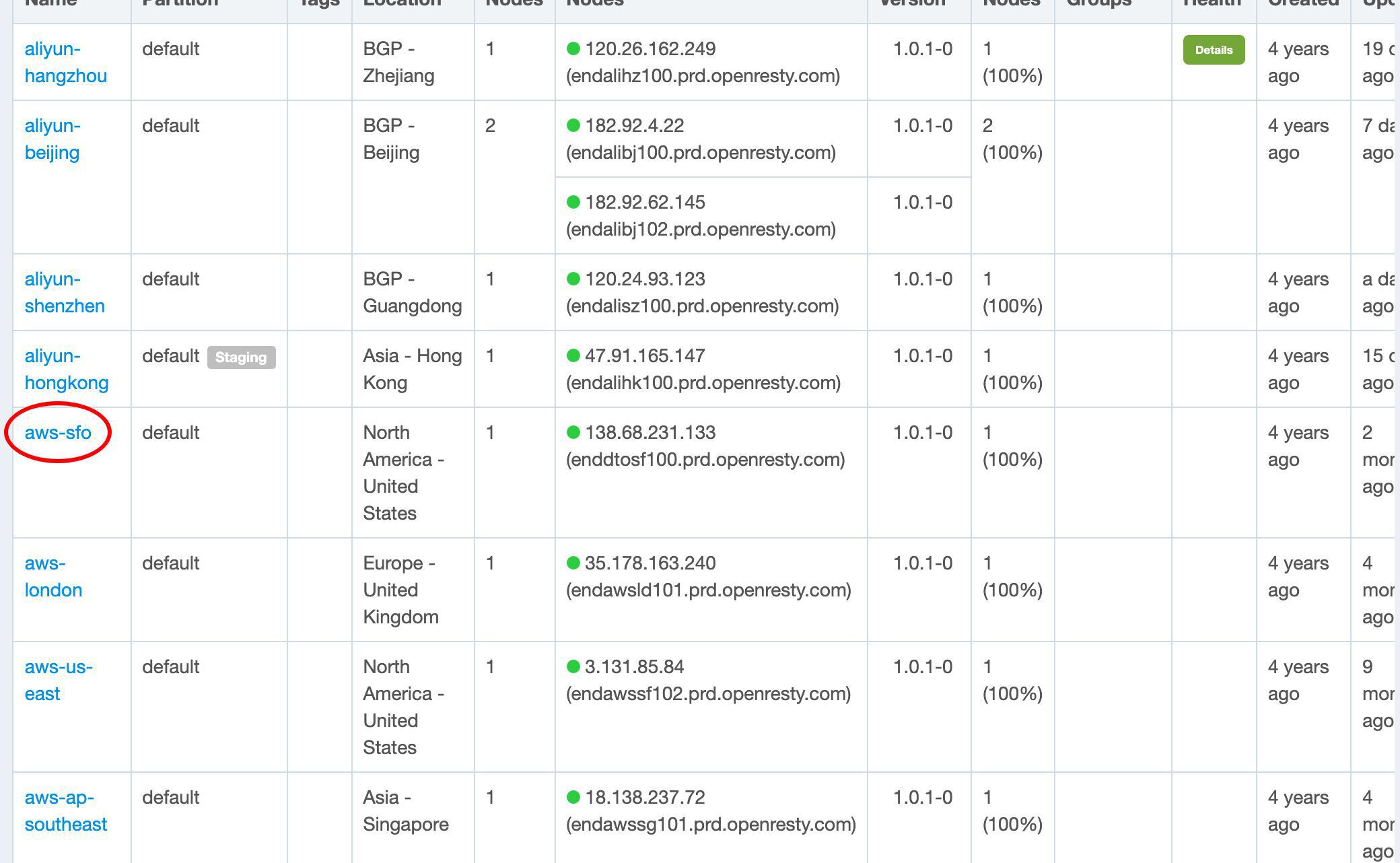
We choose a gateway server here near San Francisco.
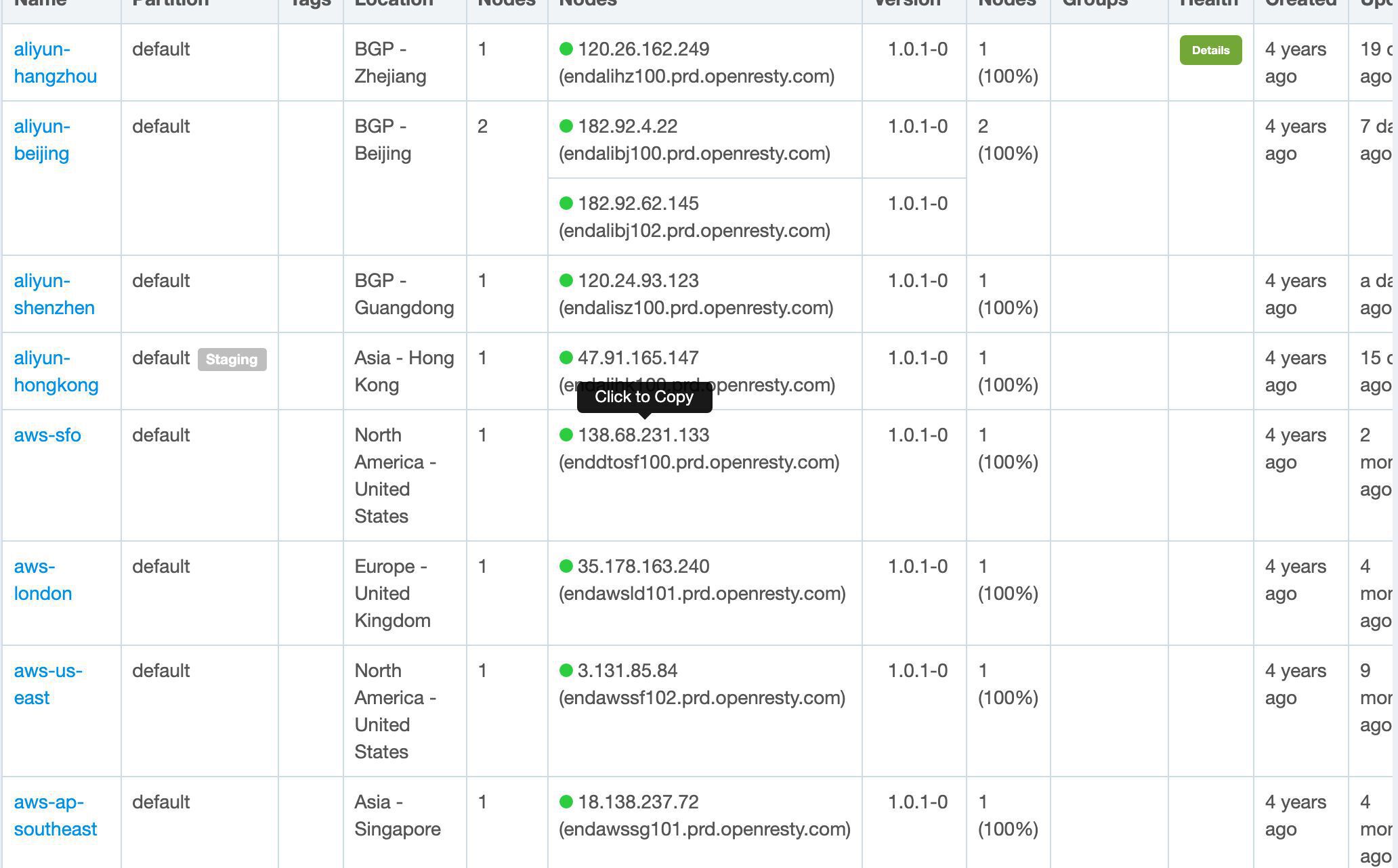
Copy its public IP address ending with 133.
On the terminal, we can send an HTTPS request to this gateway server.
curl -I --resolve 'test-edge.com:443:138.68.231.133' https://test-edge.com/
The --resolve option pins the hostname test-edge.com to that one gateway IP for this request only, so we get to choose exactly which gateway server answers while the request still carries the real hostname.
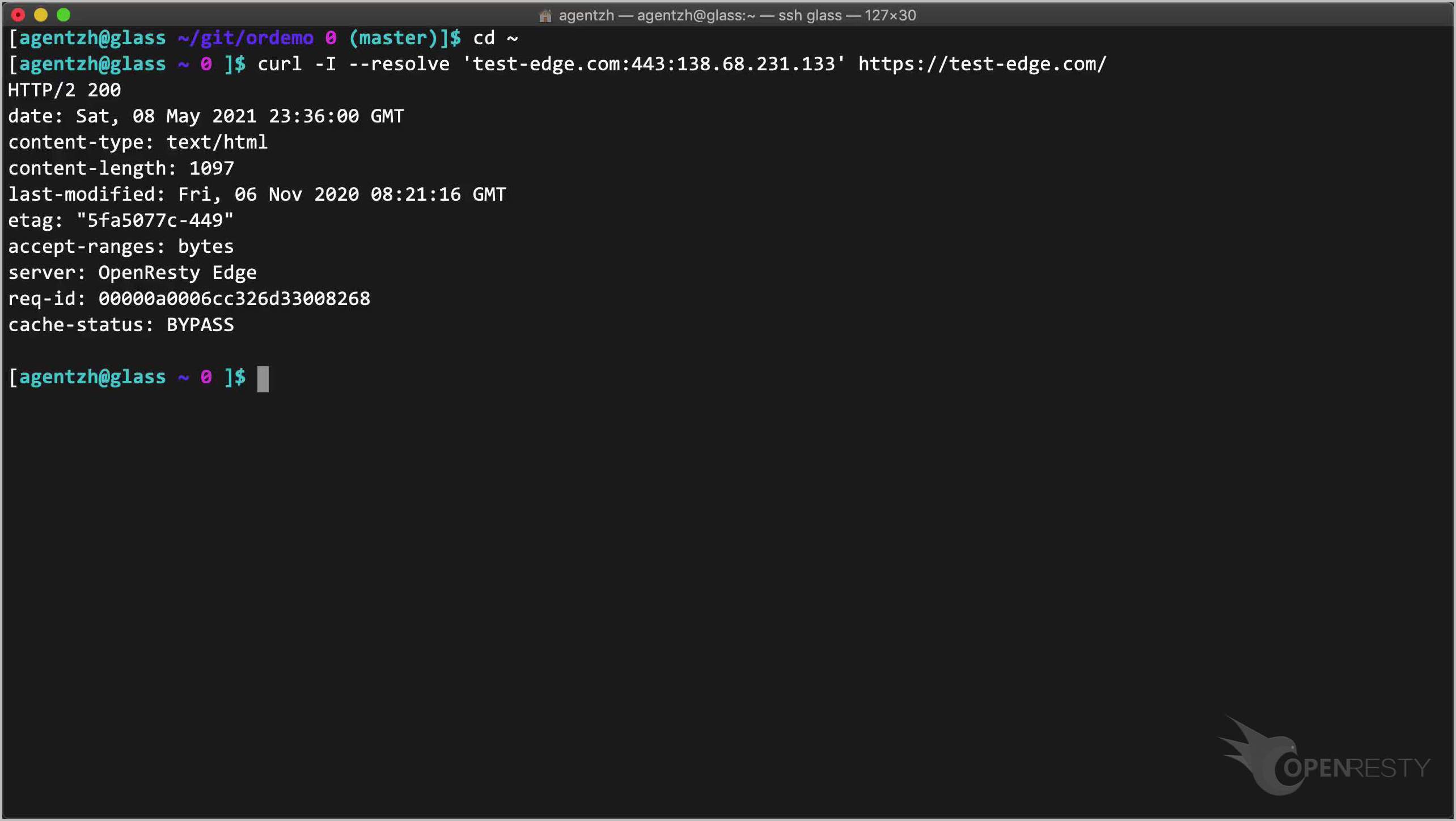
It works!
We can check more details like the certificate information via the -v option.
curl -I --resolve 'test-edge.com:443:138.68.231.133' https://test-edge.com/ -v 2>&1 | less -n
We can indeed see our server certificate here.
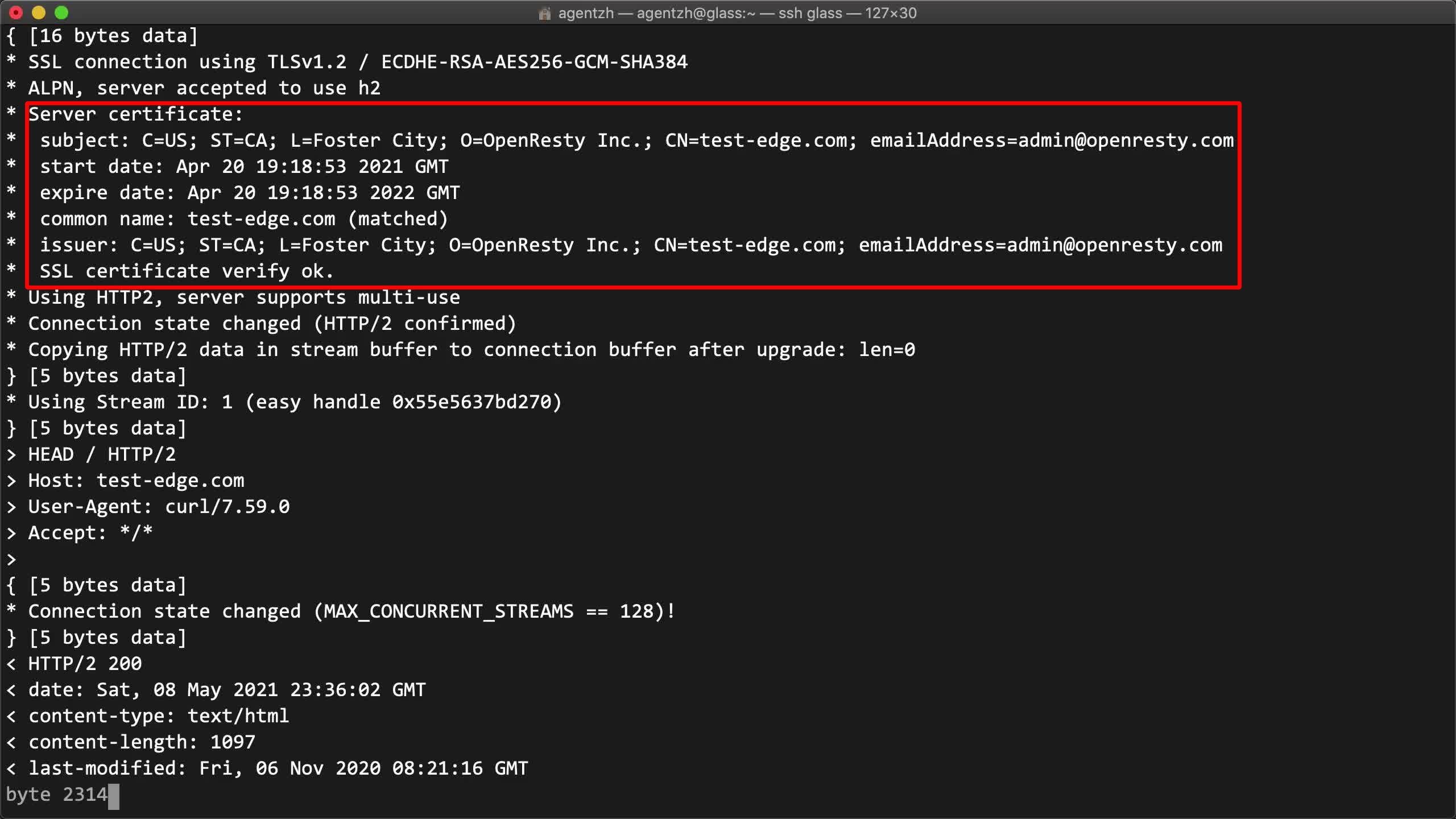
Repeat the same command against the other gateway servers to confirm each one is serving the new certificate.
SSL certificate uploading can also be automated by OpenResty Edge’s Python SDK. We will demonstrate it in another video.
Once the certificate is live, you may also want to redirect all HTTP requests to HTTPS so that visitors always use it.
Frequently Asked Questions
Do I need to reload or restart nginx after updating an SSL certificate in OpenResty Edge?
No. In OpenResty Edge you upload the certificate in the Admin console and make a release, and the change is pushed to all the gateway clusters and servers. Configuration changes, certificates included, do not require a server reload, a restart, or a binary upgrade.
How do I test a new SSL certificate on one specific gateway server?
Use curl with the --resolve option, as in curl -I --resolve 'test-edge.com:443:138.68.231.133' https://test-edge.com/. It pins the hostname to the gateway’s public IP for that request only, so you decide exactly which gateway server answers while the request still carries the real hostname. Add -v to print the certificate details.
Do I have to upload the intermediate CA certificate chain separately?
It depends on whether the server certificate file already includes the complete intermediate certificate chain. If it does, you can leave the chain field blank; if it contains only the server certificate, you must supply the intermediate chain in the dedicated field, or some clients may fail to establish HTTPS connections.
Can I upload SSL certificates without using the web console?
Yes. Certificate uploading can be automated through OpenResty Edge’s Python SDK. If you would rather not handle certificate files at all, Edge can also issue and renew them for you through Let’s Encrypt or the ACME protocol.
Can I turn off a certificate without deleting it?
Yes. Each certificate record can be edited, deleted, or simply disabled, which takes it out of service while keeping the certificate and key pair in place.
What is OpenResty Edge
OpenResty Edge is our all-in-one gateway software for microservices and distributed traffic architectures. It combines traffic management, private CDN construction, API gateway, security, and more to help you easily build, manage, and protect modern applications. OpenResty Edge delivers industry-leading performance and scalability to meet the demanding needs of high concurrency, high load scenarios. It supports scheduling containerized application traffic such as K8s and manages massive domains, making it easy to meet the needs of large websites and complex applications.
If you like this tutorial, please subscribe to this blog site and/or our YouTube channel. Thank you!
About The Author
Yichun Zhang (Github handle: agentzh), is the original creator of the OpenResty® open-source project and the CEO of OpenResty Inc..
Yichun is one of the earliest advocates and leaders of “open-source technology”. He worked at many internationally renowned tech companies, such as Cloudflare, Yahoo!. He is a pioneer of “edge computing”, “dynamic tracing” and “machine coding”, with over 22 years of programming and 16 years of open source experience. Yichun is well-known in the open-source space as the project leader of OpenResty®, adopted by more than 40 million global website domains.
OpenResty Inc., the enterprise software start-up founded by Yichun in 2017, has customers from some of the biggest companies in the world. Its flagship product, OpenResty XRay, is a non-invasive profiling and troubleshooting tool that significantly enhances and utilizes dynamic tracing technology. And its OpenResty Edge product is a powerful distributed traffic management and private CDN software product.
As an avid open-source contributor, Yichun has contributed more than a million lines of code to numerous open-source projects, including Linux kernel, Nginx, LuaJIT, GDB, SystemTap, LLVM, Perl, etc. He has also authored more than 60 open-source software libraries.
Related Articles
OpenResty XRay Jun 25, 2021

OpenResty XRay Jun 29, 2021

OpenResty XRay Oct 15, 2025

OpenResty XRay Oct 19, 2021

OpenResty XRay Sep 16, 2021