
Using request IDs to troubleshoot problematic requests in OpenResty Edge gateways
In OpenResty Edge, a request ID (the Req-ID header) is a unique identifier the gateway attaches to every request so you can trace one specific request across a complex, distributed system. It is enabled by default and appears in both the proxy request header and the response header. When something goes wrong, you paste that ID into Edge Admin’s built-in Request ID Decoder to reveal which application domain, gateway partition, gateway cluster, and gateway server handled the request — then jump straight to the matching entries in the error logs and WAF logs. This tutorial walks through enabling the request ID, decoding one, and using it to filter error and WAF logs for a single request.
As your business grows, your system may become increasingly complex. It becomes crucial and challenging to be able to track requests correctly.
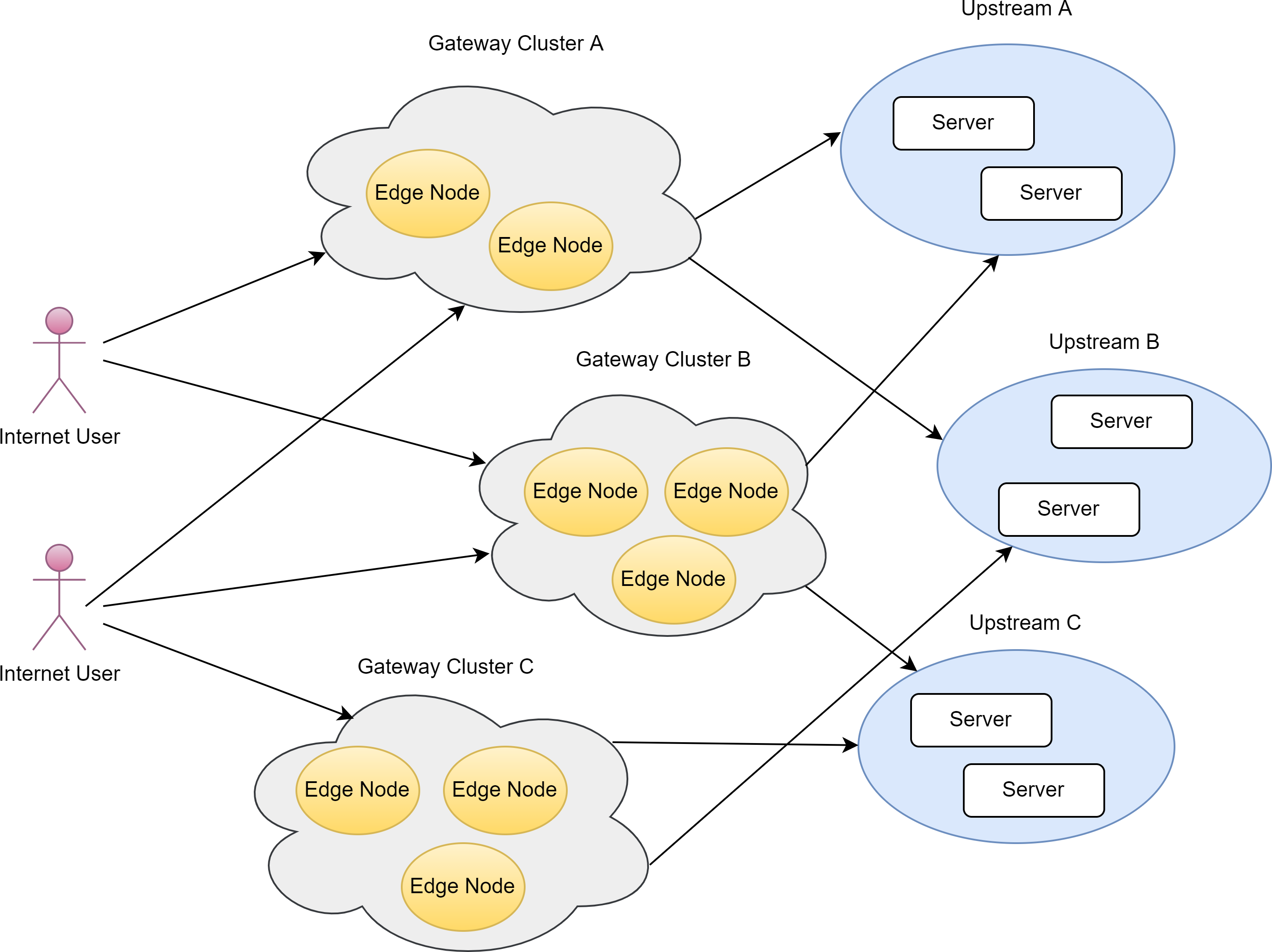
OpenResty Edge makes things a little easier by enabling requests to be identified with a unique ID. It is our topic today: Request ID.

Global configuration Request ID
Let’s go to the OpenResty Edge’s Admin web console. It is our sample deployment of the console. Every user has her local deployment.
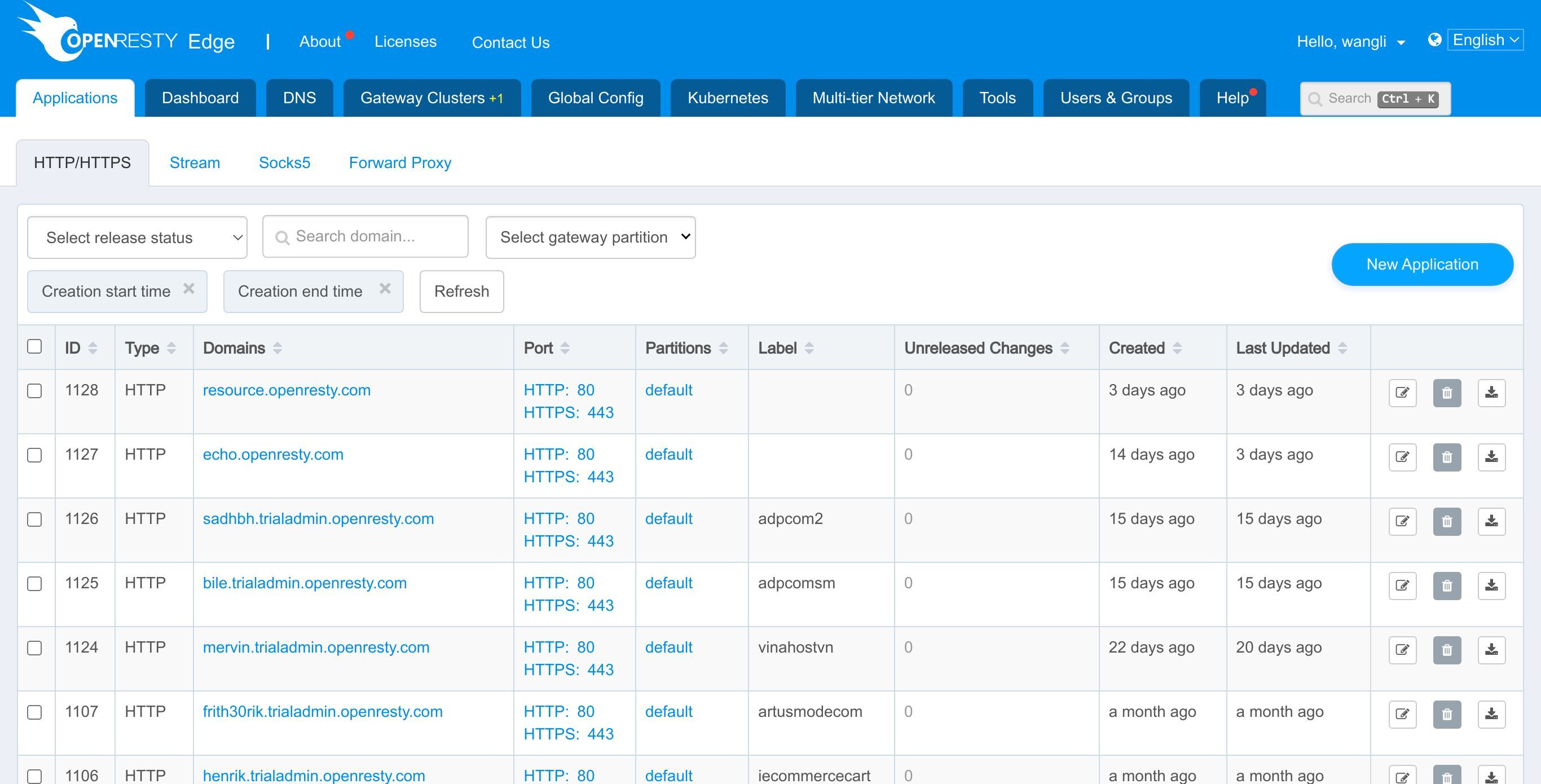
Now go to the global config page. Here you can configure whether you add a Request ID to the header of all requests.
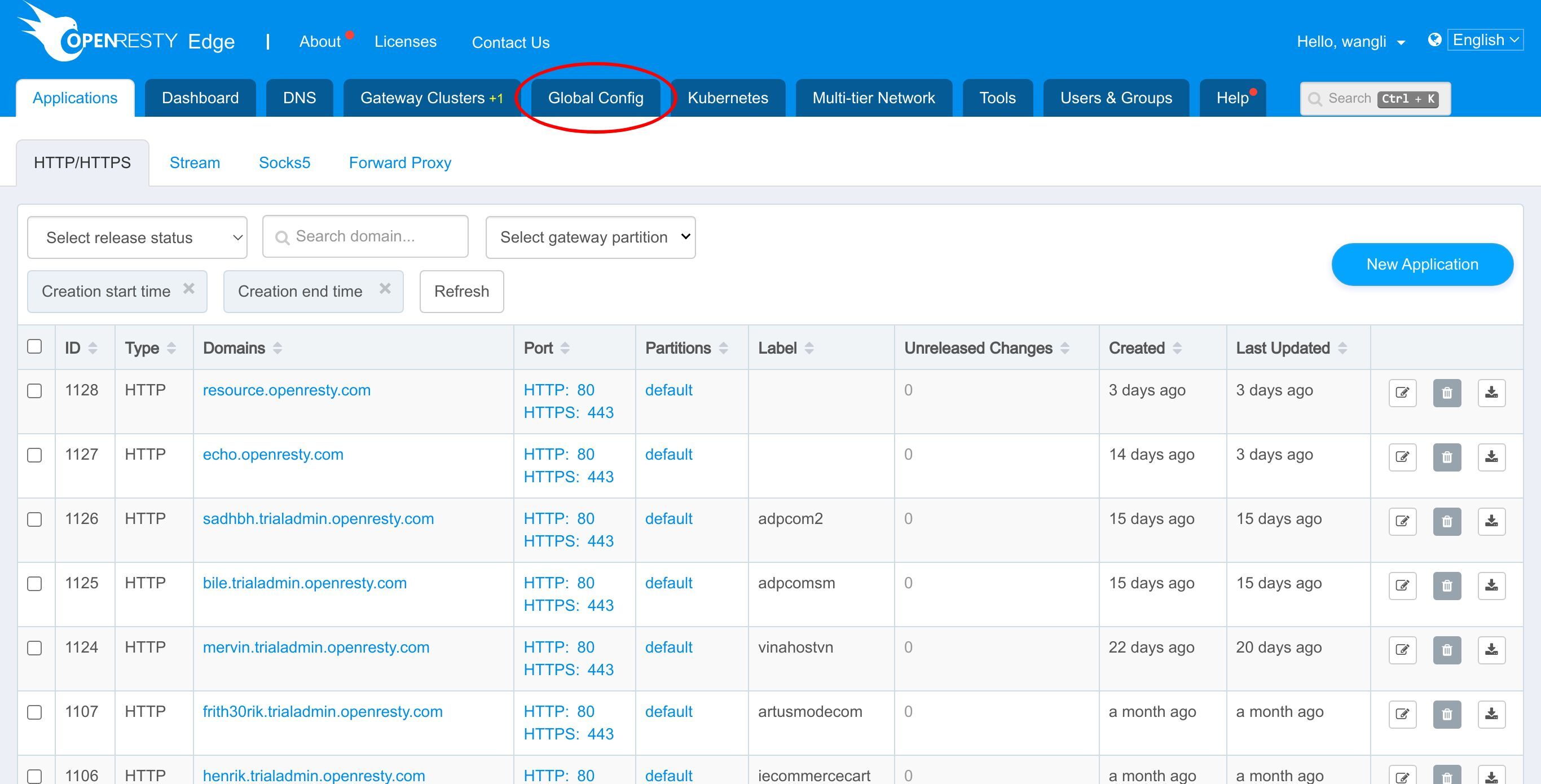
This configuration item is on by default, which means that each request will have a Req-ID field in the proxy header and response header.
Now we send a request to openresty.org to see how to use this ID.
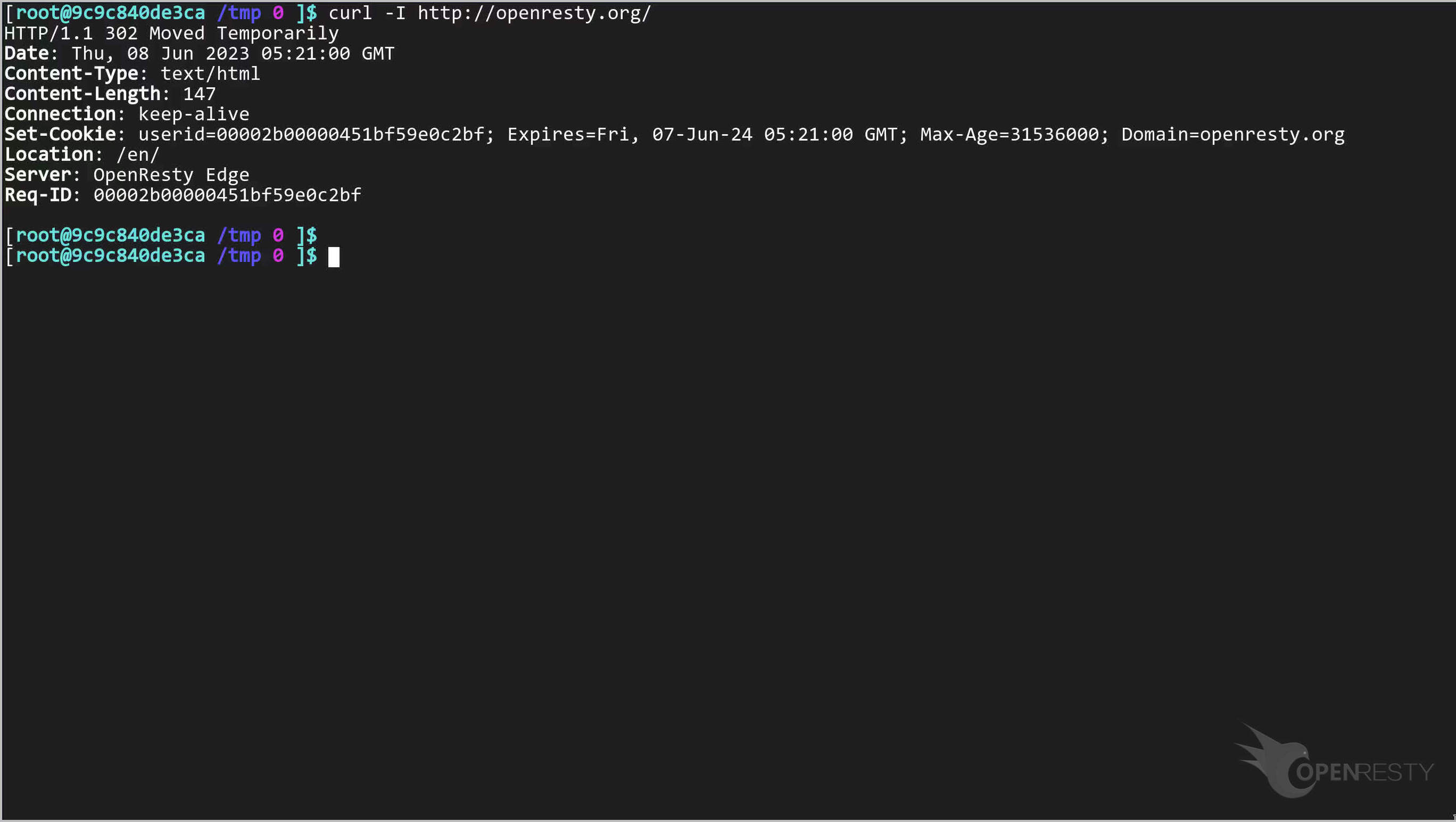
We see a “Req-ID” in the header.
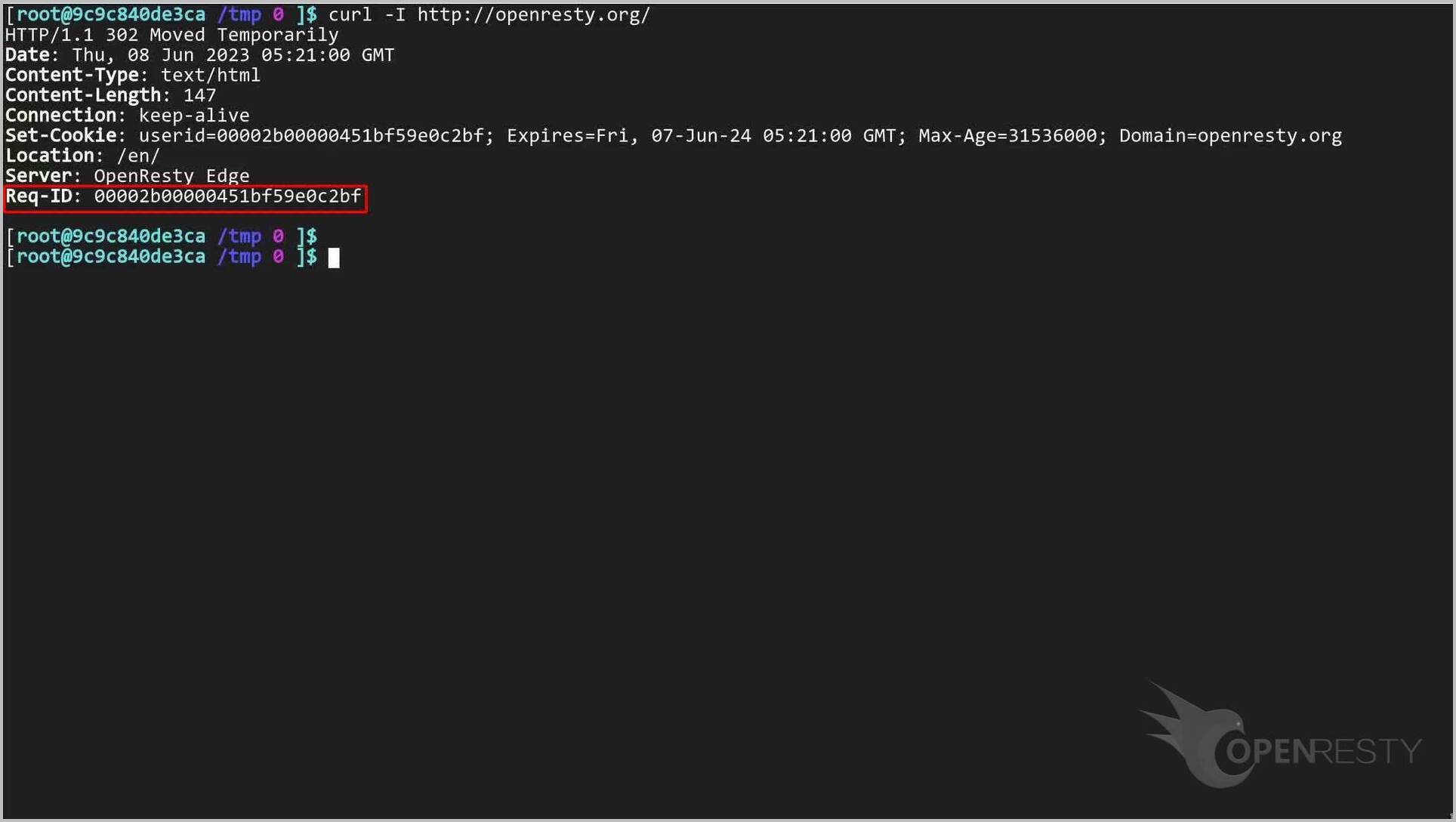
Request ID Decoder
Let’s go to the Tools page.
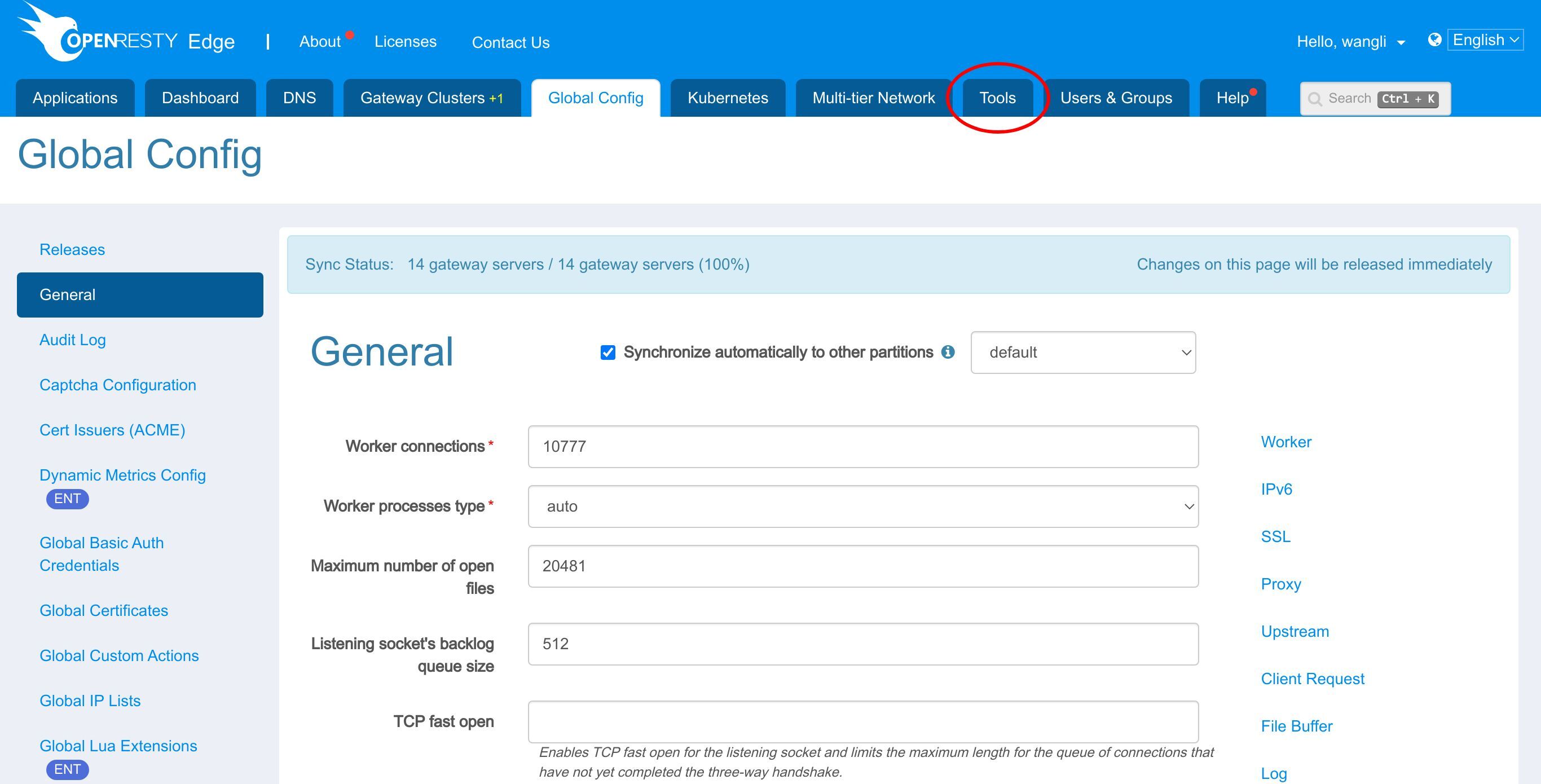
Enter the Request ID Decoder page。
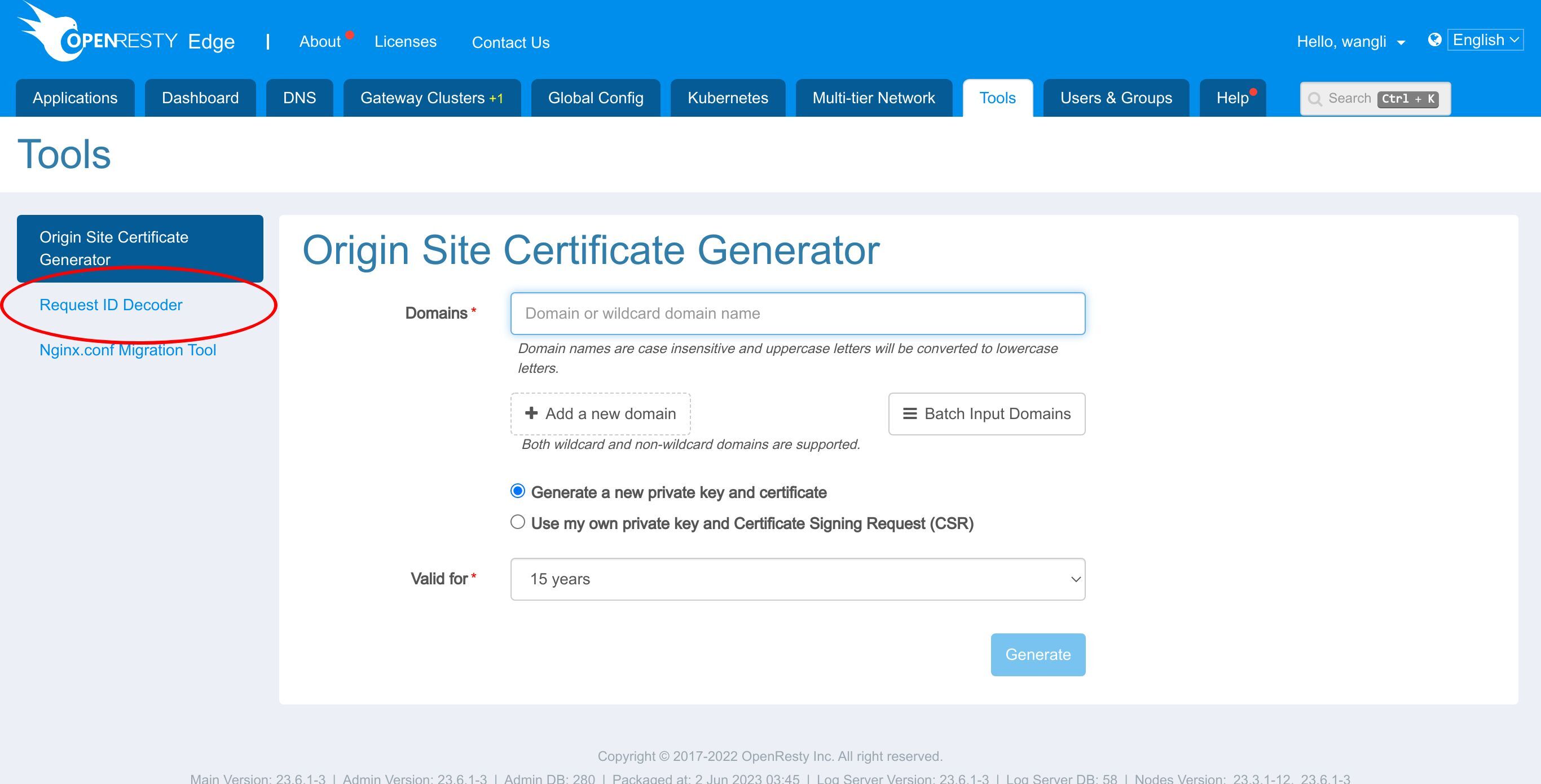
Enter the Request ID that we just saw.
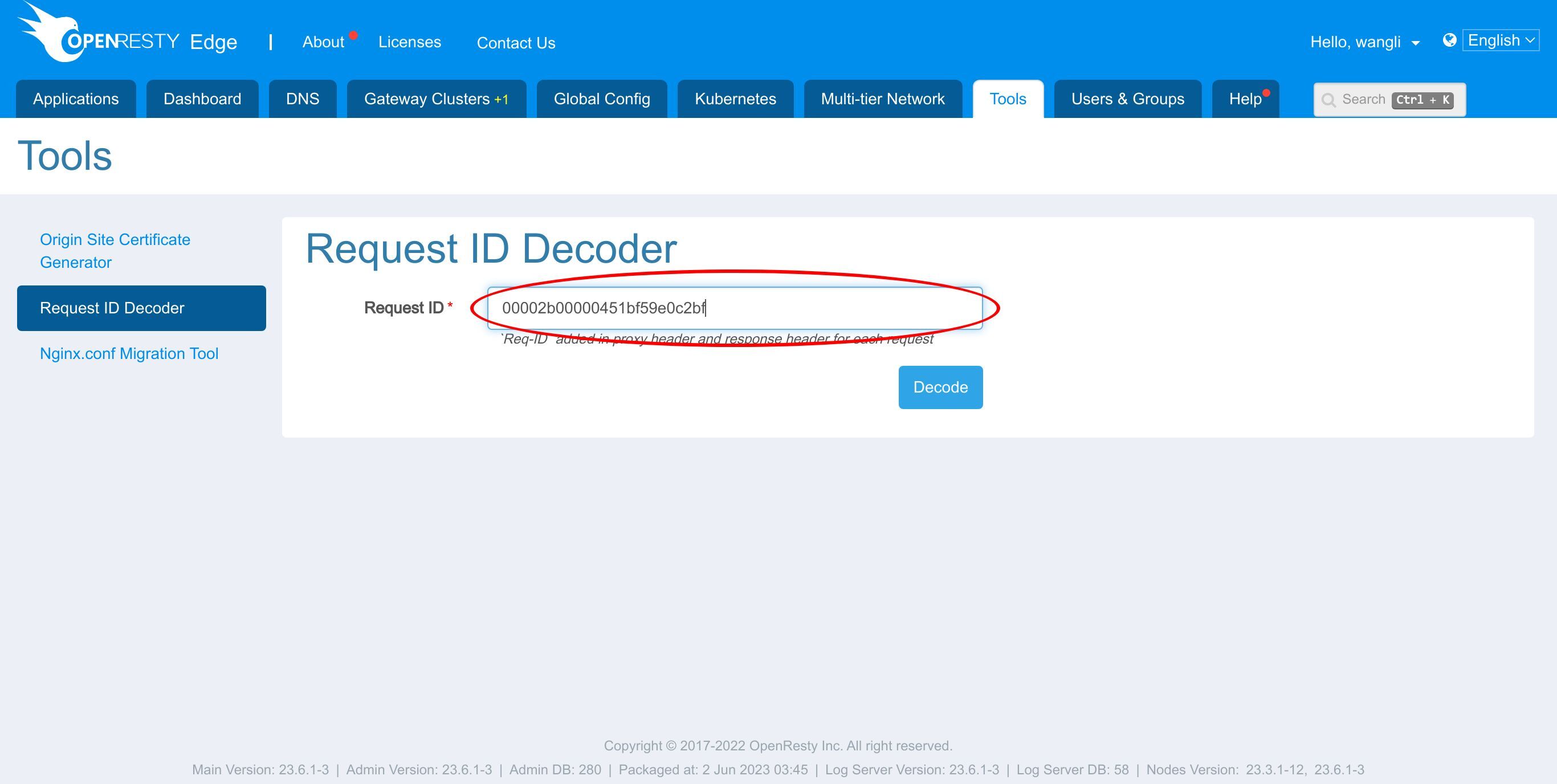
Click this button to decode.
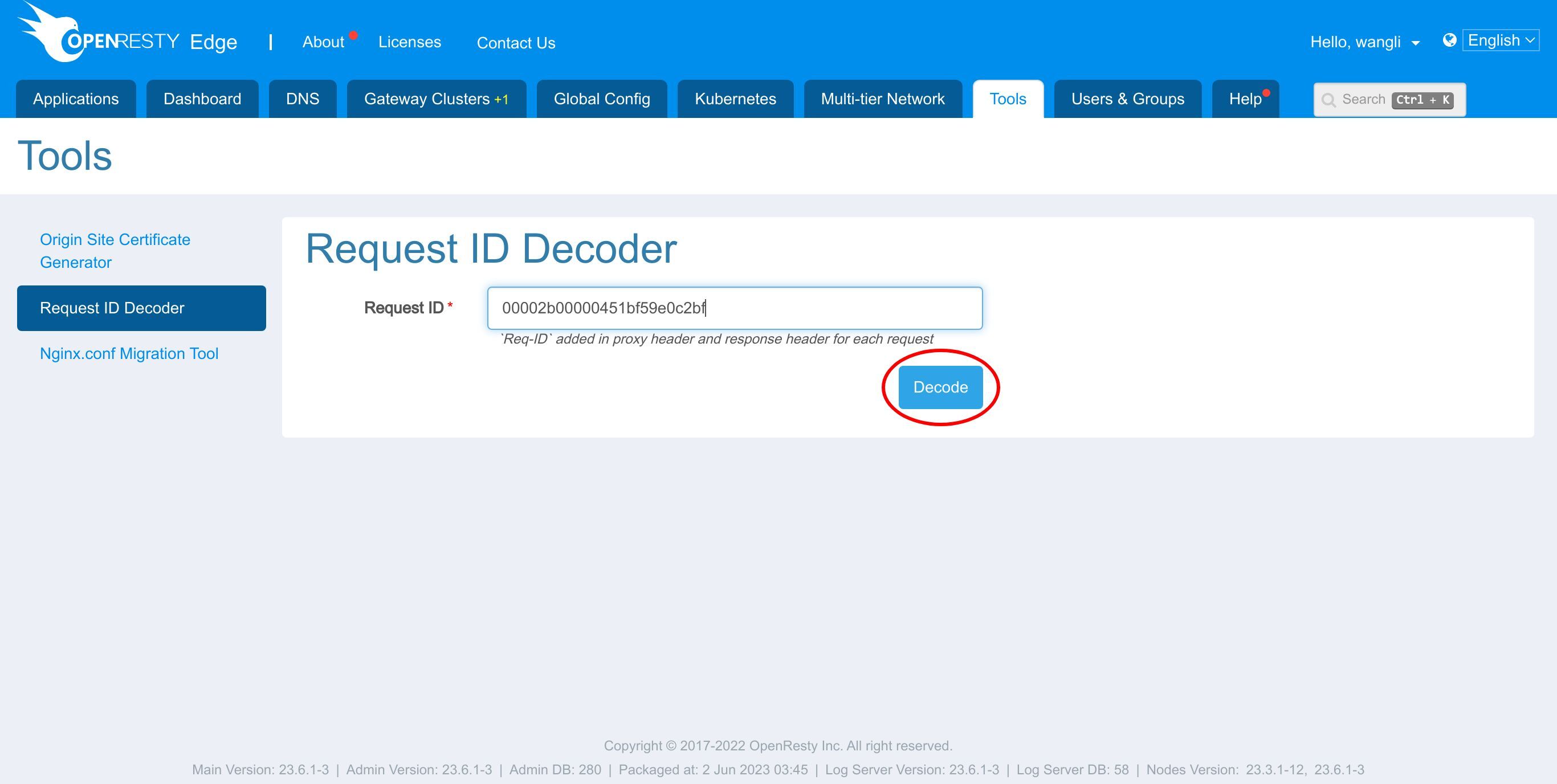
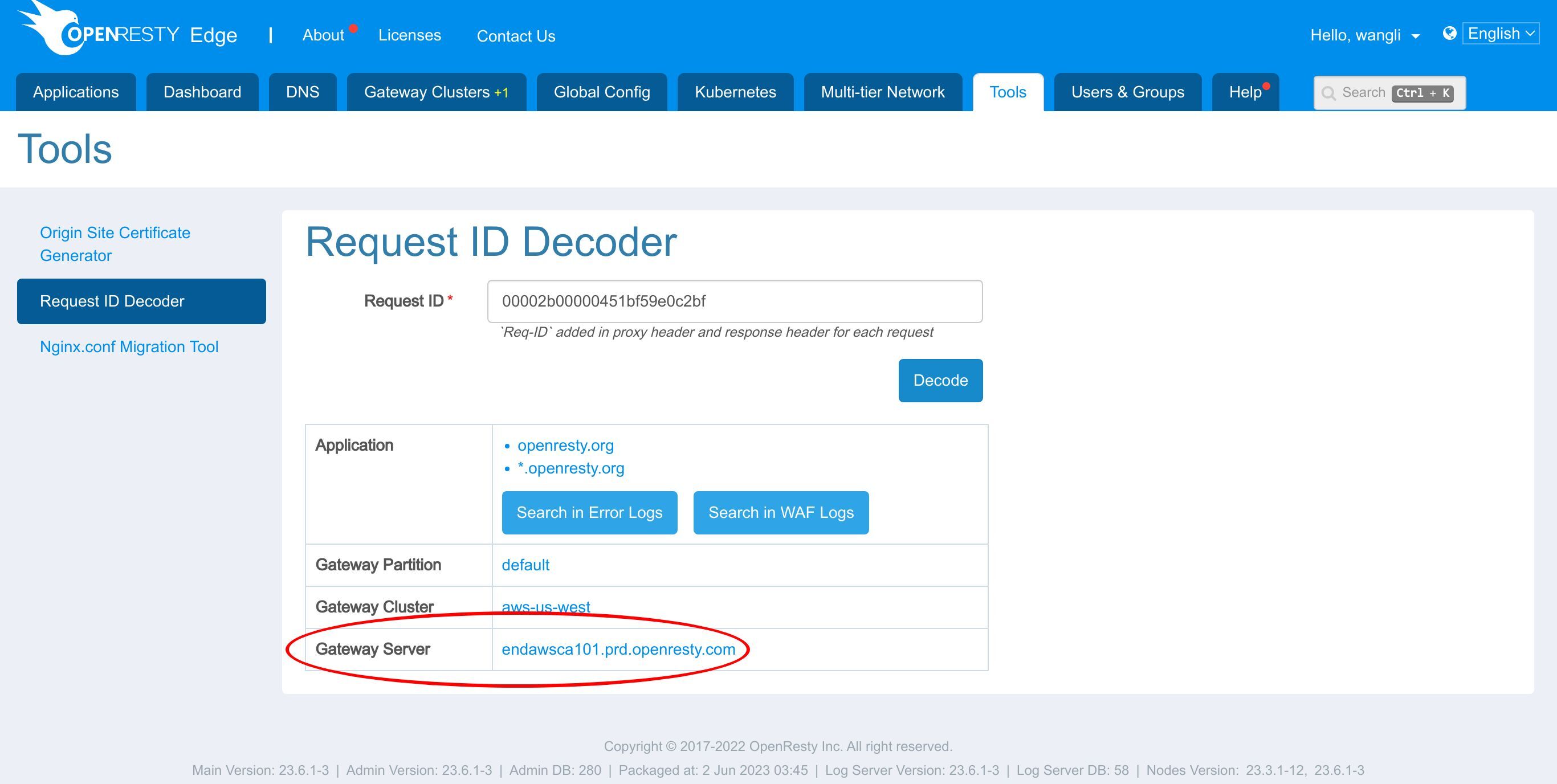
We see some detailed information related to this request.
Like domains of the application
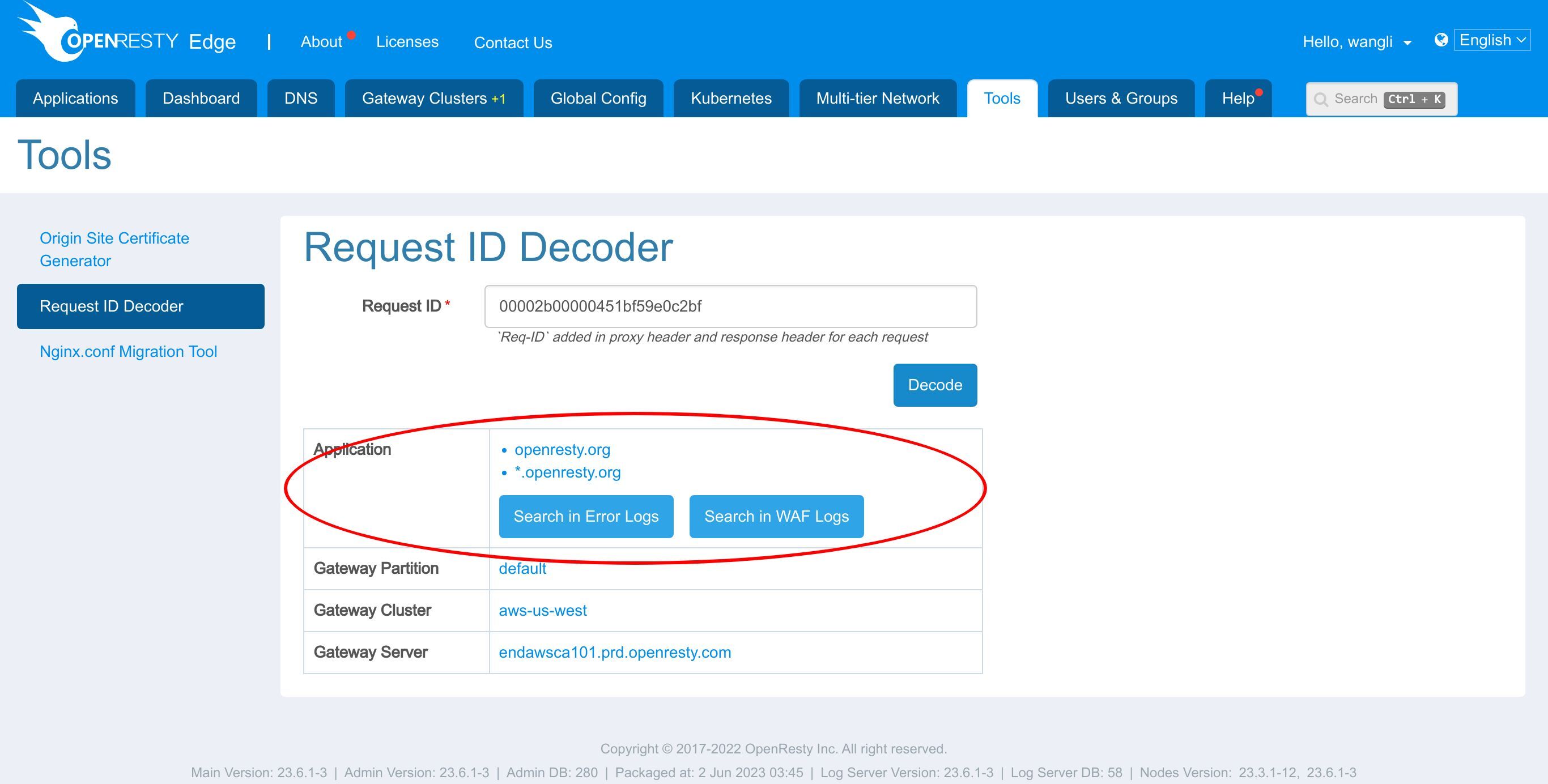
the gateway partition
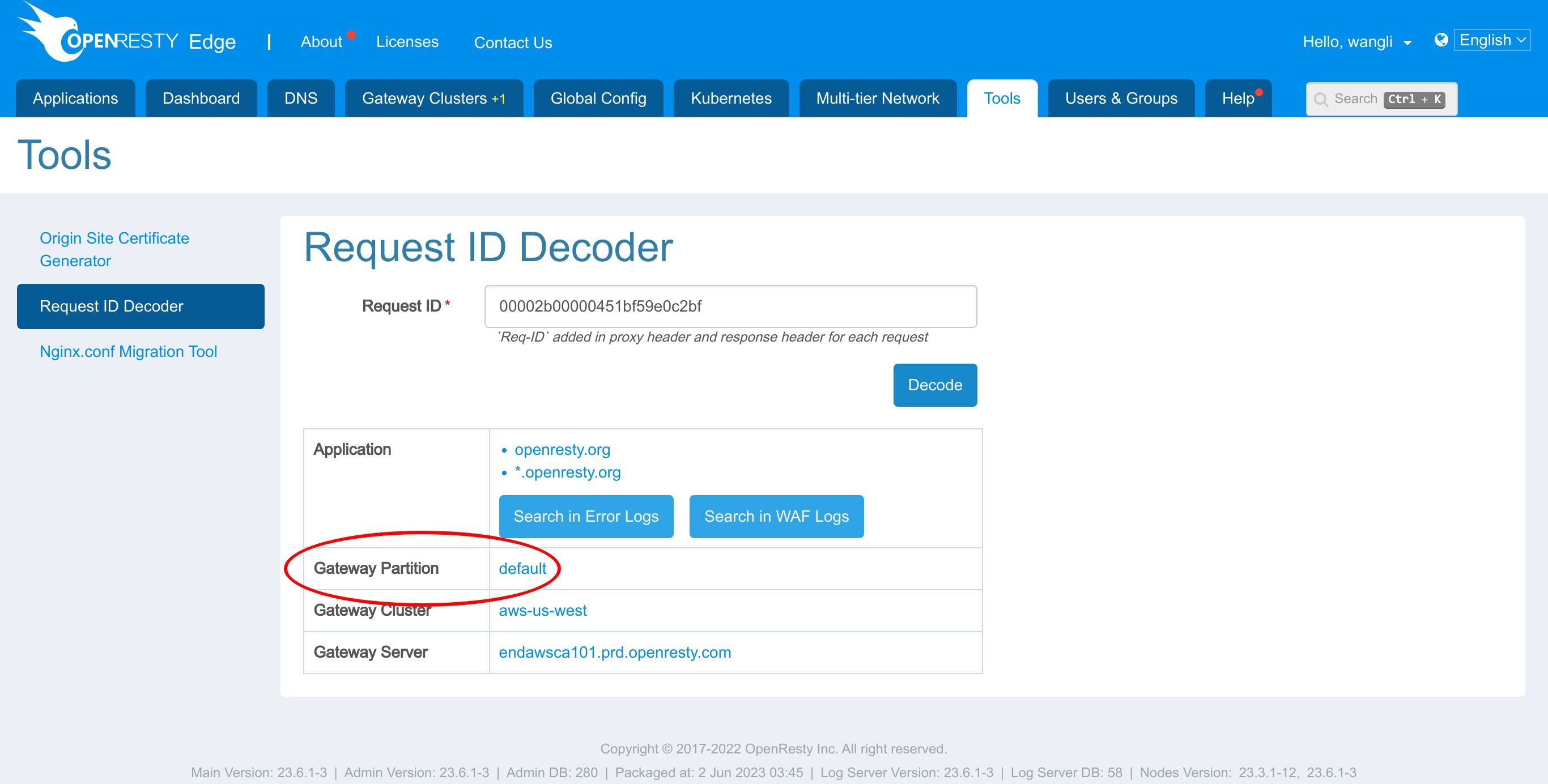
gateway cluster
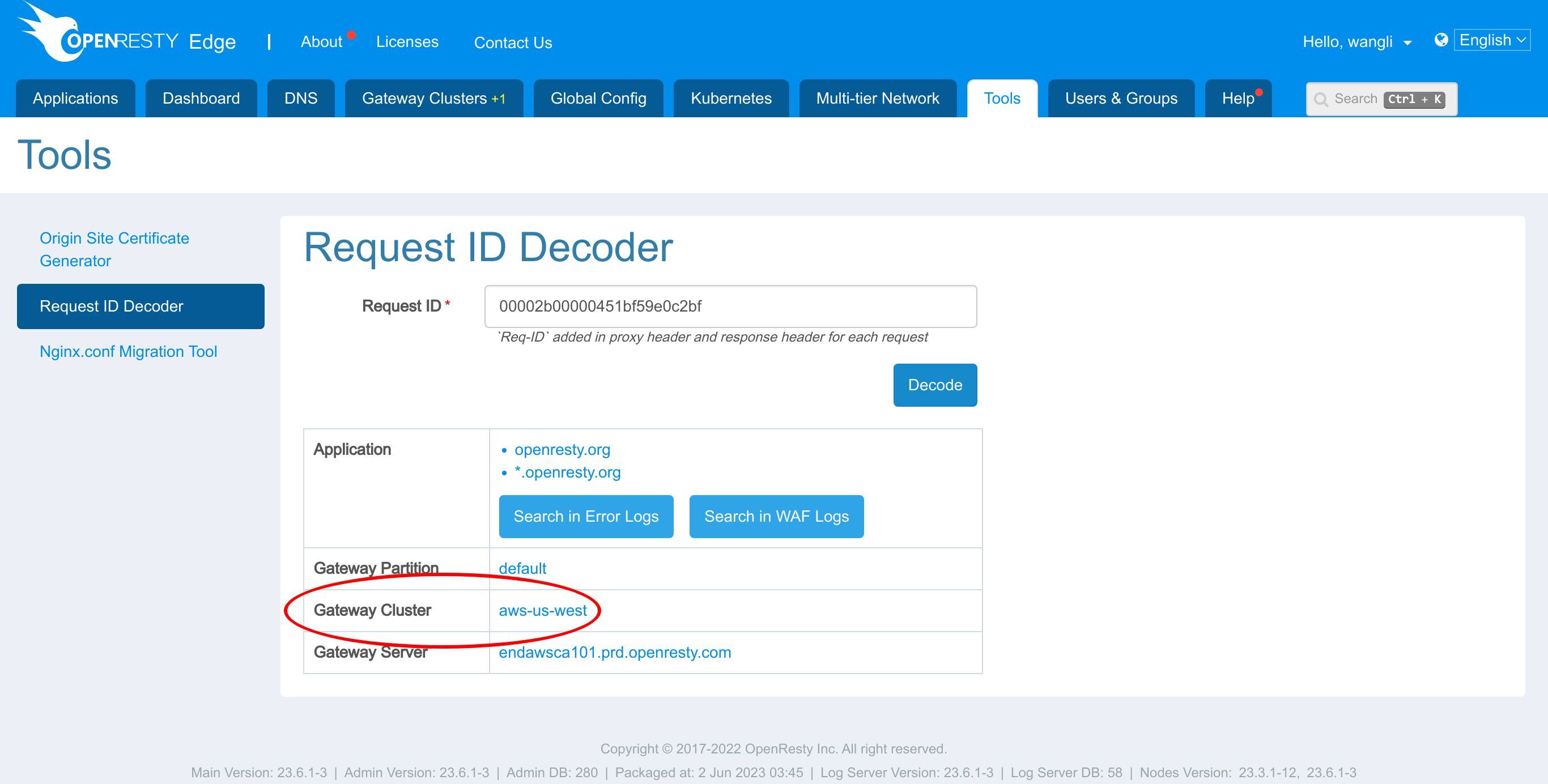
and gateway server.
Here we have two buttons. You can search the Request ID in the error logs and WAF logs page of the corresponding application.
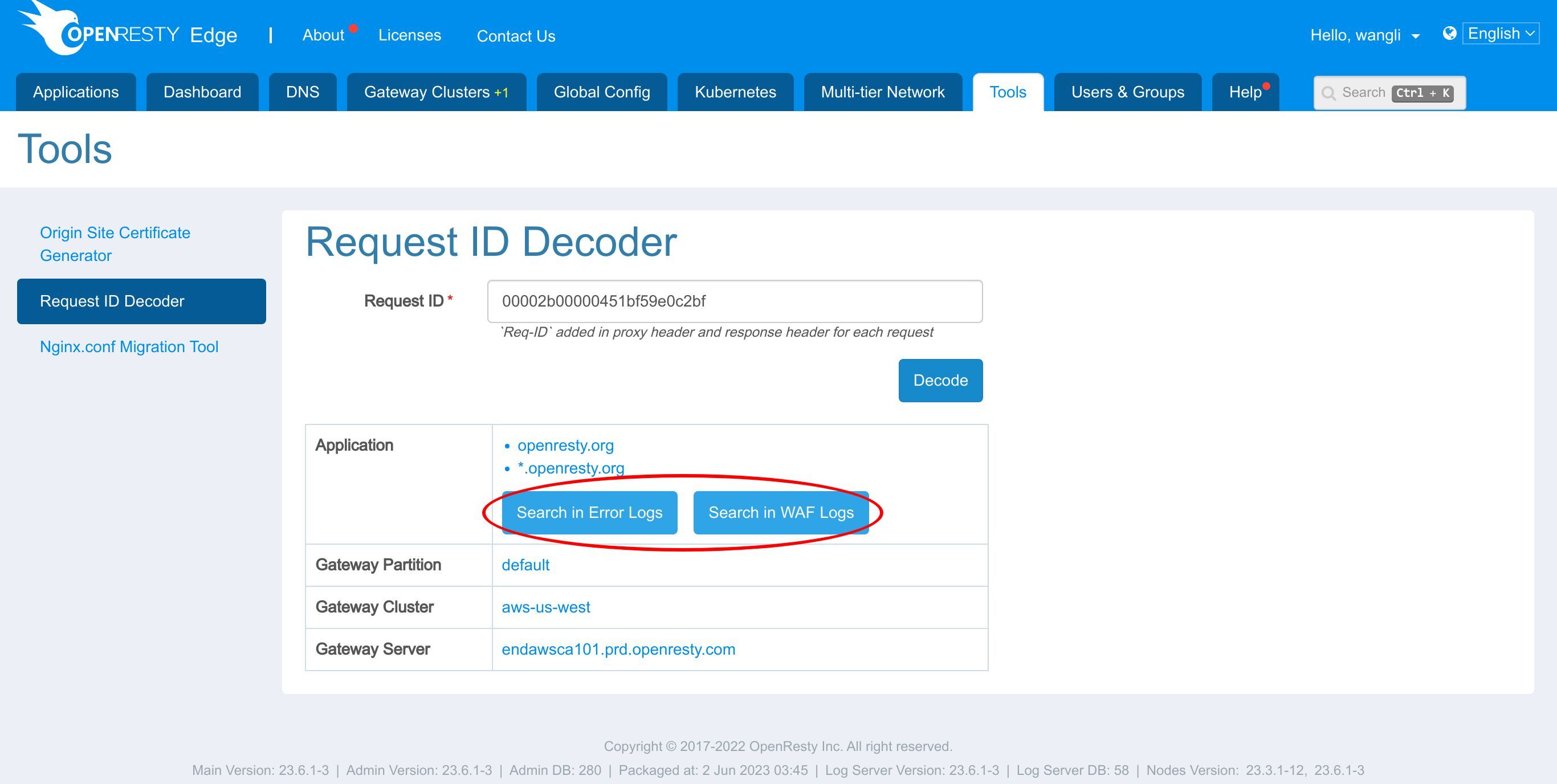
Let me show you how to do this.
Click the button Search in Error Logs.
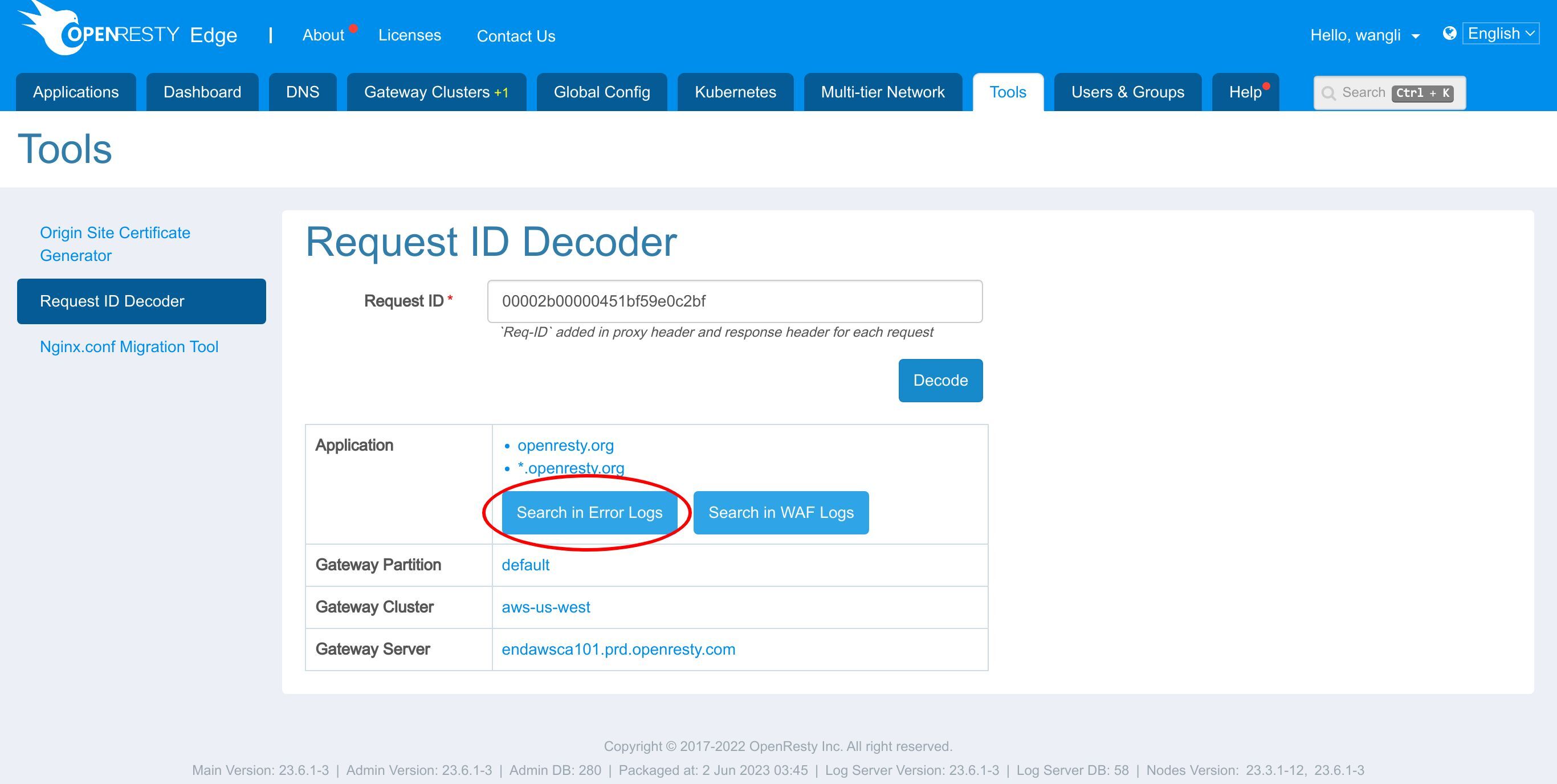
We are now landing on the error logs page.
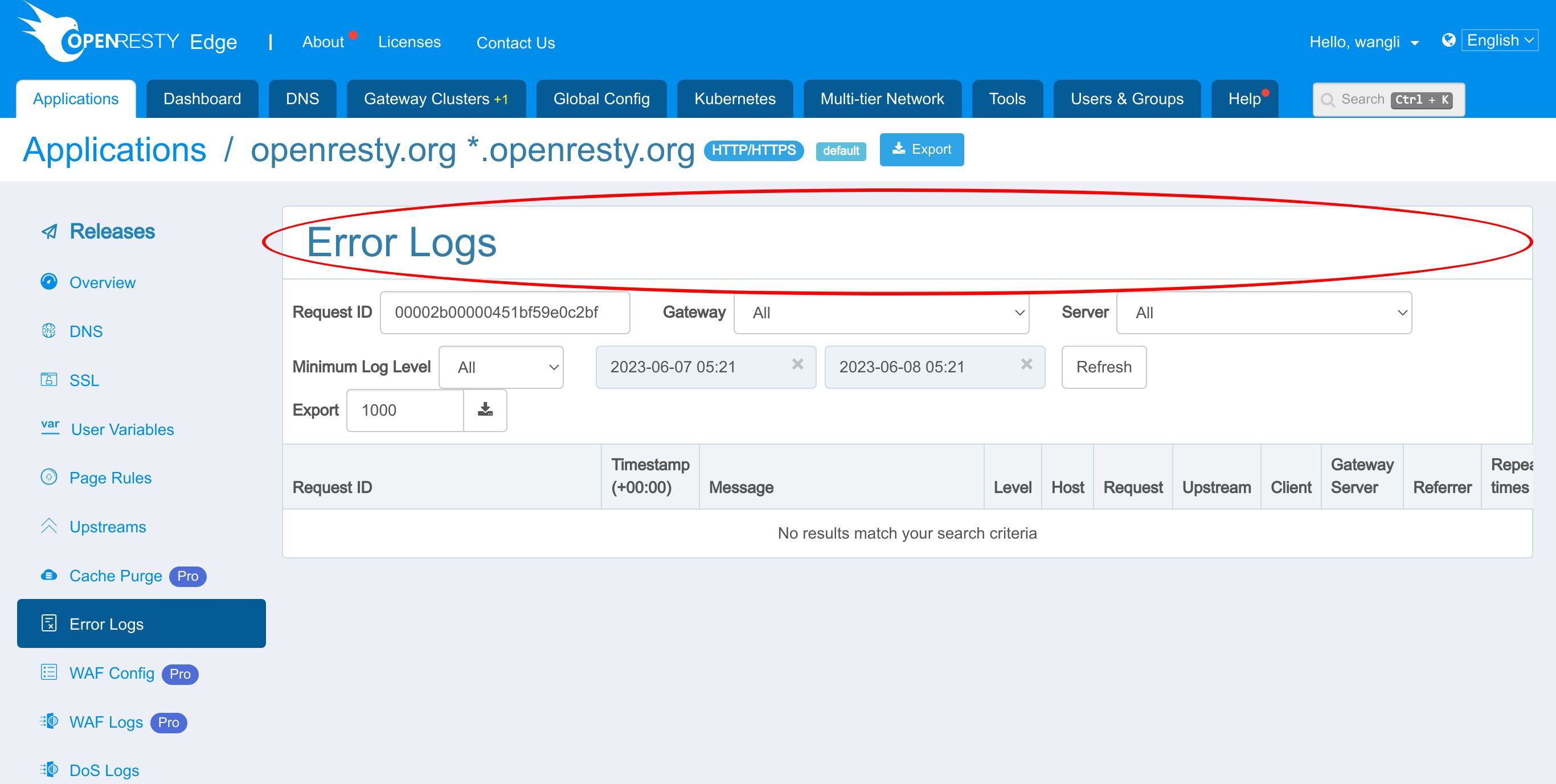
We can’t see any result here as the Request ID we use is from a normal request. It didn’t create any error logs.
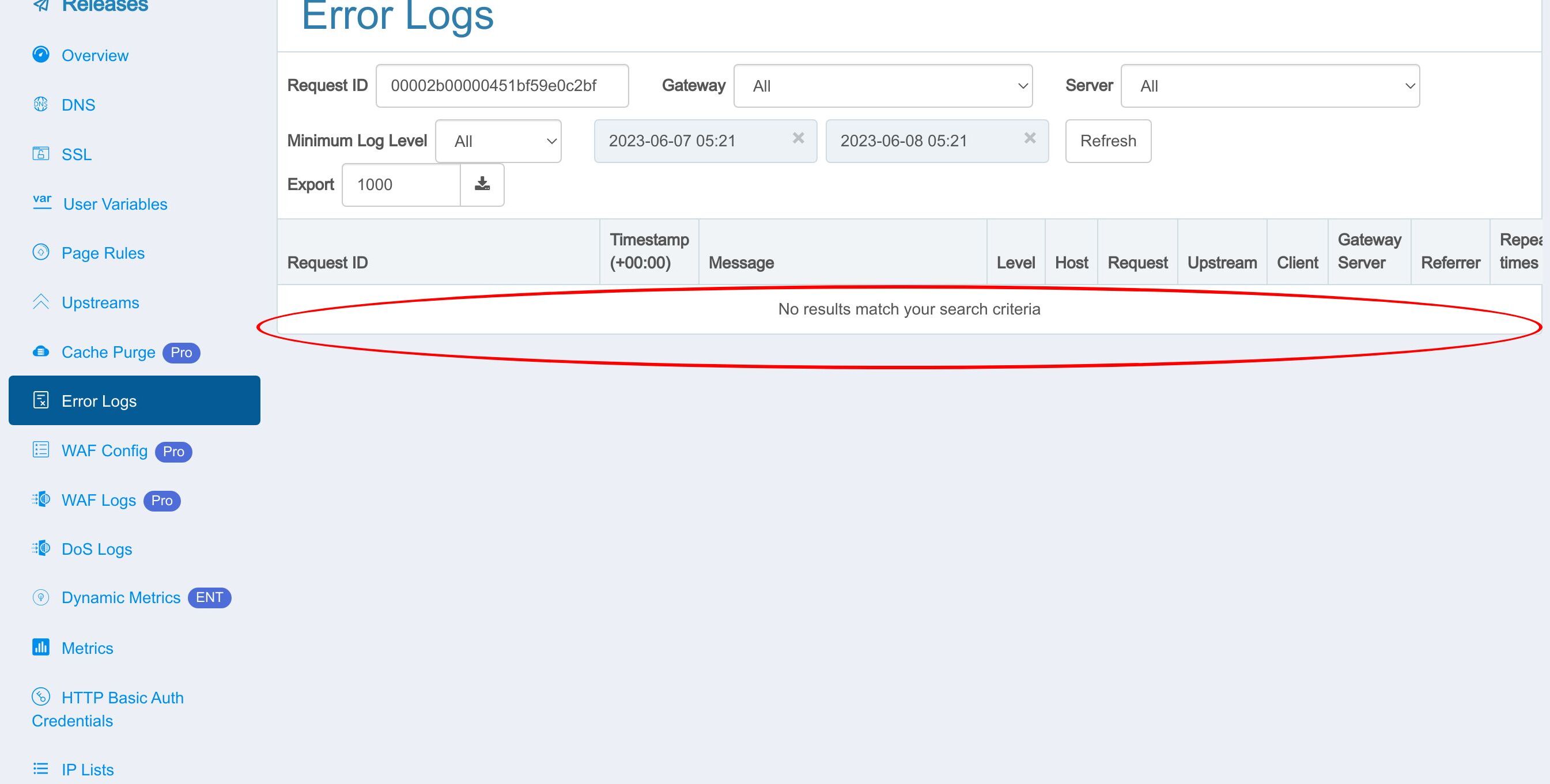
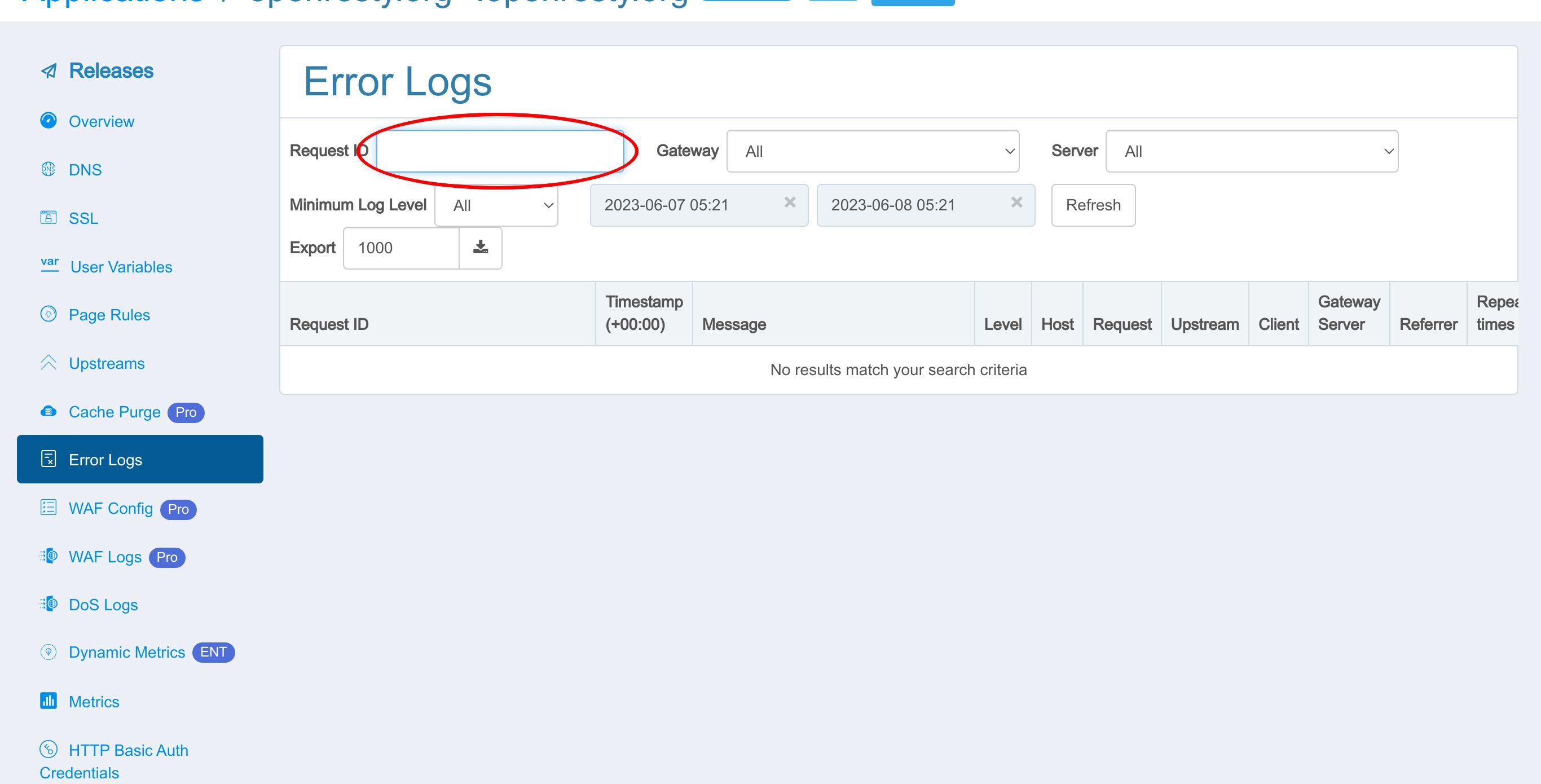
If you clear the search criteria.
You can see all error logs with detailed information.
If you copy one request ID.
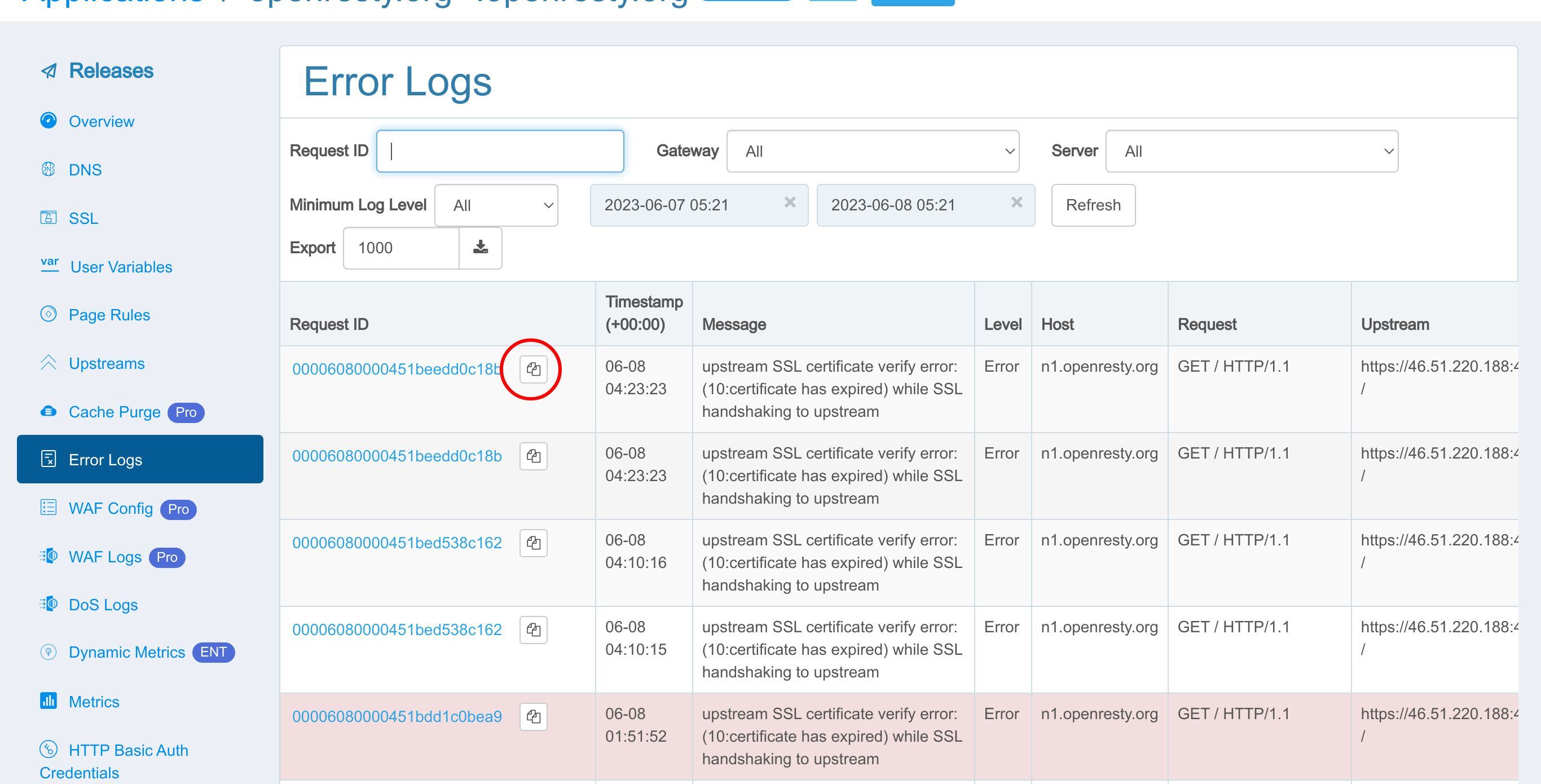
And paste it into the search box.
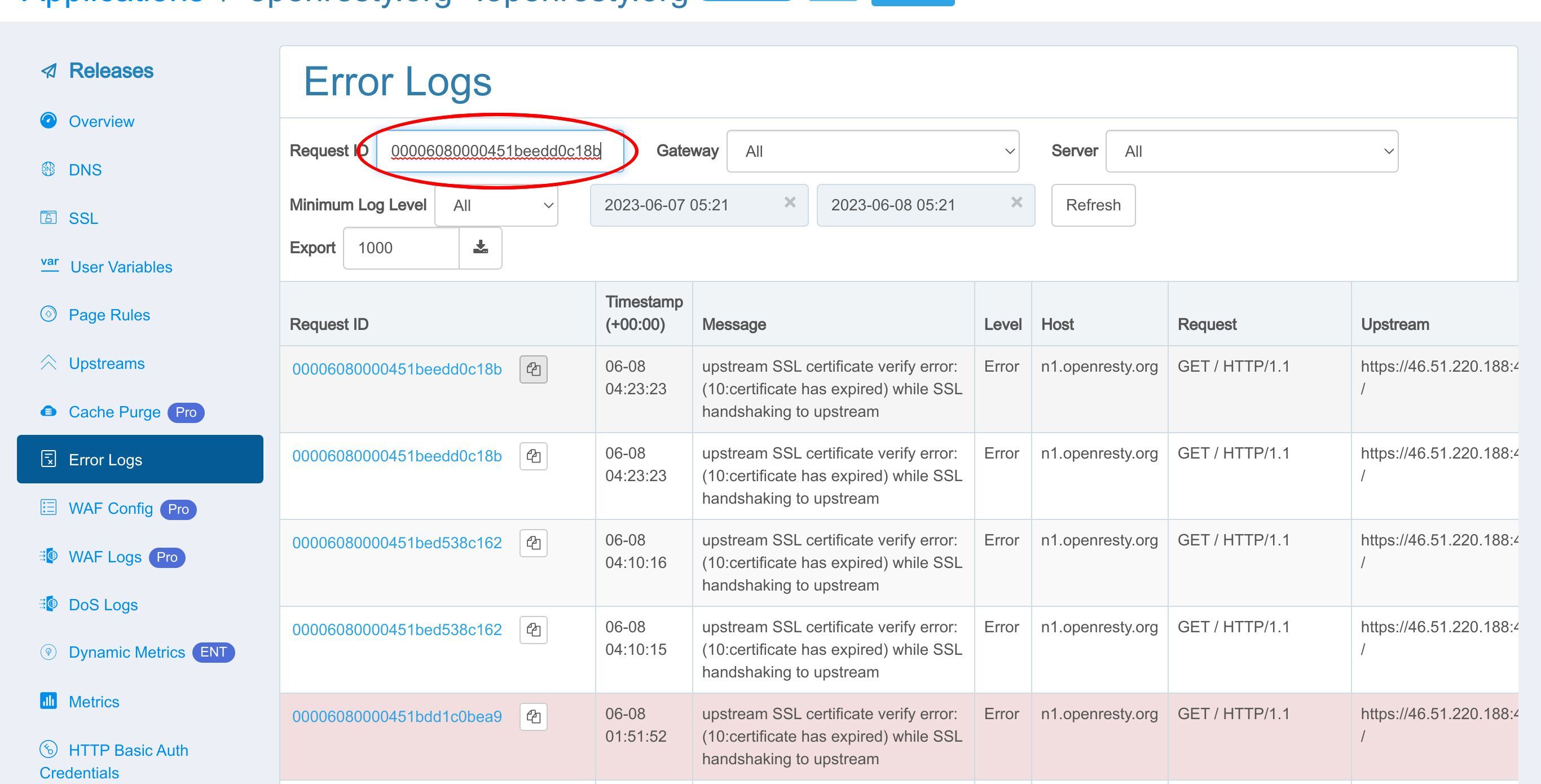
You can see that error logs are filtered, and only the error log with the selected Request ID is displayed.
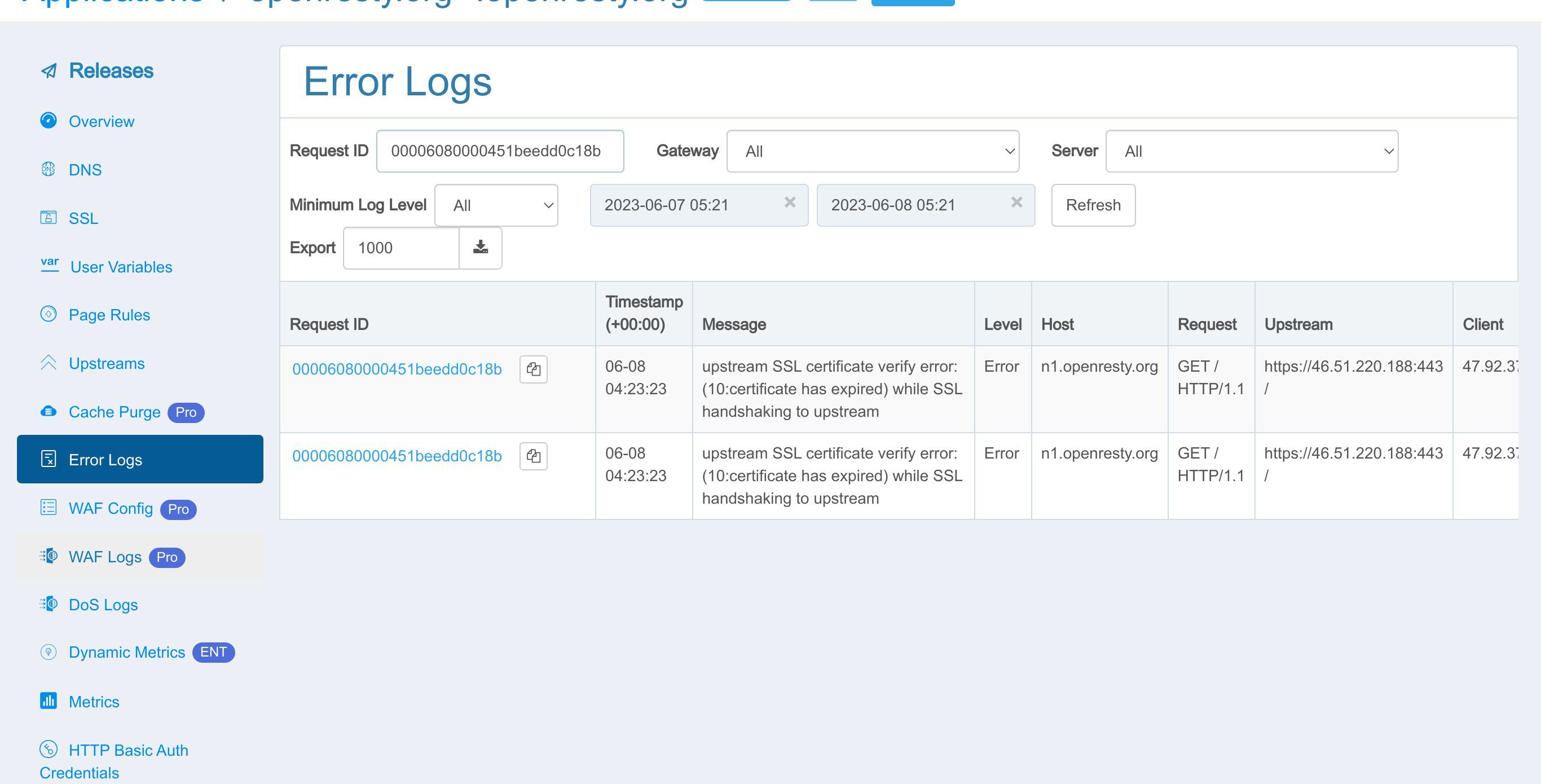
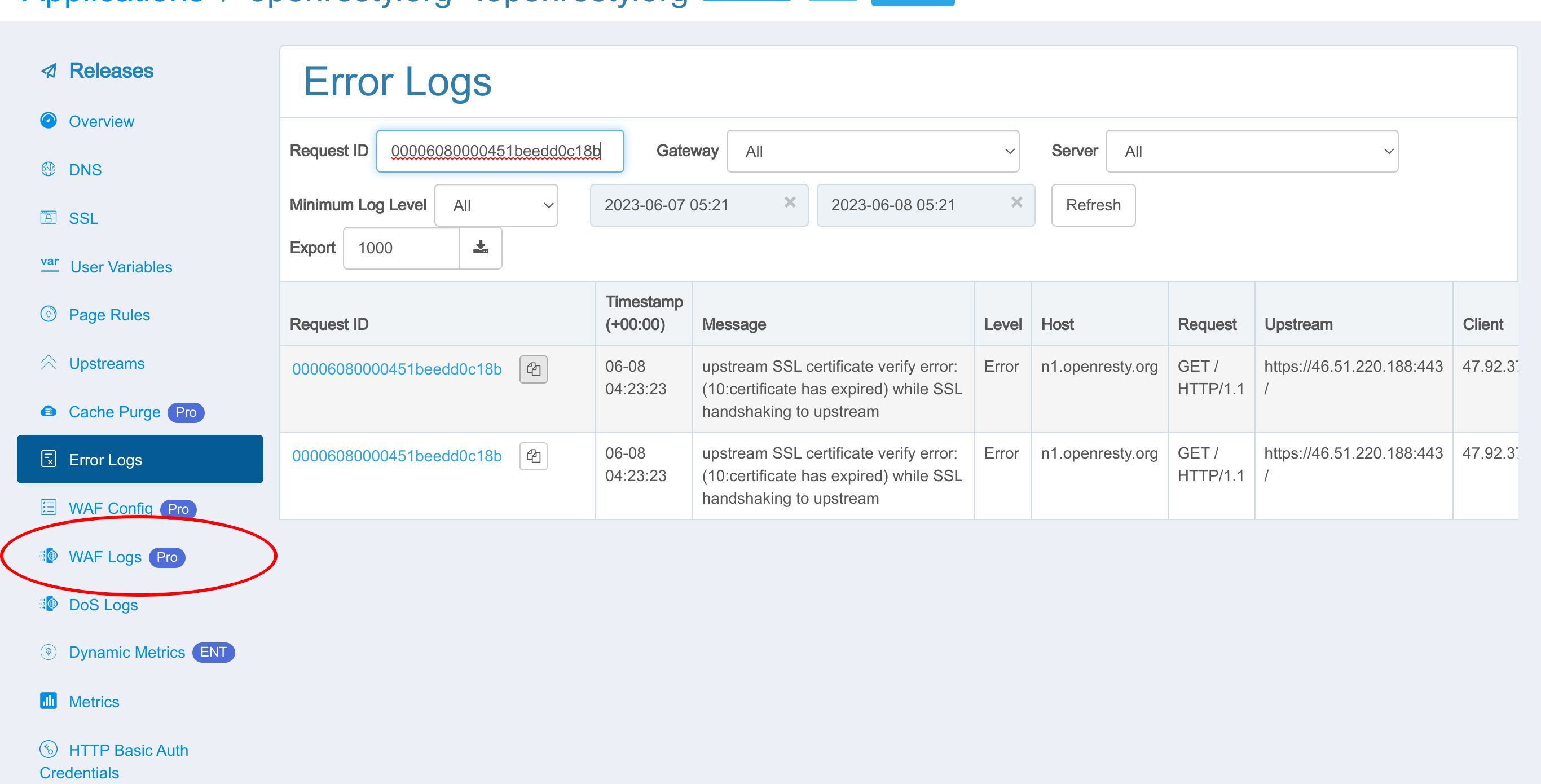
It is the error logs page. Similarly, on the page of suspicious requests intercepted by WAF, all requests also carry the Request ID.
Enter the WAF logs page.
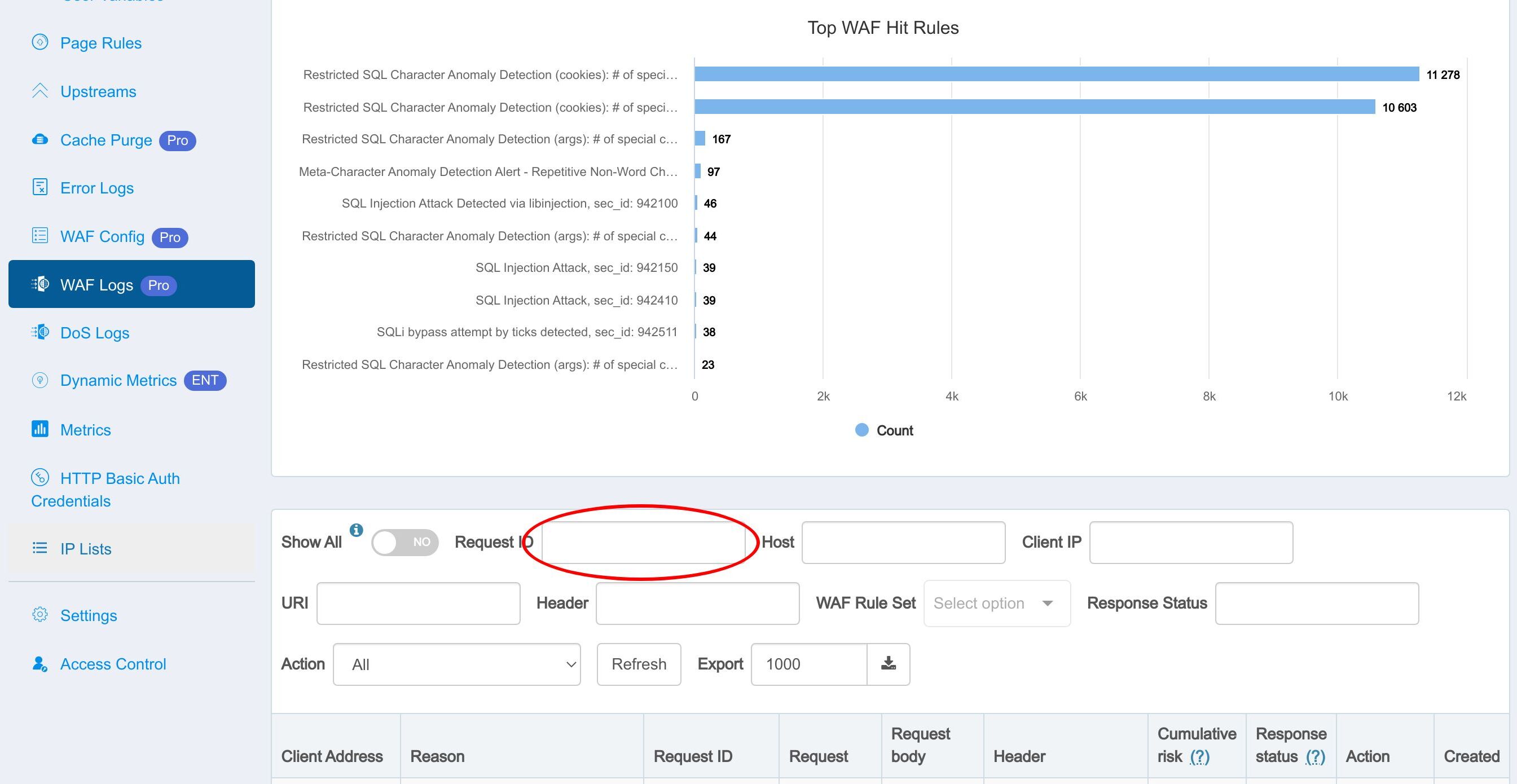
You can see all the requests intercepted by WAF and the corresponding IDs.
And you can also filter the requests using the Request IDs.
You can decode the Request ID directly in the table.
Click on one Request ID.
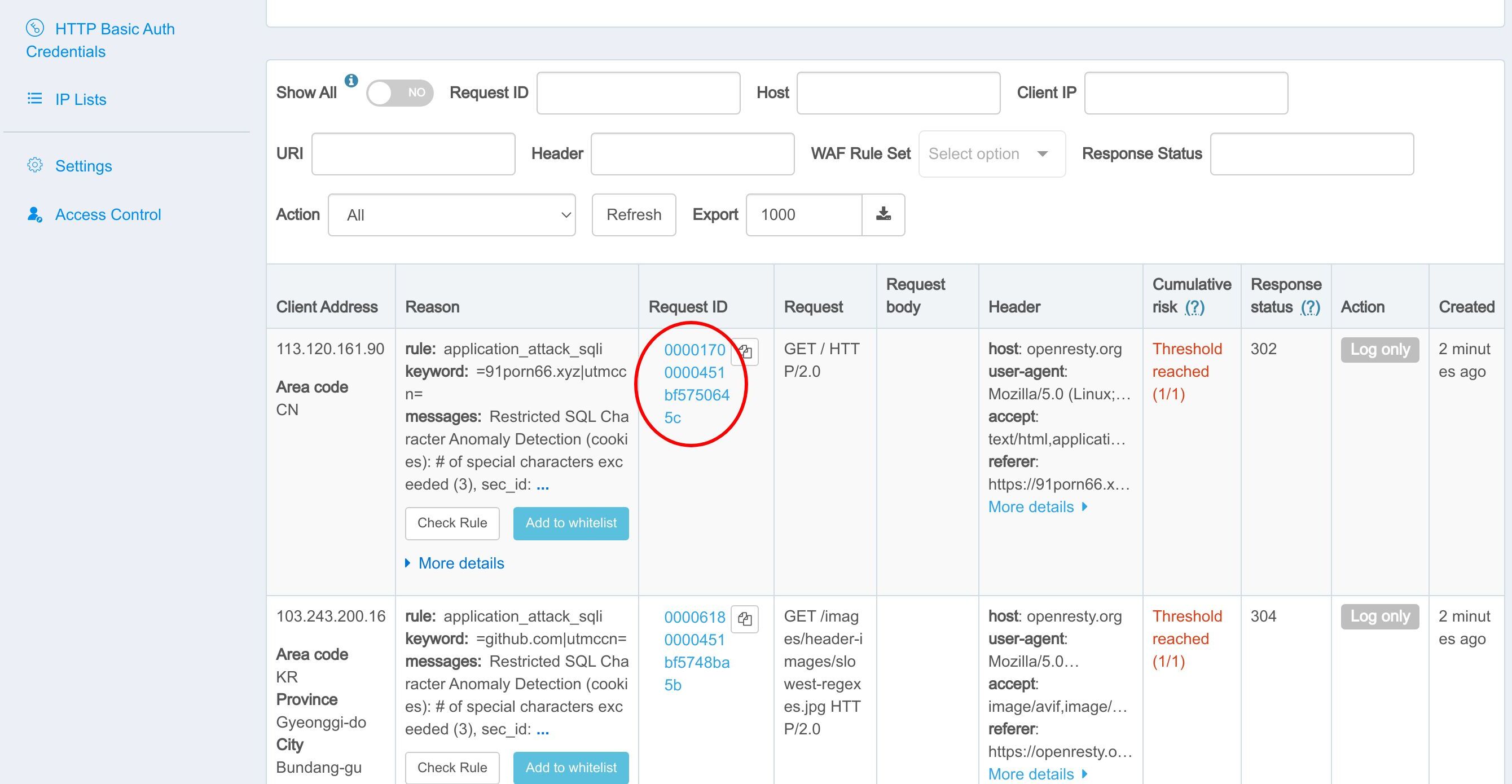
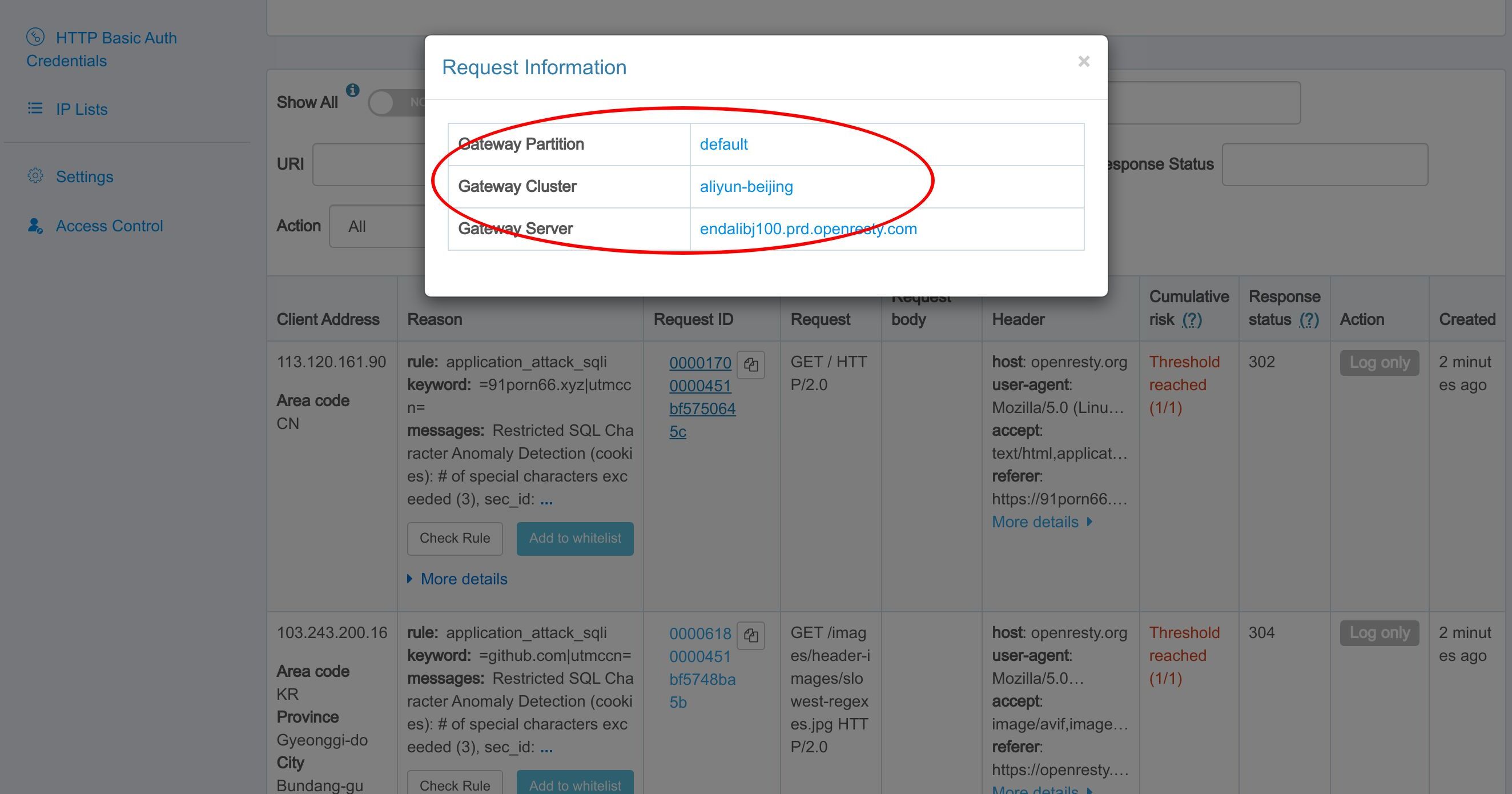
When you click links on this window, it will bring you to the corresponding page.
For example, click the link to the gateway server. You are now on the page of the gateway server.
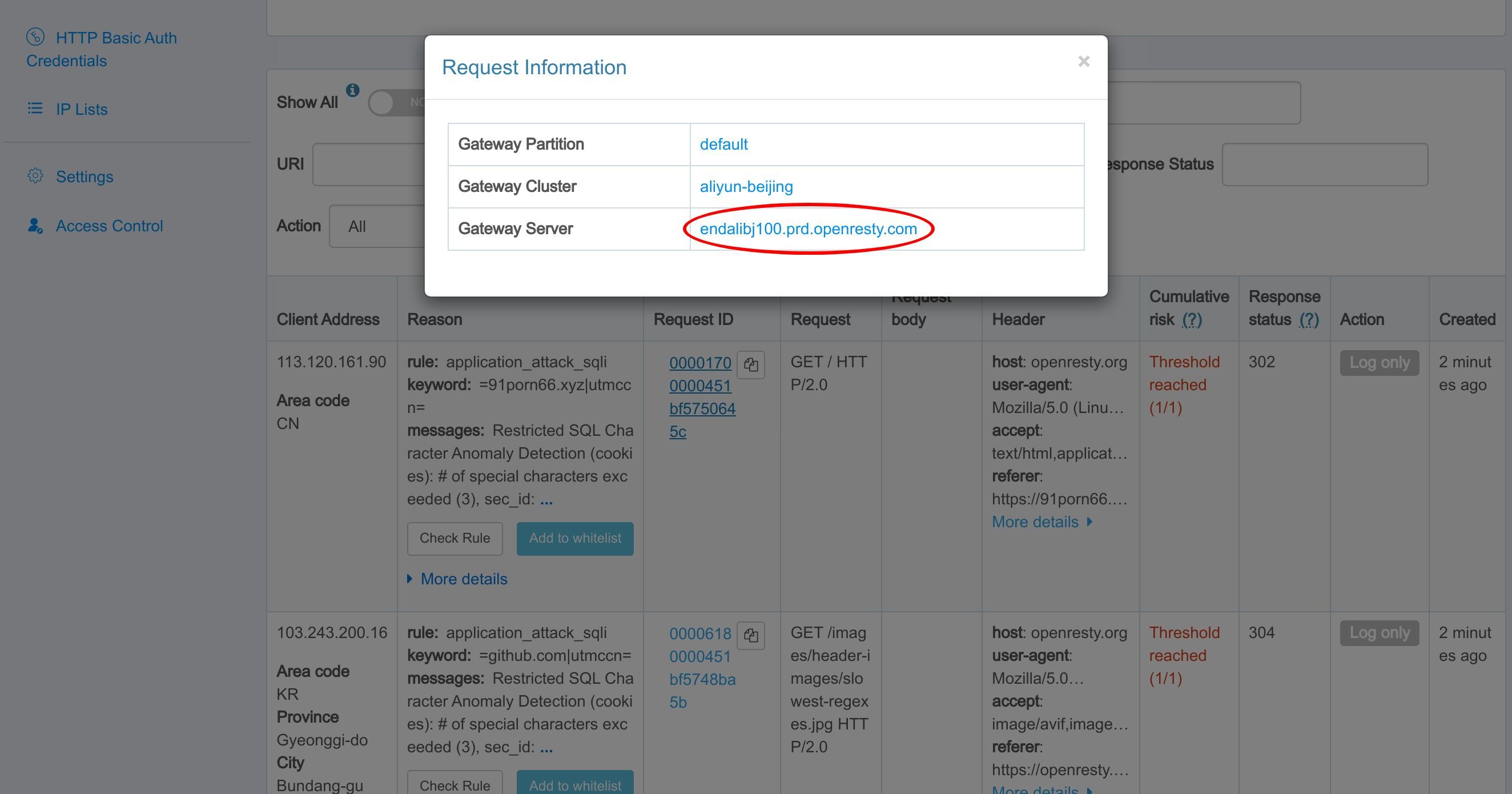
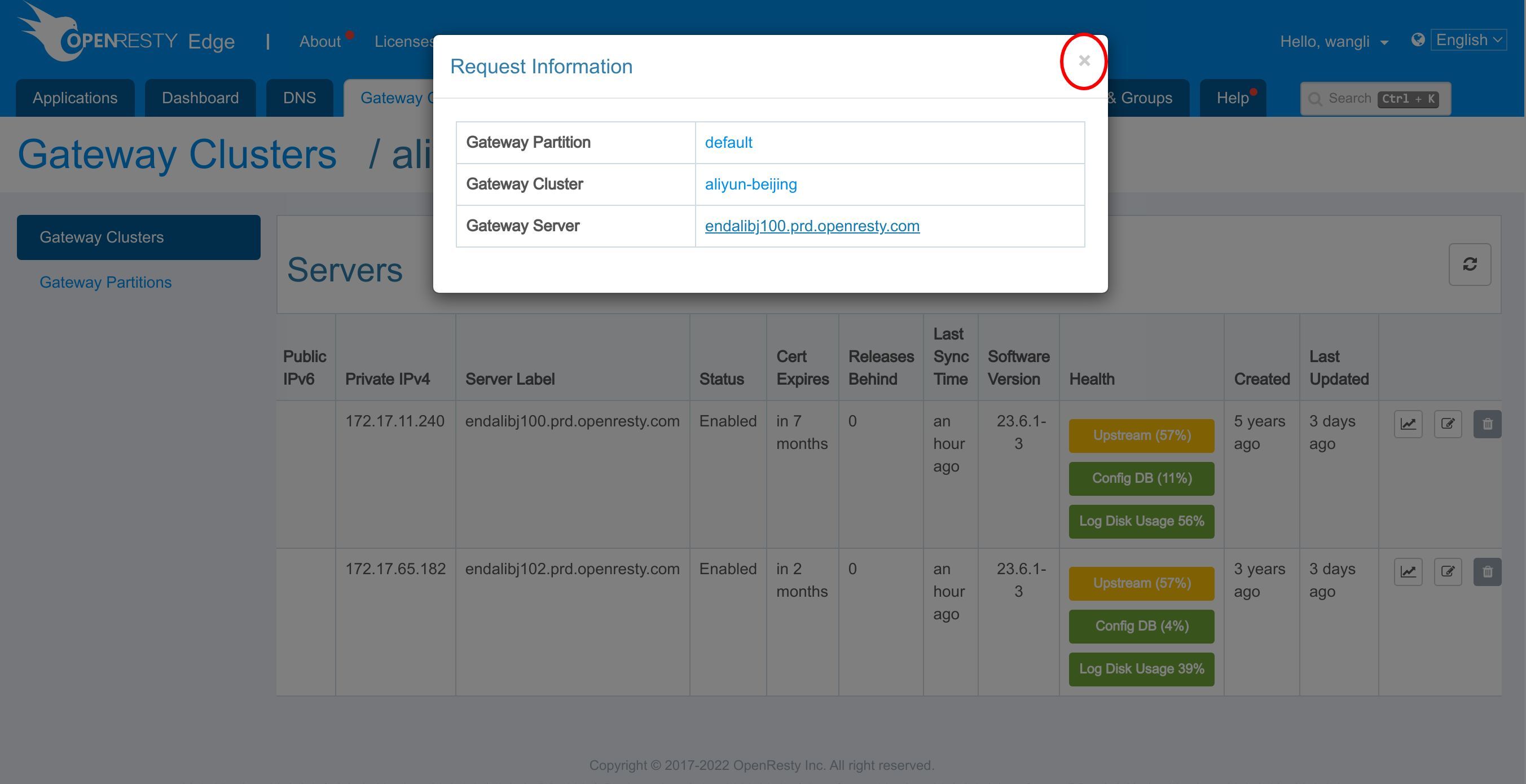
The request information window is still open, as you might want to go to other pages.
If you want to close it, just click the close button.
FAQ
What is a request ID in OpenResty Edge?
A request ID is a unique identifier that OpenResty Edge attaches to every request so you can track one specific request as it moves through a complex, distributed system. It appears as a Req-ID field in both the proxy request header and the response header, and the setting is turned on by default on the global config page. Because the ID encodes where the request was handled, you can later decode it to trace the request back to a single application, gateway partition, cluster, and server.
How do I decode a request ID in OpenResty Edge?
Open the Tools page in Edge Admin and go to the Request ID Decoder, paste in the Req-ID value, and click decode. Edge shows the application domains, the gateway partition, the gateway cluster, and the gateway server that handled that request. You can also decode a request ID inline: on the WAF logs page, click a request ID directly in the table to open the same decoded information without leaving the page.
How do I find the error logs or WAF logs for a specific request?
After decoding a request ID, use the Search in Error Logs and Search in WAF Logs buttons to jump straight to the matching entries for that exact request. On the error logs page you can also paste a request ID into the search box to filter the view down to the single log line for that request, and the WAF logs page supports the same request-ID filtering — so you never have to scan through unrelated log entries. If you want to search a request ID across more than logs, see Global Search in OpenResty Edge.
What is OpenResty Edge
OpenResty Edge is our all-in-one gateway software for microservices and distributed traffic architectures. It combines traffic management, private CDN construction, API gateway, security, and more to help you easily build, manage, and protect modern applications. OpenResty Edge delivers industry-leading performance and scalability to meet the demanding needs of high concurrency, high load scenarios. It supports scheduling containerized application traffic such as K8s and manages massive domains, making it easy to meet the needs of large websites and complex applications.
If you like this tutorial, please subscribe to this blog site and/or our YouTube channel. Thank you!
About The Author
Yichun Zhang (Github handle: agentzh), is the original creator of the OpenResty® open-source project and the CEO of OpenResty Inc..
Yichun is one of the earliest advocates and leaders of “open-source technology”. He worked at many internationally renowned tech companies, such as Cloudflare, Yahoo!. He is a pioneer of “edge computing”, “dynamic tracing” and “machine coding”, with over 22 years of programming and 16 years of open source experience. Yichun is well-known in the open-source space as the project leader of OpenResty®, adopted by more than 40 million global website domains.
OpenResty Inc., the enterprise software start-up founded by Yichun in 2017, has customers from some of the biggest companies in the world. Its flagship product, OpenResty XRay, is a non-invasive profiling and troubleshooting tool that significantly enhances and utilizes dynamic tracing technology. And its OpenResty Edge product is a powerful distributed traffic management and private CDN software product.
As an avid open-source contributor, Yichun has contributed more than a million lines of code to numerous open-source projects, including Linux kernel, Nginx, LuaJIT, GDB, SystemTap, LLVM, Perl, etc. He has also authored more than 60 open-source software libraries.
Related Articles
OpenResty XRay Dec 21, 2023

OpenResty XRay Dec 4, 2023

OpenResty XRay Nov 23, 2023

OpenResty XRay Nov 21, 2023

OpenResty XRay Nov 15, 2023