
OpenResty Edge Gateway Health Checks: Auto-Remove Failed Nodes from DNS
OpenResty Edge automatically health-checks your gateway servers — the load balancer nodes themselves, not the upstream backends. Each node is probed over HTTP at a configurable interval. When a node fails the check, OpenResty Edge removes its IP from DNS resolution and the distributed SSL session cache, and restores it automatically once the node recovers.
This failover happens at the DNS level, the same layer where global server load balancing makes its routing decisions. In this tutorial, we create a health check endpoint with a page rule, enable health checks for a gateway cluster, and verify that a stopped node is taken out of rotation.
Create a Health Check Endpoint with a Page Rule
Open the web console. This is our sample deployment of the console. Every user would have their own deployment.
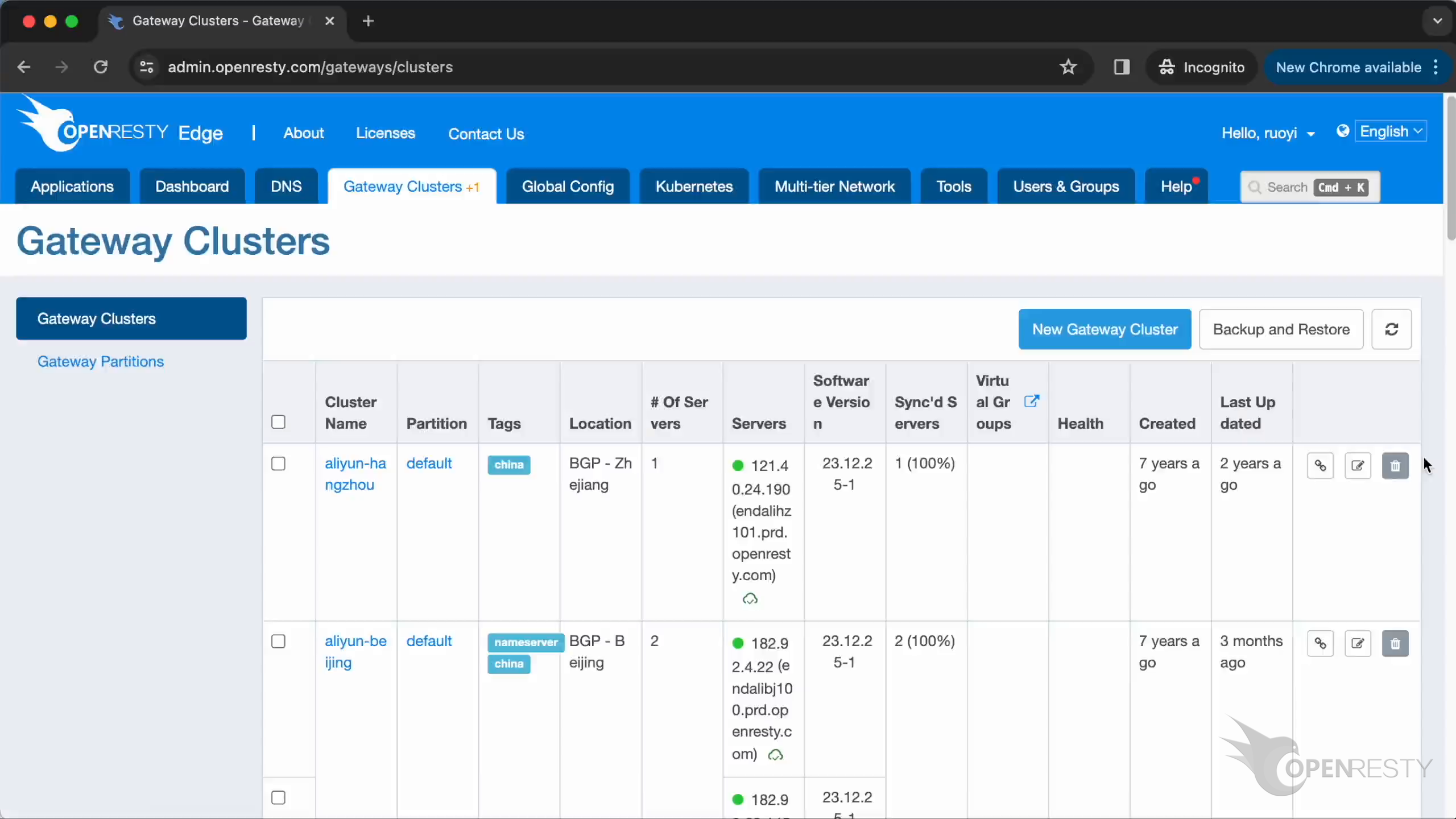
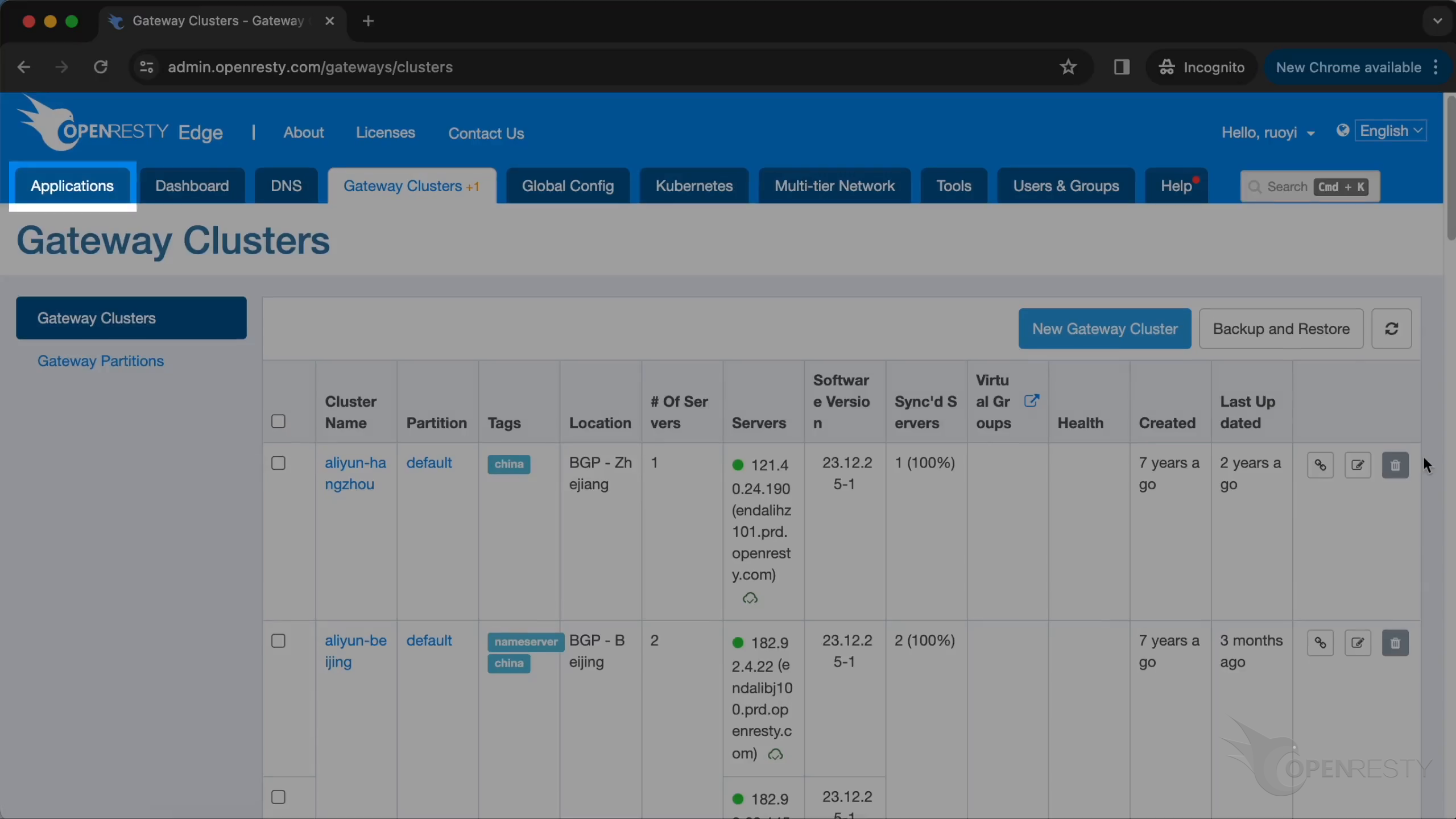
First, go to the “Applications” tab.
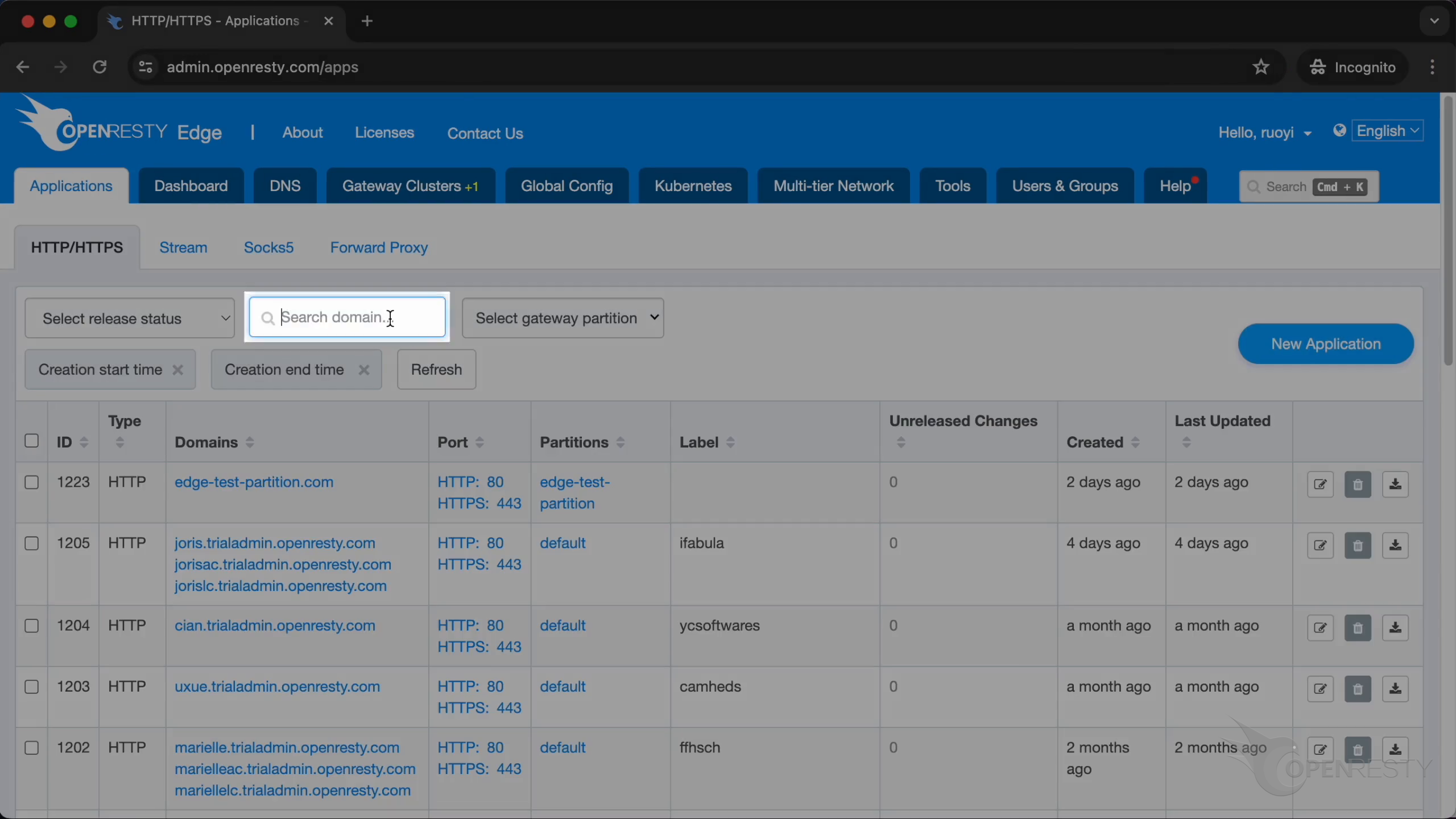
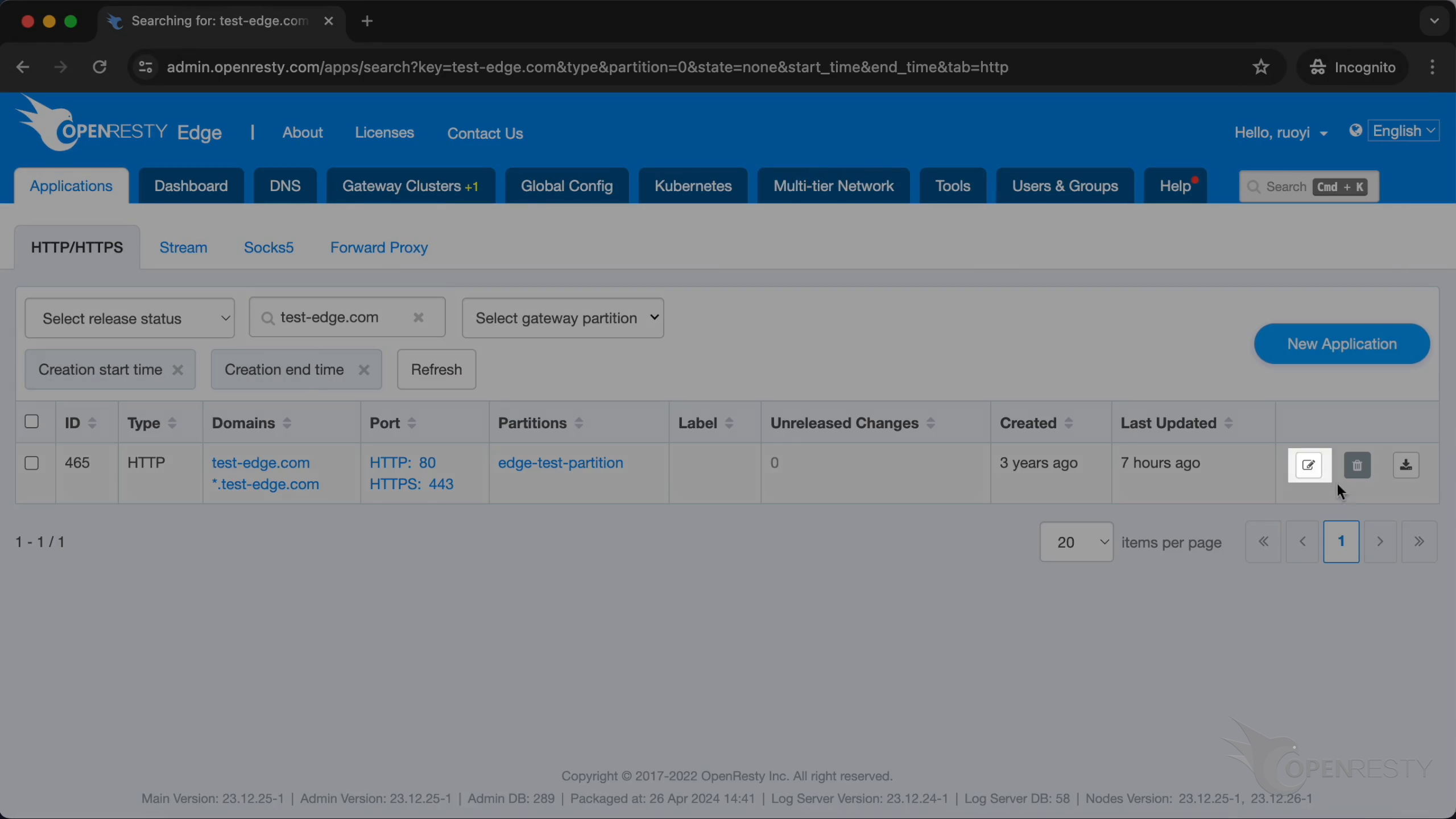
We pre-prepared an application named “test-edge.com”.
Click to configure this application.
Go to “Page Rules” page.
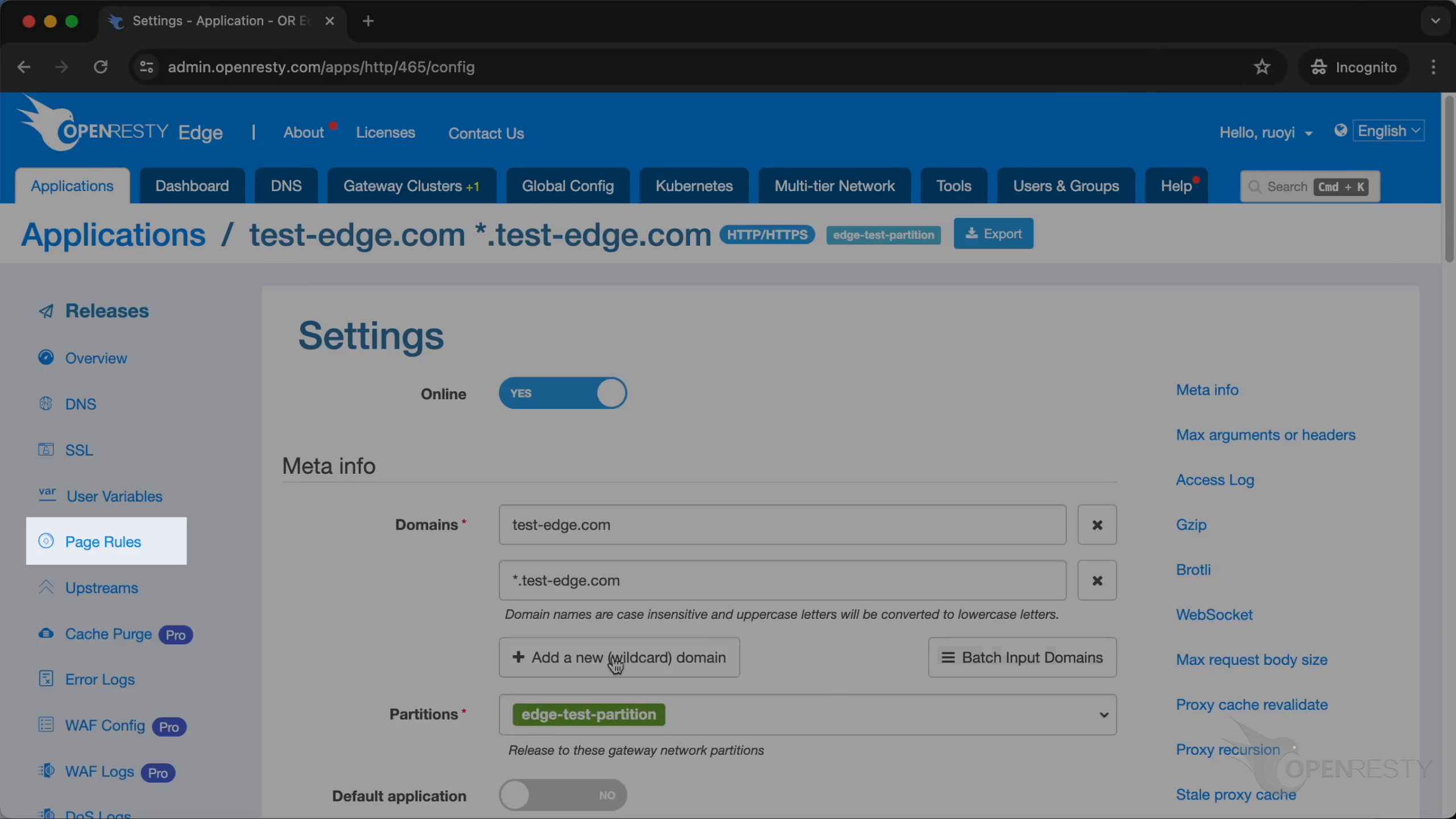
Here, we can add a new rule.
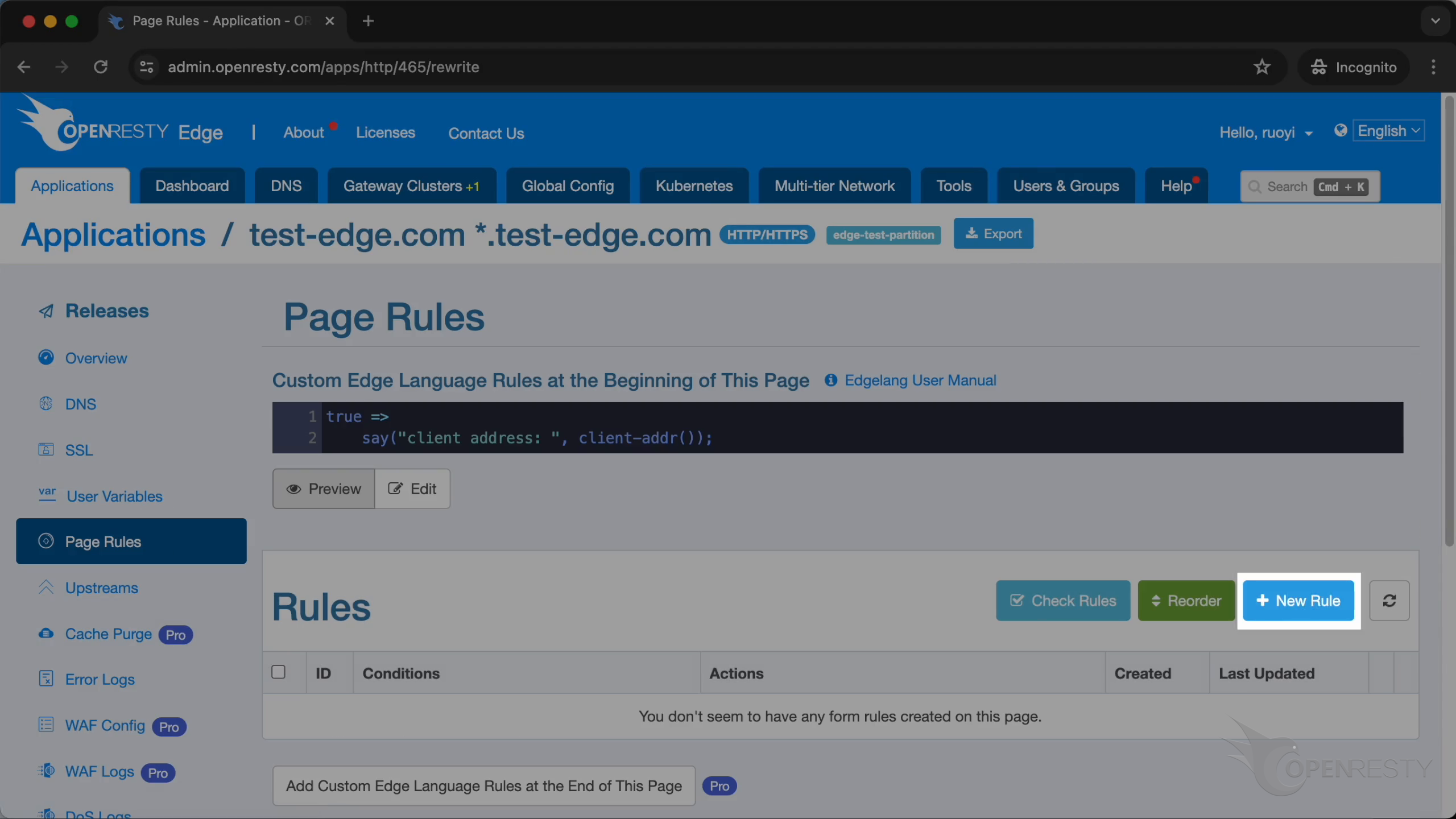
For this page rule, we need to specify a condition.
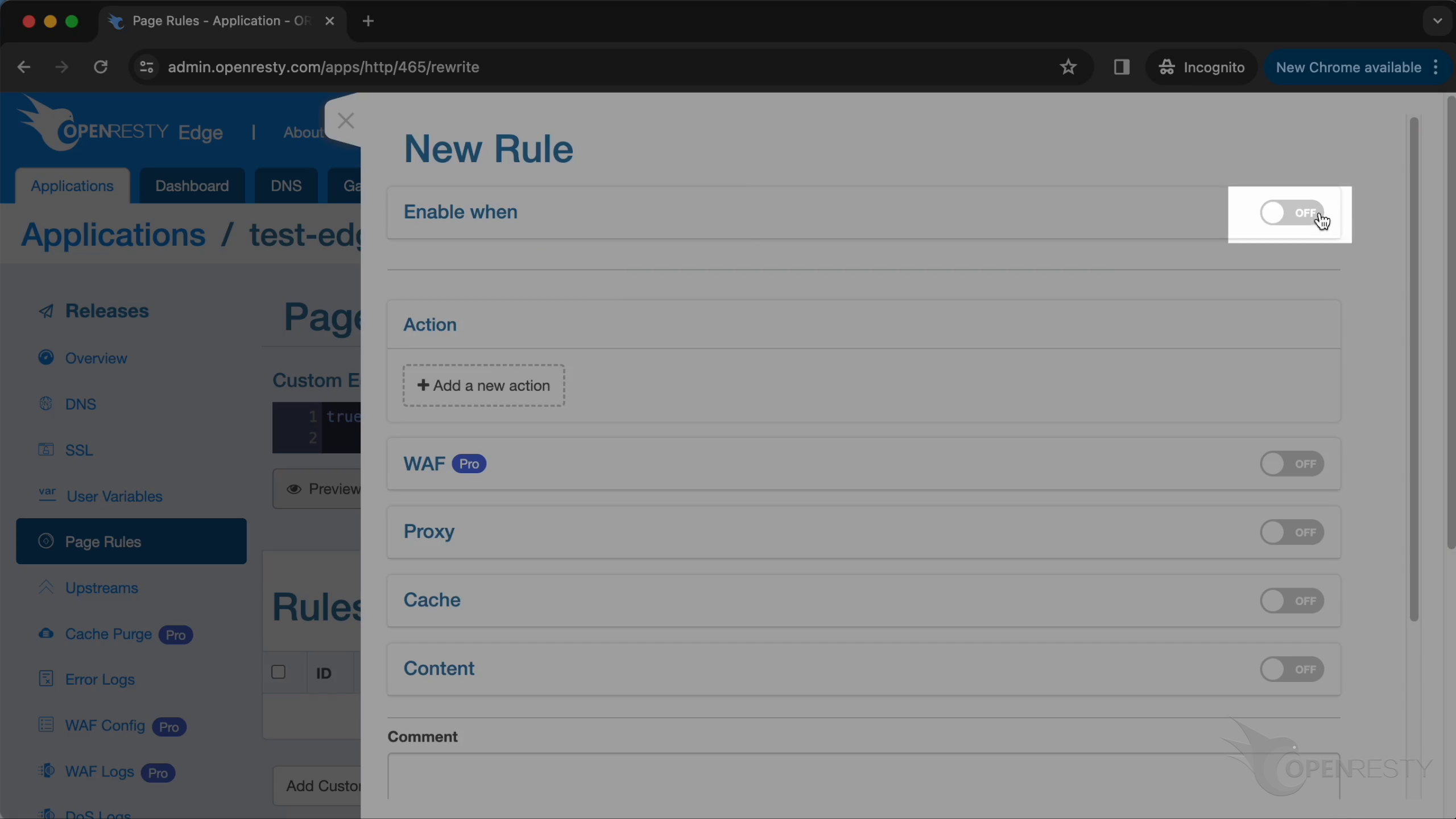
Enter “/status” as the value of string.
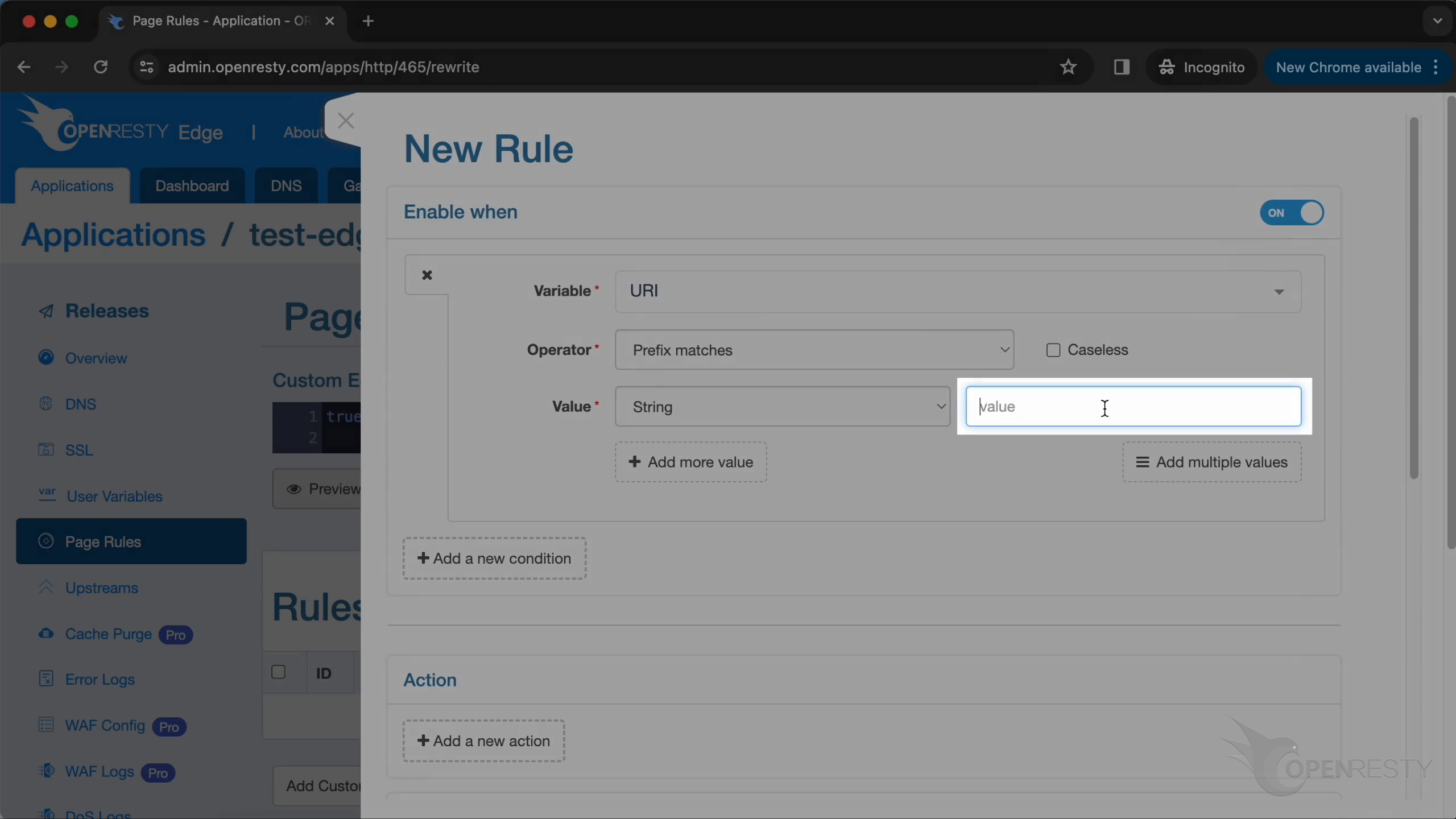
Let’s add a new action.
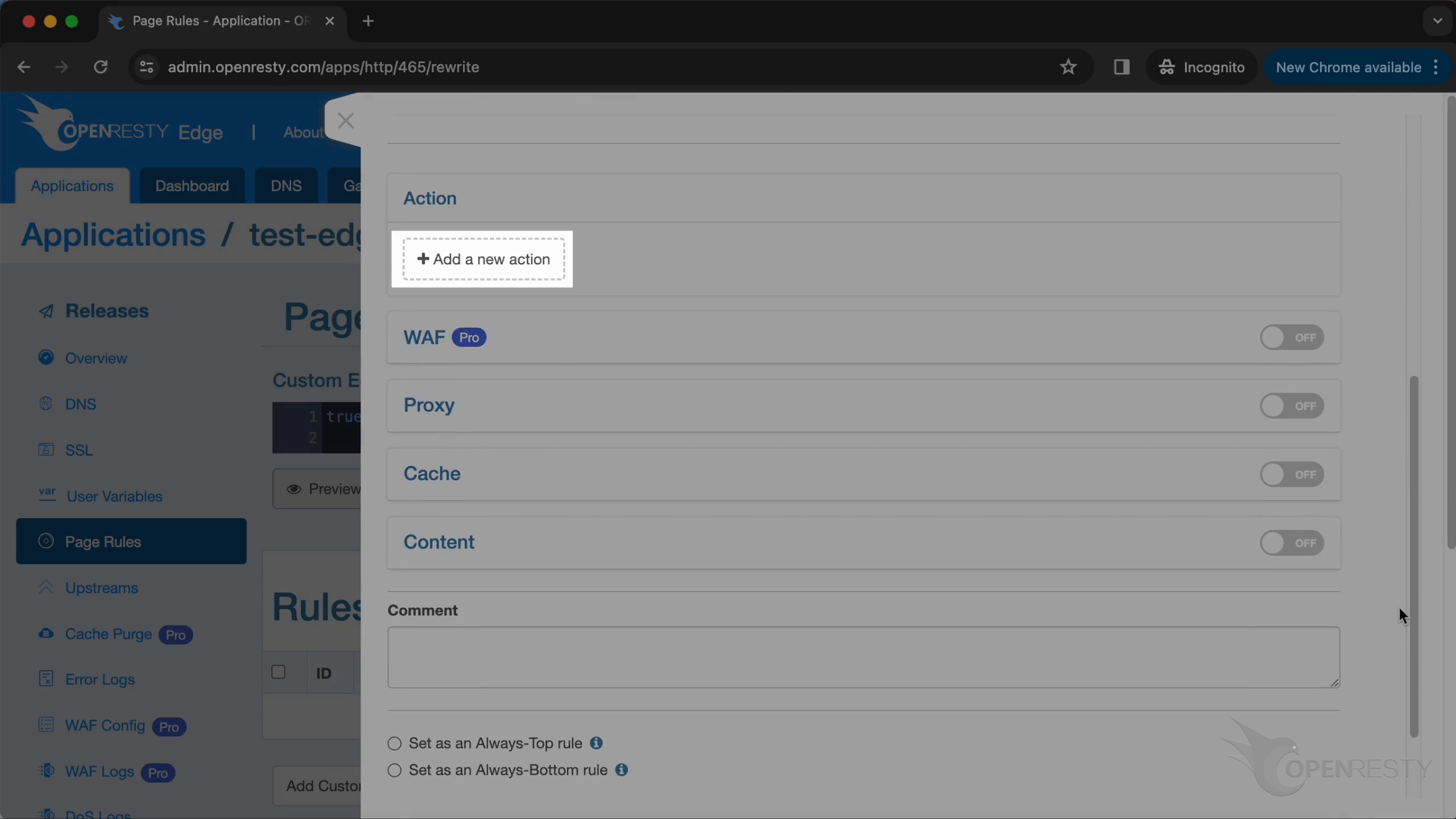
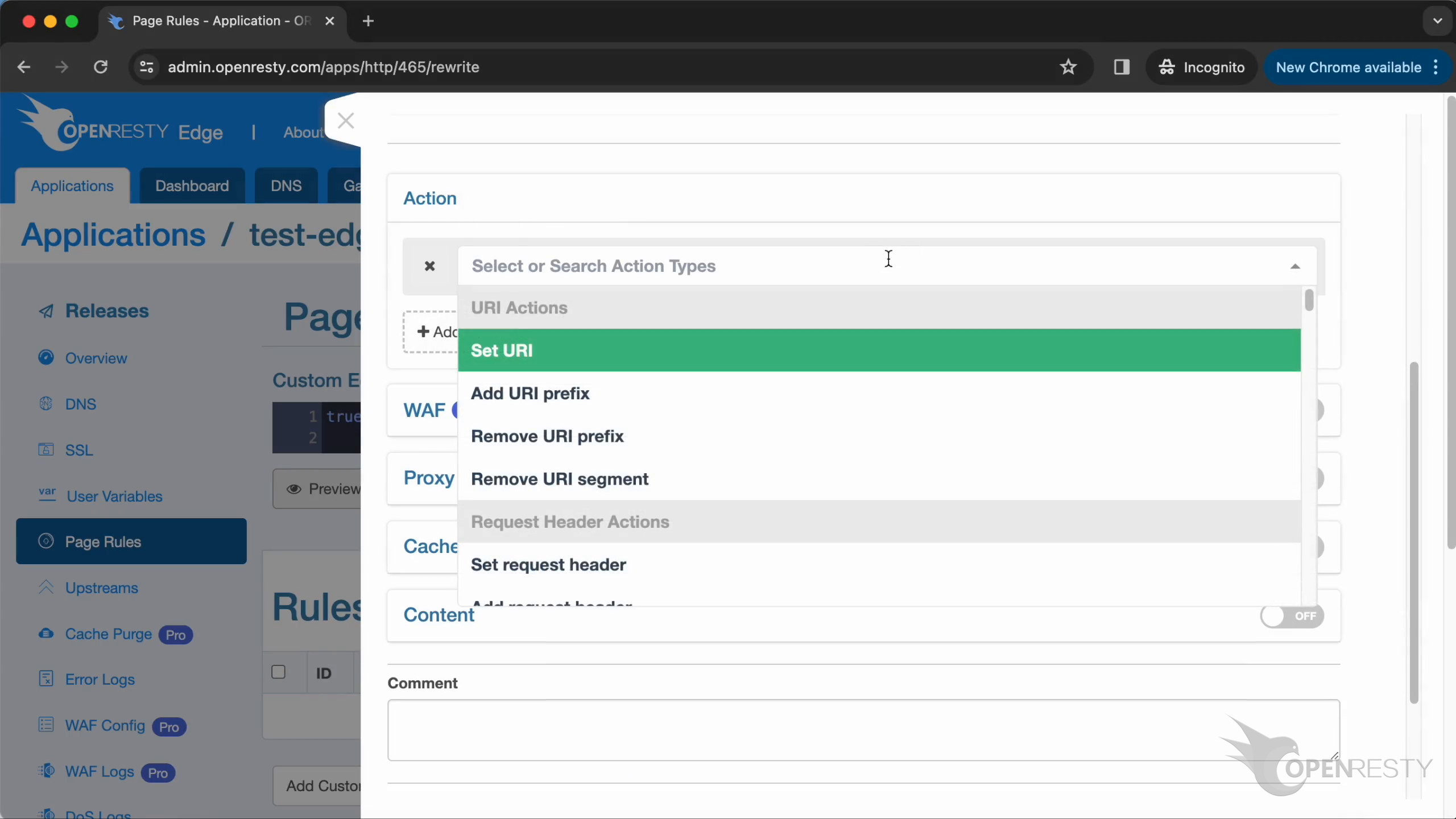
Select the “output response body”.
Set the response body as “healthy”. When the requested URI is “/status”, the response body “healthy” will be output.

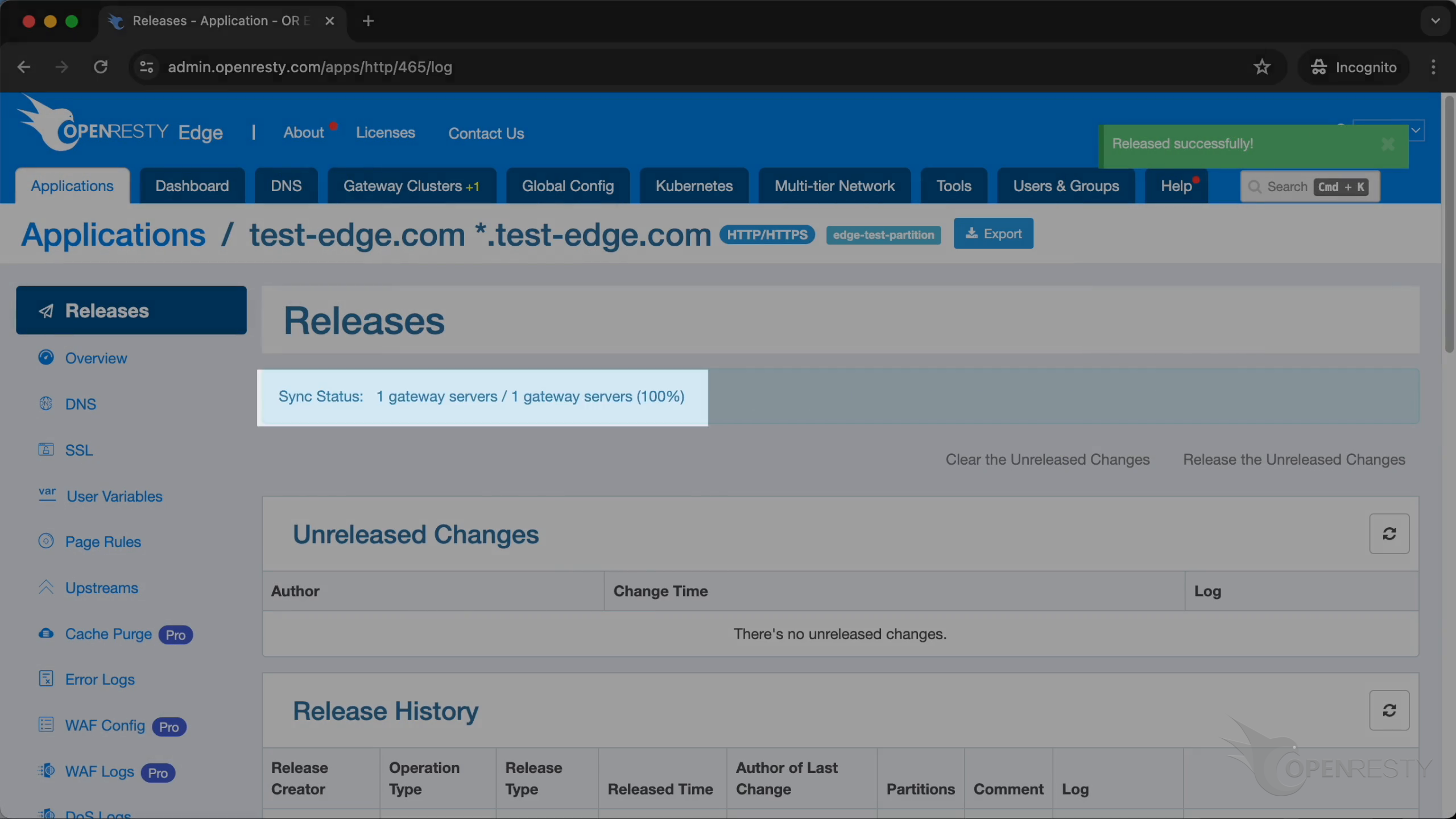
After clicking the “Create” button to create the rule, we need to make a new release to push out our new changes.
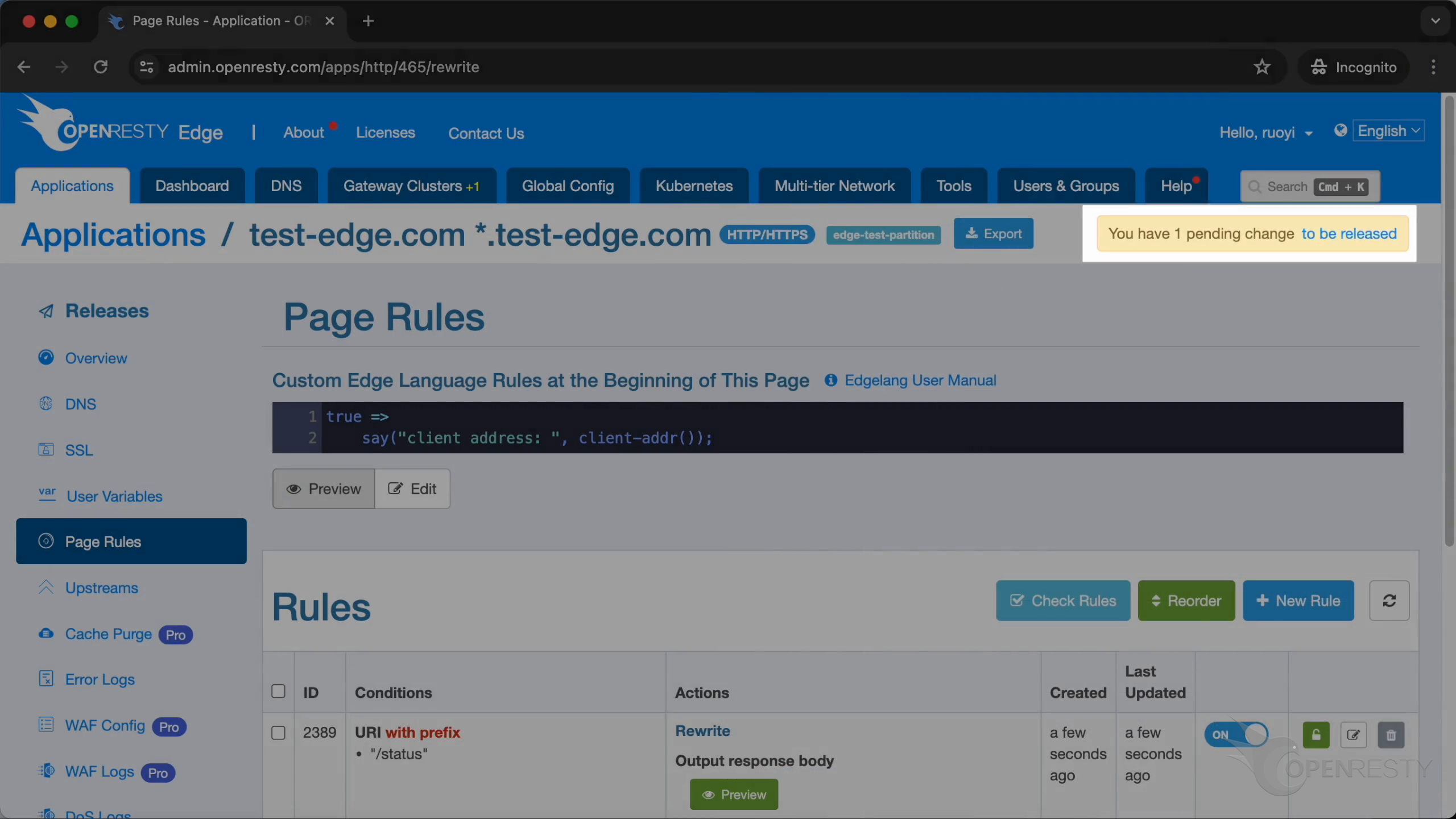
Click on this button.
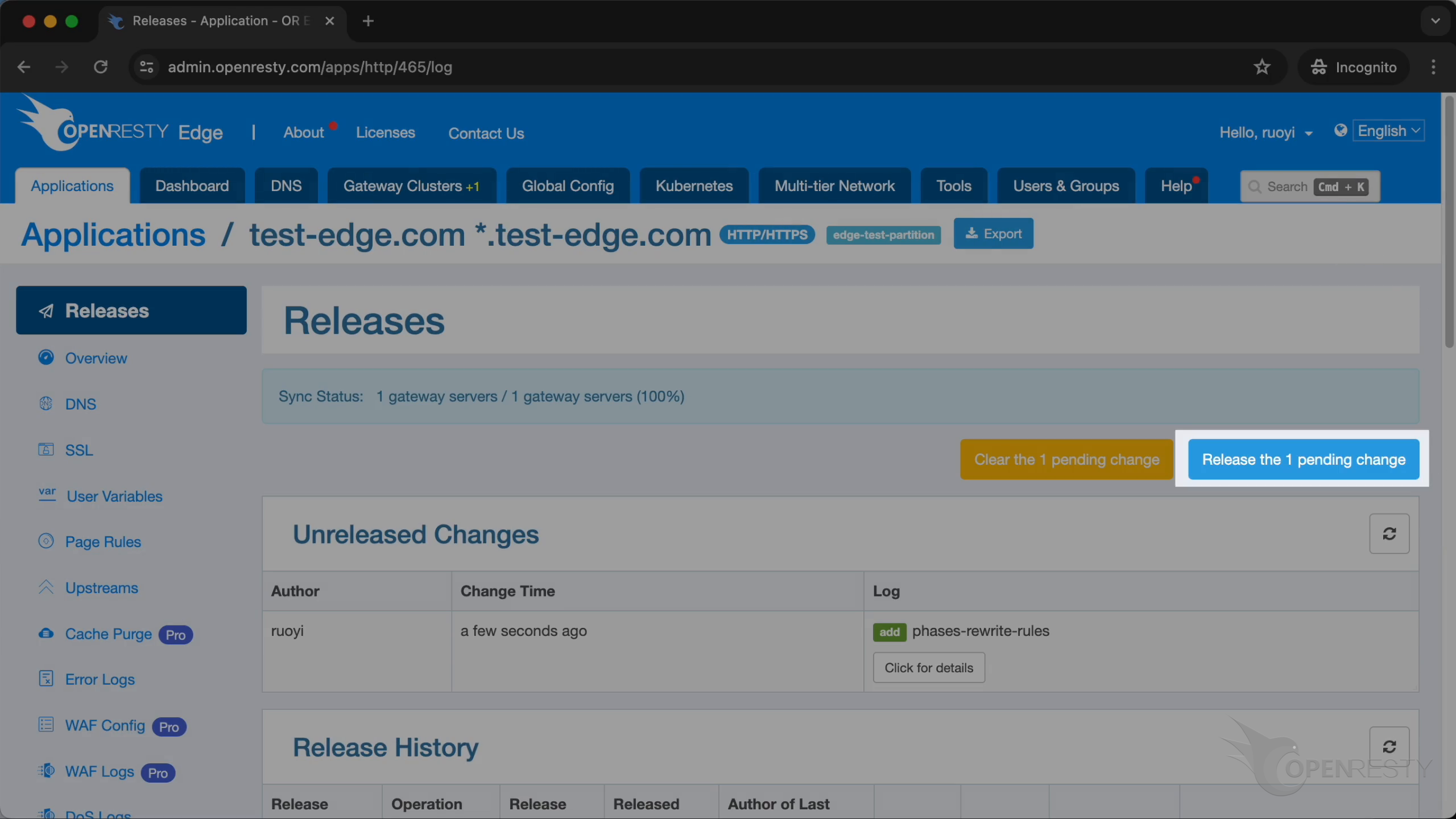
Ship it!

Our new release is now synchronized to all our gateway servers.
Enable Health Checks for Gateway Servers
Let’s go to the gateways clusters page again.
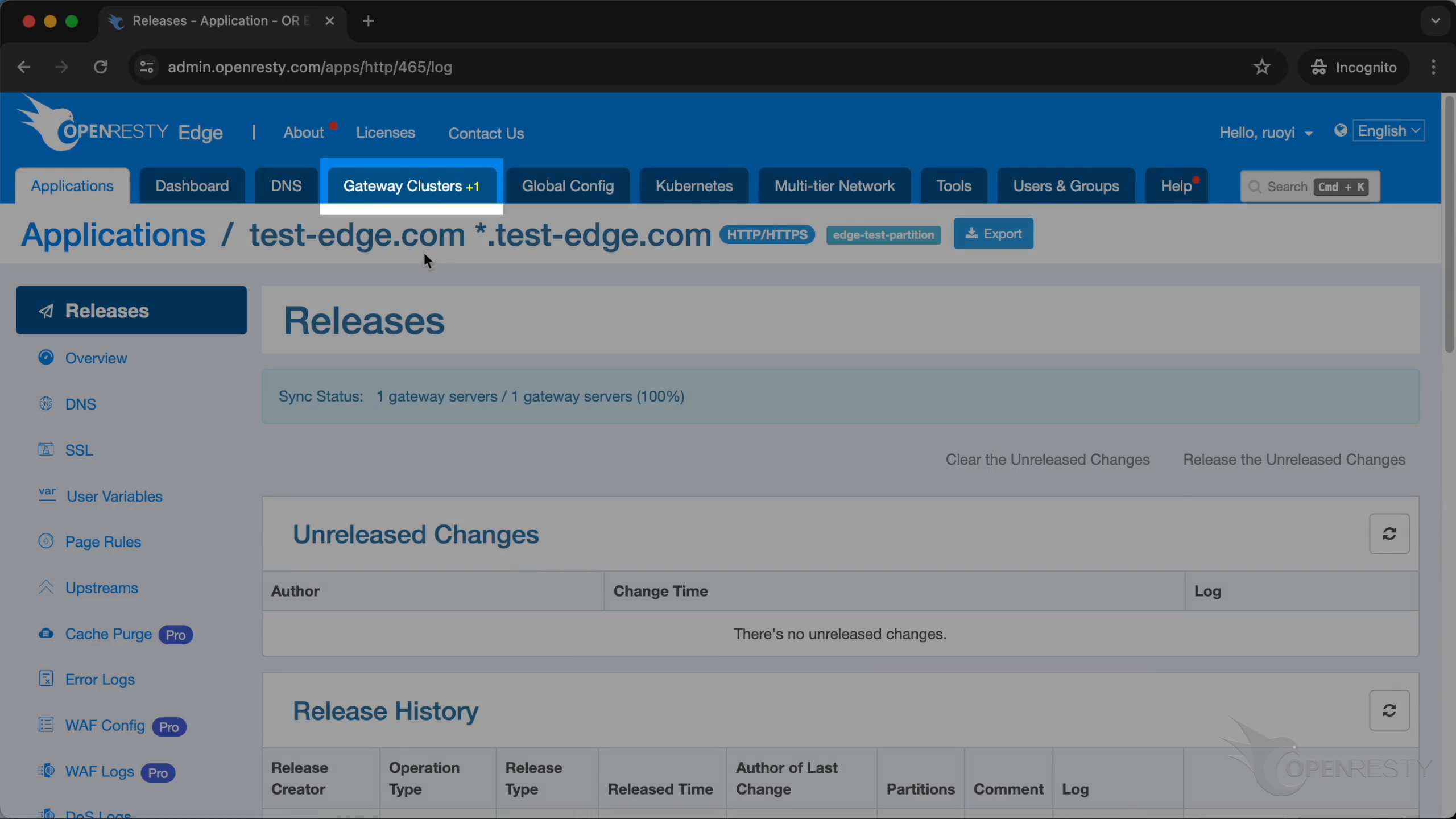
This is the cluster we are going to use today.

Click to copy the IP address.
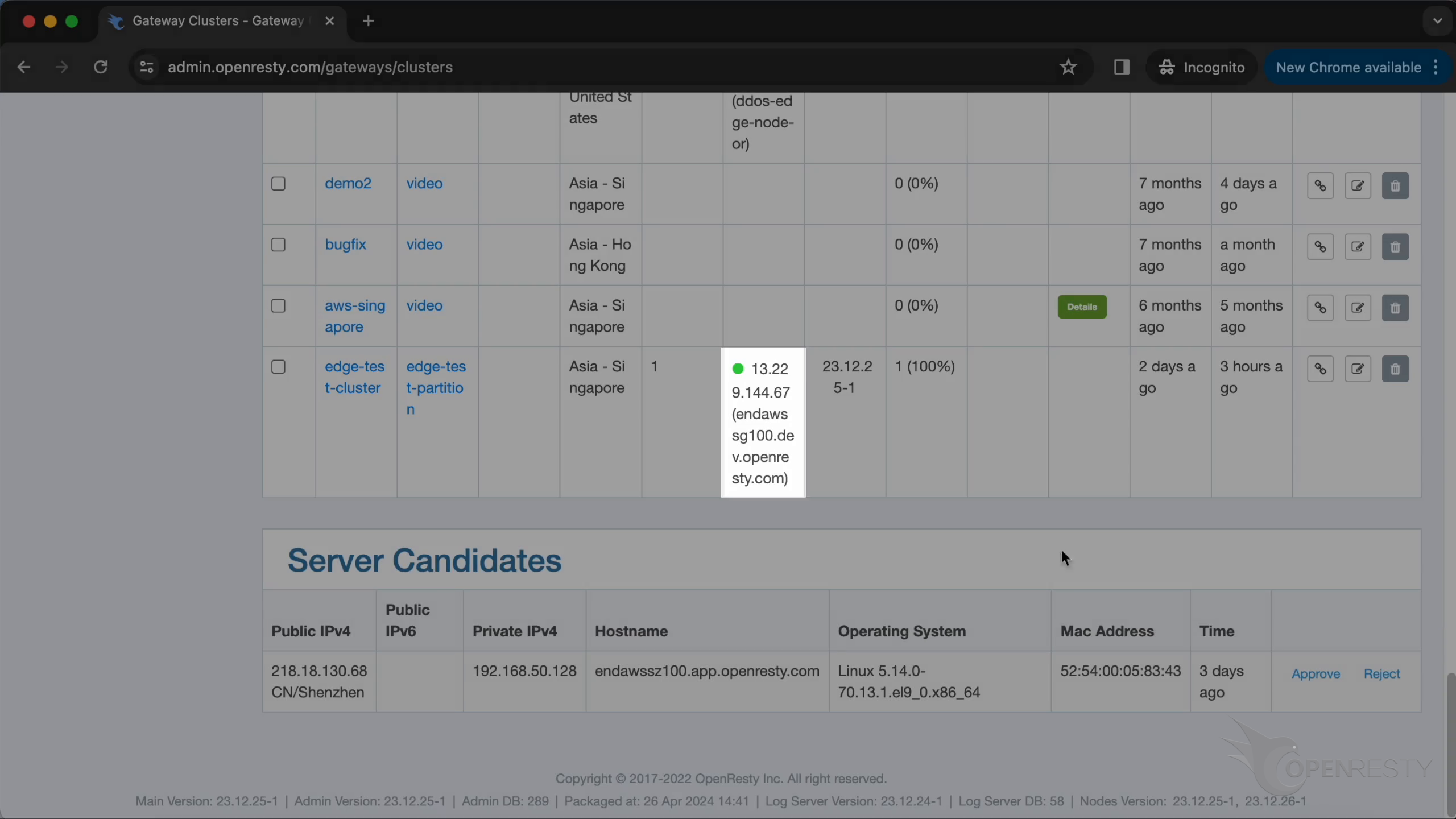
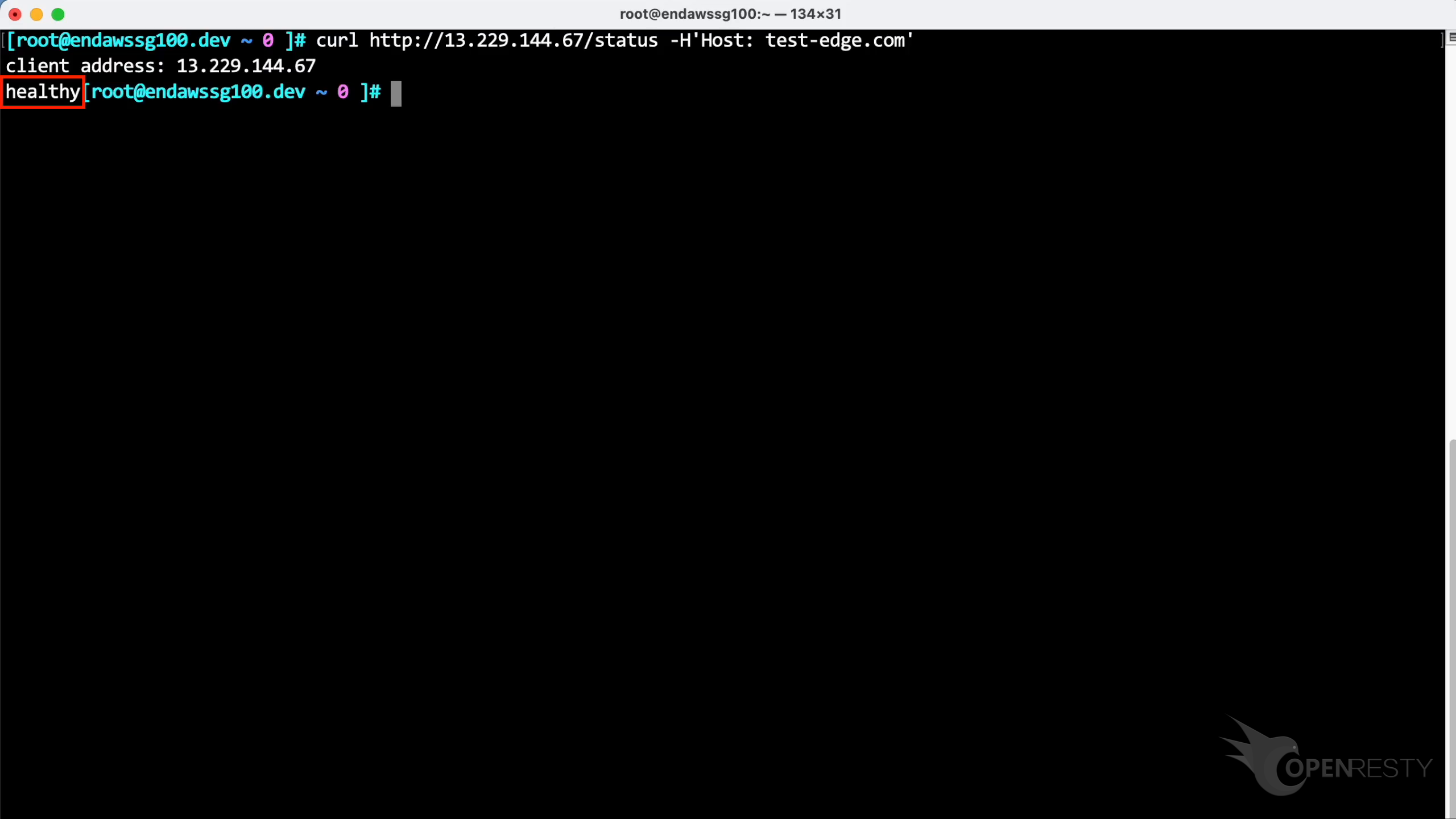
On the terminal, we use the curl command to send a request to the gateway server.
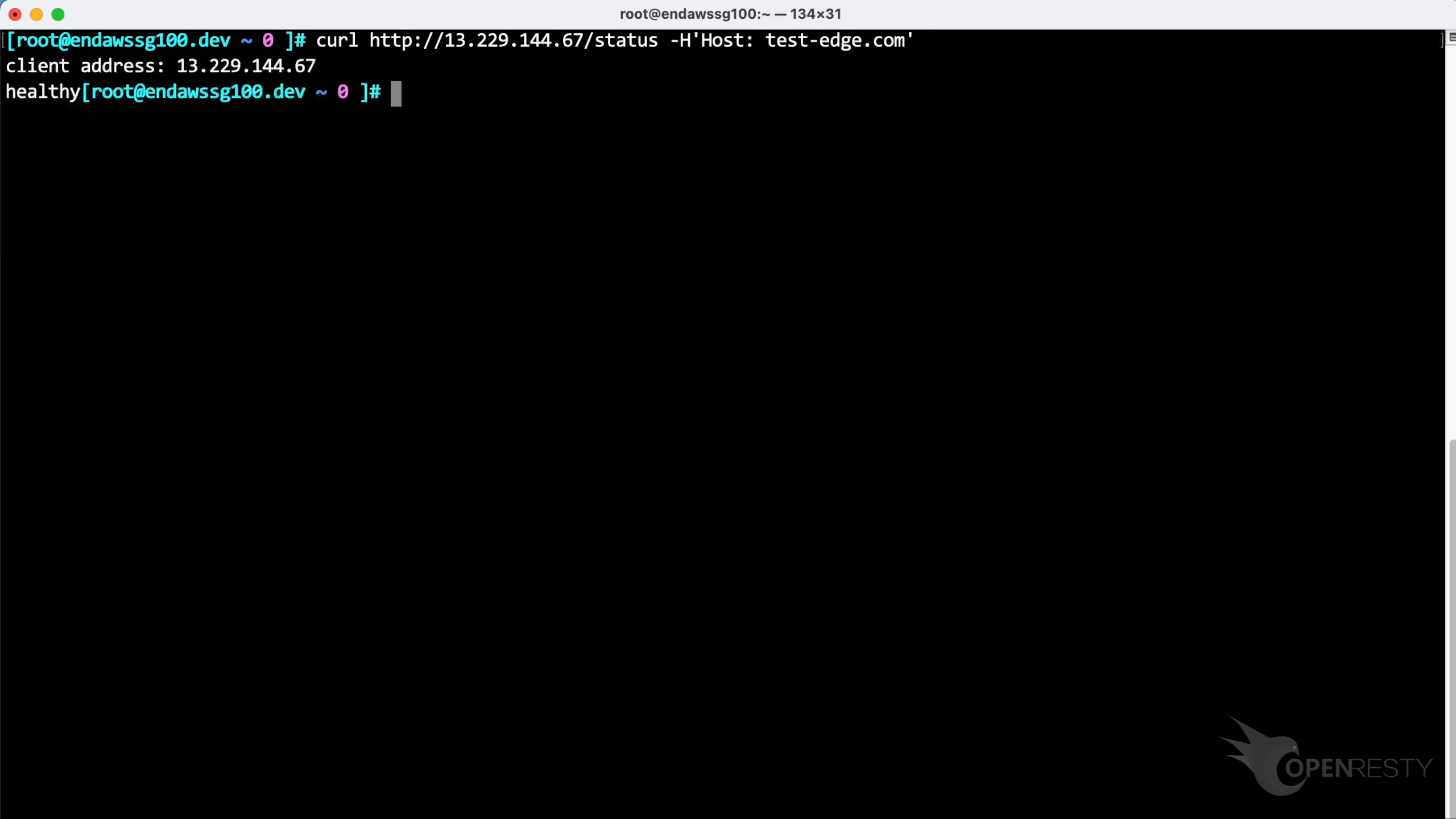
We can see the response body is “healthy” indeed.
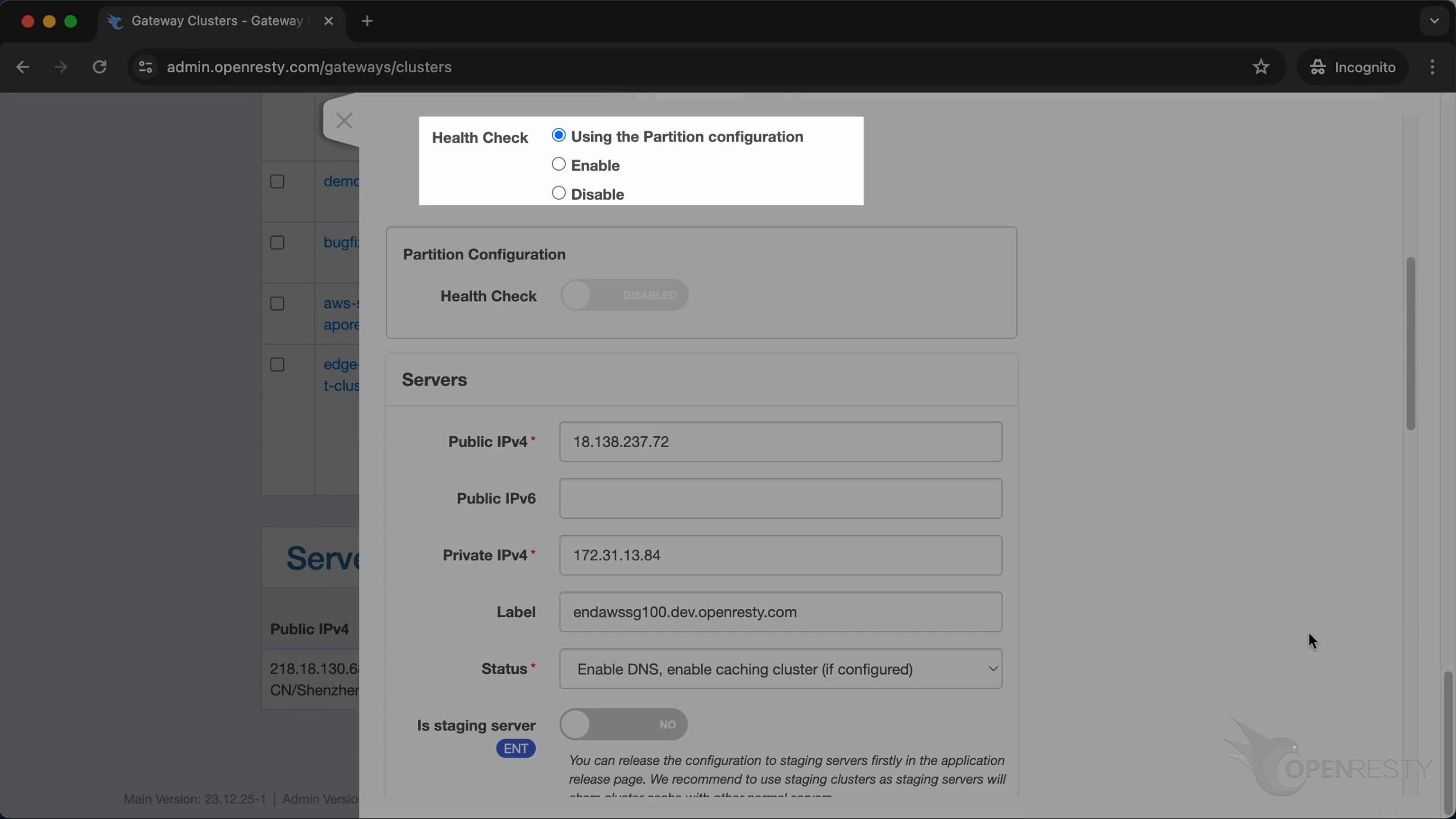
Click to change the configuration of this cluster, then enable the health check.
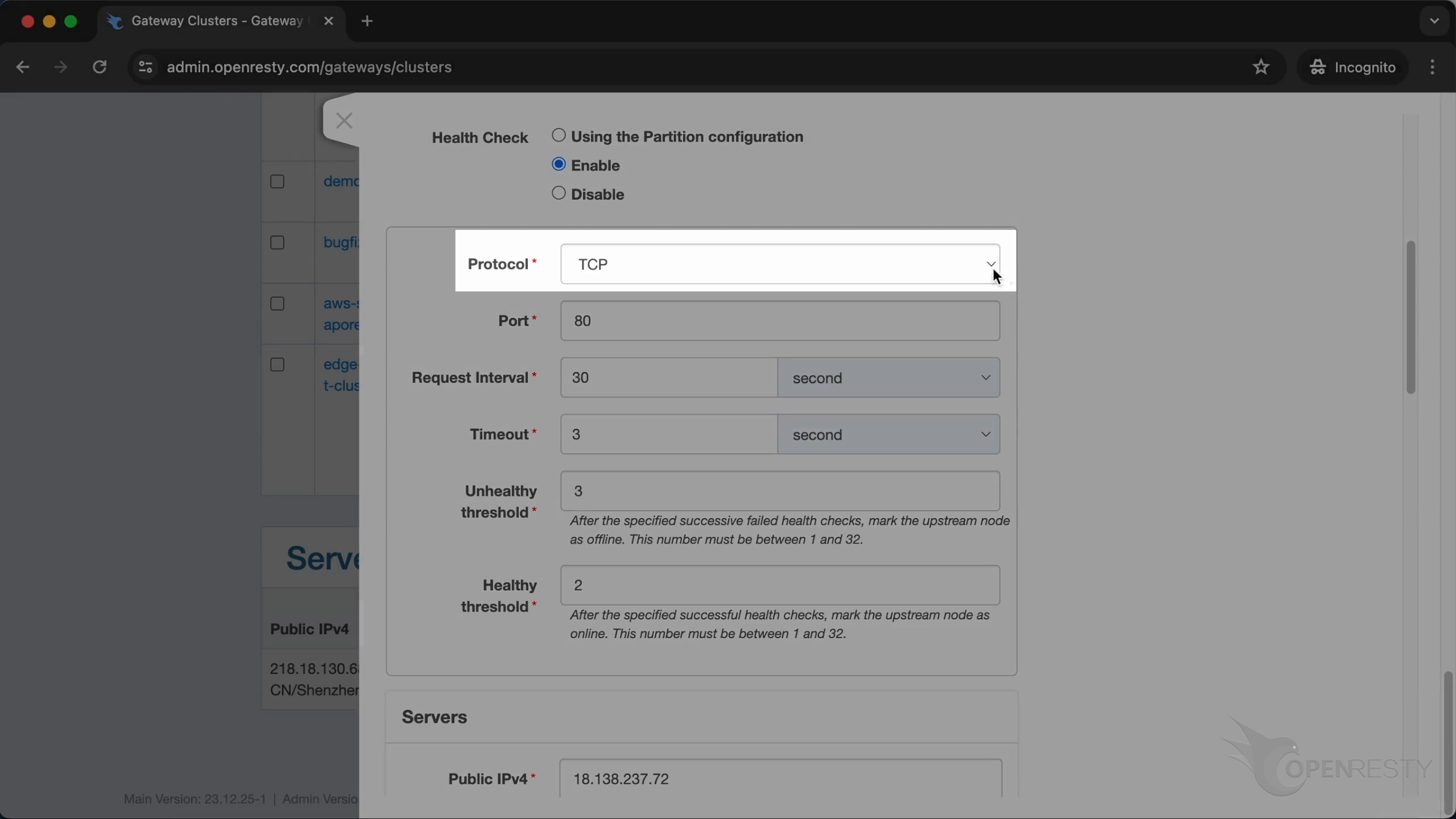
We use the HTTP protocol.
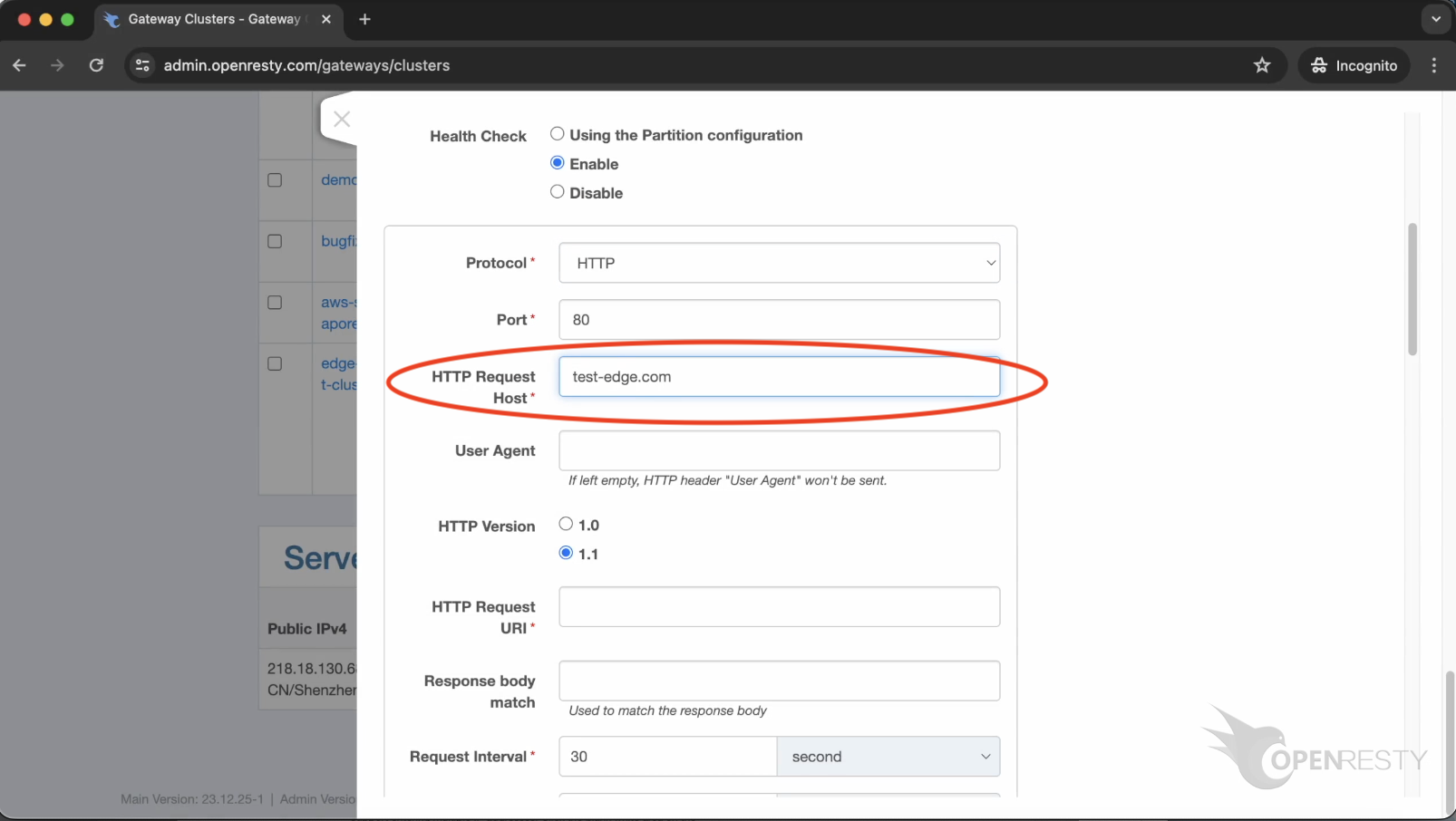
Set the HTTP Request Host as our application’s name.
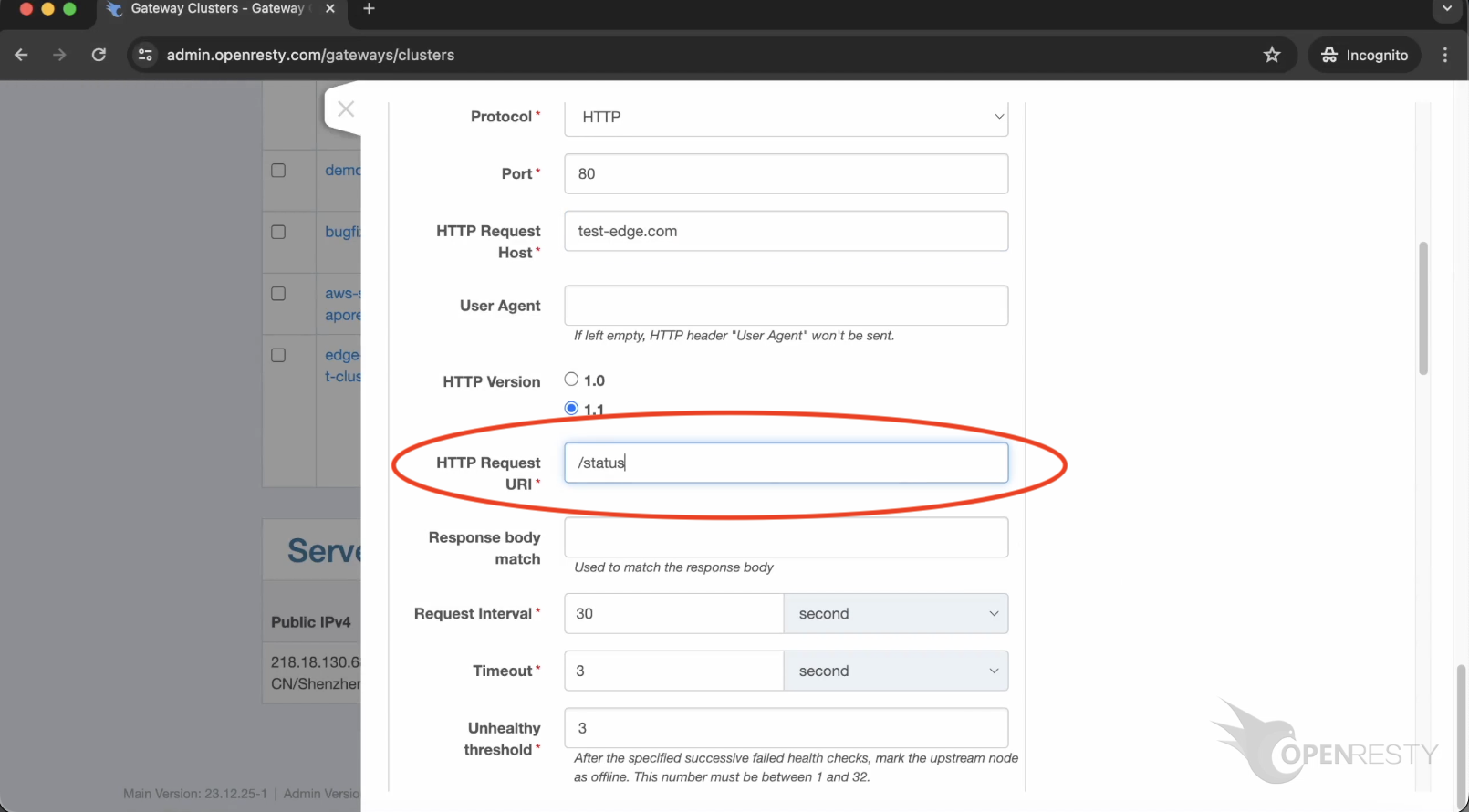
Enter “/status” as the request URI.
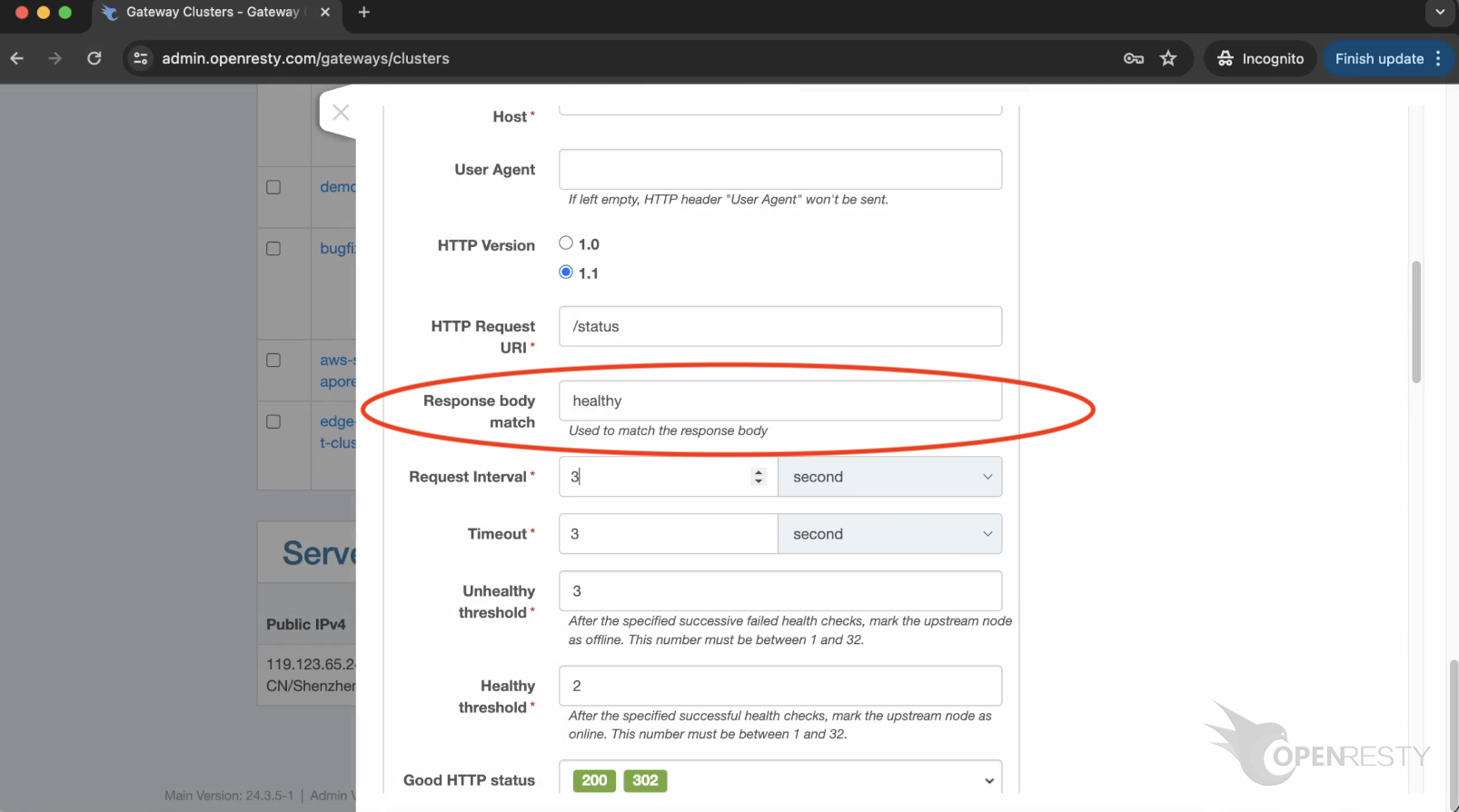
Requires the response body to be matched as “healthy”.
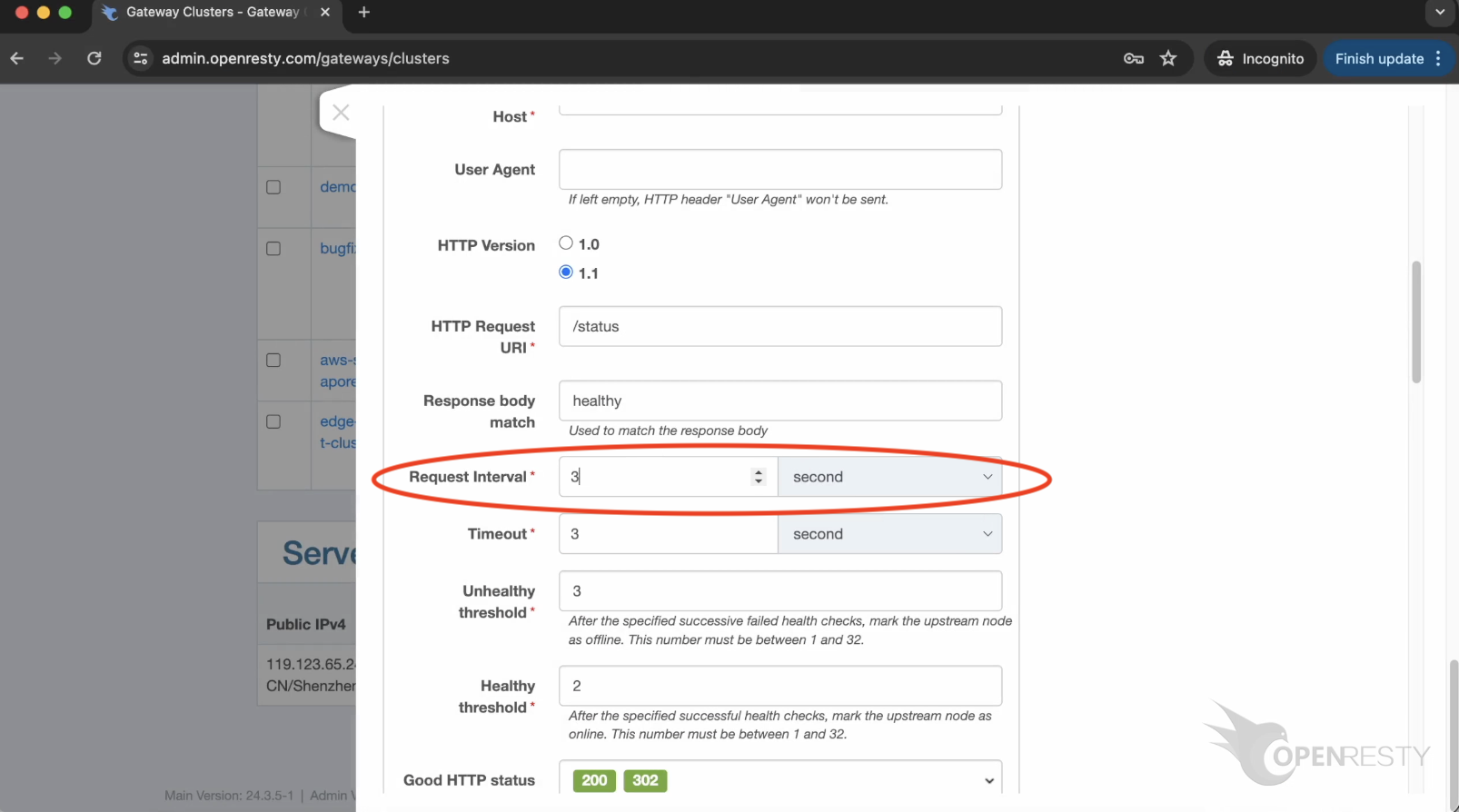
We set the request interval to be smaller, 3 seconds for demonstration purposes.
Finally, save these settings.
Test Failover: What Happens When a Gateway Node Fails
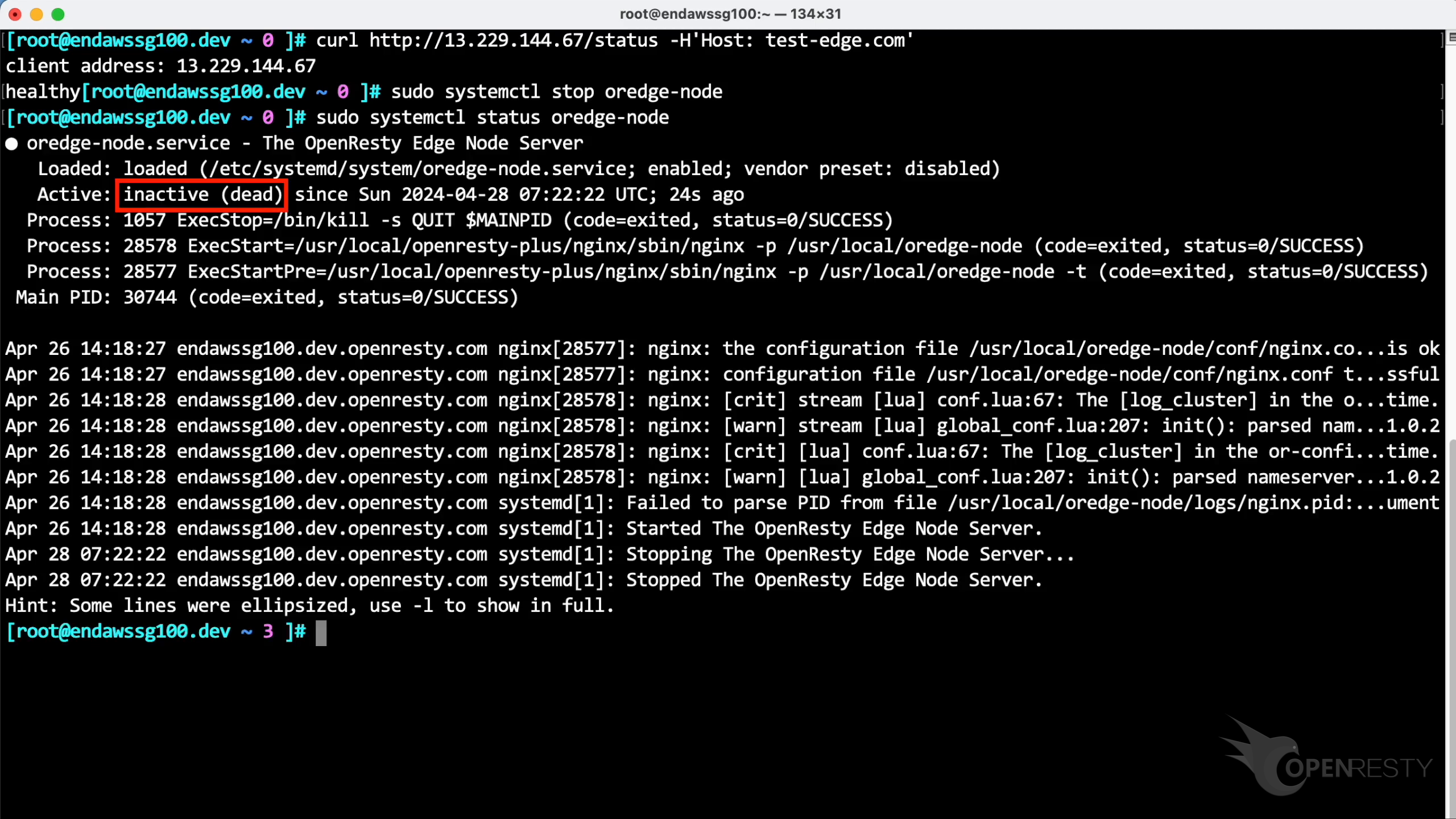
Switch to the terminal. Let’s stop the server first.
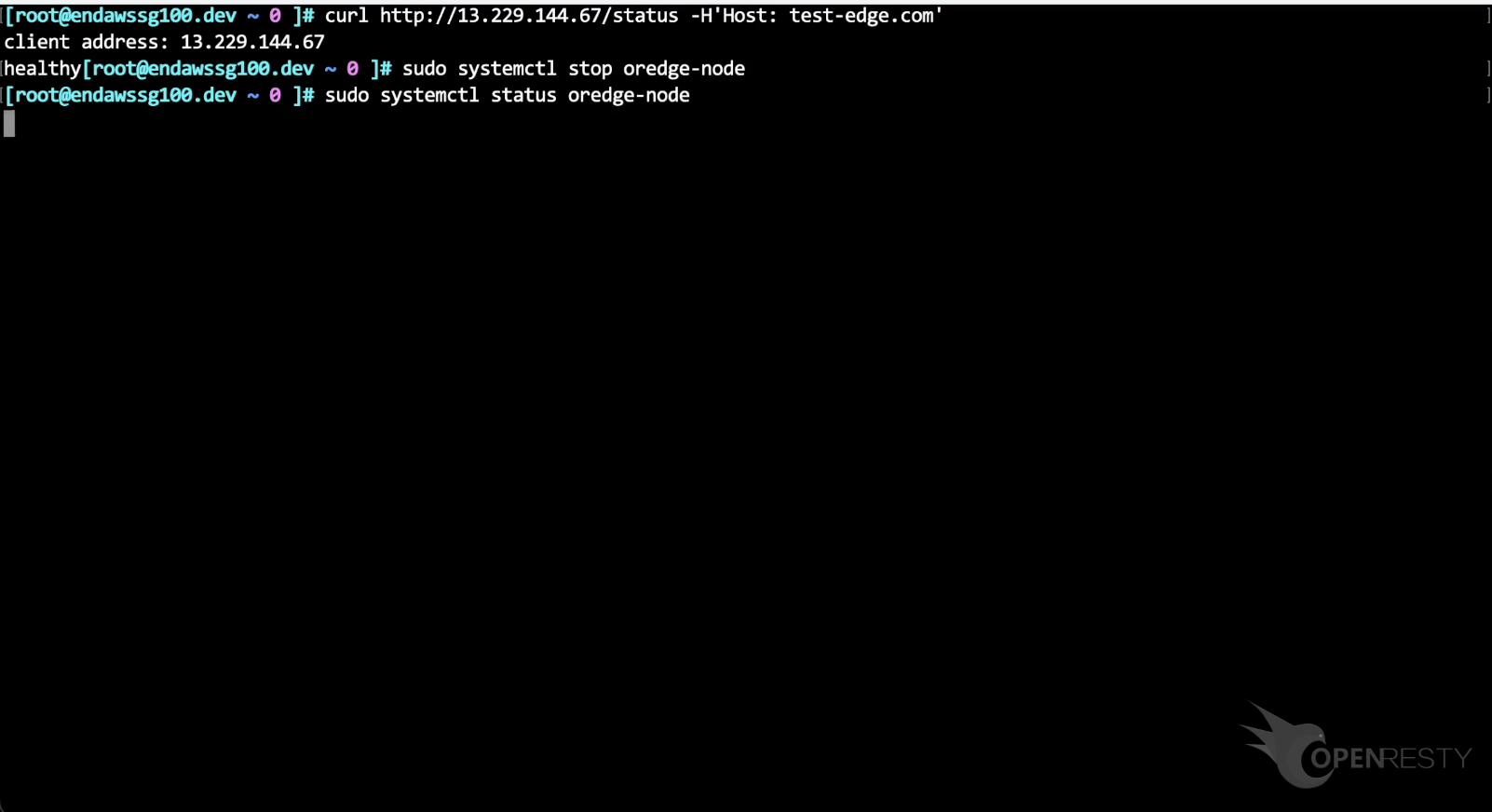
The service is inactive now.
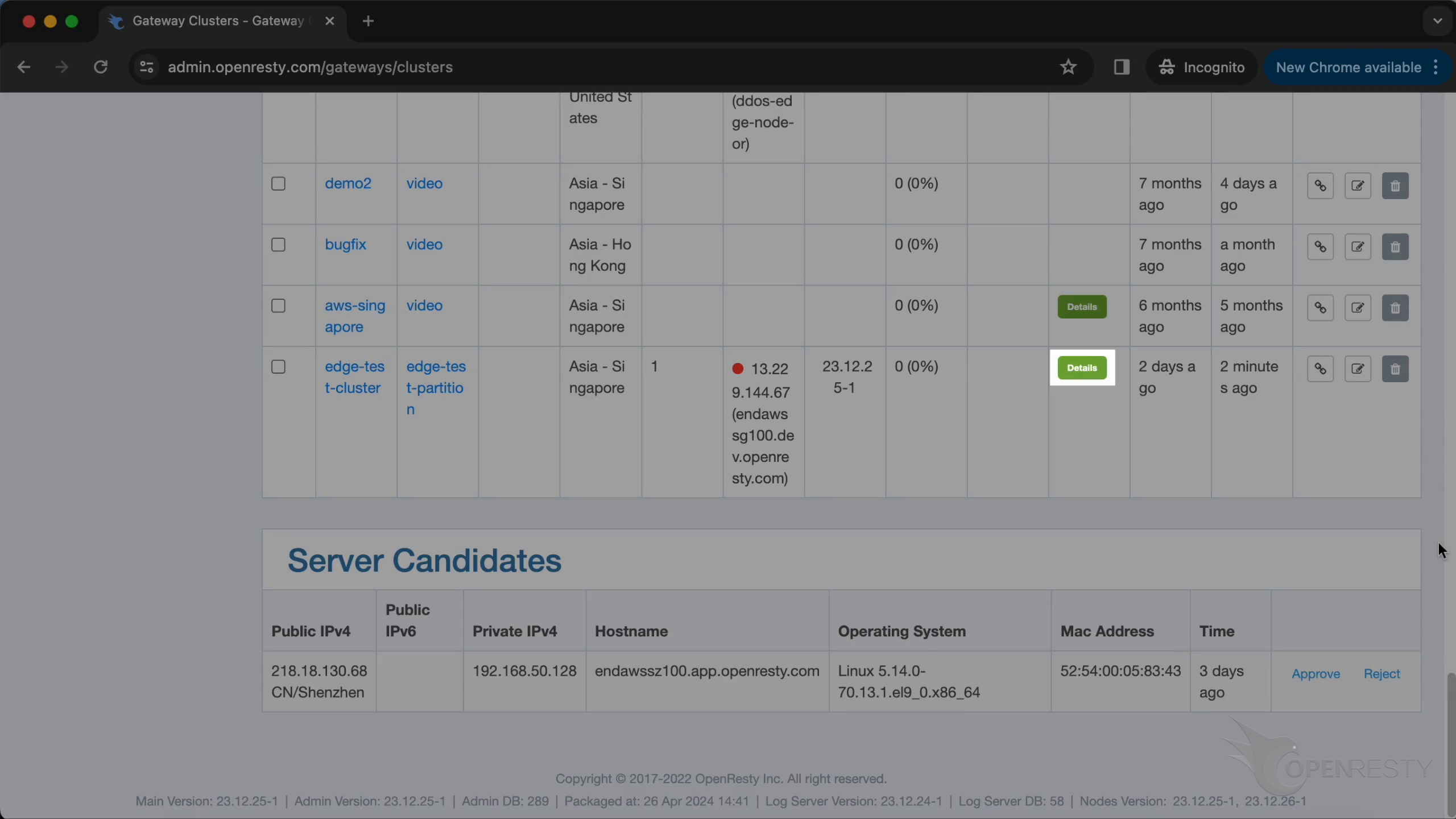
After refreshing the table, we can see that the current status of this node is already in red, indicating that it is offline. The node’s IP is removed from DNS resolution and from the distributed cache for SSL session IDs. This is DNS-level failover: new clients are simply no longer directed to the failed node. You can see how these routing decisions are made in OpenResty Edge’s GSLB configuration.

Check the “Details”.
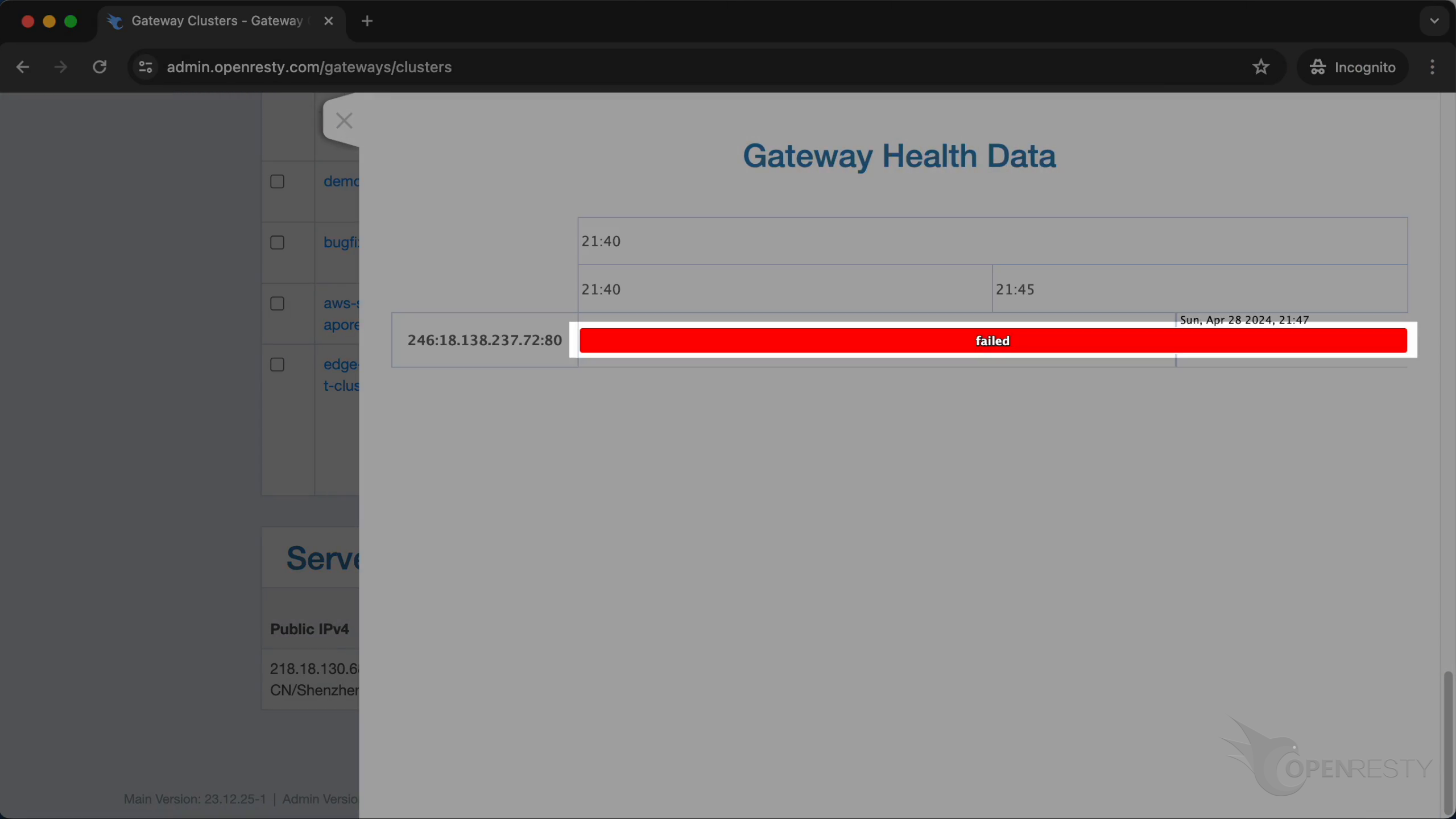
By clicking on the red block, we can see the details of the failure.
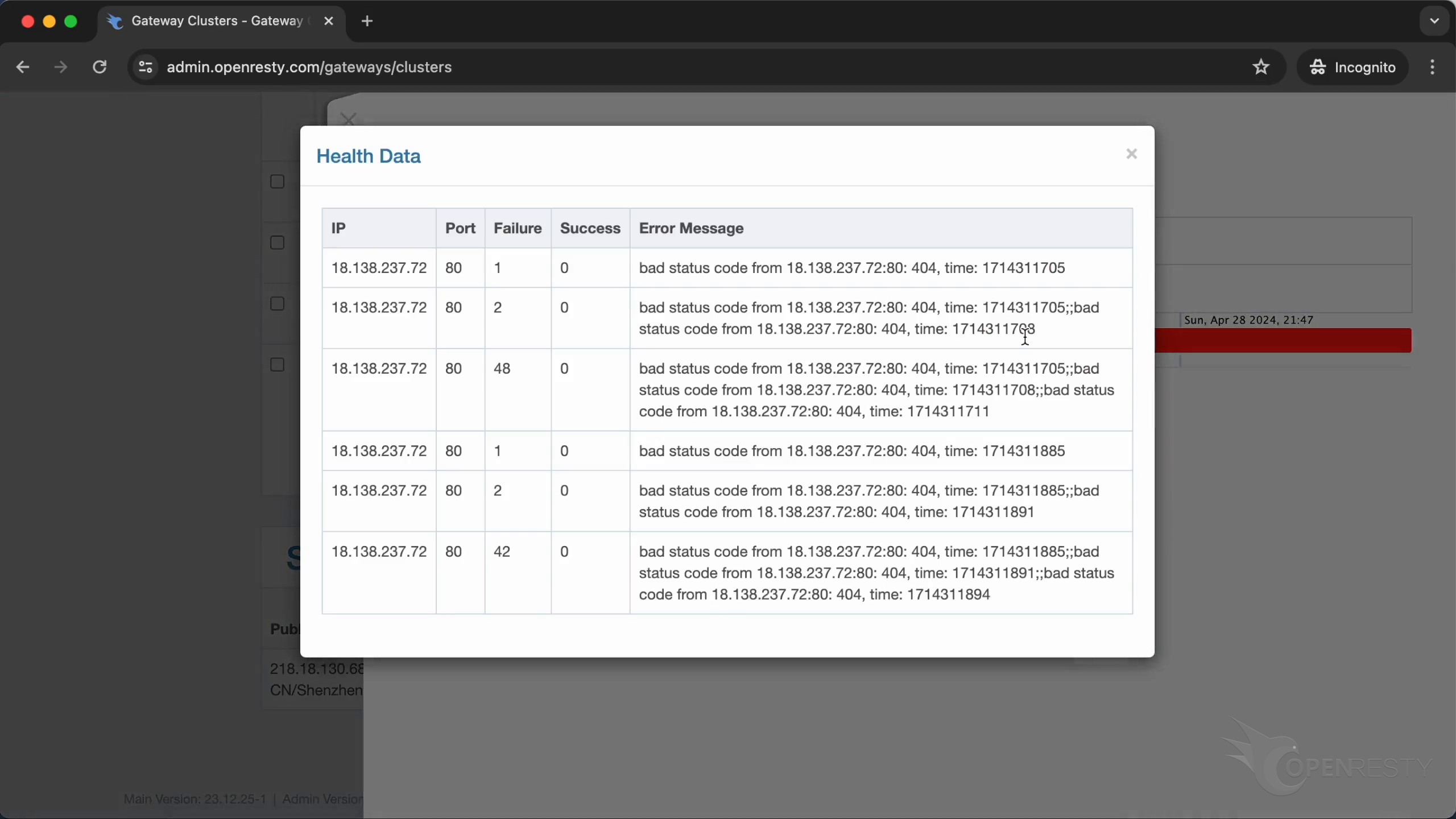
After closing the details, restart the gateway server service.
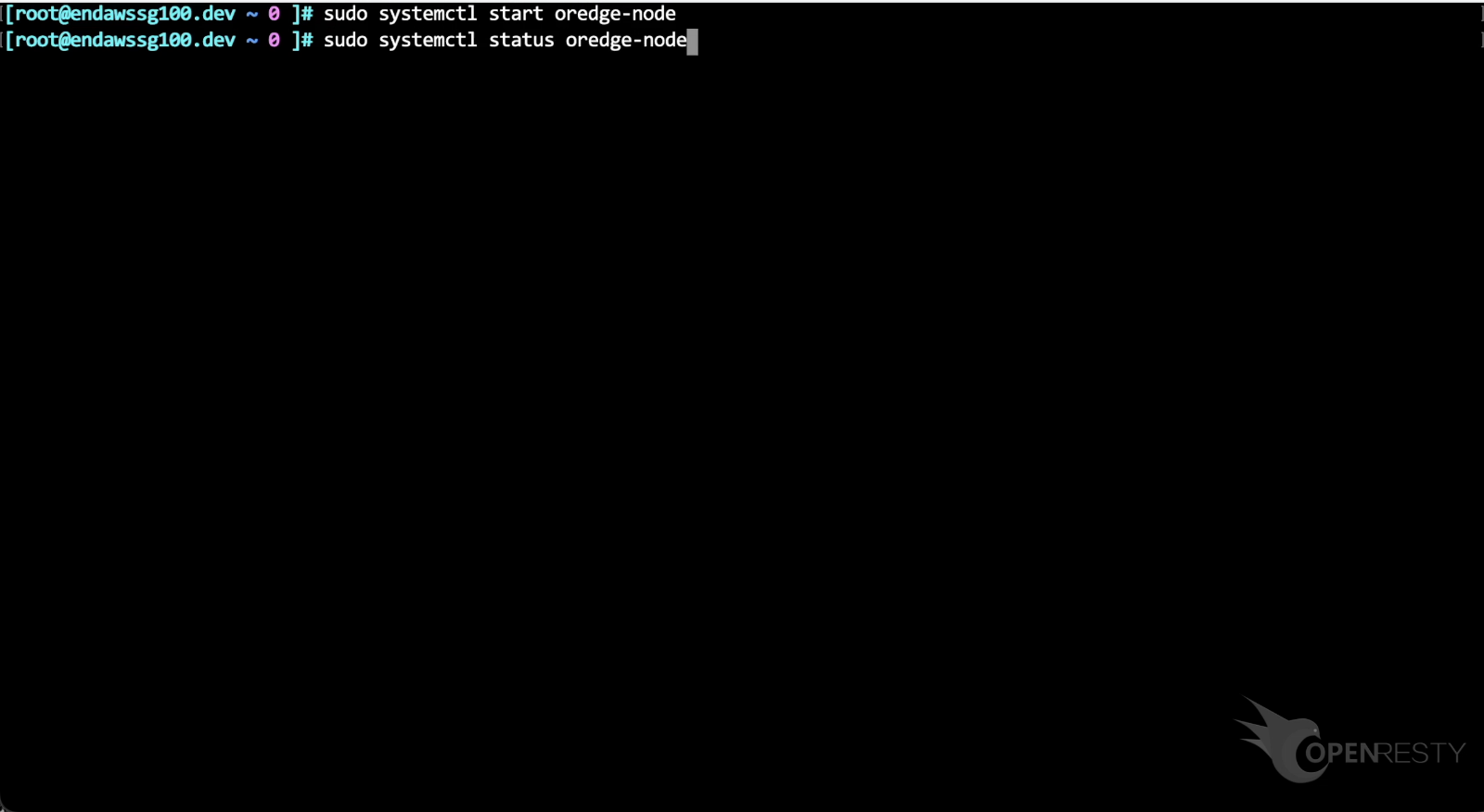
The server is back up.

Refresh the table again. We can see that the node status has changed back to green.
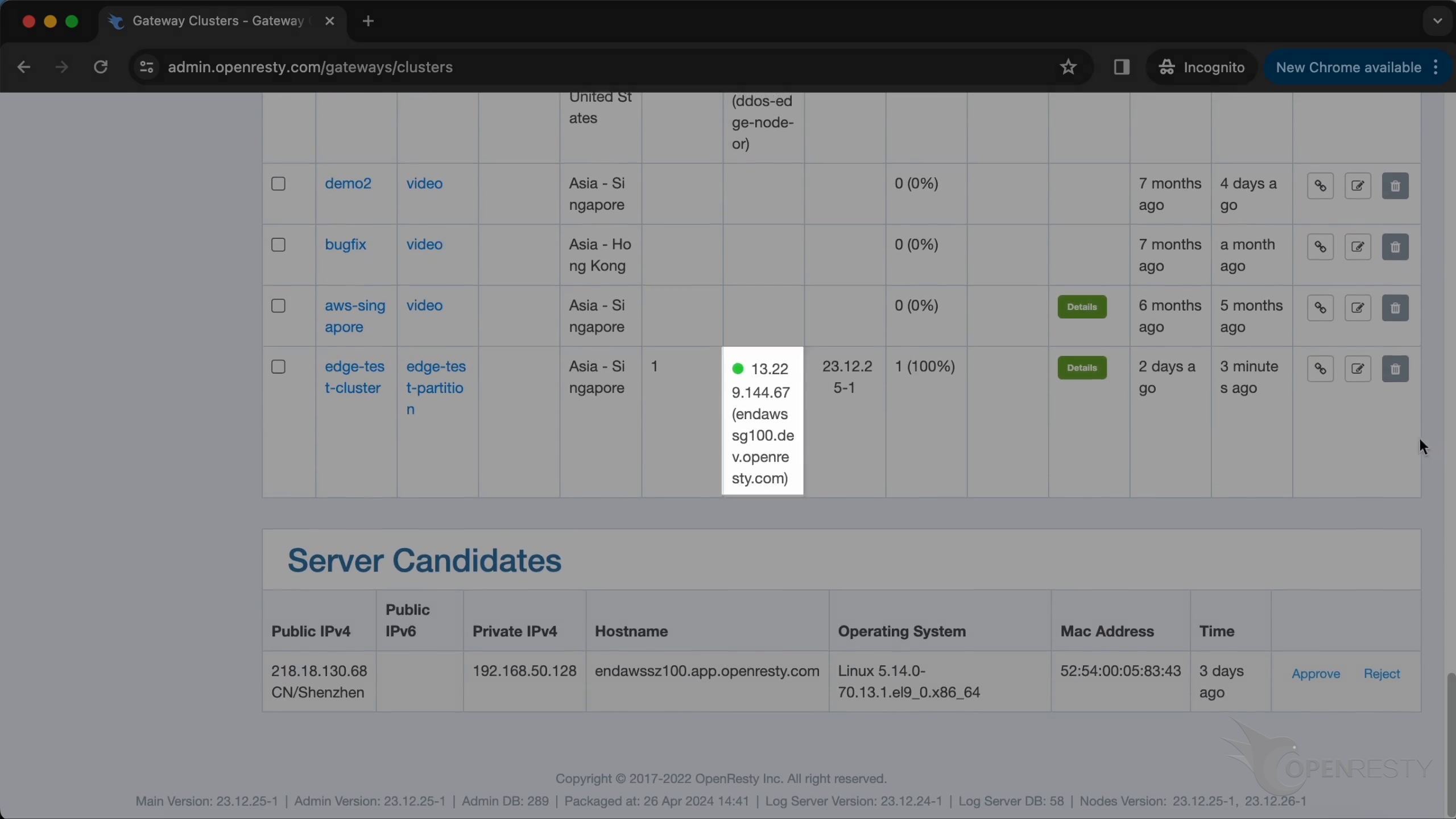
In addition, we can also enable health checks for all the gateway clusters and servers in a particular partition.
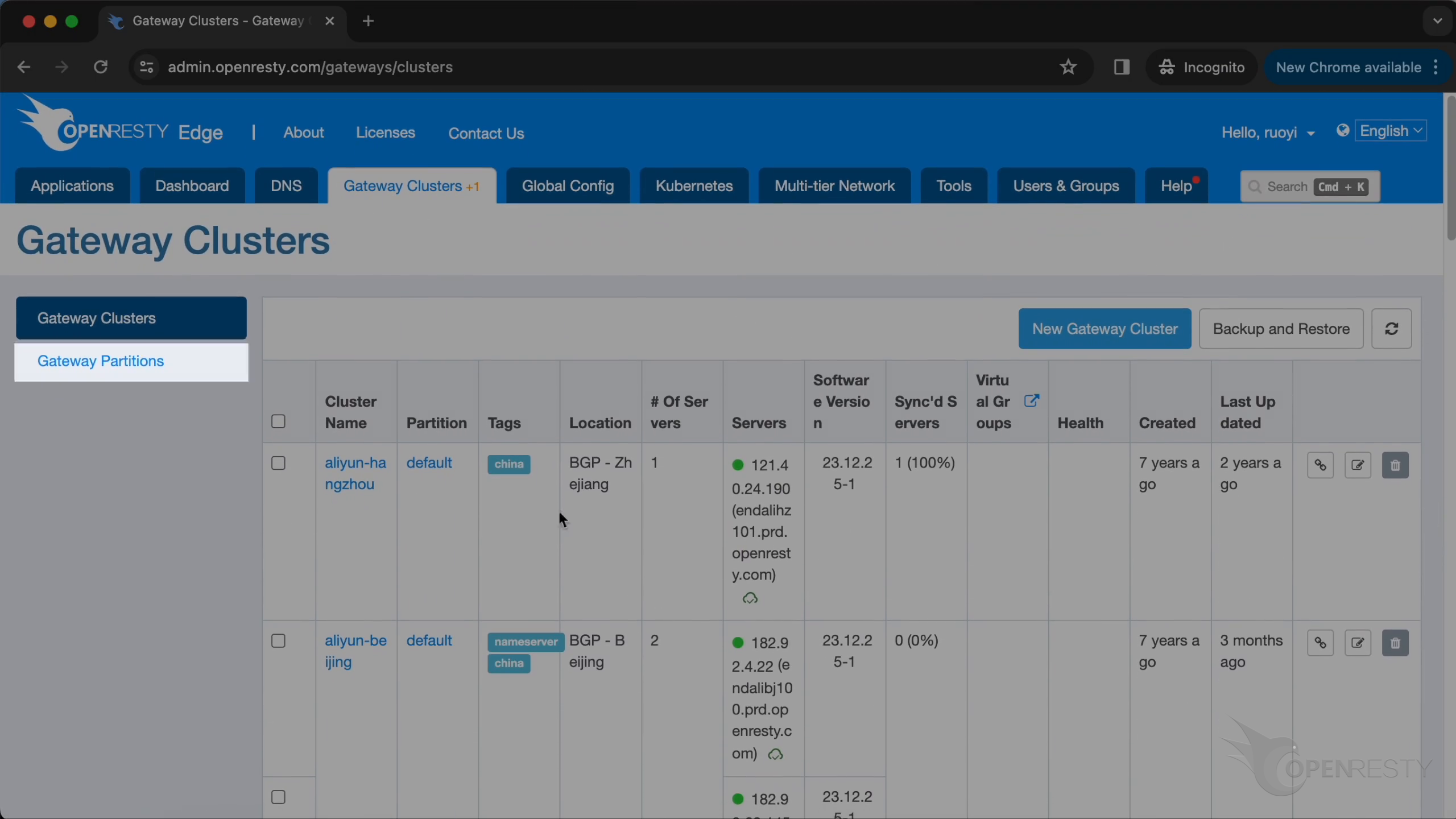
Click to edit this partition.

We can enable the health check by this button.
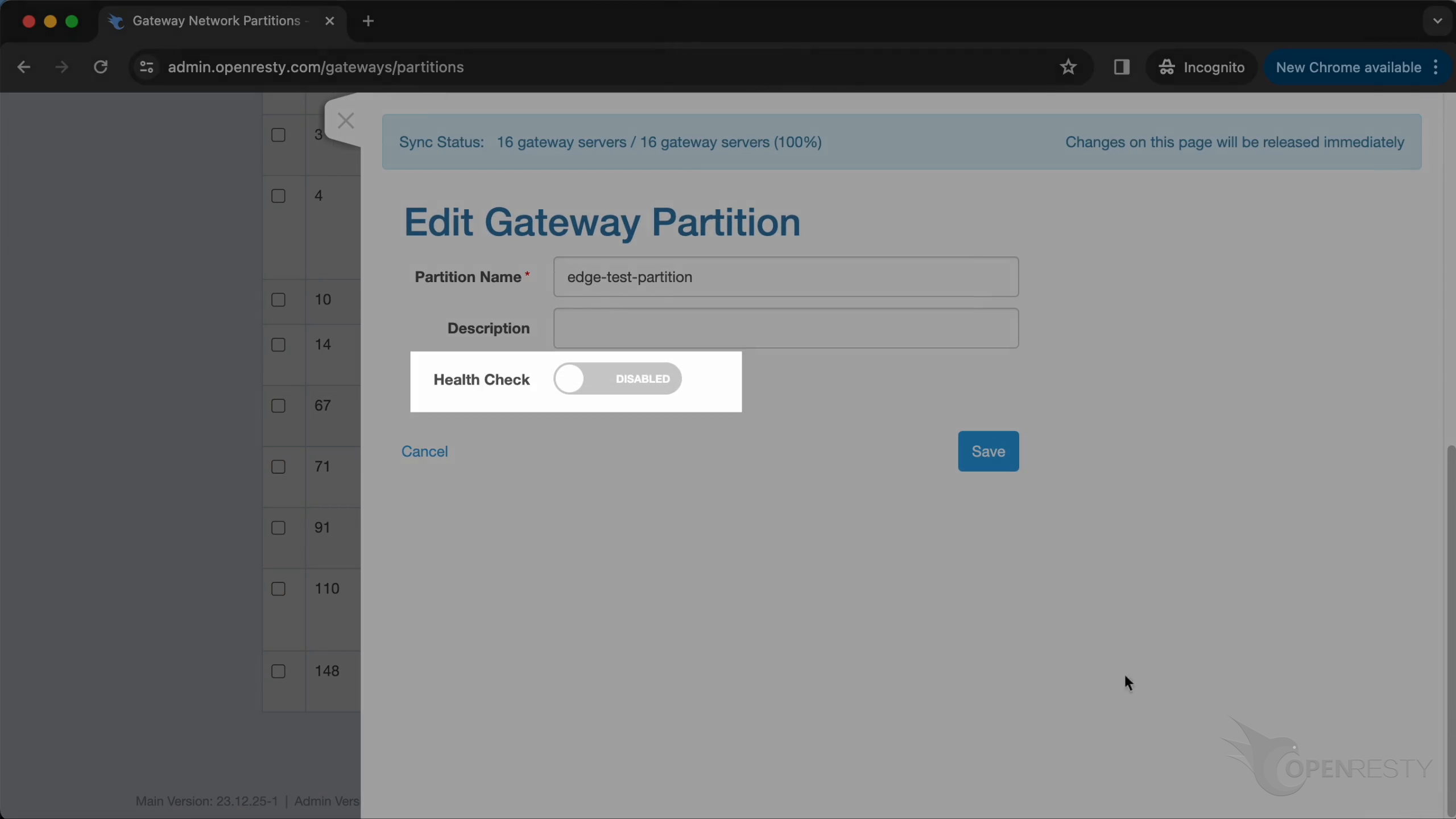
The health checks here are for the gateway servers themselves, not for upstream backend servers or origin servers — those are a separate OpenResty Edge feature.

Frequently Asked Questions
How do I health check the load balancer itself?
In OpenResty Edge, enable health checks in the gateway cluster or partition settings. Each gateway node — the load balancer itself — is probed over HTTP: you set the request Host, a URI such as “/status”, the expected response body, and the probe interval. Nodes that fail the check are taken out of DNS rotation automatically.
What happens when a gateway node fails the health check?
Its status turns red in the gateway servers table, and its IP address is removed from DNS resolution and from the distributed cache for SSL session IDs, so no new traffic is routed to it. You can inspect the failure details from the console. Once the node passes the checks again, it turns green and returns to rotation automatically.
Is this the same as upstream (backend) health checks?
No. The health checks described here monitor the gateway servers themselves — the nodes that receive client traffic. Health checks for upstream backend servers or origin servers are a separate OpenResty Edge feature.
What can the health check probe?
The probe is an HTTP request with a configurable request Host, request URI, expected response body match, and interval (3 seconds in this demo). Combined with a page rule that outputs a fixed body such as “healthy”, every gateway node can expose a lightweight health check endpoint without involving any backend.
What is OpenResty Edge
OpenResty Edge is our all-in-one gateway software for microservices and distributed traffic architectures. It combines traffic management, private CDN construction, API gateway, security, and more to help you easily build, manage, and protect modern applications. OpenResty Edge delivers industry-leading performance and scalability to meet the demanding needs of high concurrency, high load scenarios. It supports scheduling containerized application traffic such as K8s and manages massive domains, making it easy to meet the needs of large websites and complex applications.
If you like this tutorial, please subscribe to this blog site and/or our YouTube channel. Thank you!
About The Author
Yichun Zhang (Github handle: agentzh), is the original creator of the OpenResty® open-source project and the CEO of OpenResty Inc..
Yichun is one of the earliest advocates and leaders of “open-source technology”. He worked at many internationally renowned tech companies, such as Cloudflare, Yahoo!. He is a pioneer of “edge computing”, “dynamic tracing” and “machine coding”, with over 22 years of programming and 16 years of open source experience. Yichun is well-known in the open-source space as the project leader of OpenResty®, adopted by more than 40 million global website domains.
OpenResty Inc., the enterprise software start-up founded by Yichun in 2017, has customers from some of the biggest companies in the world. Its flagship product, OpenResty XRay, is a non-invasive profiling and troubleshooting tool that significantly enhances and utilizes dynamic tracing technology. And its OpenResty Edge product is a powerful distributed traffic management and private CDN software product.
As an avid open-source contributor, Yichun has contributed more than a million lines of code to numerous open-source projects, including Linux kernel, Nginx, LuaJIT, GDB, SystemTap, LLVM, Perl, etc. He has also authored more than 60 open-source software libraries.
Related Articles
OpenResty XRay Jun 27, 2024

OpenResty XRay Jun 26, 2024

OpenResty XRay Apr 28, 2024

OpenResty XRay Sep 2, 2025

OpenResty XRay May 18, 2026