
Configure Custom Error Pages in OpenResty Edge
In this tutorial, we will demonstrate using custom templates for the error page on our Web console of OpenResty Edge.
Custom Templates Creation
Let’s go to the console first. This is our sample deployment of the console. Every user would have their own deployment.
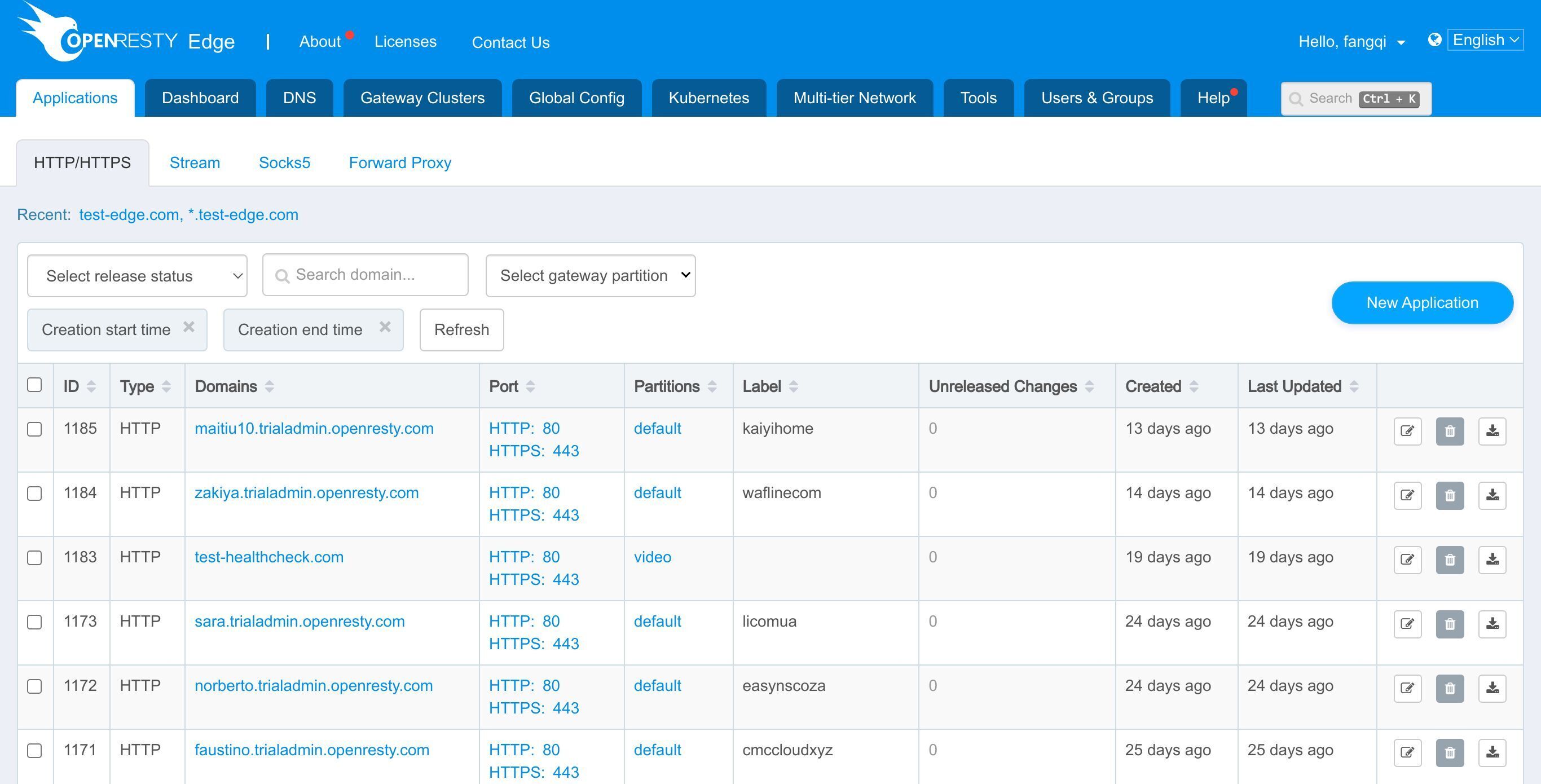
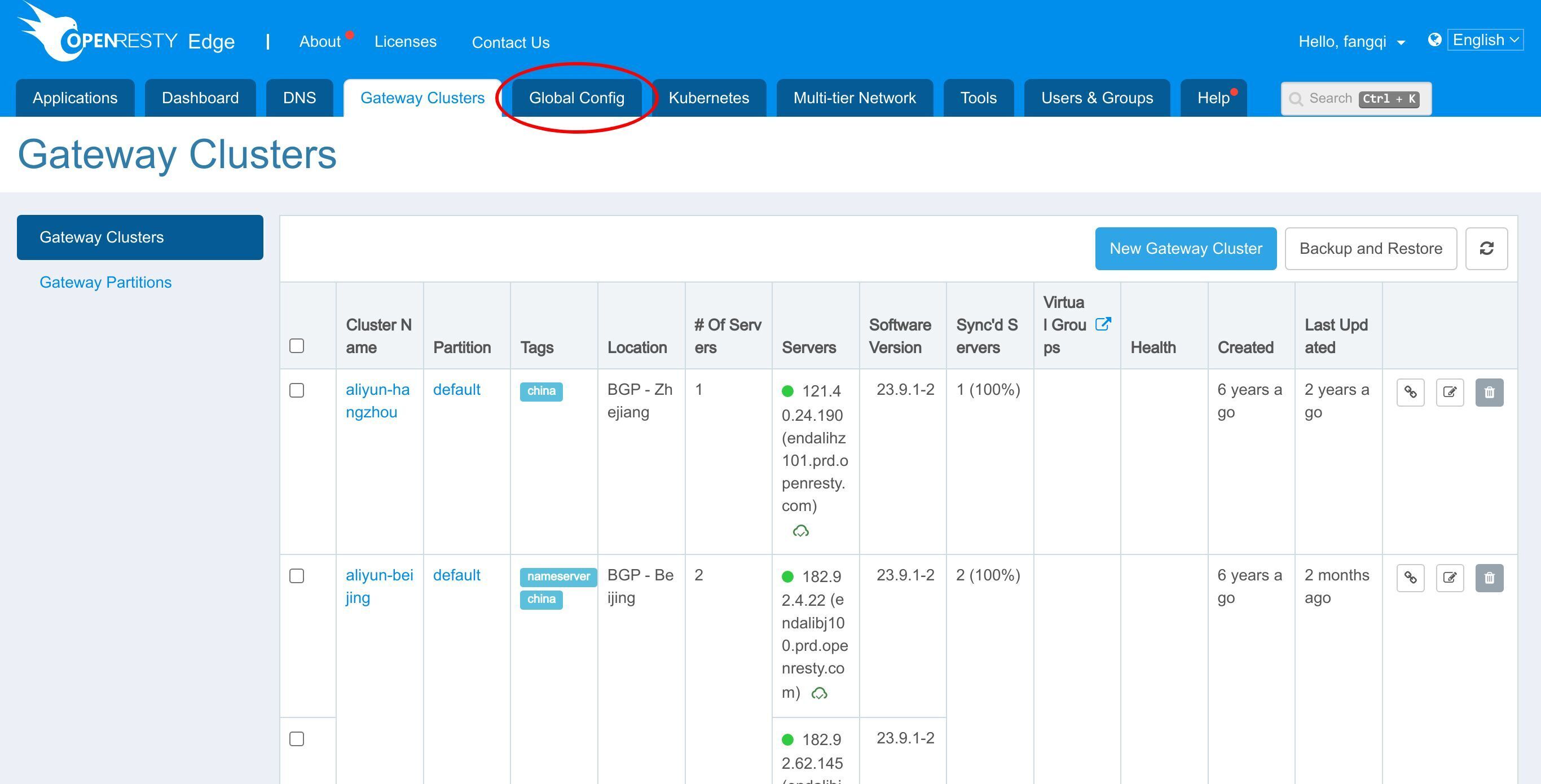
First, we go to Global Config Tab.
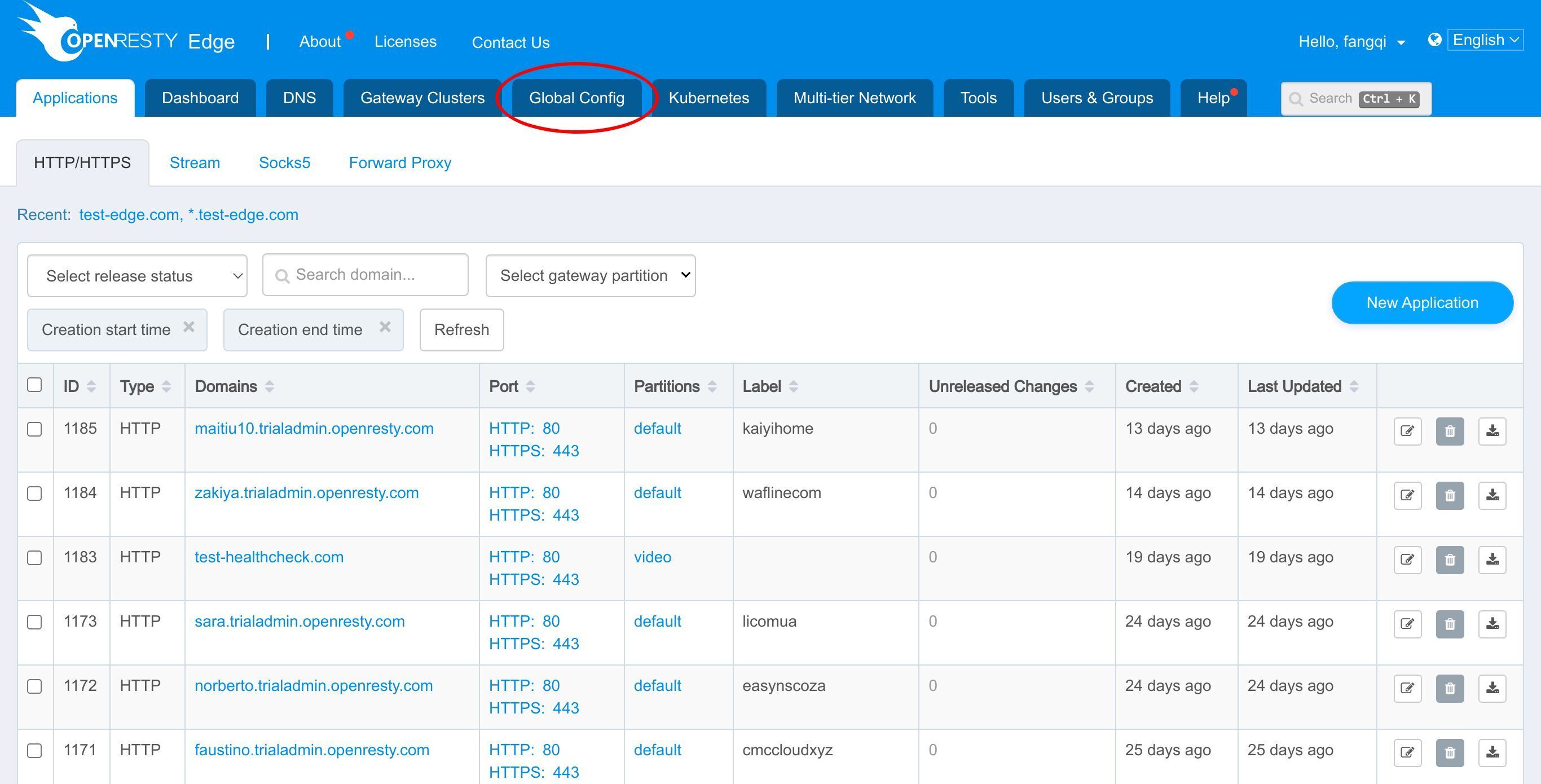
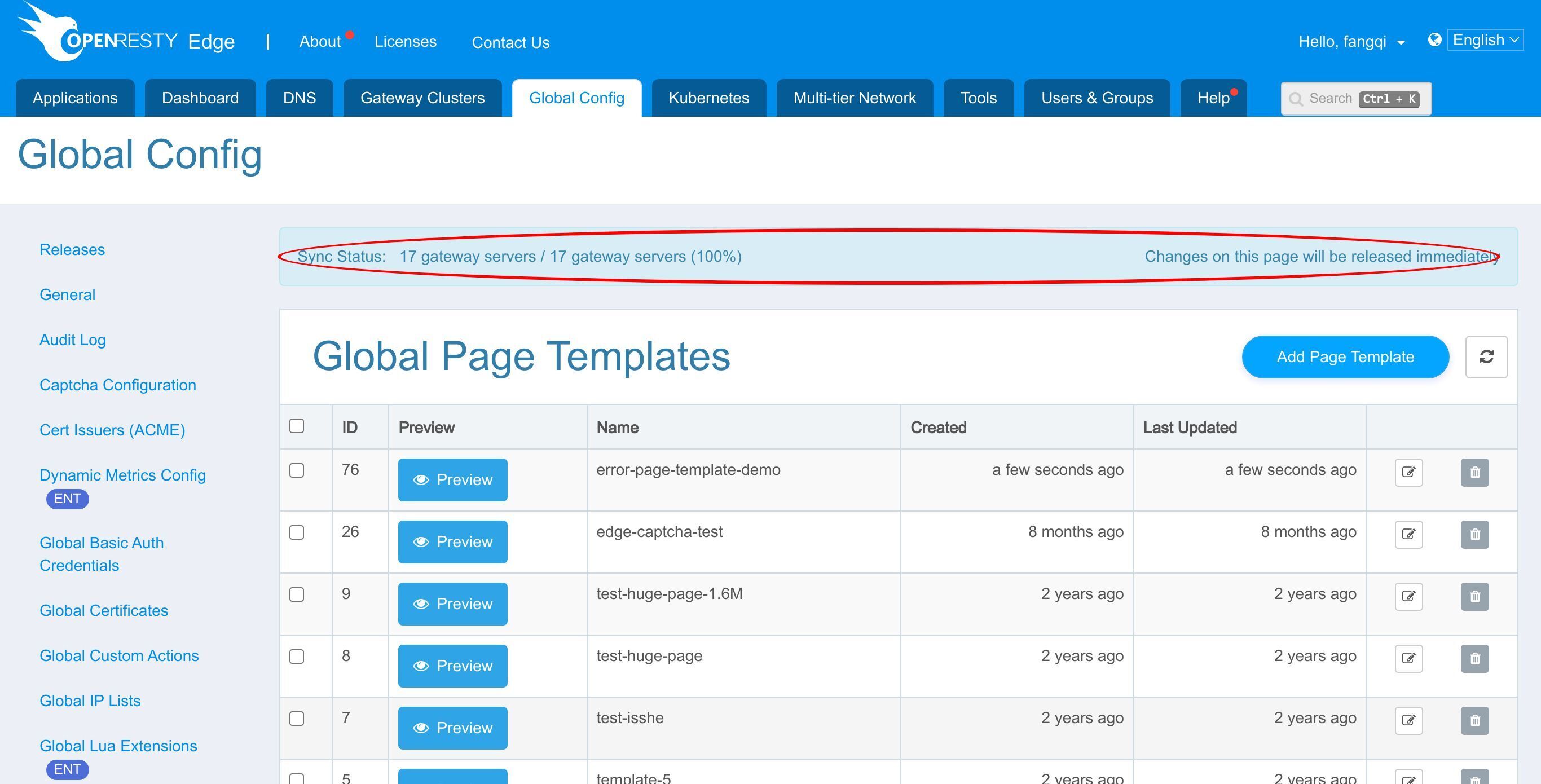
Then we go to the Global Page Templates page. Here we can create some global page templates, which can be used to define customized error pages or WAF blocking pages.
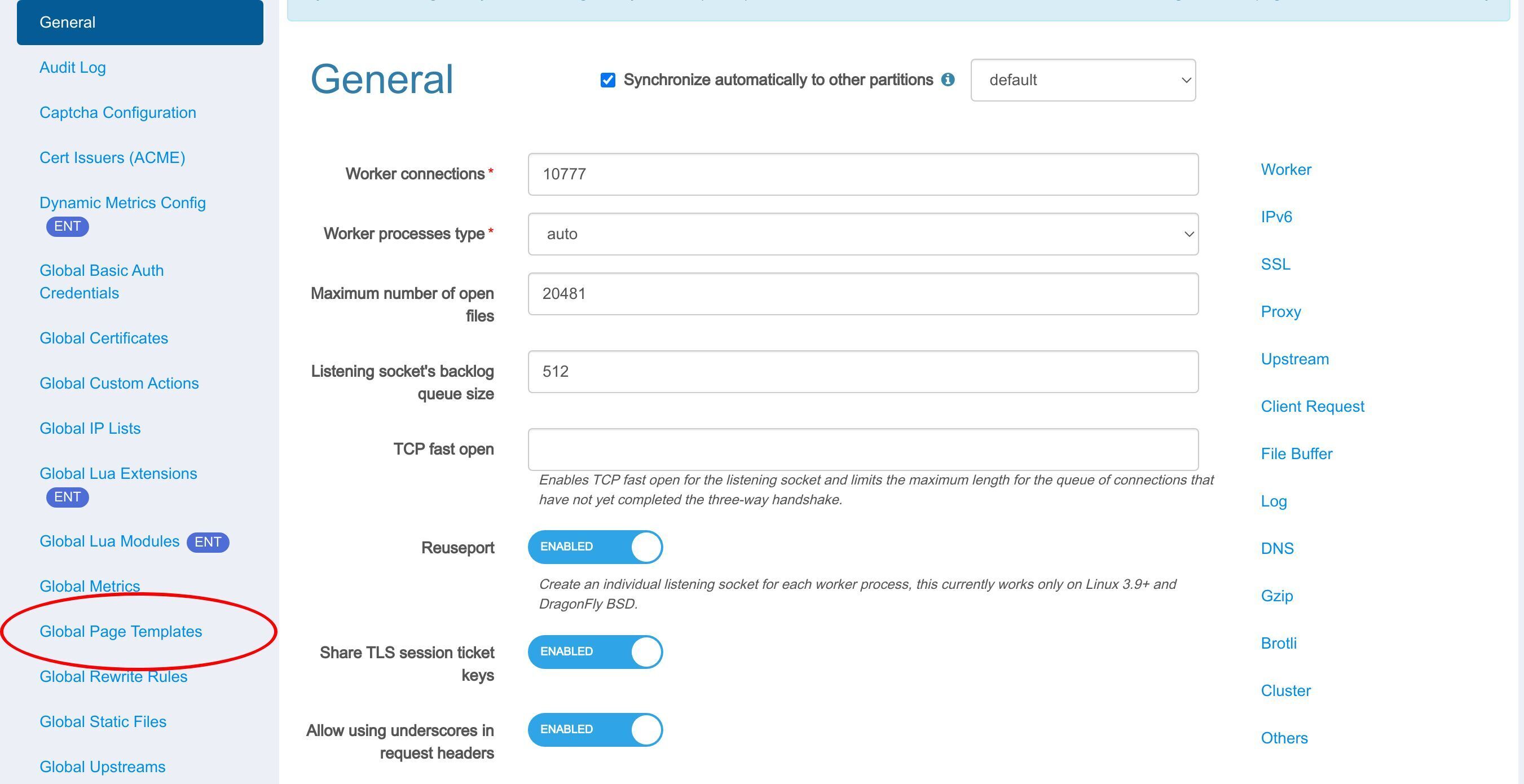
Now we can add a simple template by clicking this button.
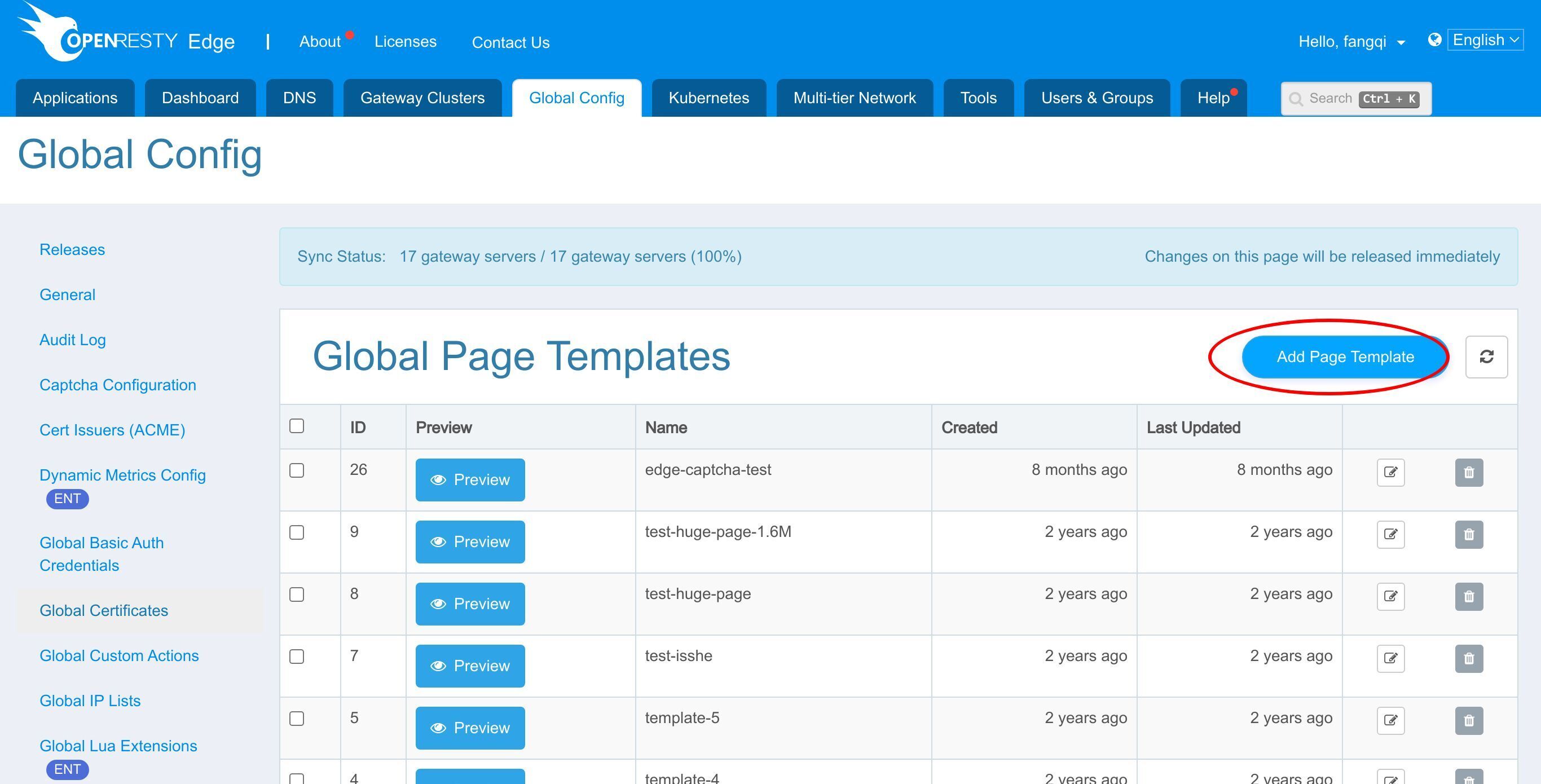
Here we can name this template as ’error-page-template-demo'.
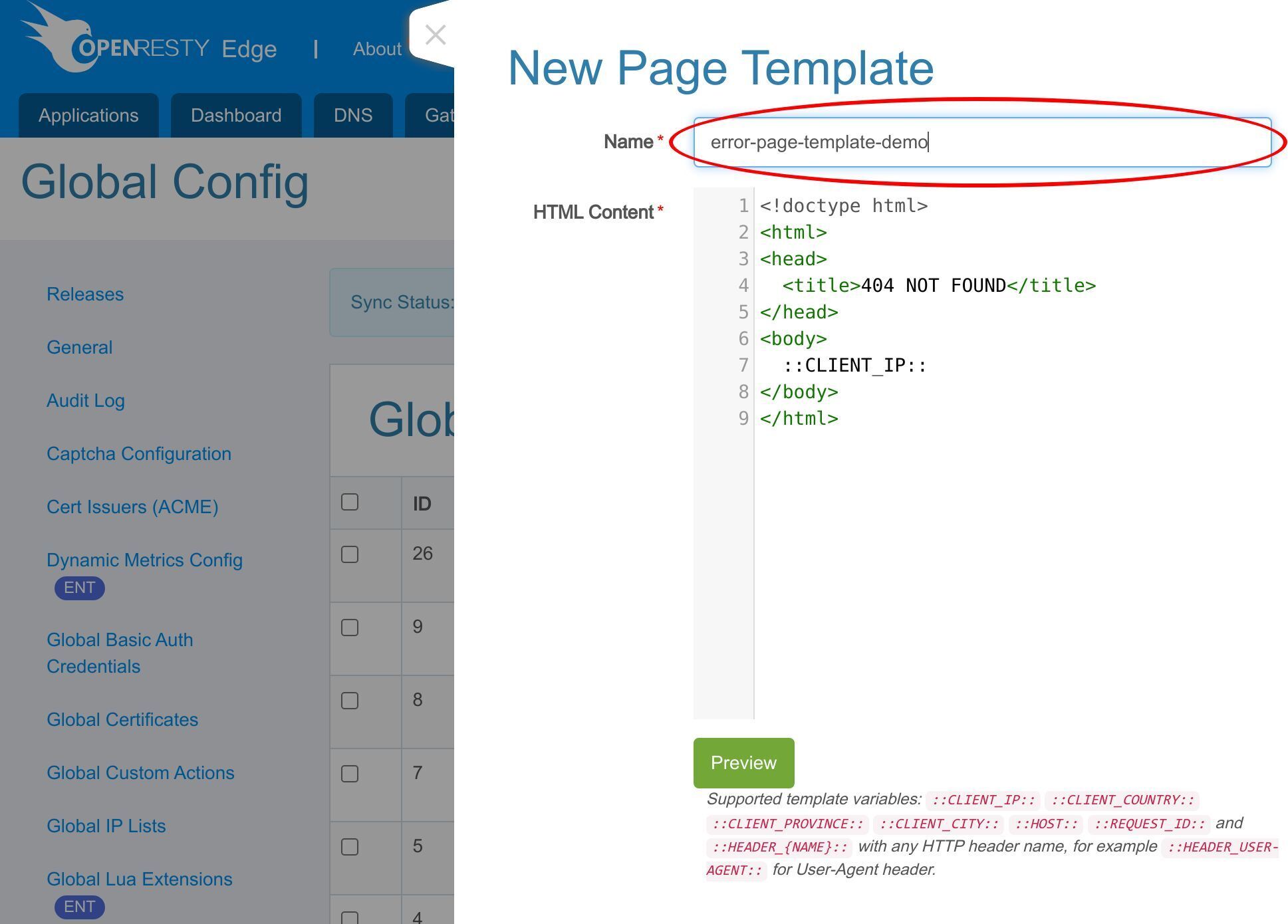
For the HTML content, you can customize it with some predefined variables:
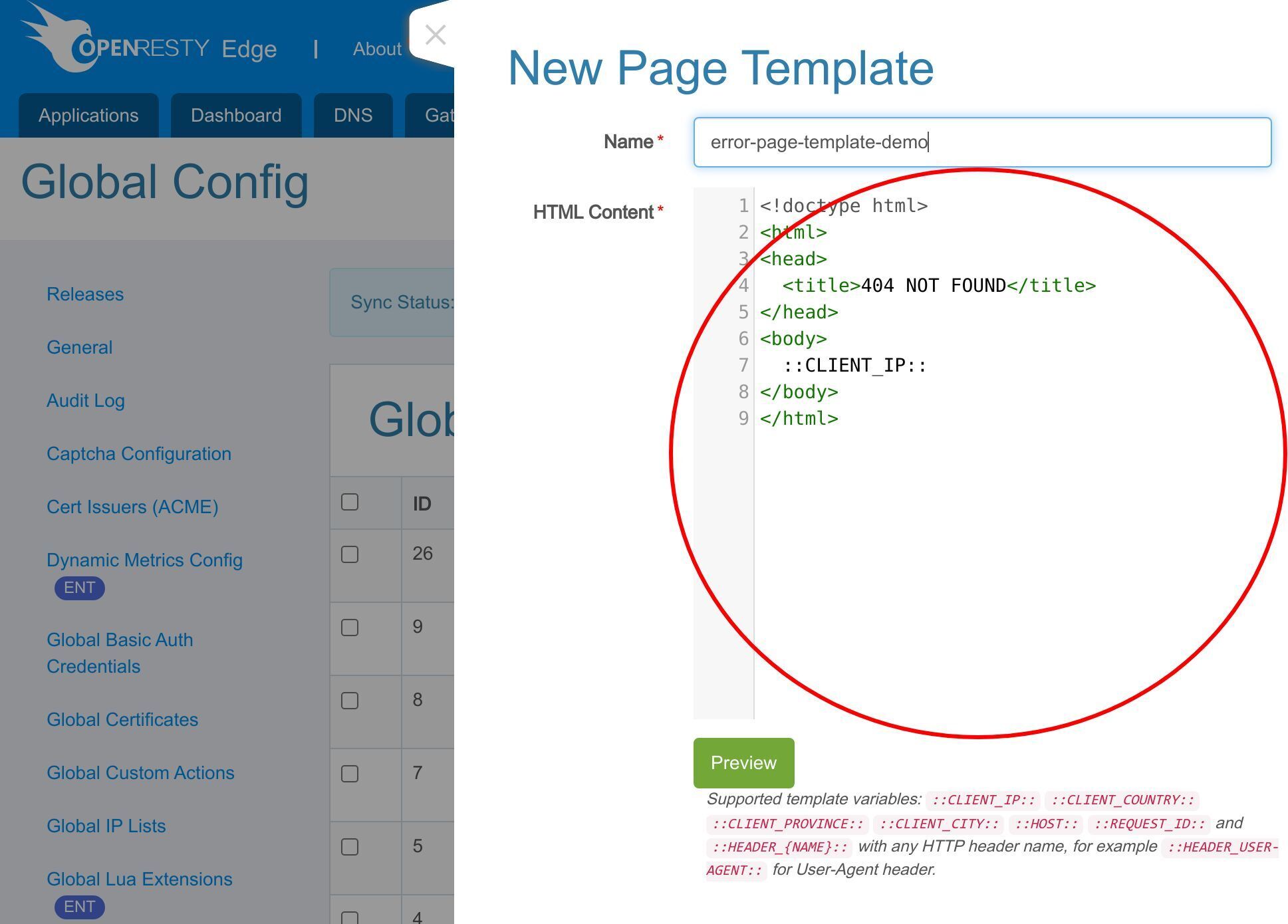
like ‘CLIENT_IP’,
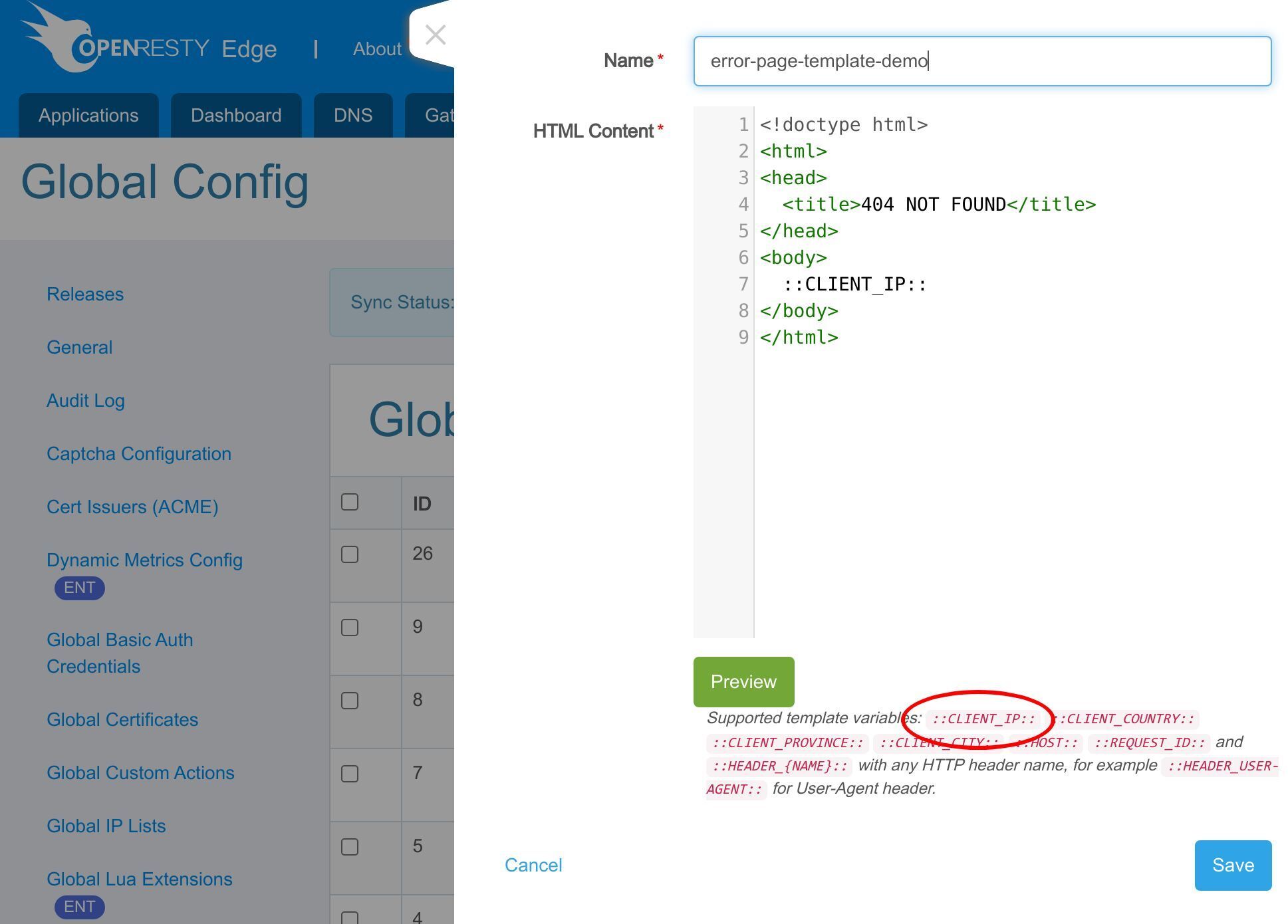
‘CLIENT_COUNTRY’,
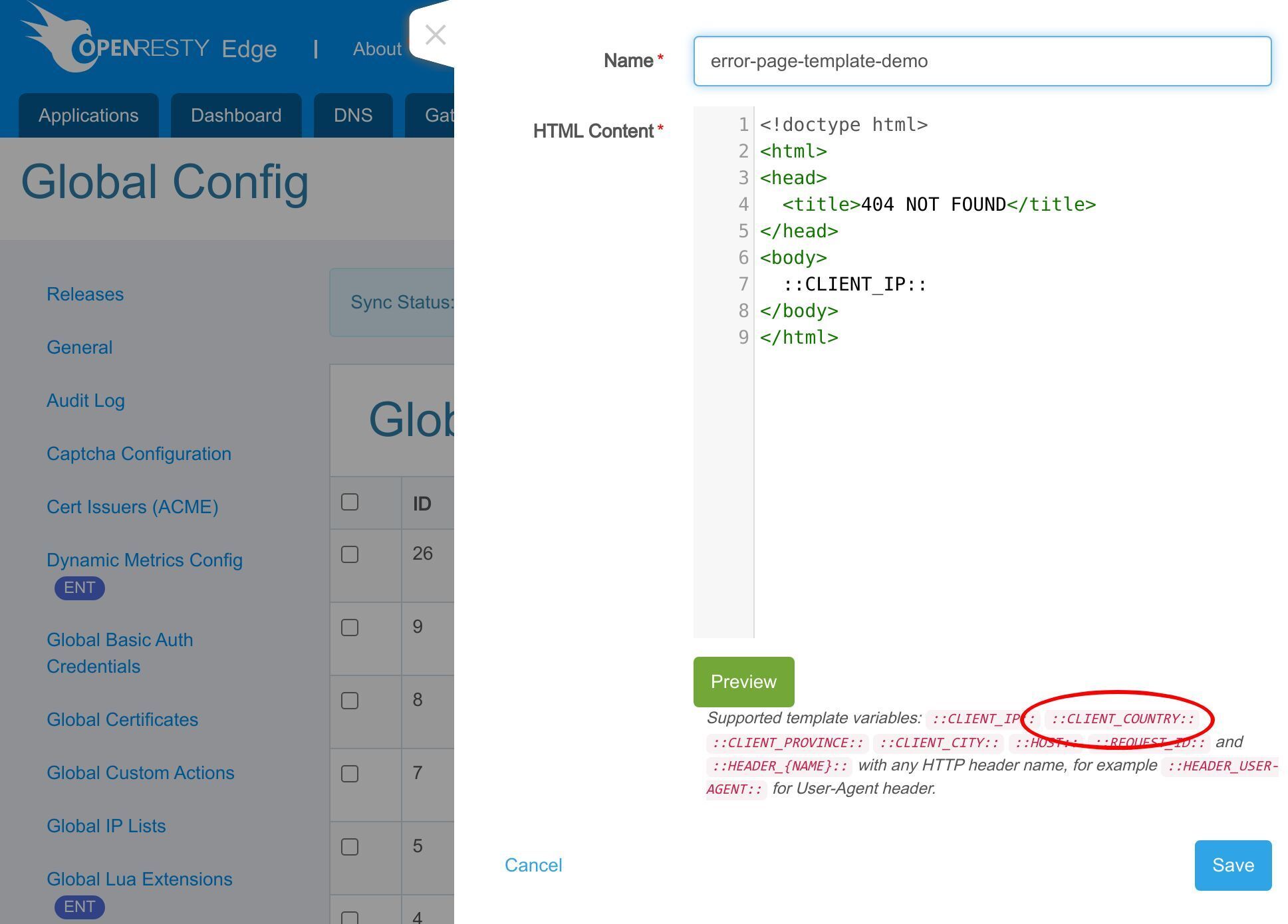
and ‘HOST’.
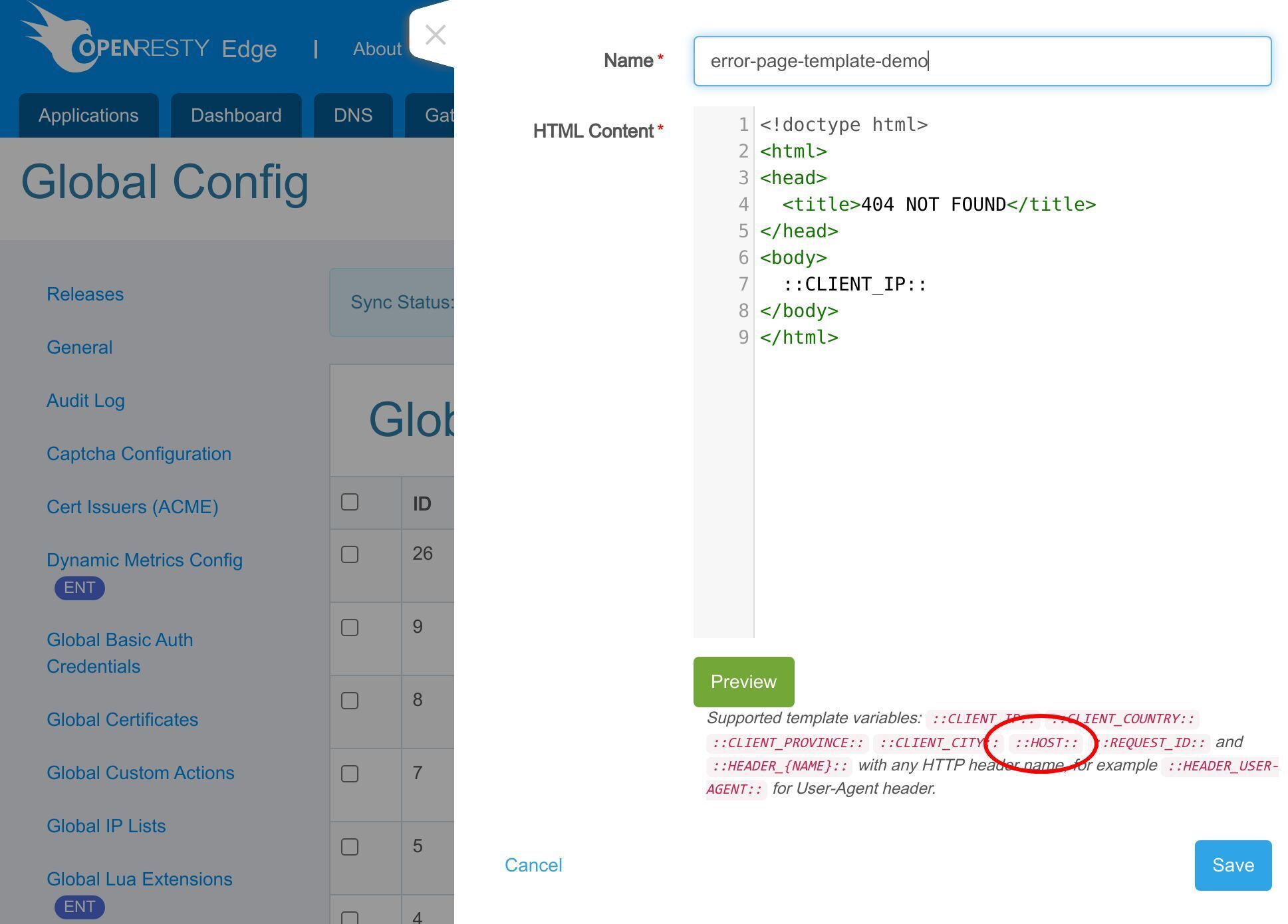
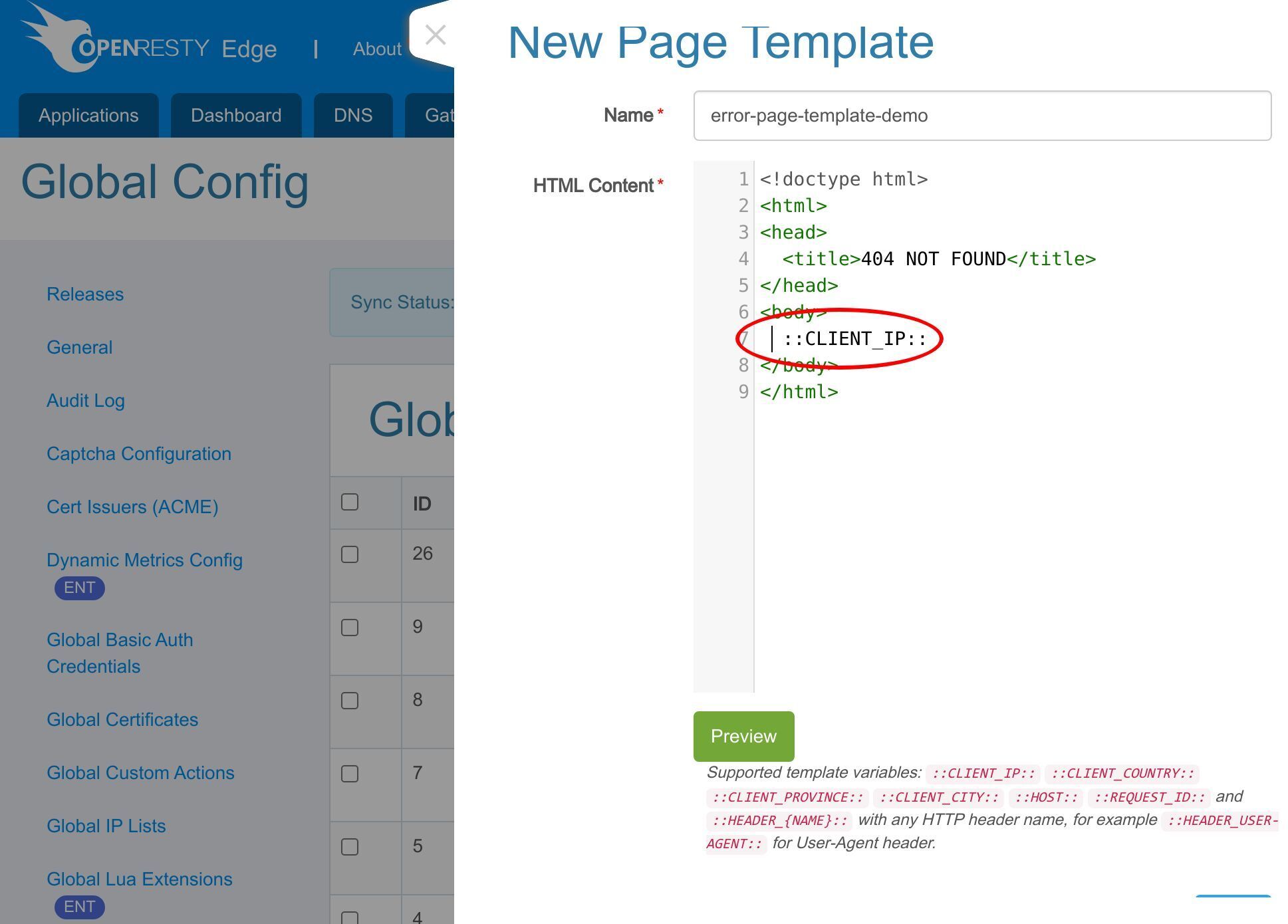
We can now output the client IP.
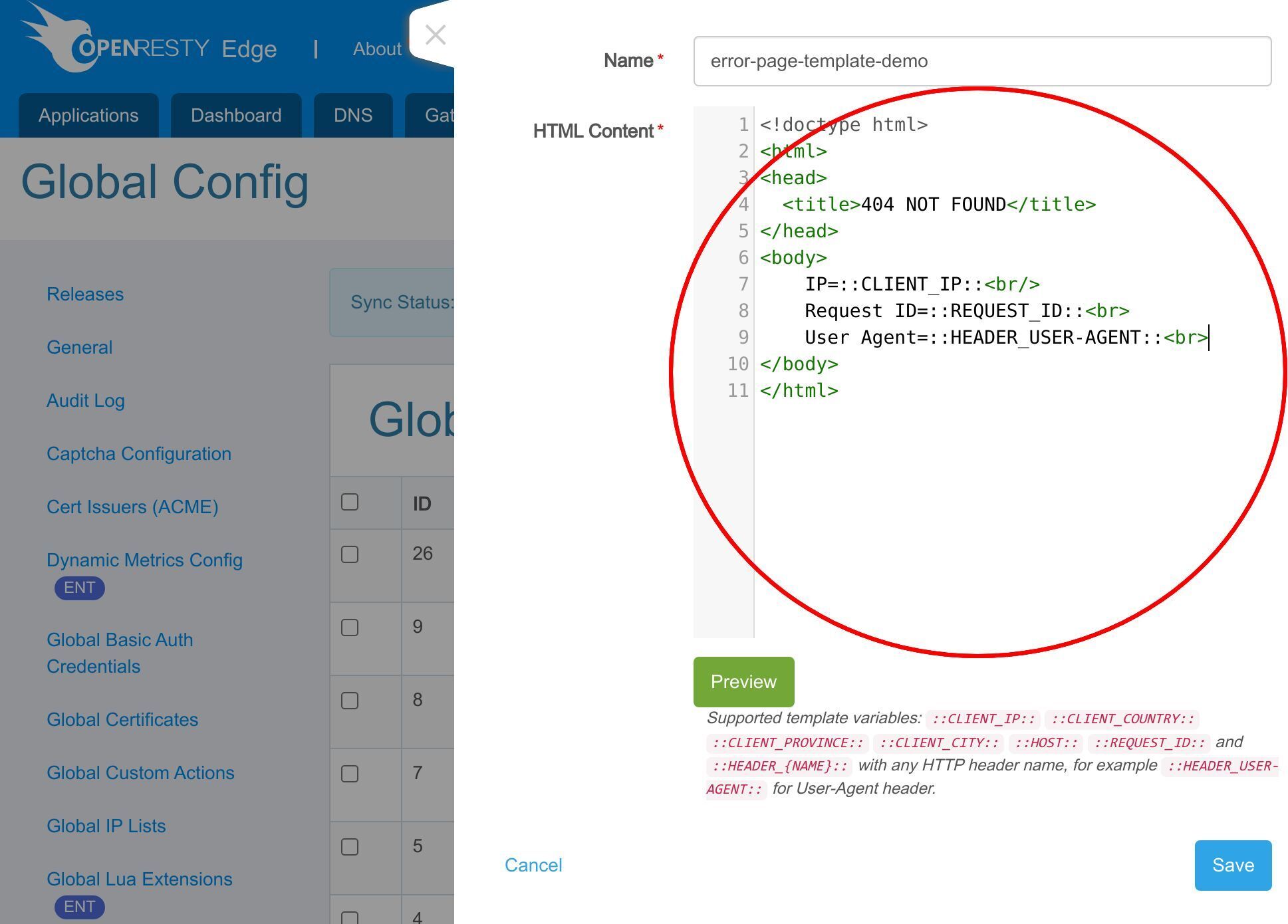
Also request ID, and user agent header as an example.
Then we save it.
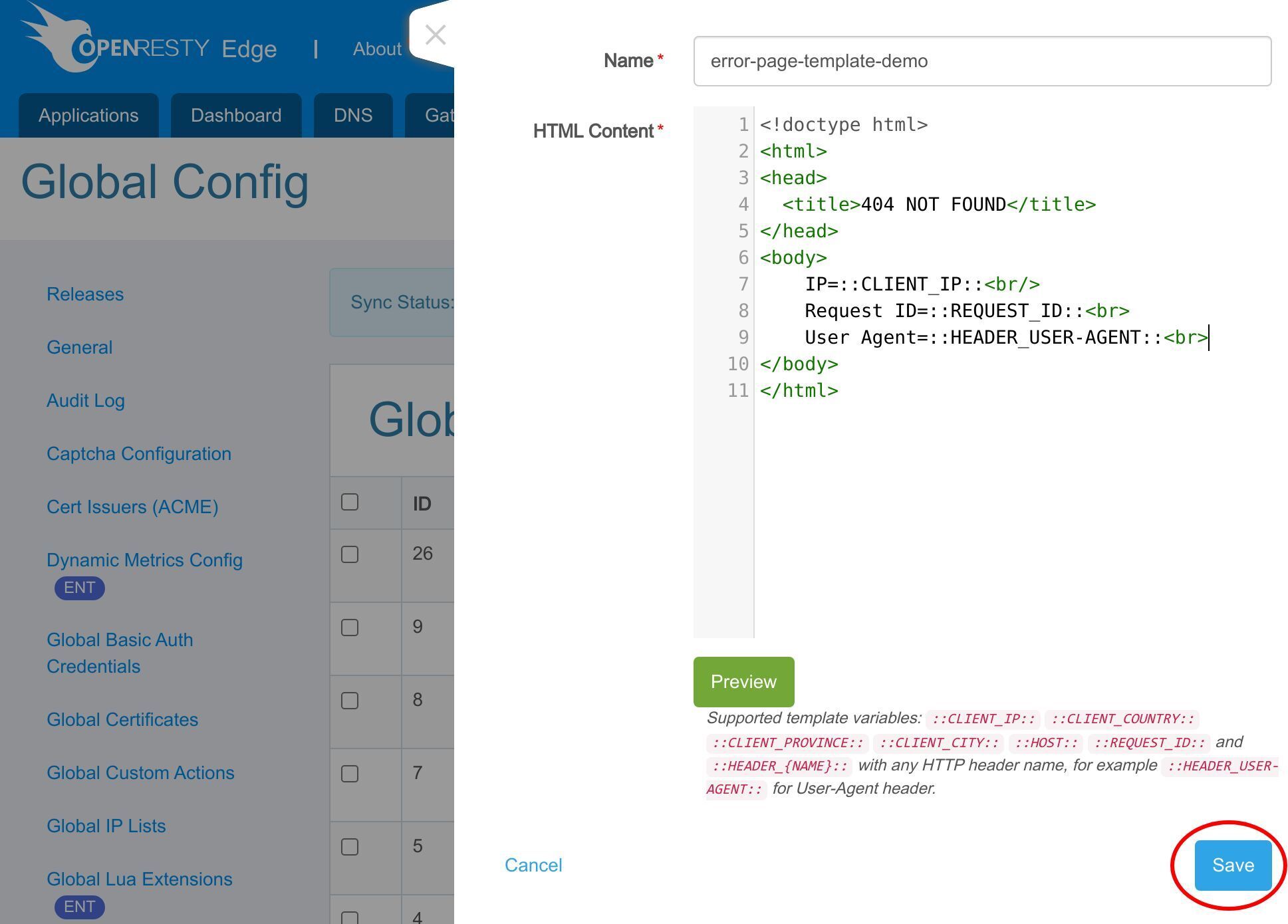
Changes to this page template will be released and synced to all gateway server immediately since this is a global configuration.
Application of Templates
Next, go to our example application:
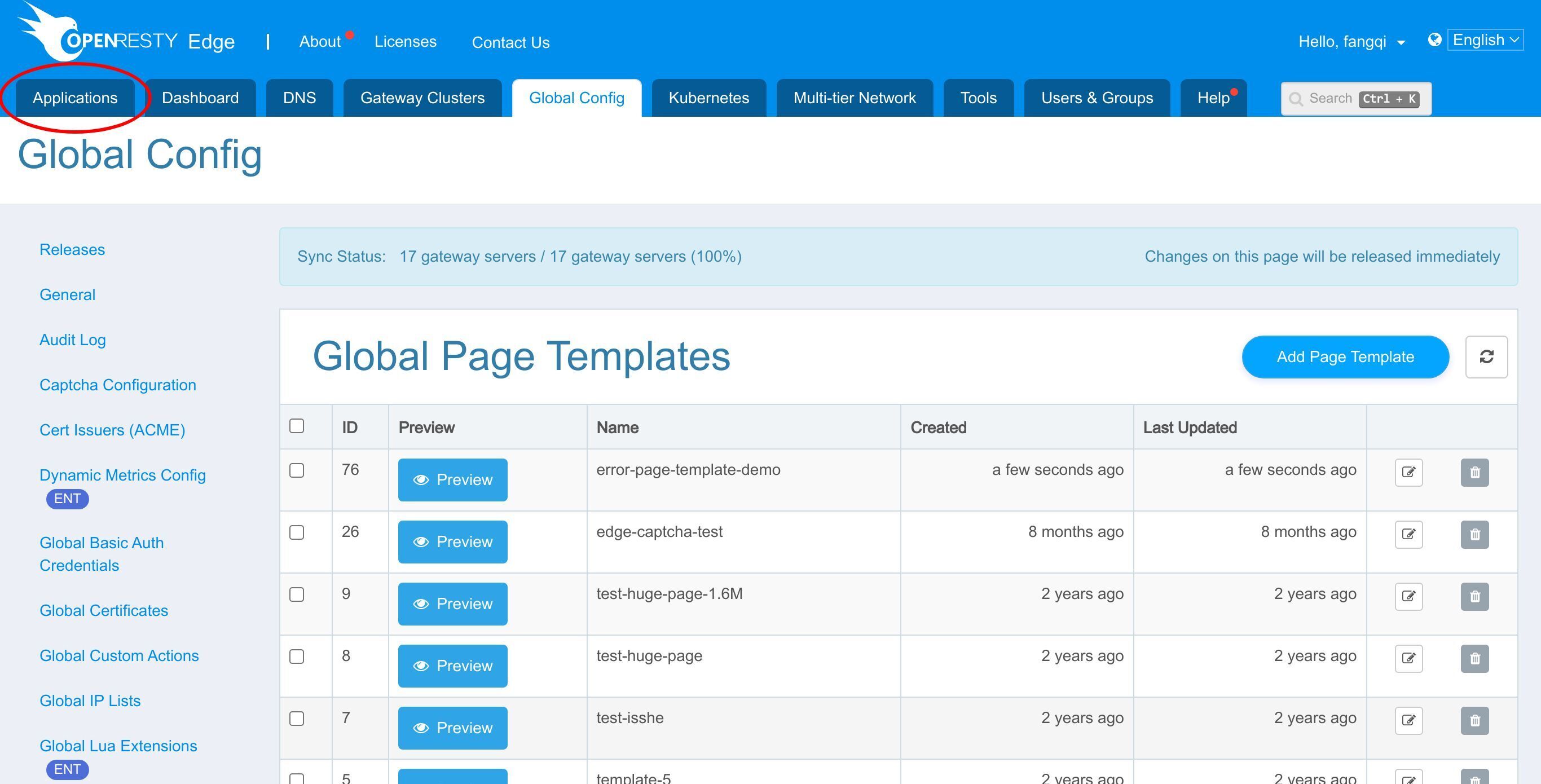
Then go to test-edge.com to apply the page template as a customized error page.
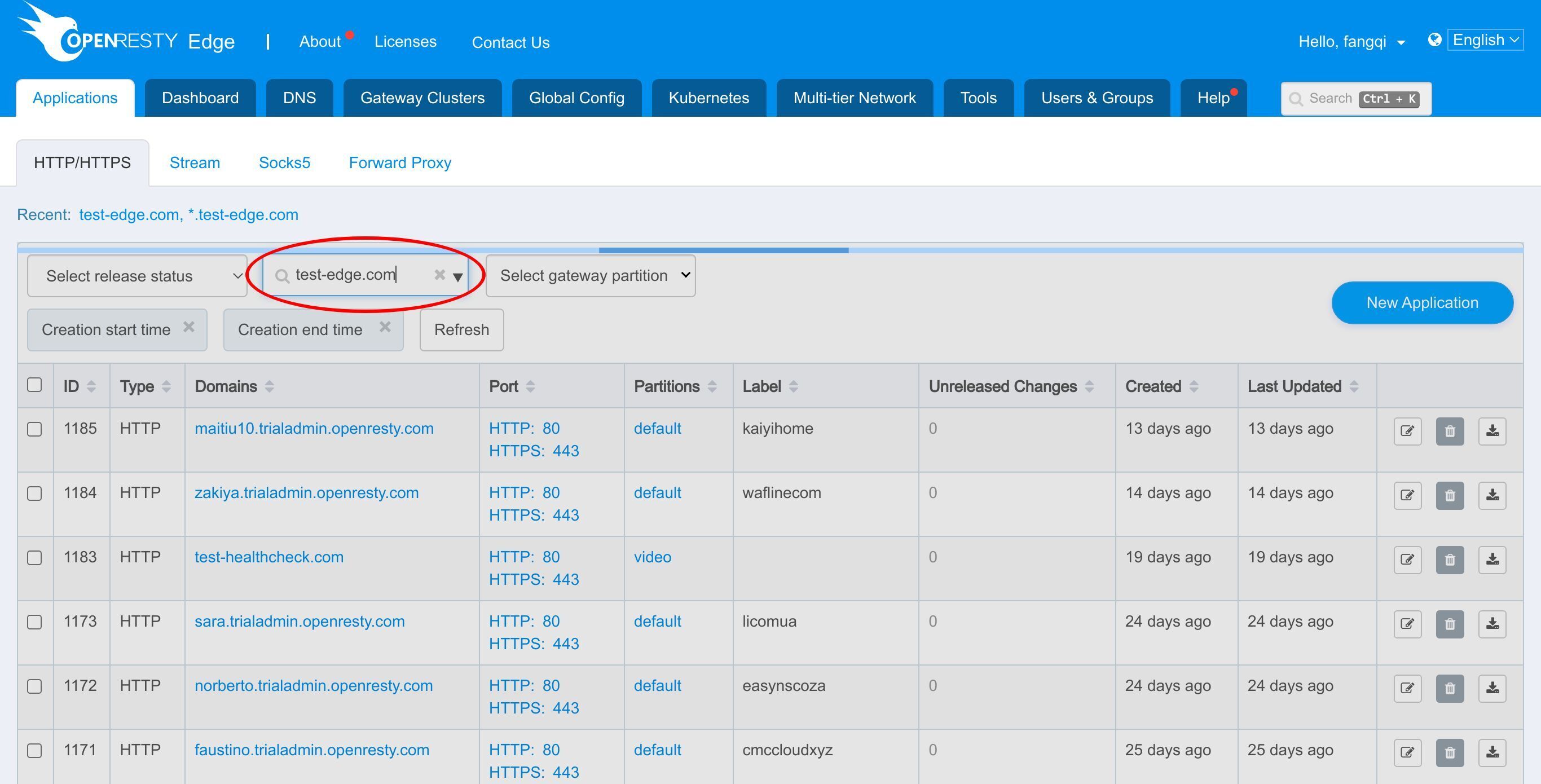
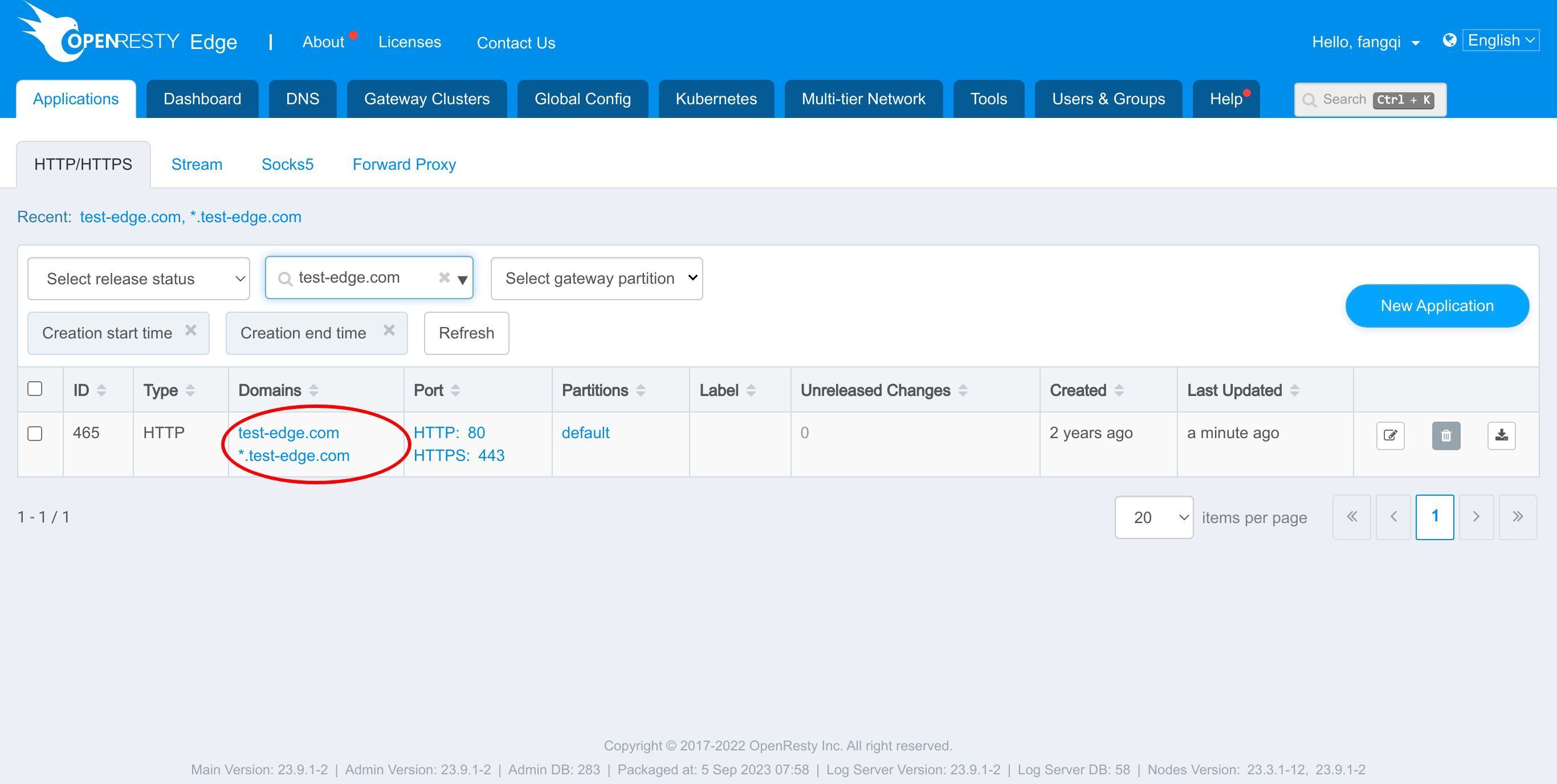
Enter the application.
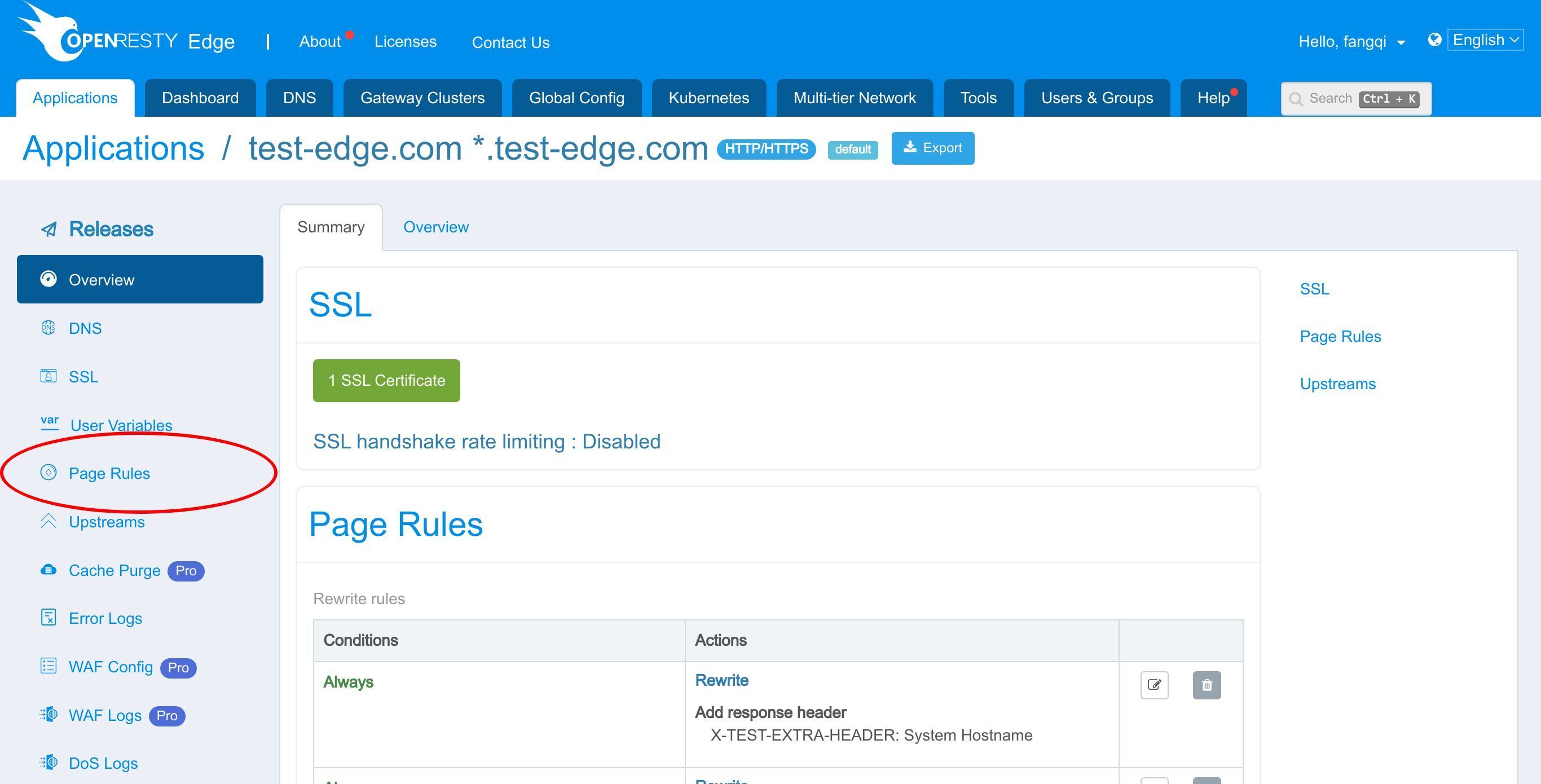
Then go to the Page Rules page.
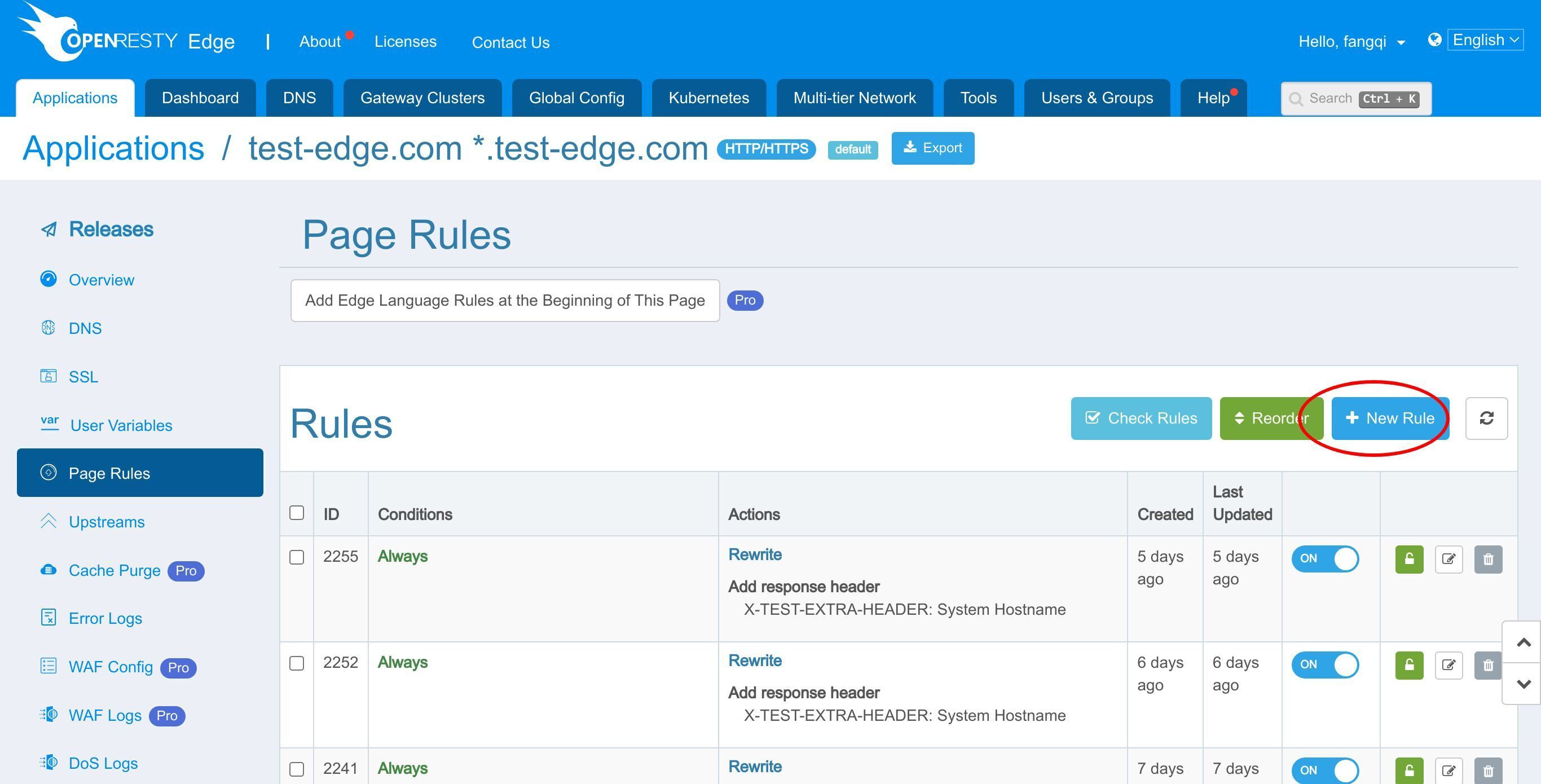
Starting by adding a new rule.
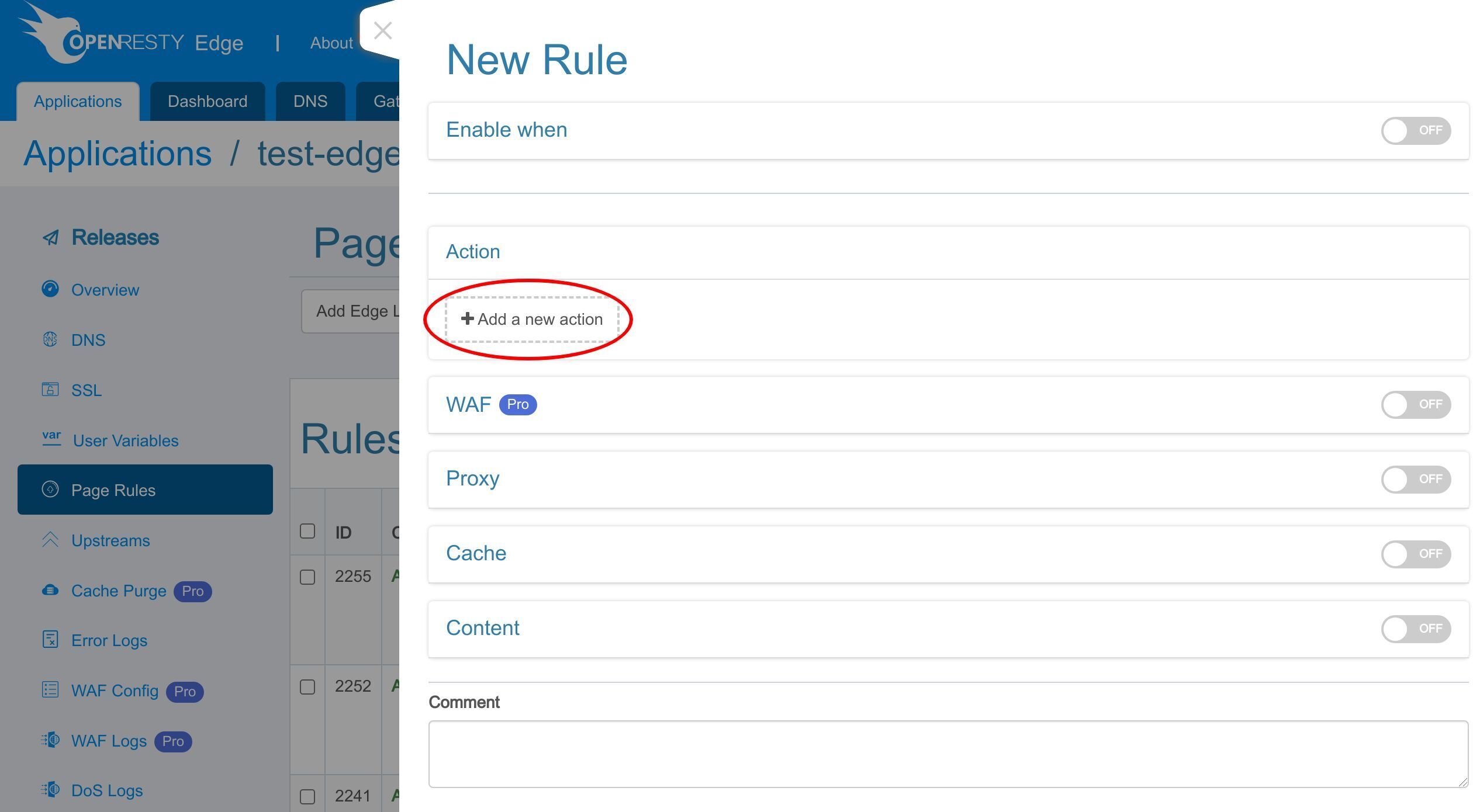
We add a new action.
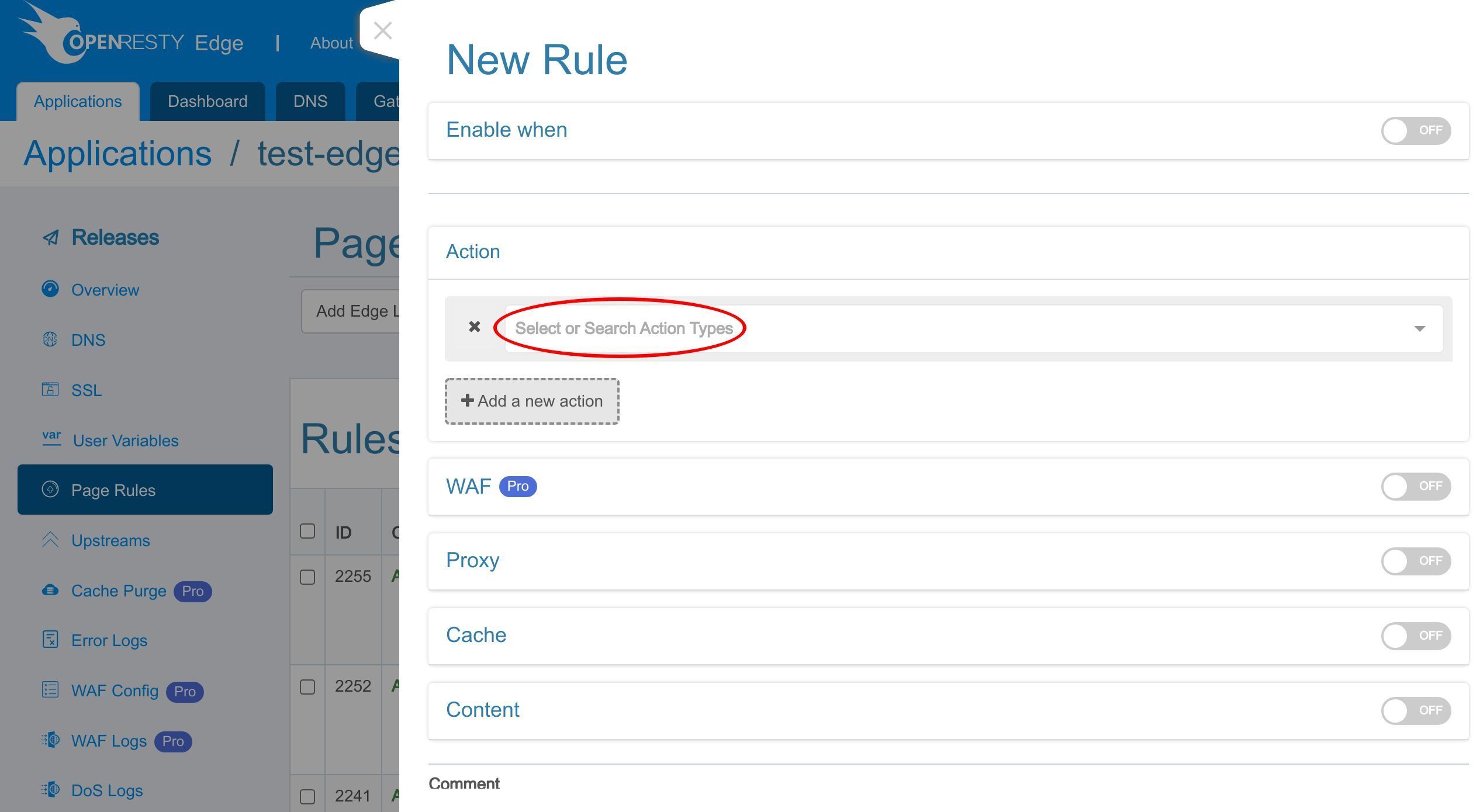
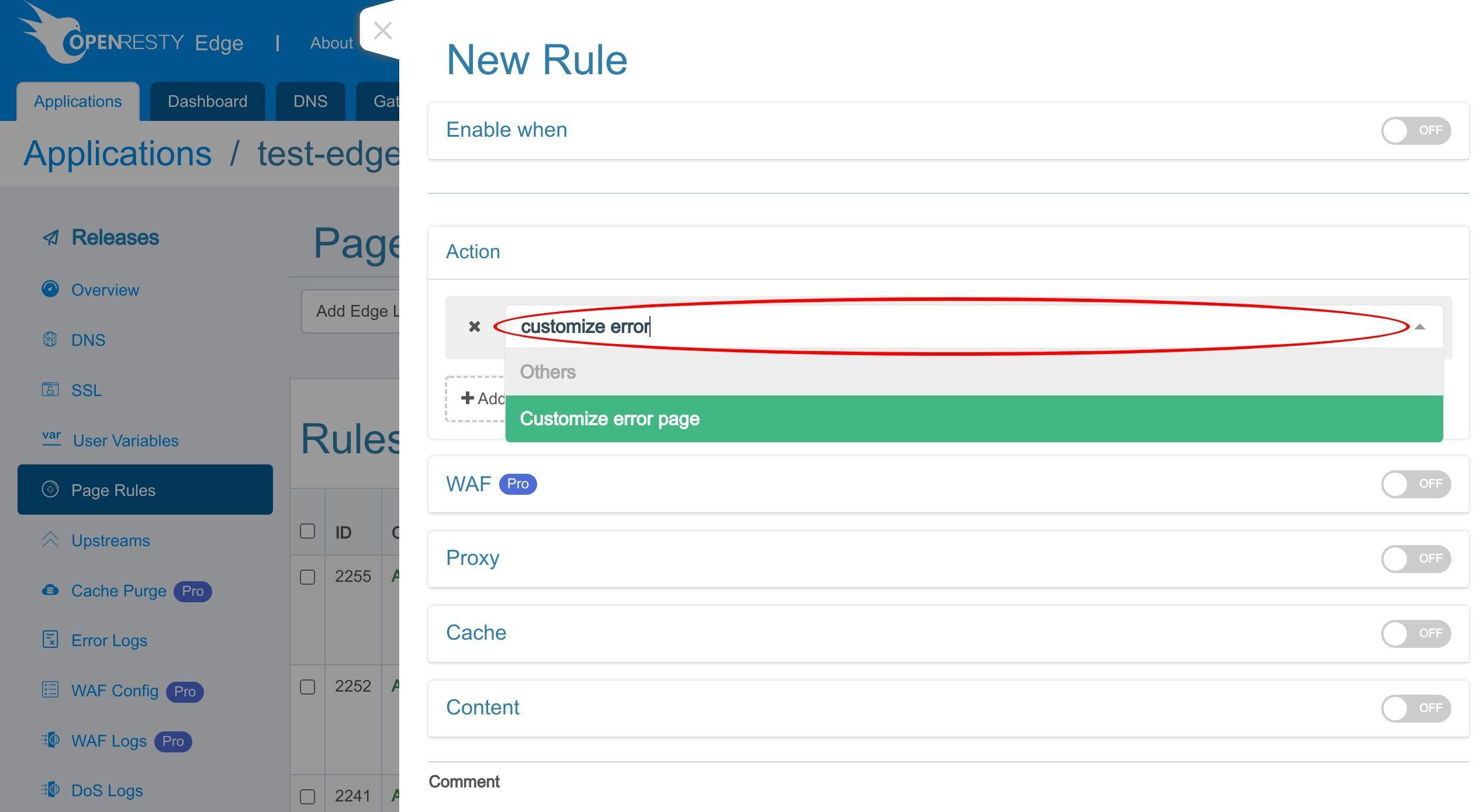
You can select or search action types here.
Search for “customize error page”.
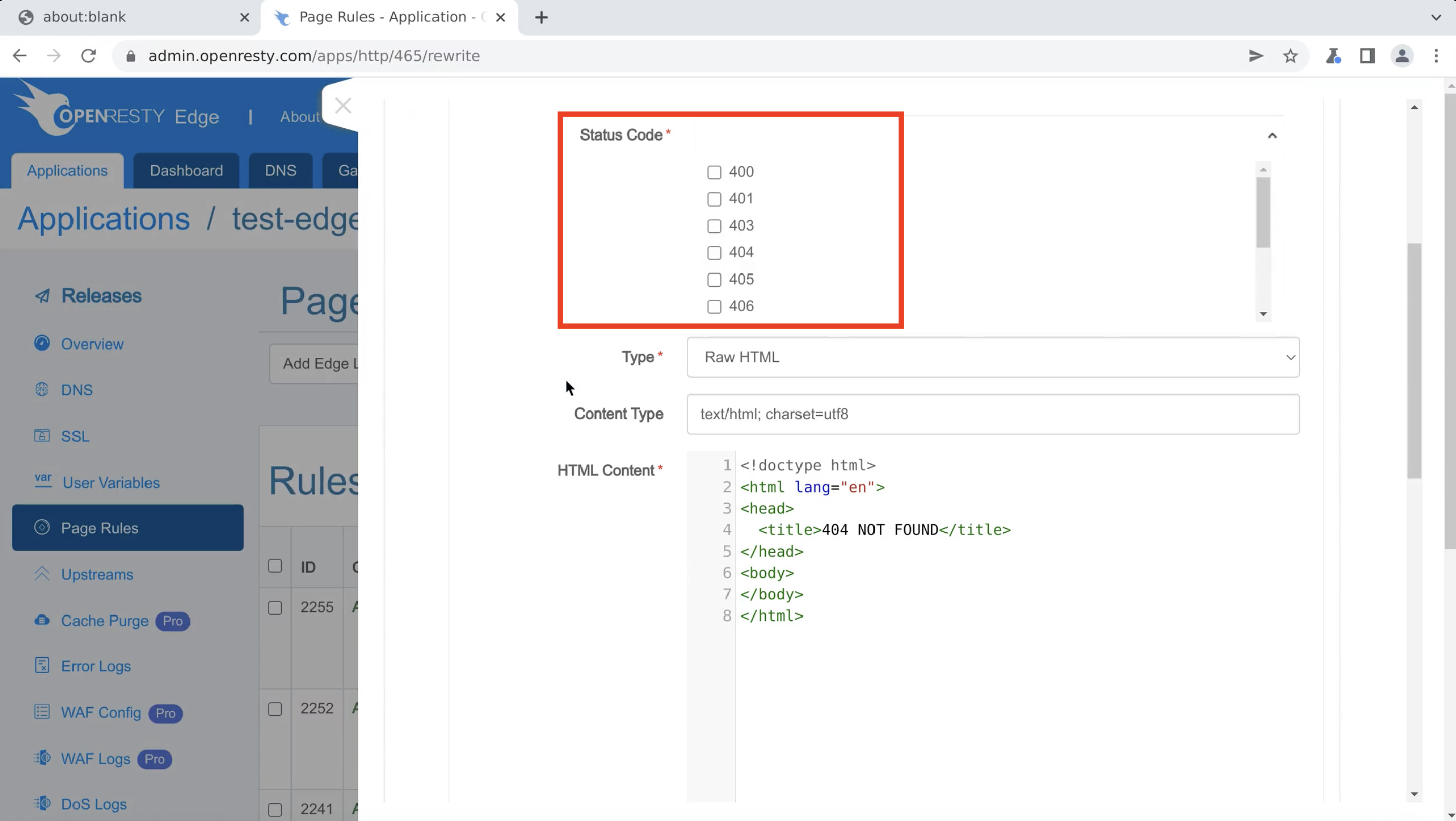
Here you choose the HTTP response status codes for the erorr page.
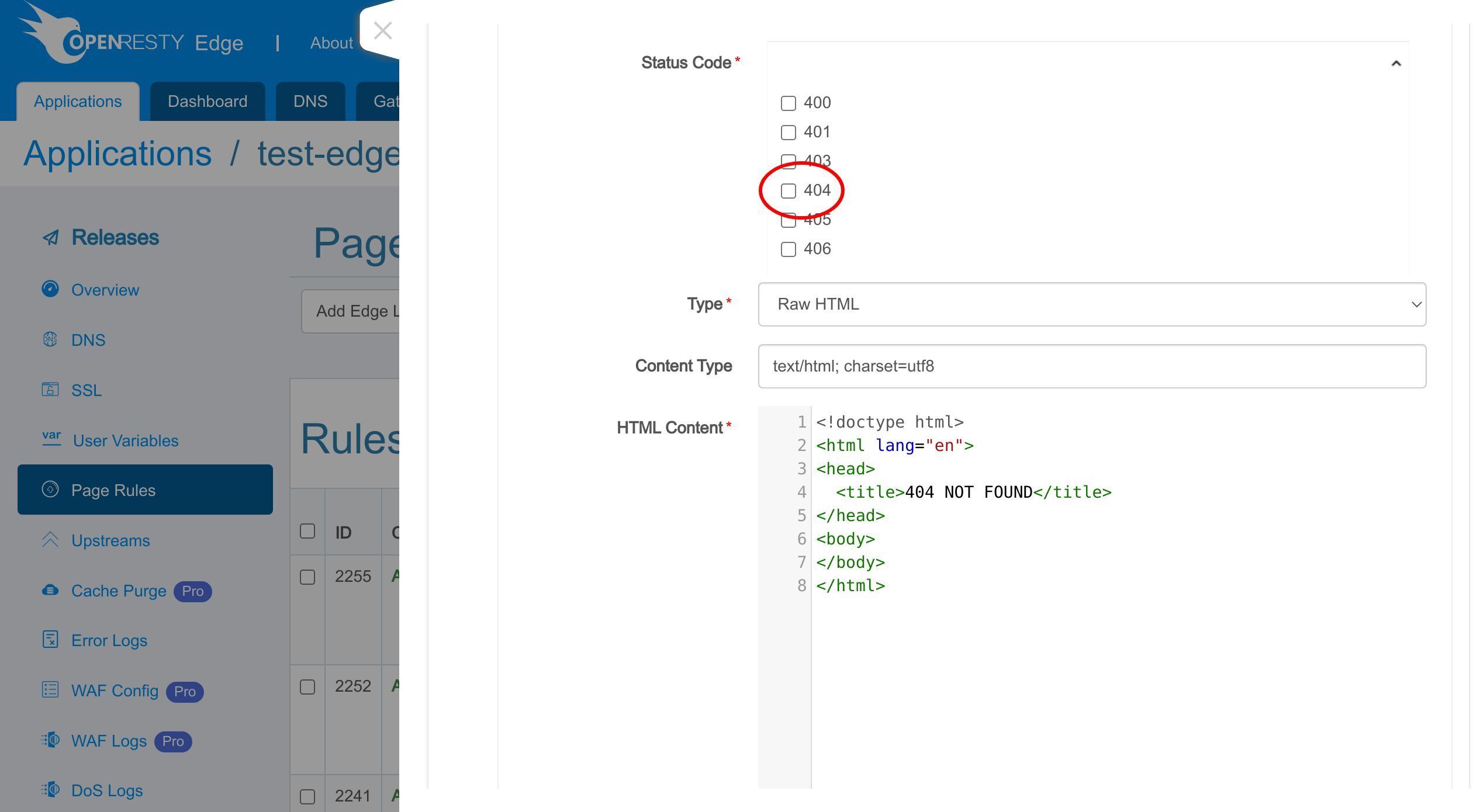
We choose only ‘404’ here.
There are several ways to set the customized error page, like raw HTML or using backend URL, or global static file we already uploaded previously.
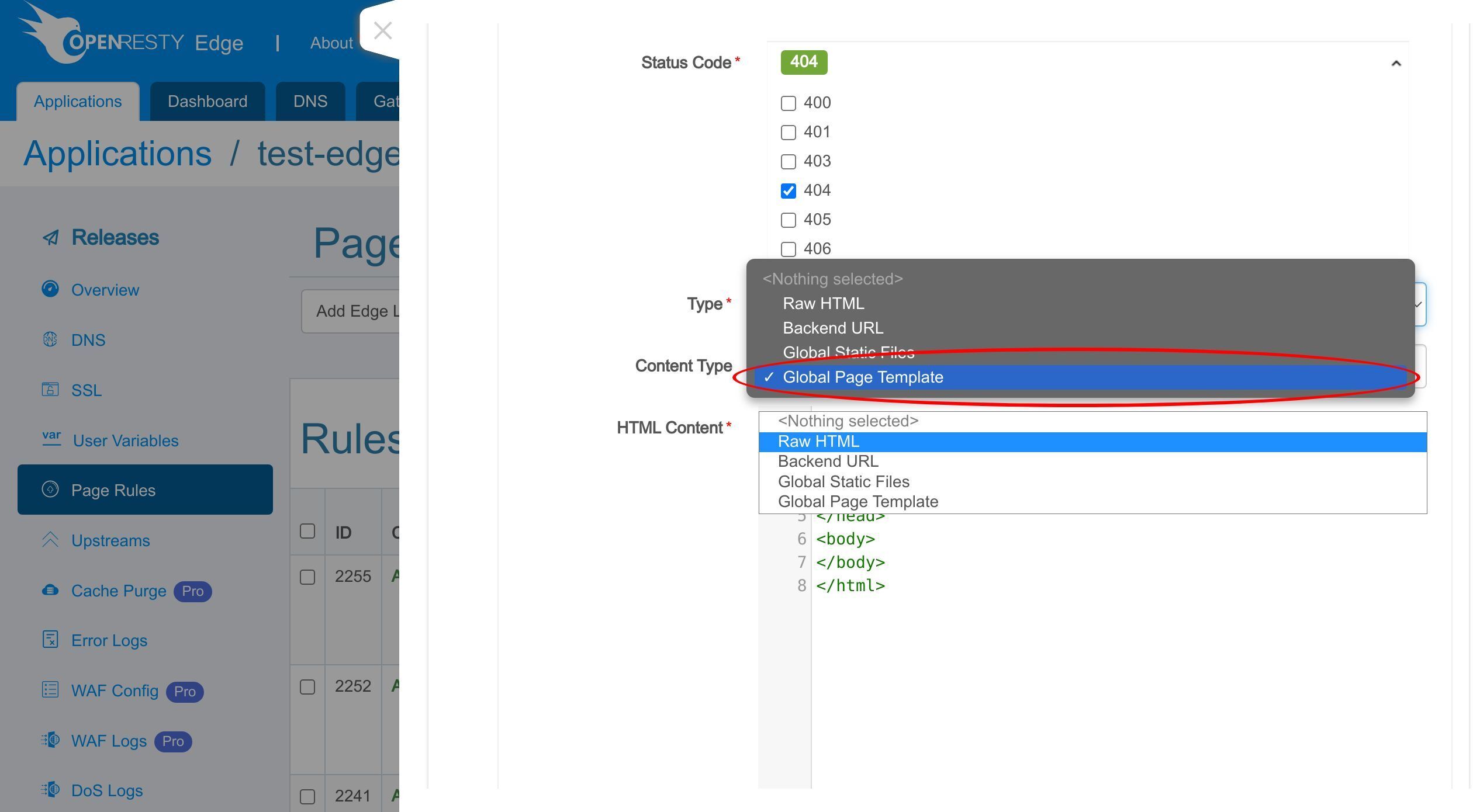
And now, choose to use the global page template we just defined and named as ’error-page-template-demo’.
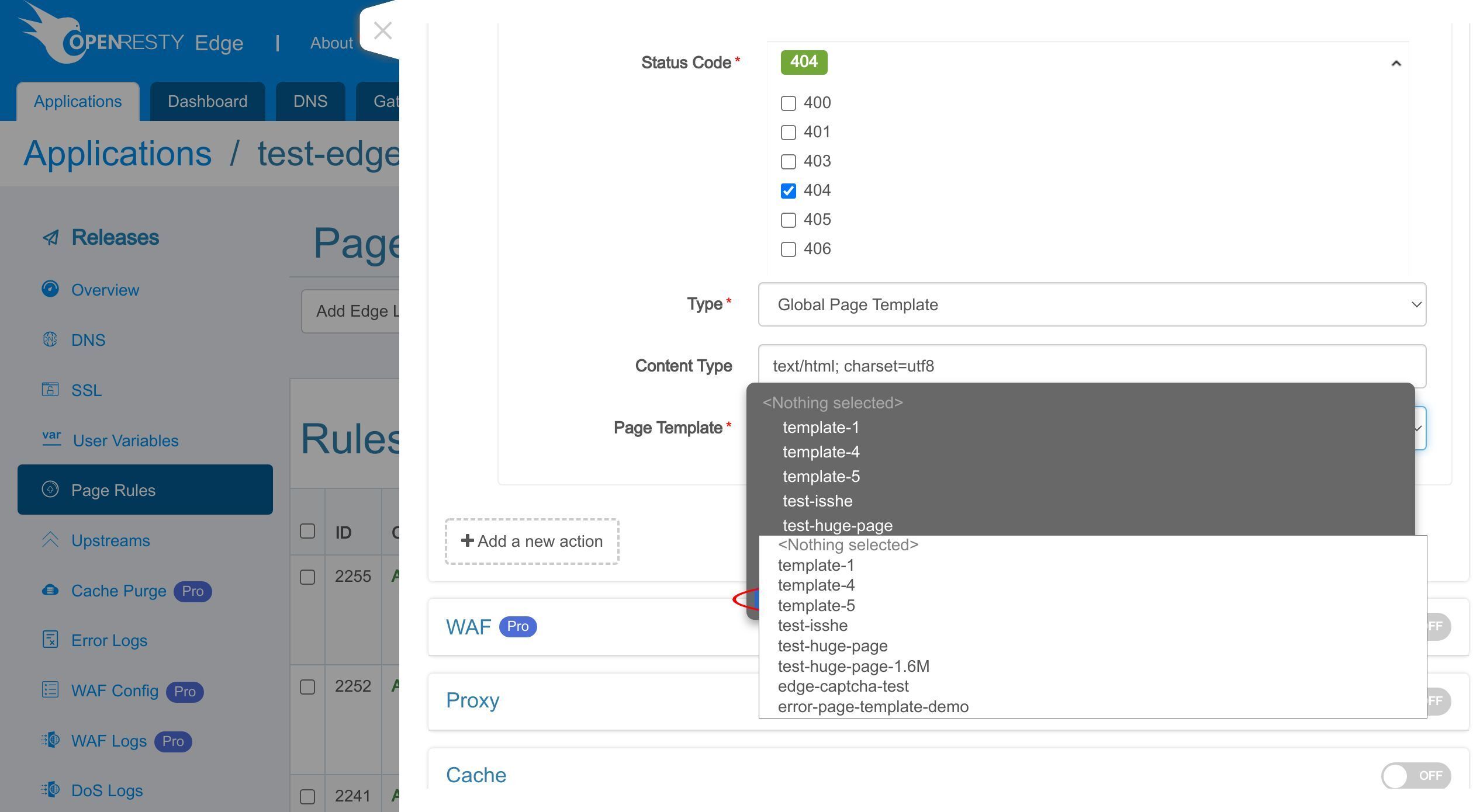
Then we need to add one more action.
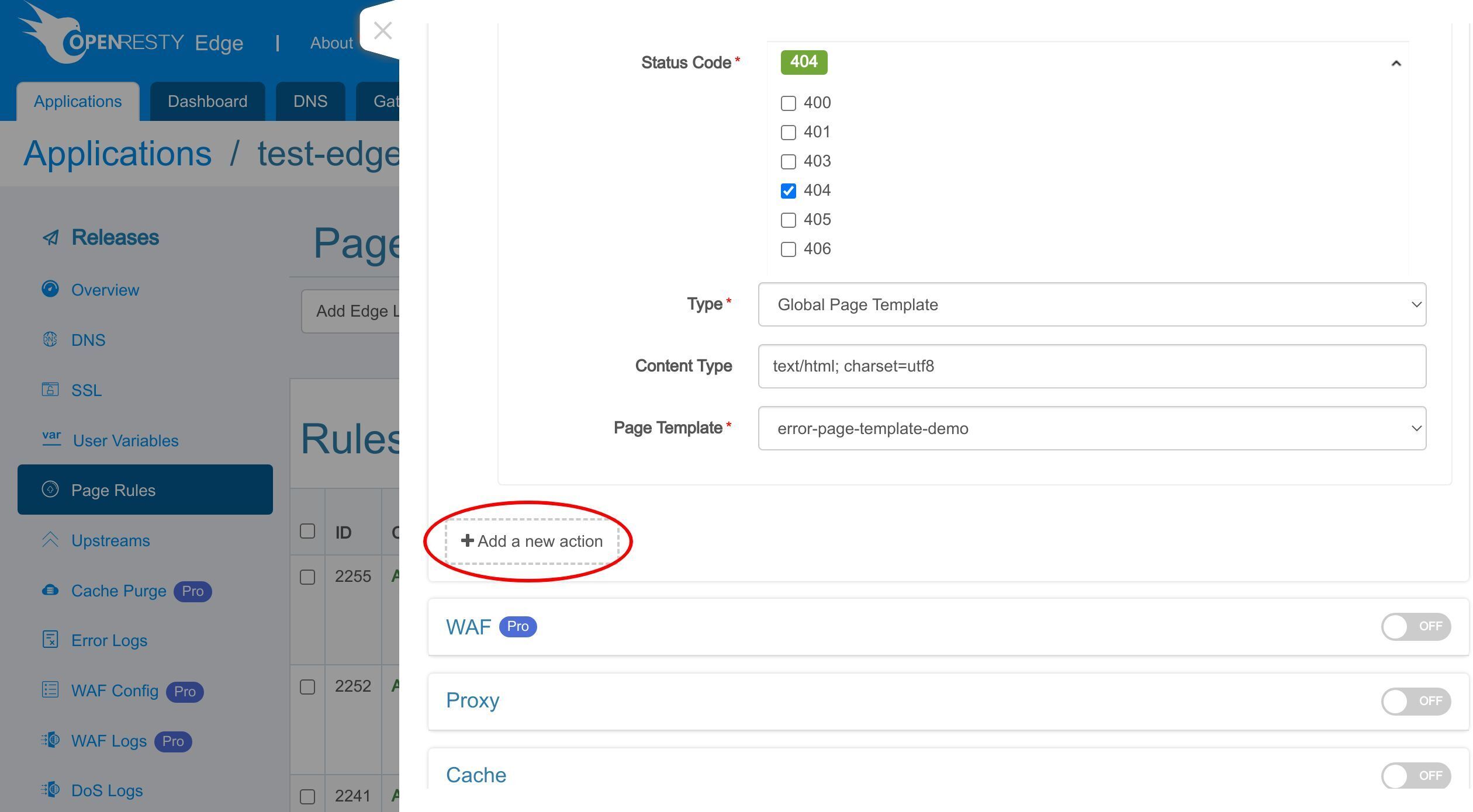
Click the search box.
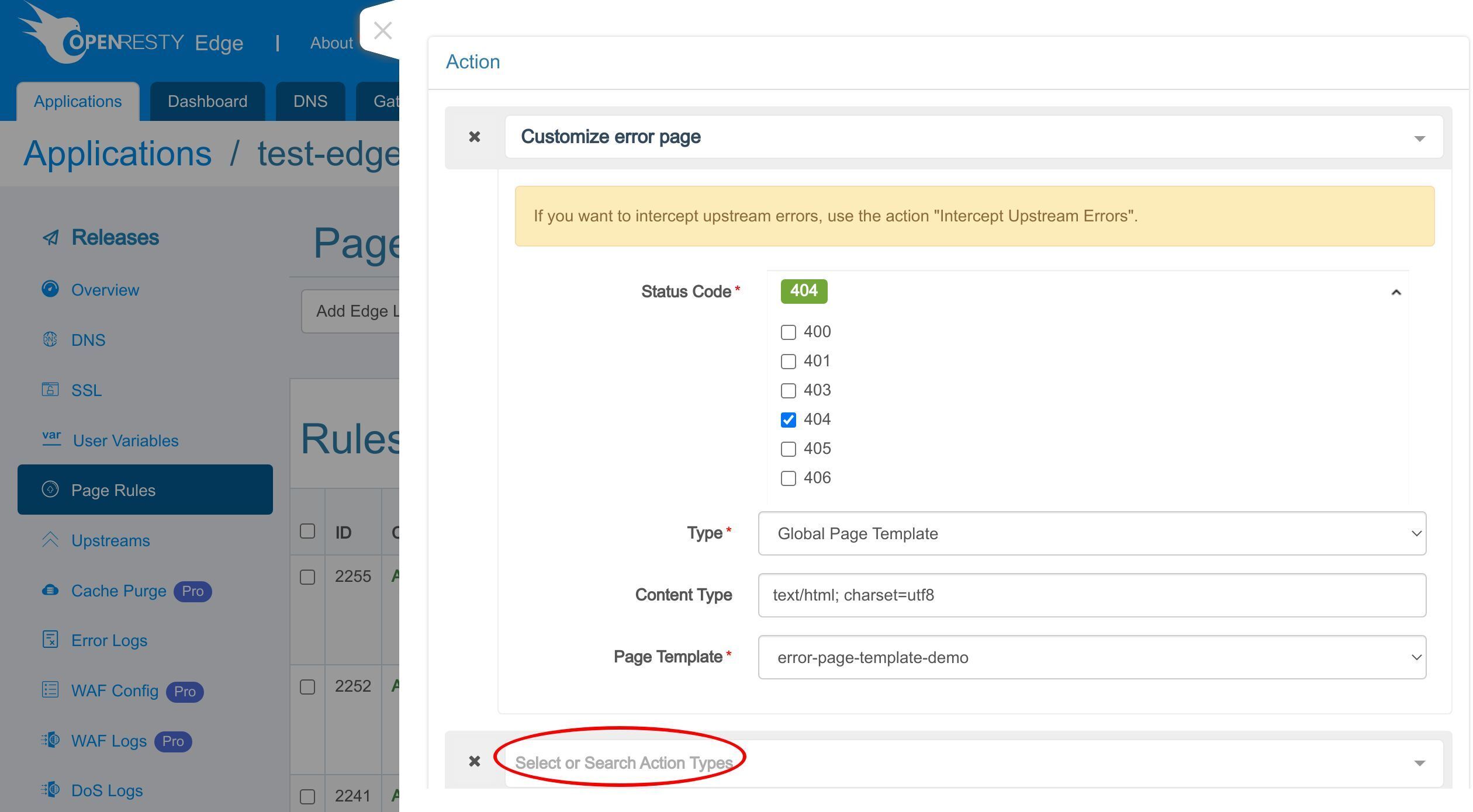
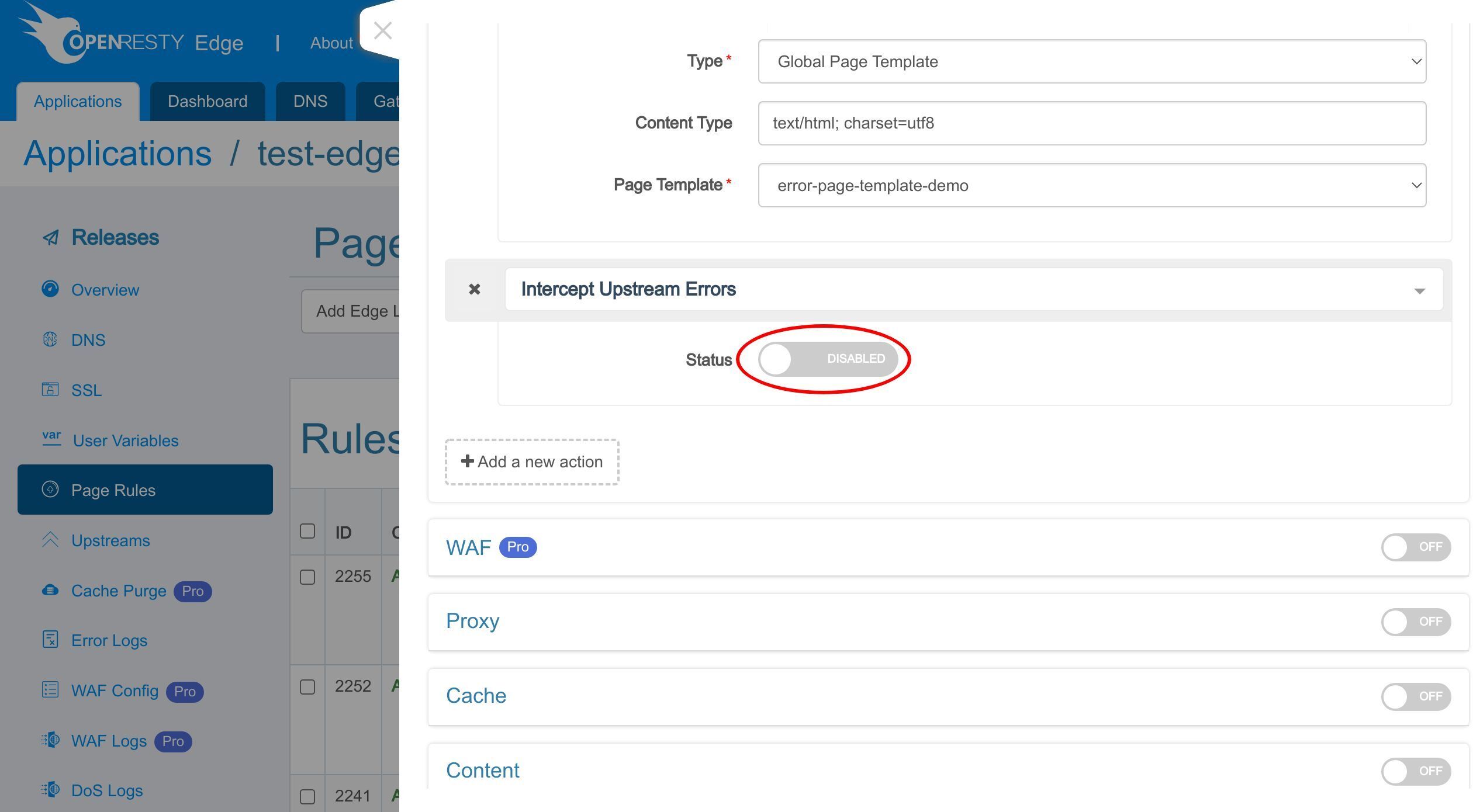
Search for “intercept upstream errors”.
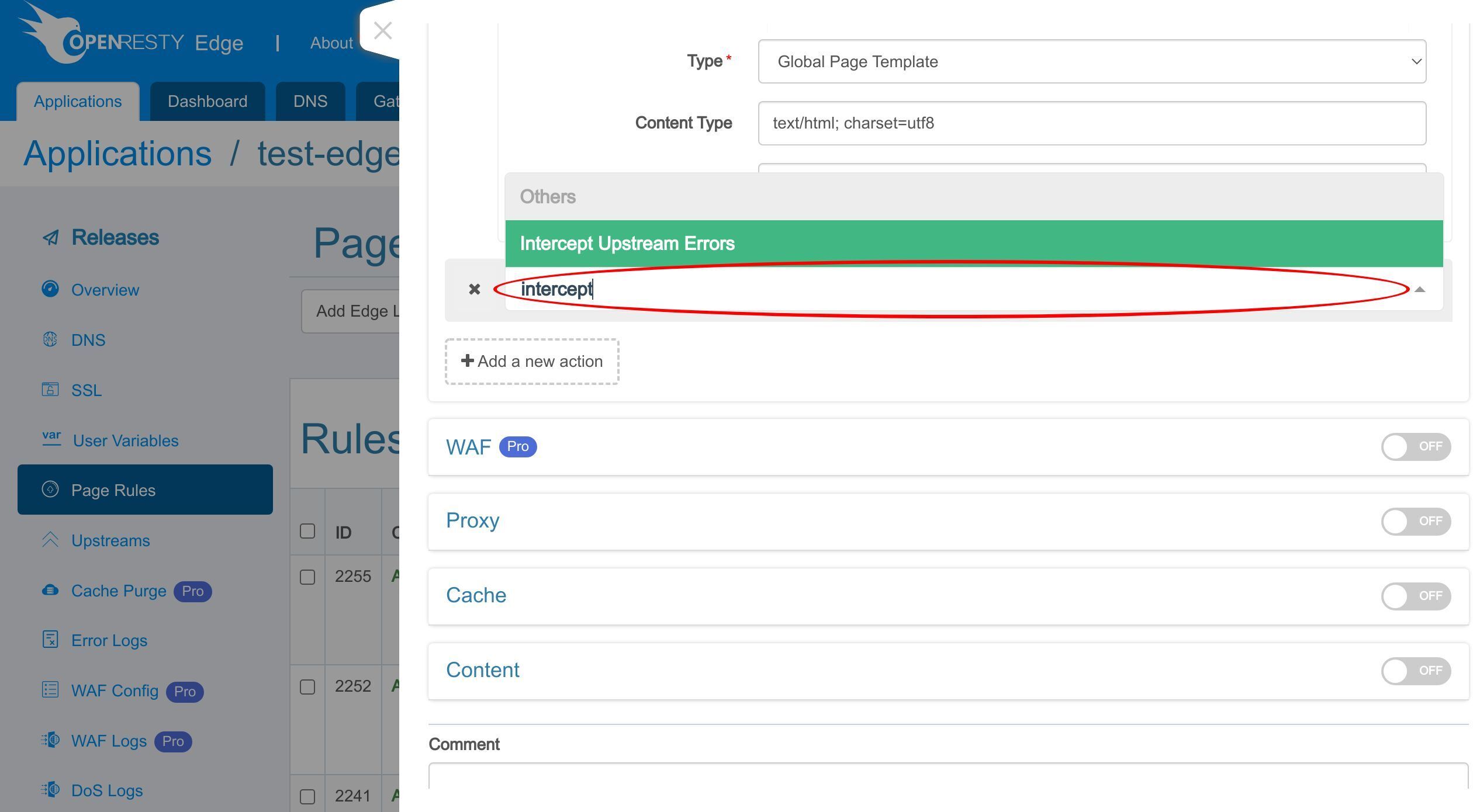
Enable this action to intercept upstream errors since we’ve configured the proxy to upstream.
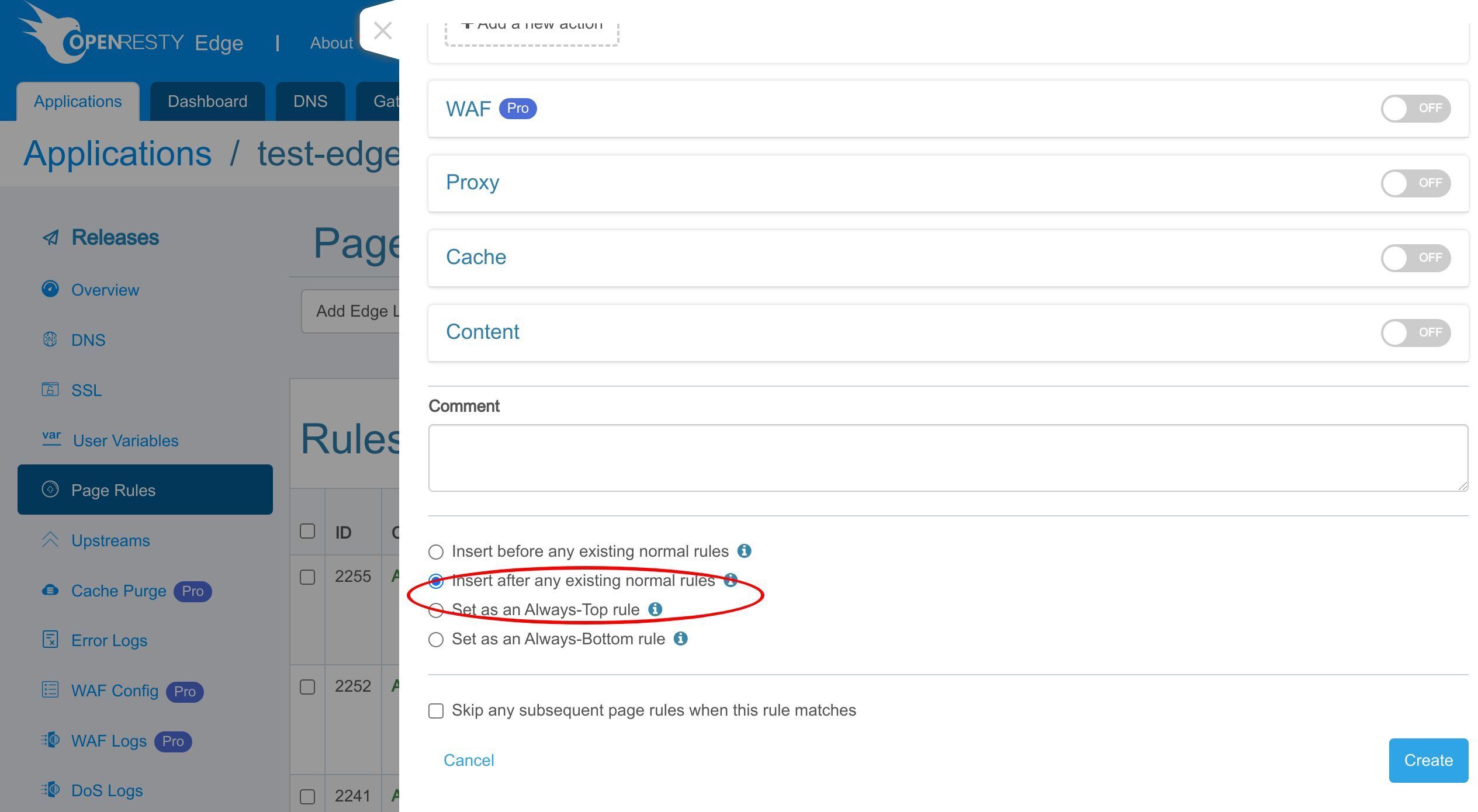
Also, we need to put this rule before any other rules so that we can return our customized error page.
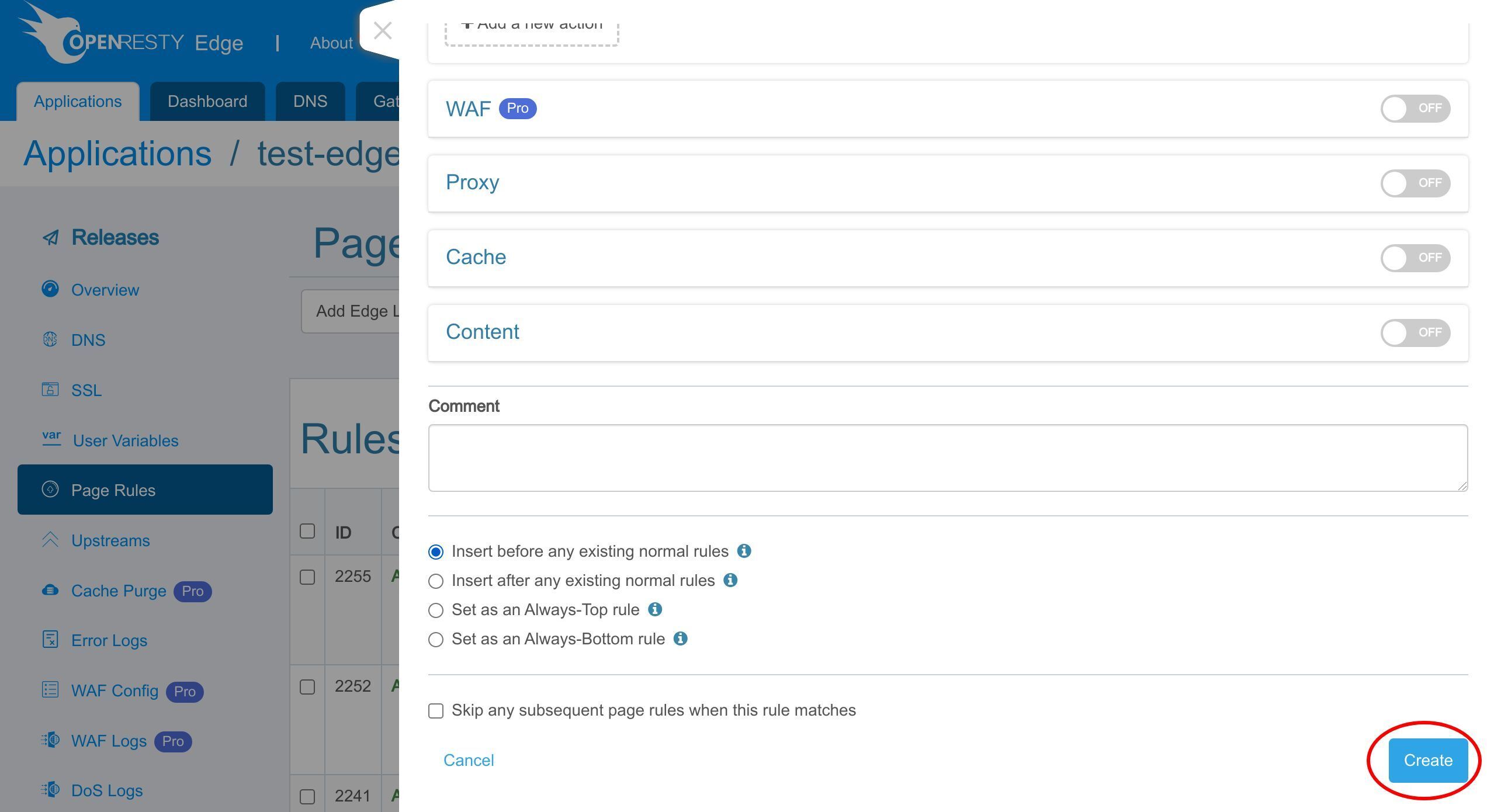
OK to save it.
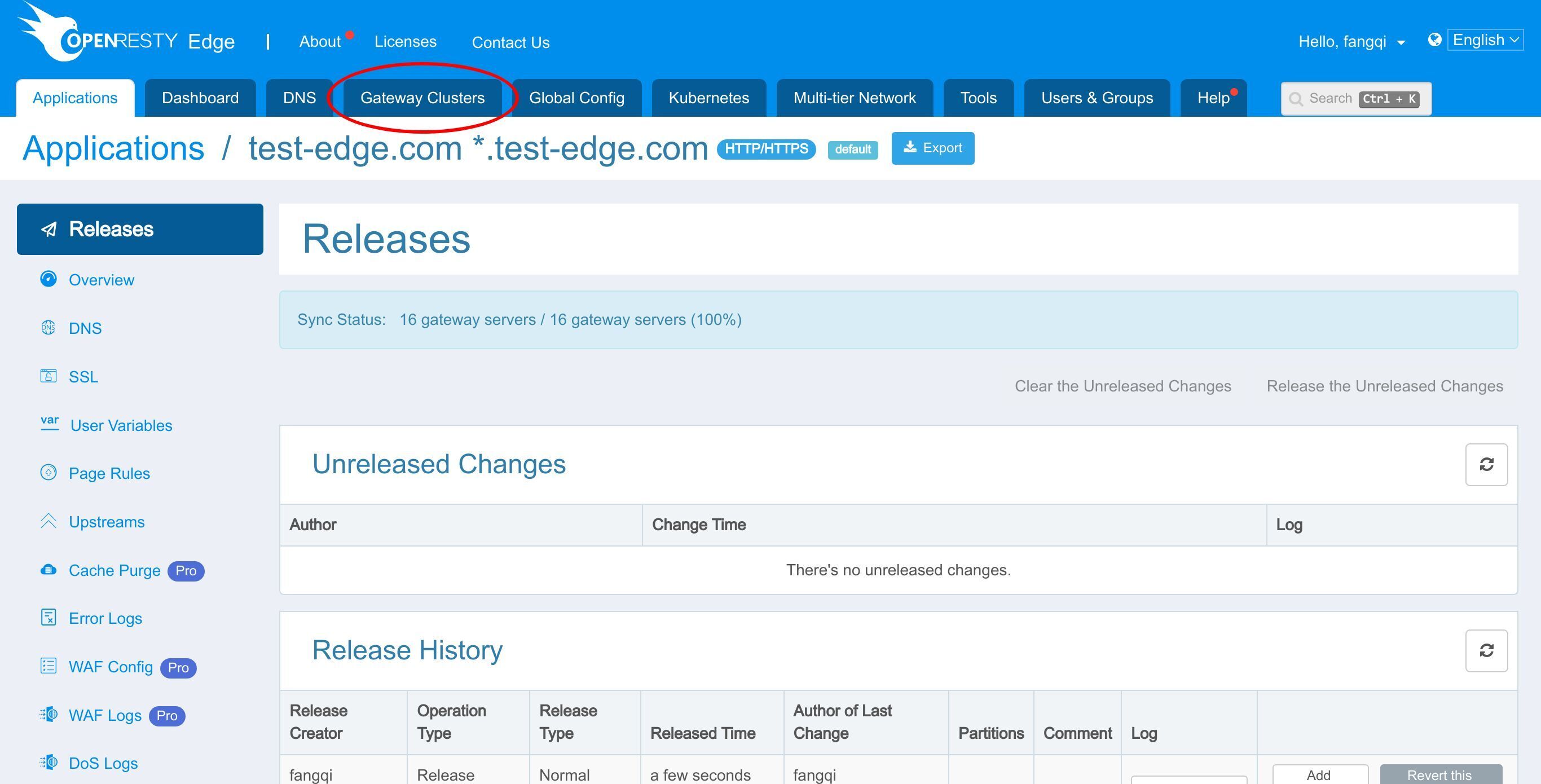
As usual, we need to make a new release to push out our new page rule.
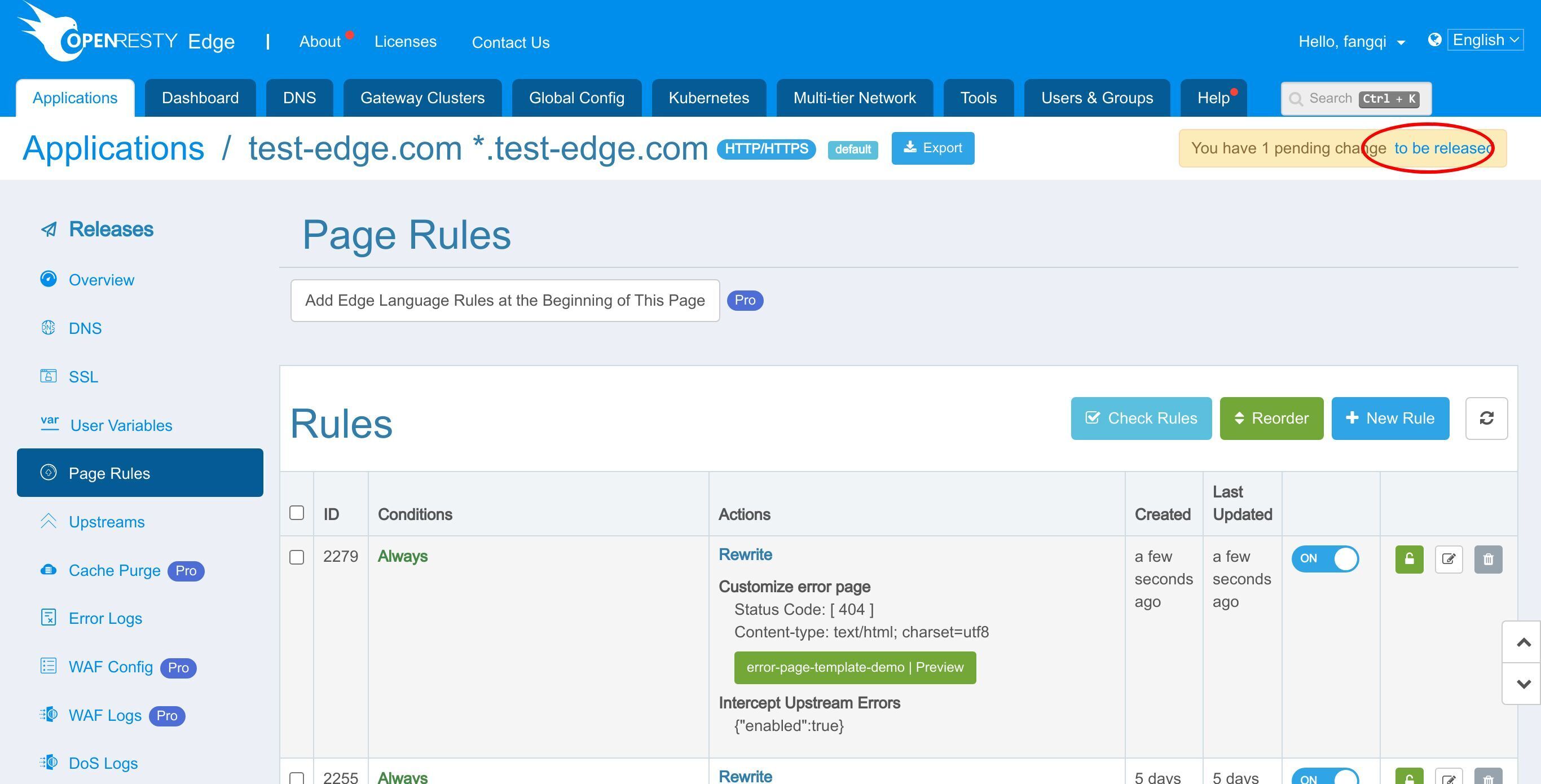
Click here to release the pending change.
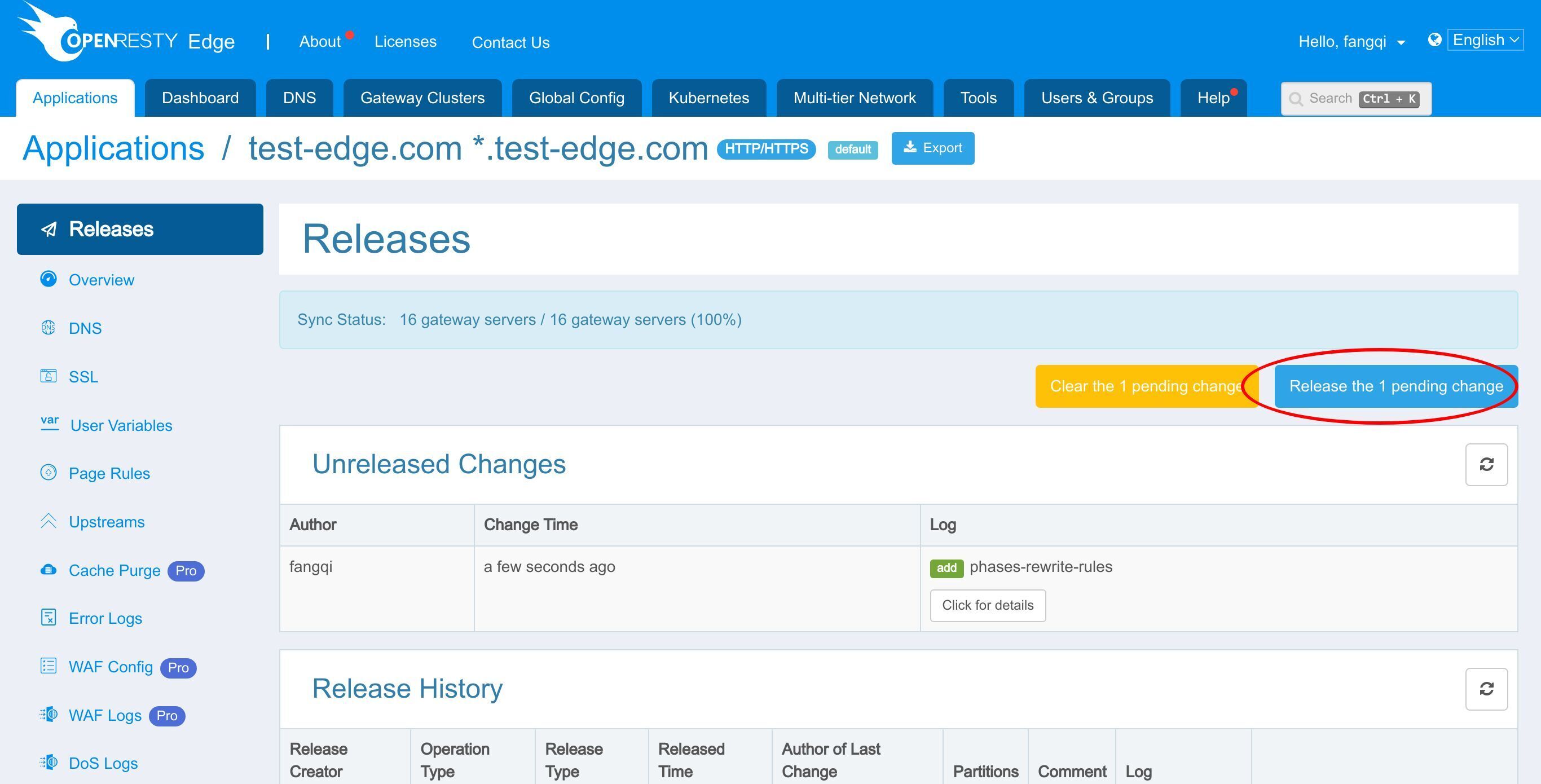
Ship it!
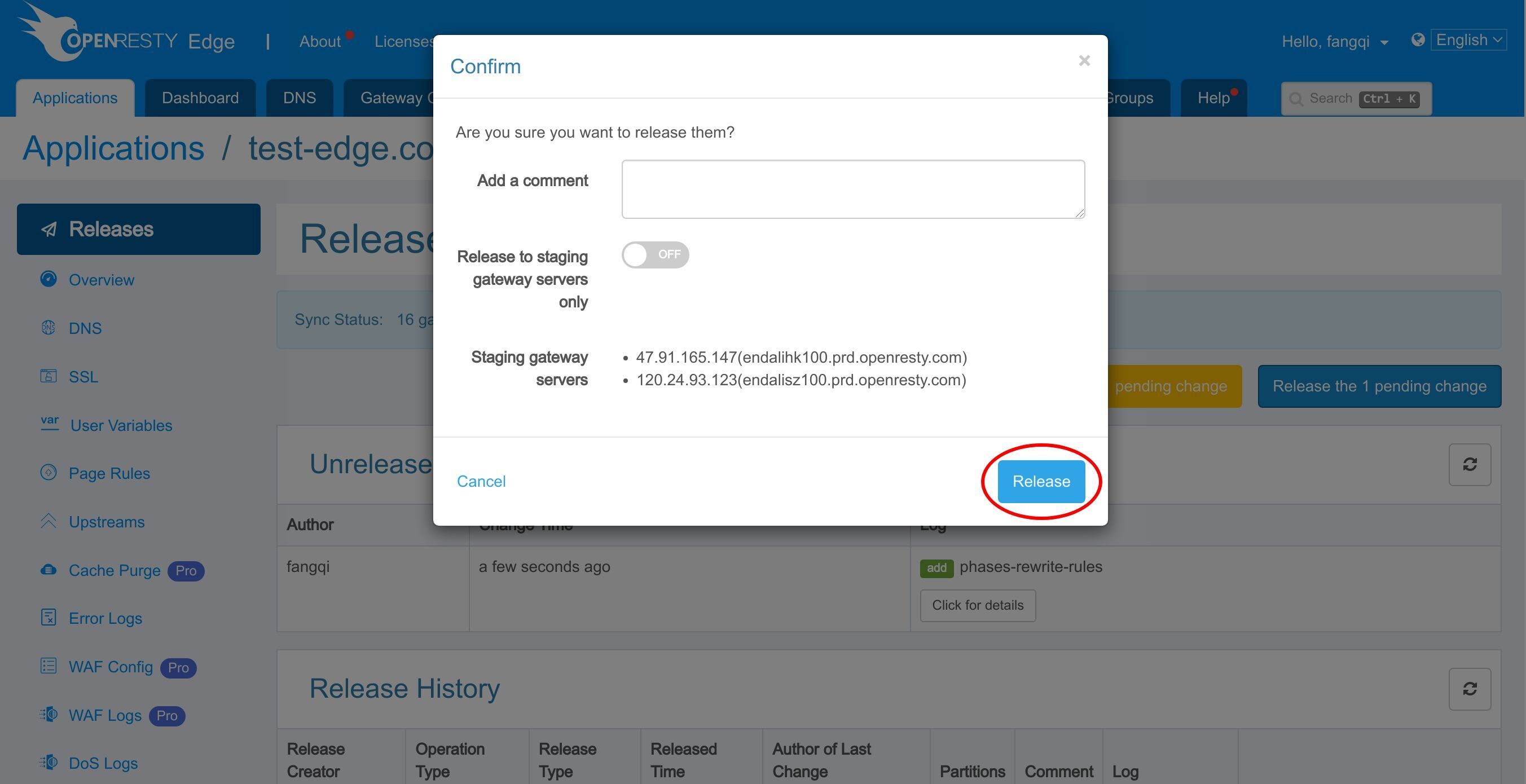
It is fully synchronized now.
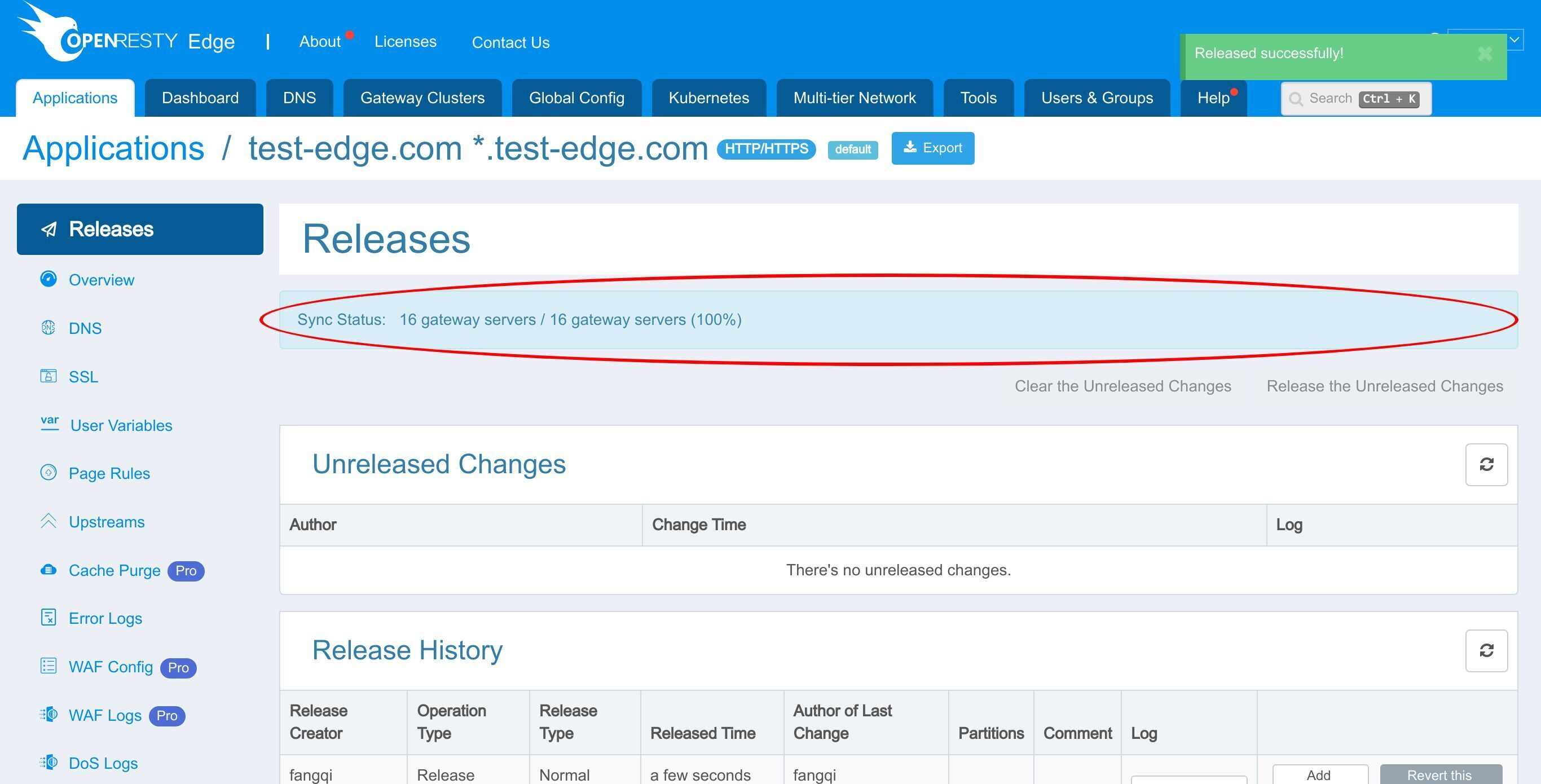
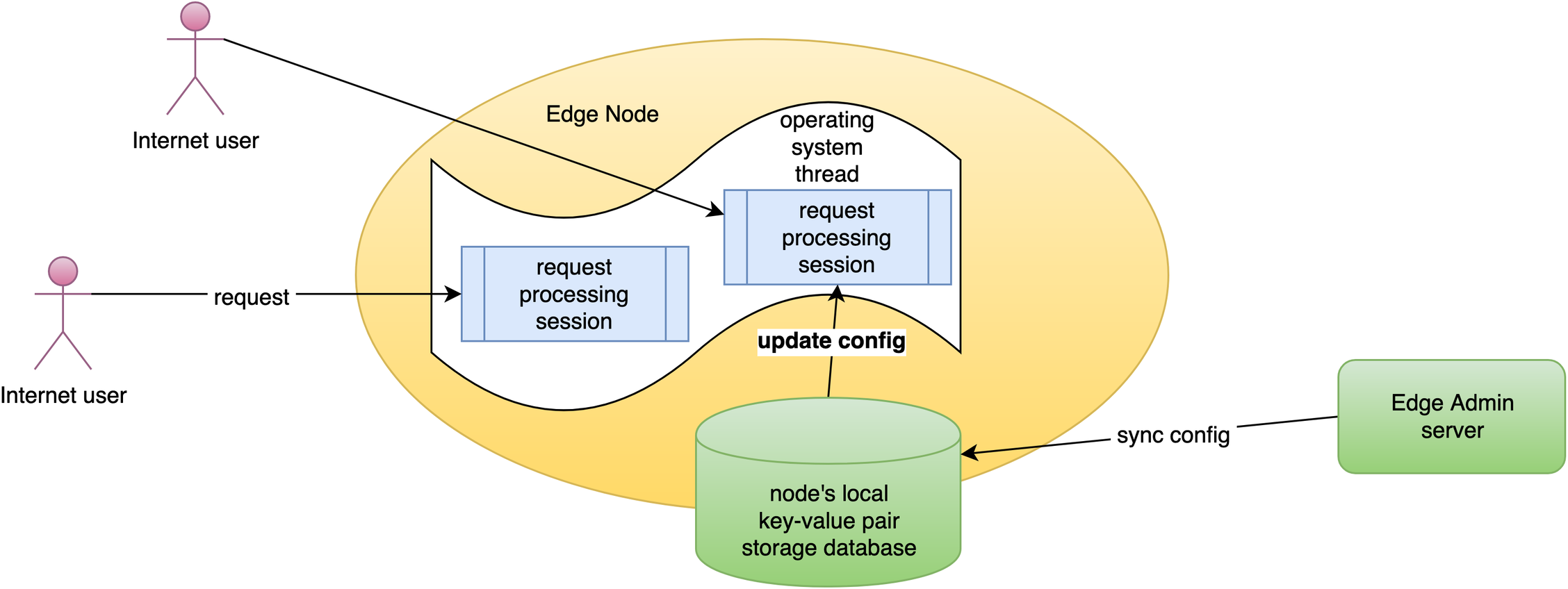
Now the new page rule has been pushed to all the gateway clusters and servers.
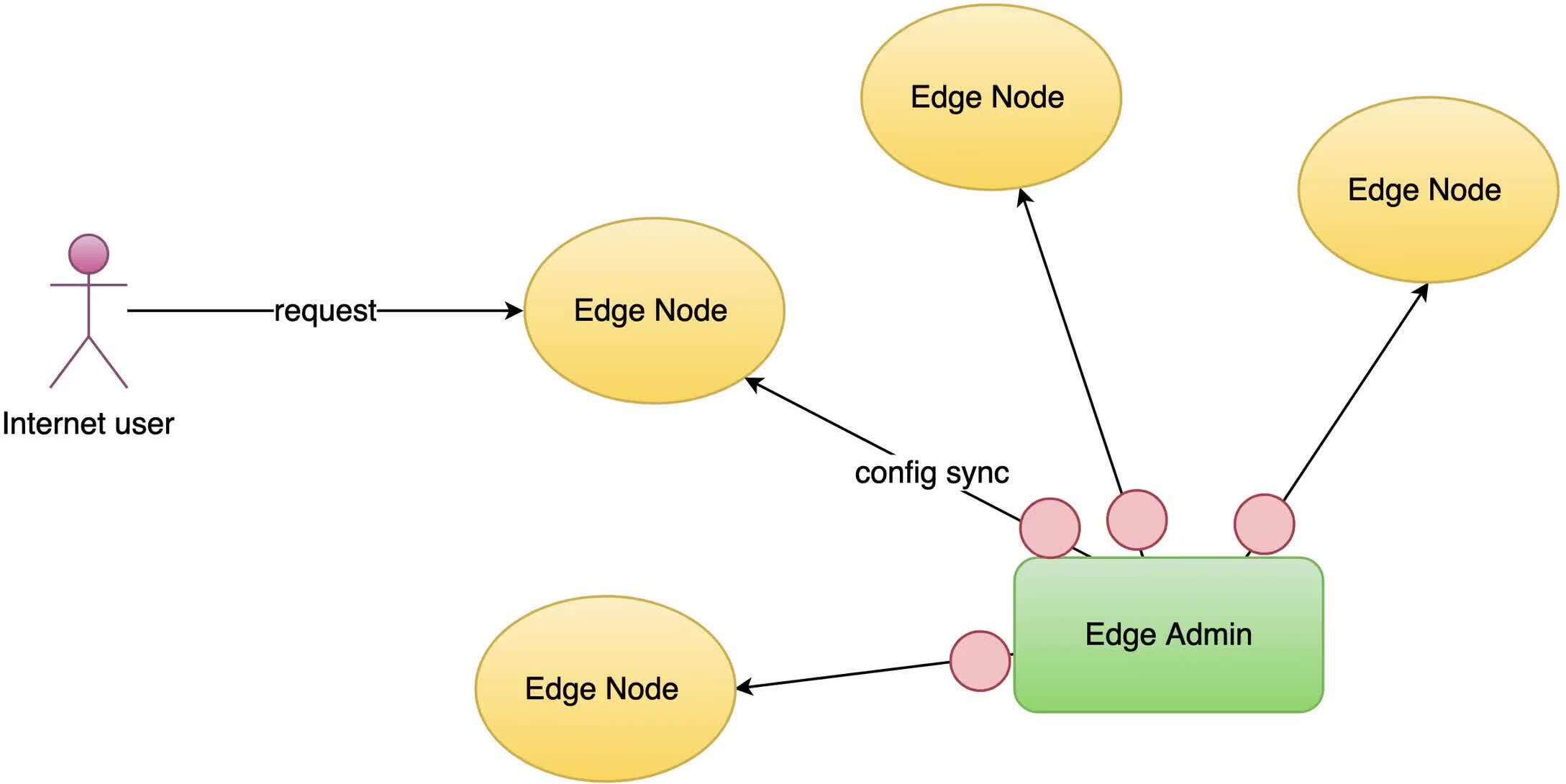
Our configuration changes do NOT require server reload, restart, or binary upgrade. So it’s very efficient and scalable.
Validation of page rules
Let’s test a gateway server for this rule.
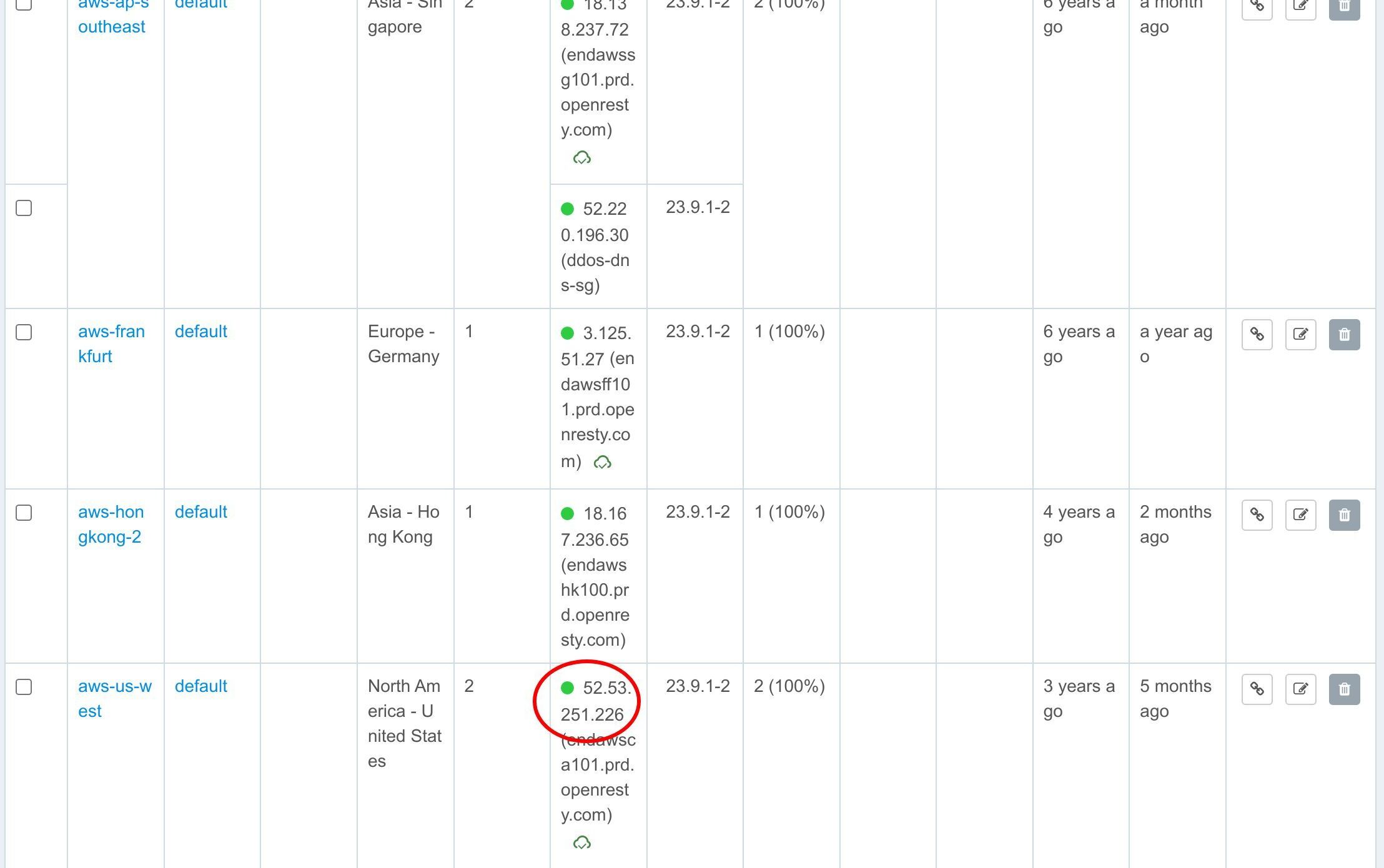
We copy the IP address of this San Francisco gateway server.
Then we test on the terminal.
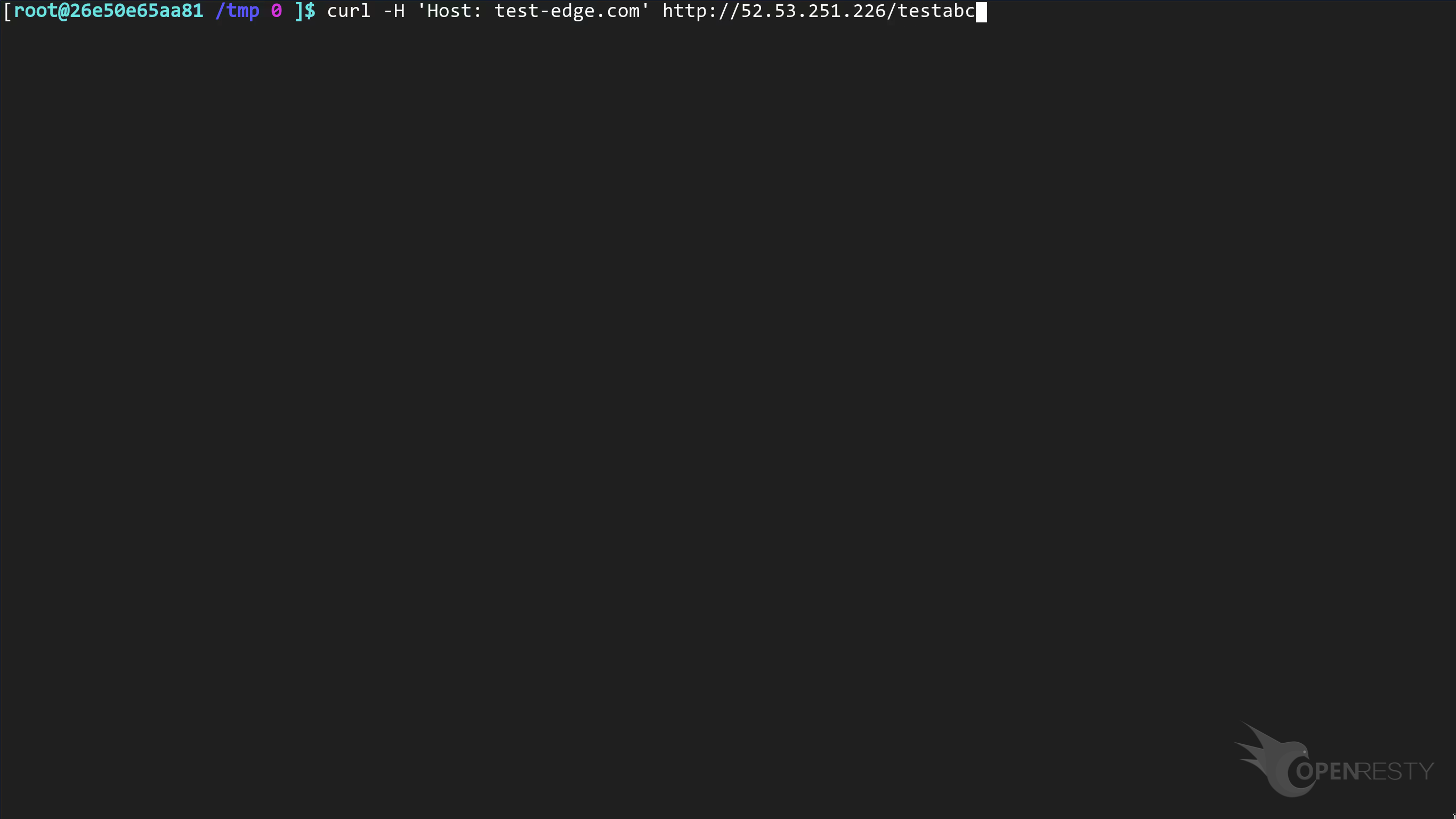
This is the IP address of the San Francisco gateway server we saw earlier.
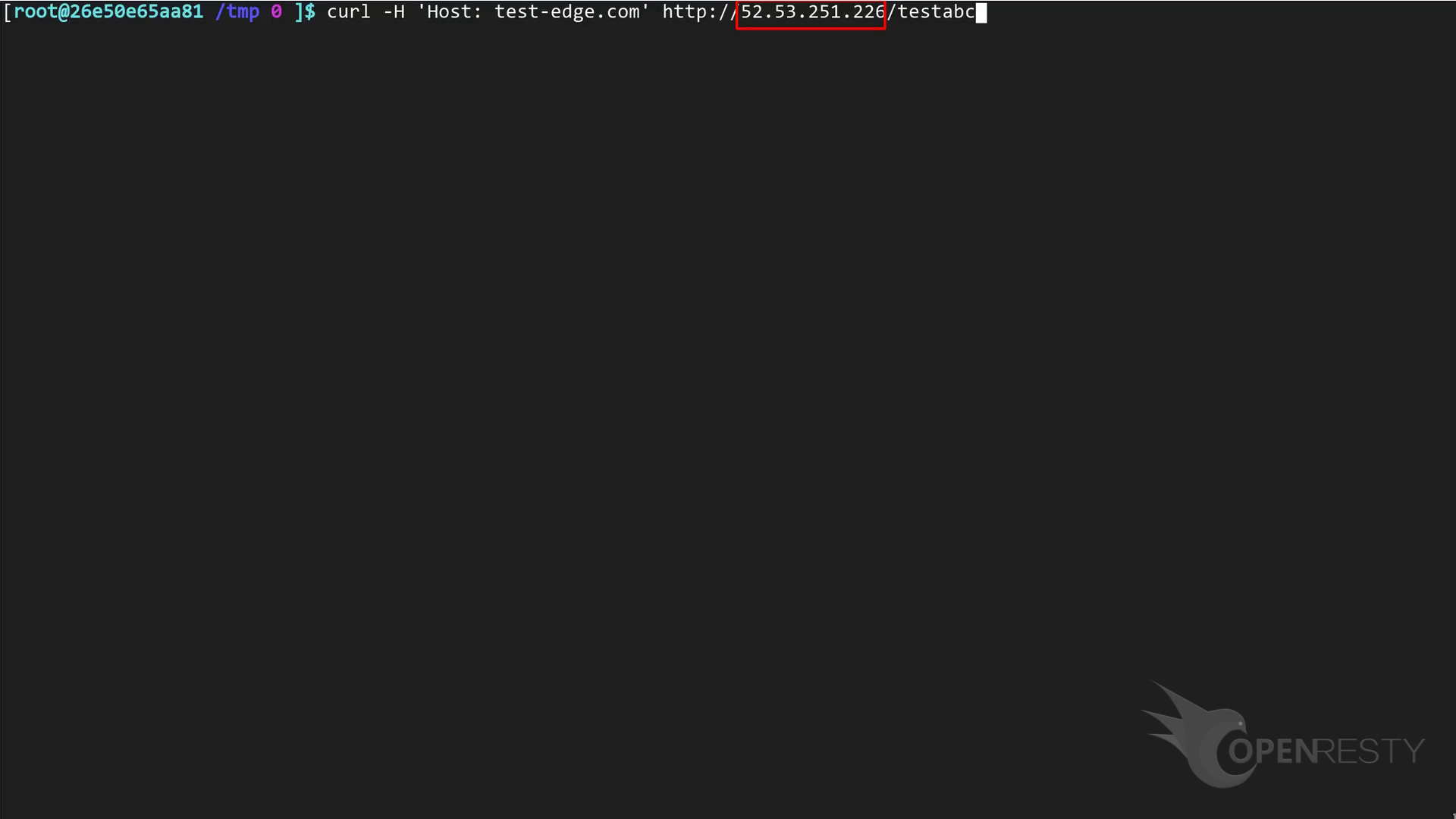
And this is a randomly generated URL that does not exist, so it is indeed a 404 response.
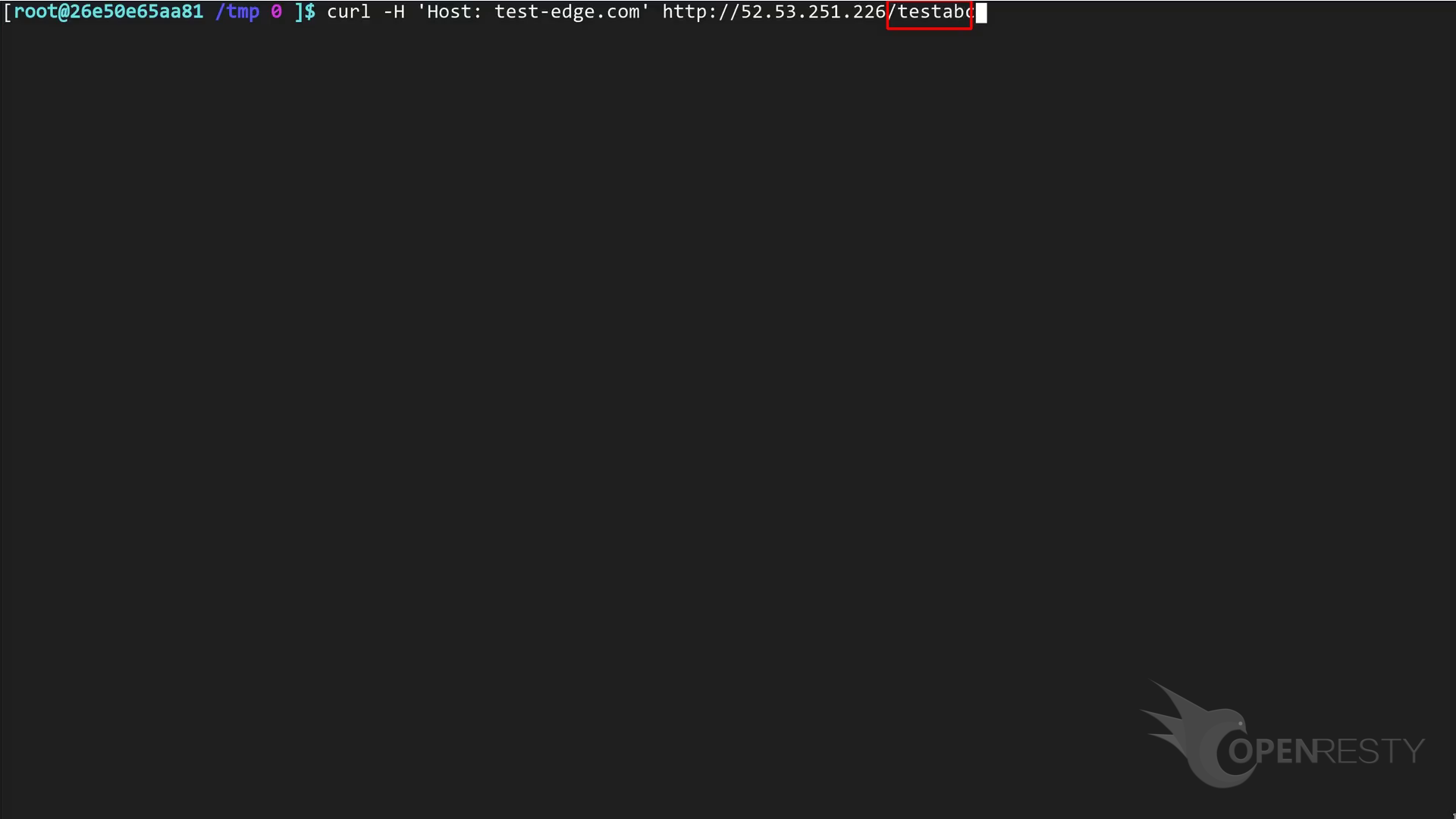
Run the command.
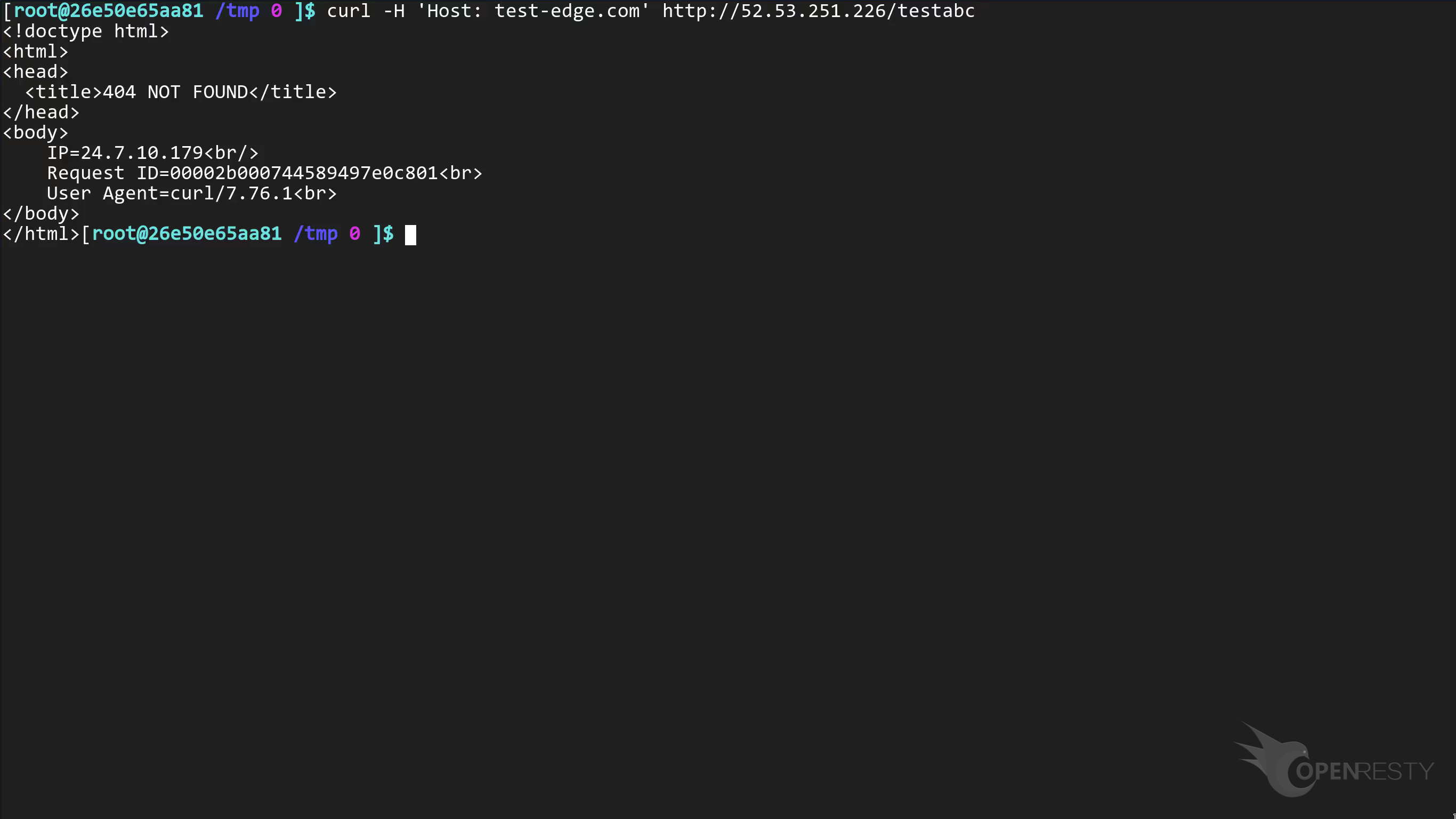
We can get the request info output in html which can be helpful when something is wrong.
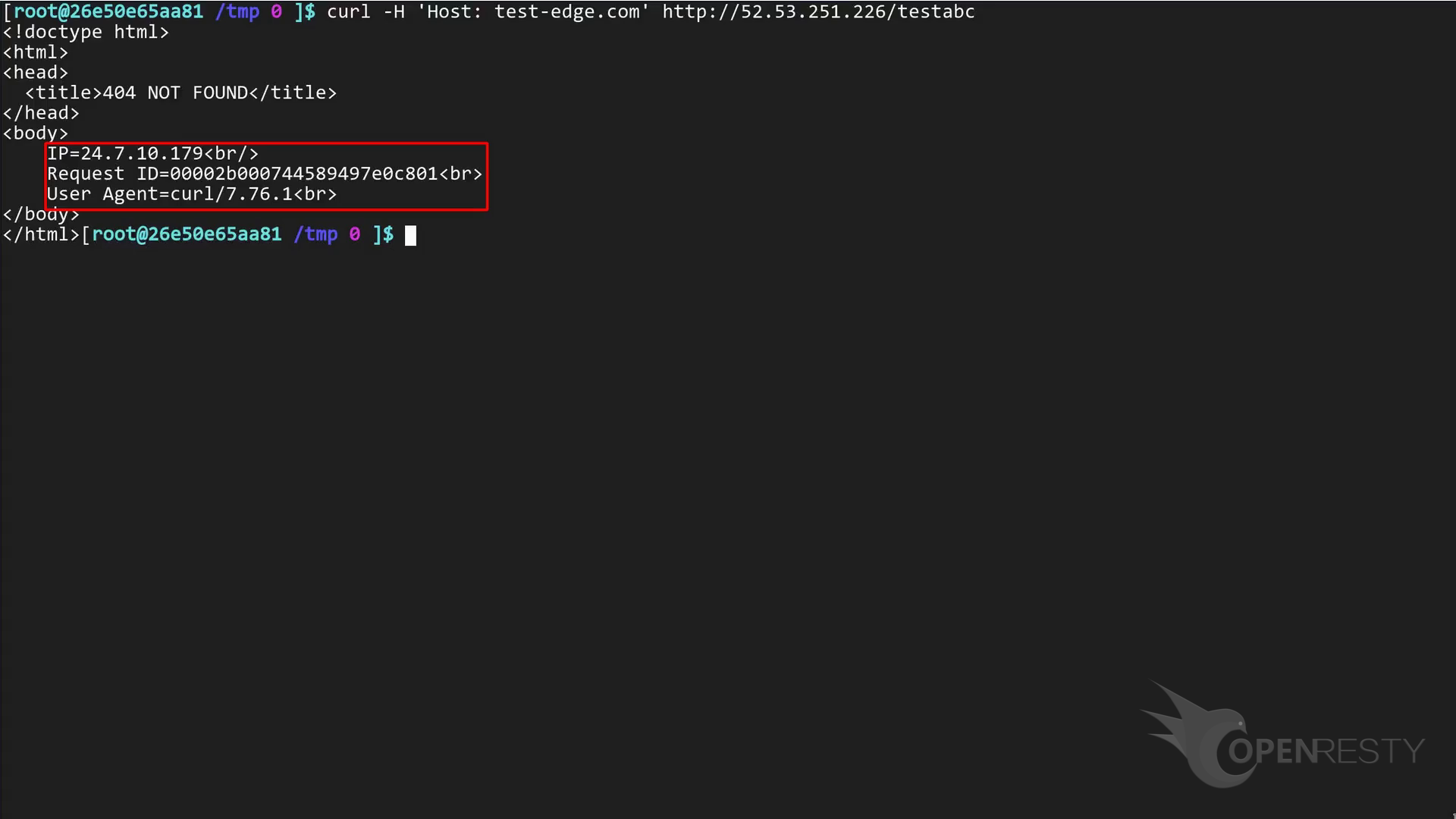
If you want to output more info or change the style of the error page, you can just edit the page template. The changes will be released and take effect immediately.
Global Rewrite Rules
If you want to use the same error page for all applications, you can also config a global rewrite rule.
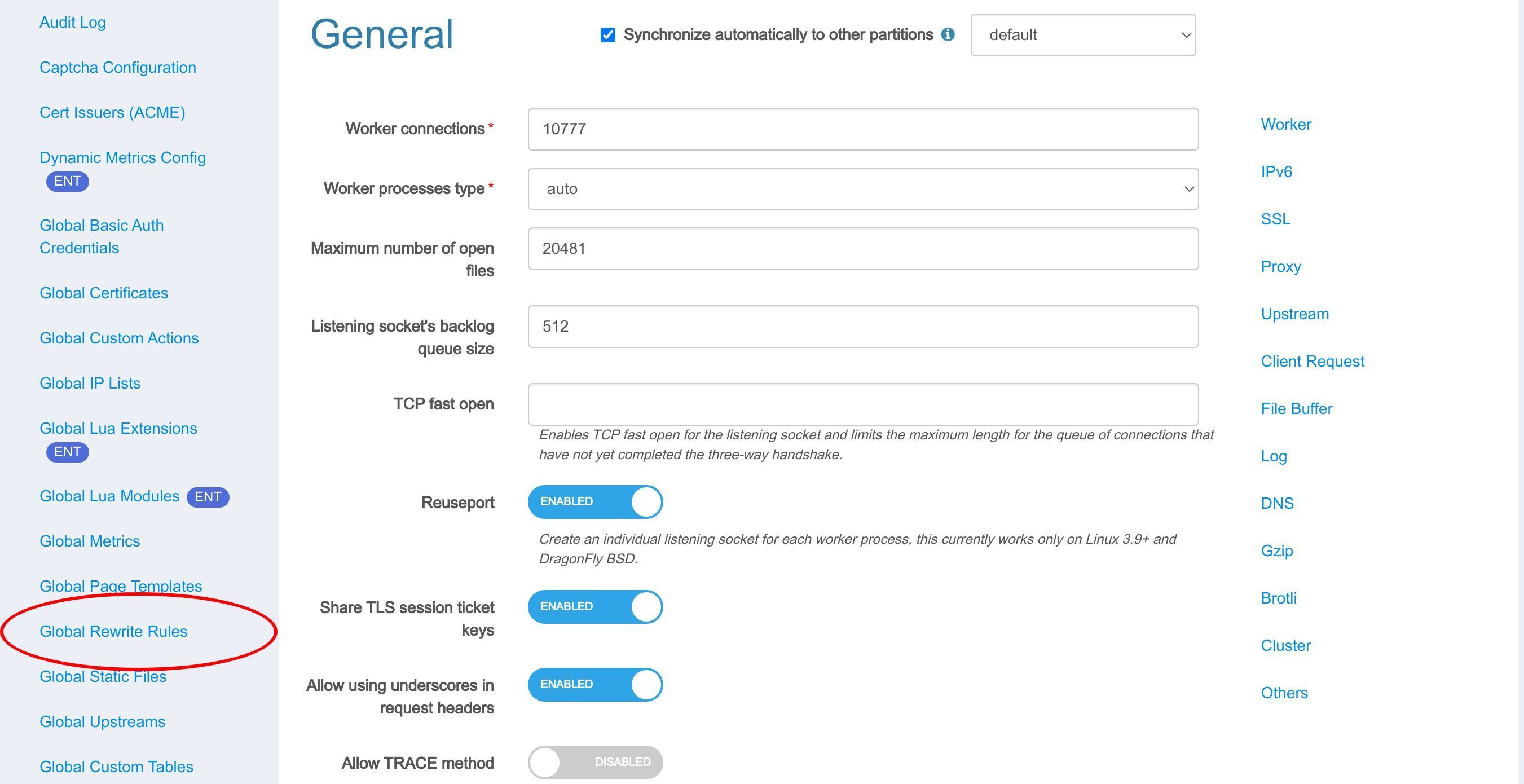
Go to “Global Rewrite Rules” page.
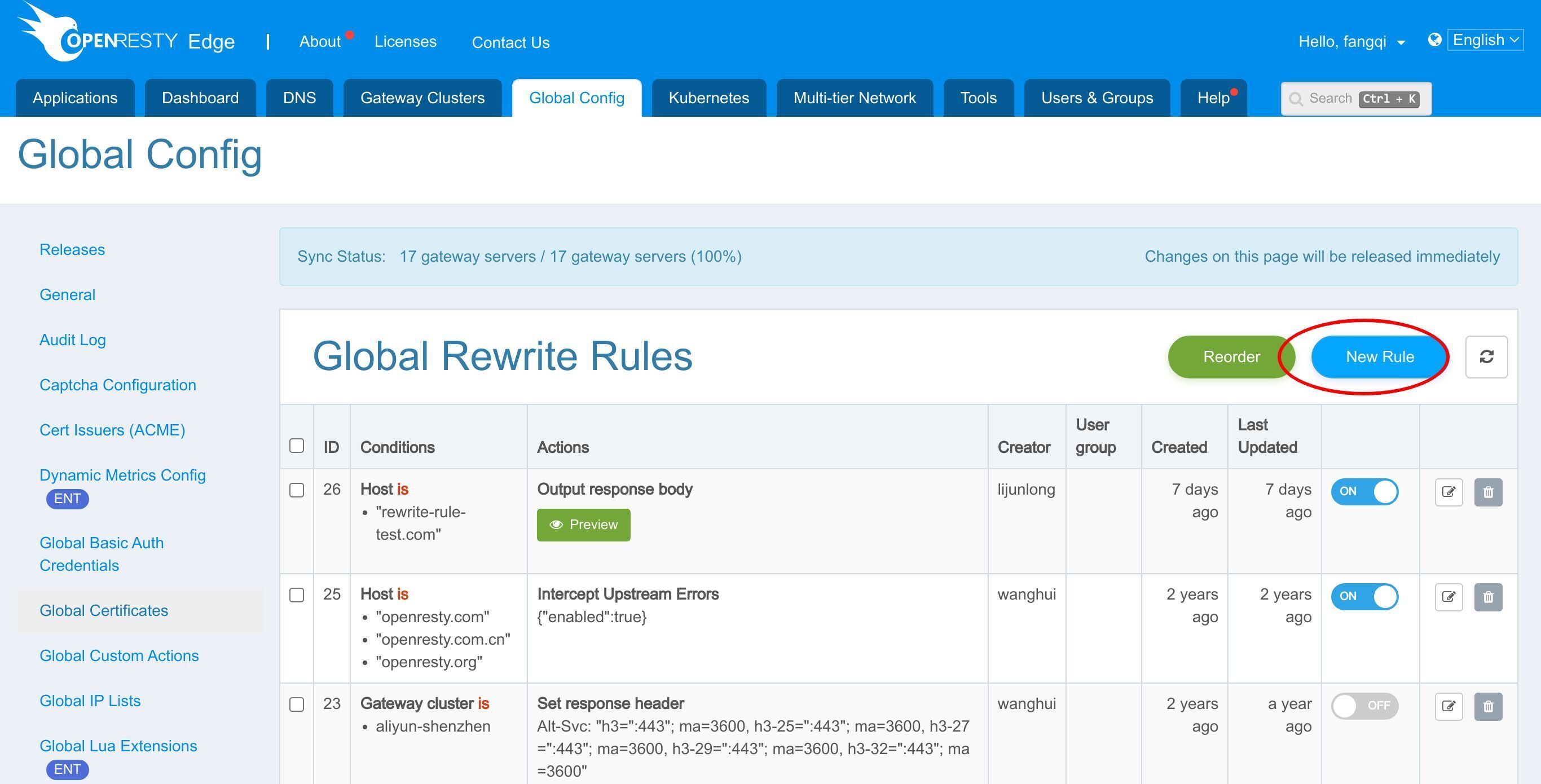
Add a new rule by clicking here, and it’s almost the same as the “Page Rule” in an application. We’ll have another tutorial to introduce this.
T# What is OpenResty Edge
OpenResty Edge is our all-in-one gateway software for microservices and distributed traffic architectures. It combines traffic management, private CDN construction, API gateway, security, and more to help you easily build, manage, and protect modern applications. OpenResty Edge delivers industry-leading performance and scalability to meet the demanding needs of high concurrency, high load scenarios. It supports scheduling containerized application traffic such as K8s and manages massive domains, making it easy to meet the needs of large websites and complex applications.
If you like this tutorial, please subscribe to this blog site and/or our YouTube channel. Thank you!
About The Author
Yichun Zhang (Github handle: agentzh), is the original creator of the OpenResty® open-source project and the CEO of OpenResty Inc..
Yichun is one of the earliest advocates and leaders of “open-source technology”. He worked at many internationally renowned tech companies, such as Cloudflare, Yahoo!. He is a pioneer of “edge computing”, “dynamic tracing” and “machine coding”, with over 22 years of programming and 16 years of open source experience. Yichun is well-known in the open-source space as the project leader of OpenResty®, adopted by more than 40 million global website domains.
OpenResty Inc., the enterprise software start-up founded by Yichun in 2017, has customers from some of the biggest companies in the world. Its flagship product, OpenResty XRay, is a non-invasive profiling and troubleshooting tool that significantly enhances and utilizes dynamic tracing technology. And its OpenResty Edge product is a powerful distributed traffic management and private CDN software product.
As an avid open-source contributor, Yichun has contributed more than a million lines of code to numerous open-source projects, including Linux kernel, Nginx, LuaJIT, GDB, SystemTap, LLVM, Perl, etc. He has also authored more than 60 open-source software libraries.
Related Articles
OpenResty XRay Dec 21, 2023

OpenResty XRay Dec 4, 2023

OpenResty XRay Nov 21, 2023

OpenResty XRay Nov 15, 2023

OpenResty XRay Nov 9, 2023