
Configure HTTP Basic Auth in OpenResty Edge — No Server Reload or Restart
To configure HTTP basic auth in OpenResty Edge, create a Basic Auth user group — either scoped to one application or global across all of them — in the Admin console, add users to it, then turn it on for a route with the “Enable Basic Authentication” page rule action. Authentication runs directly on the gateway servers, and releasing the configuration pushes it to every cluster with no server reload, restart, or binary upgrade.
This tutorial walks through both the per-application and global setups step by step, then tests them from a browser and with curl. It continues our OpenResty Edge product series.
The HTTP basic auth is handled directly by the gateway servers.

Configure the HTTP basic auth credentials for applications
As always, let’s go to OpenResty Edge’s Admin web console. This is our sample deployment of the console. Every user has her own local deployment.
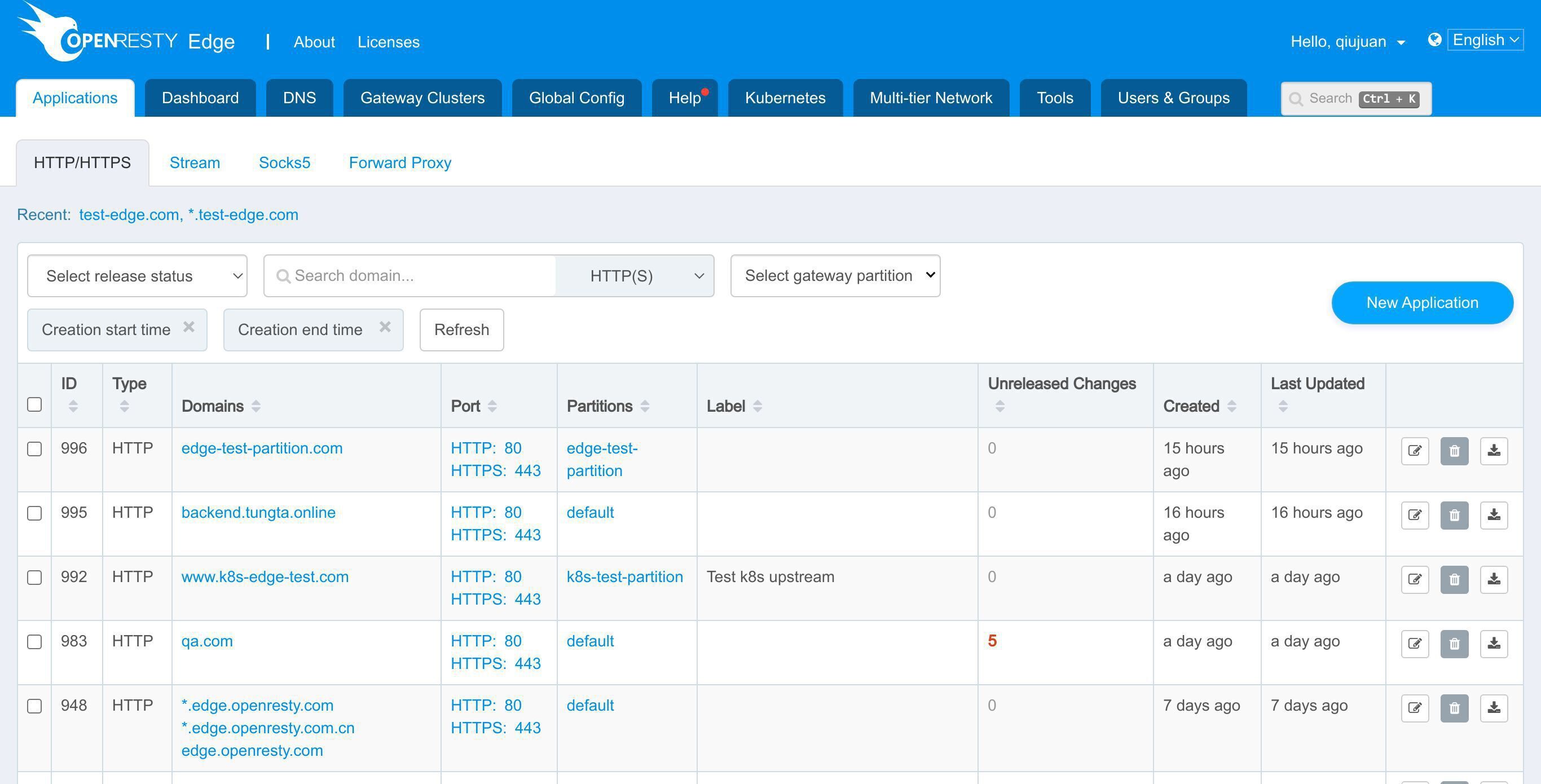
Let’s configure the HTTP basic auth credentials for our gateway application.
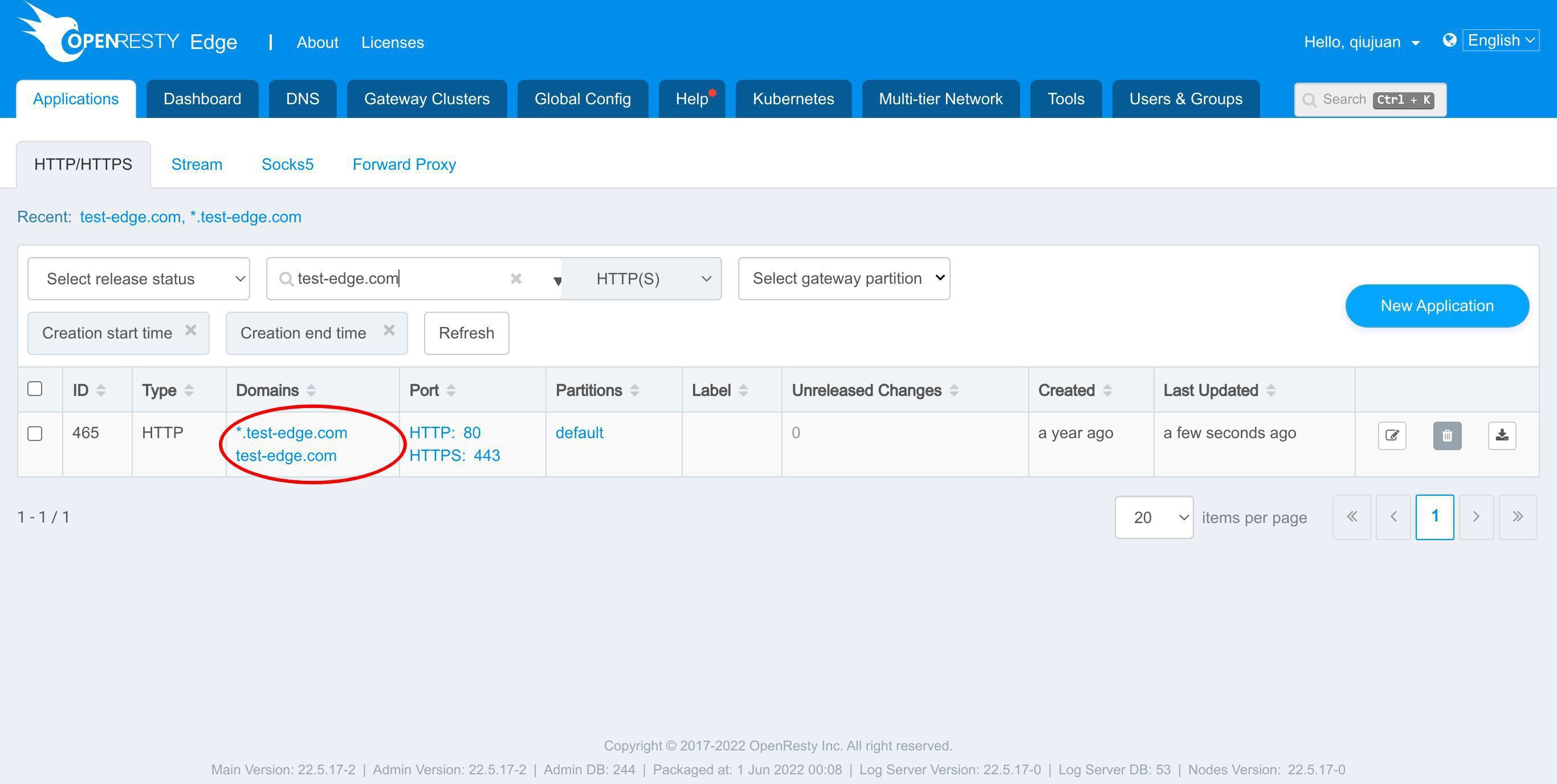
We still use our continuing sample application for the test-edge.com domain.
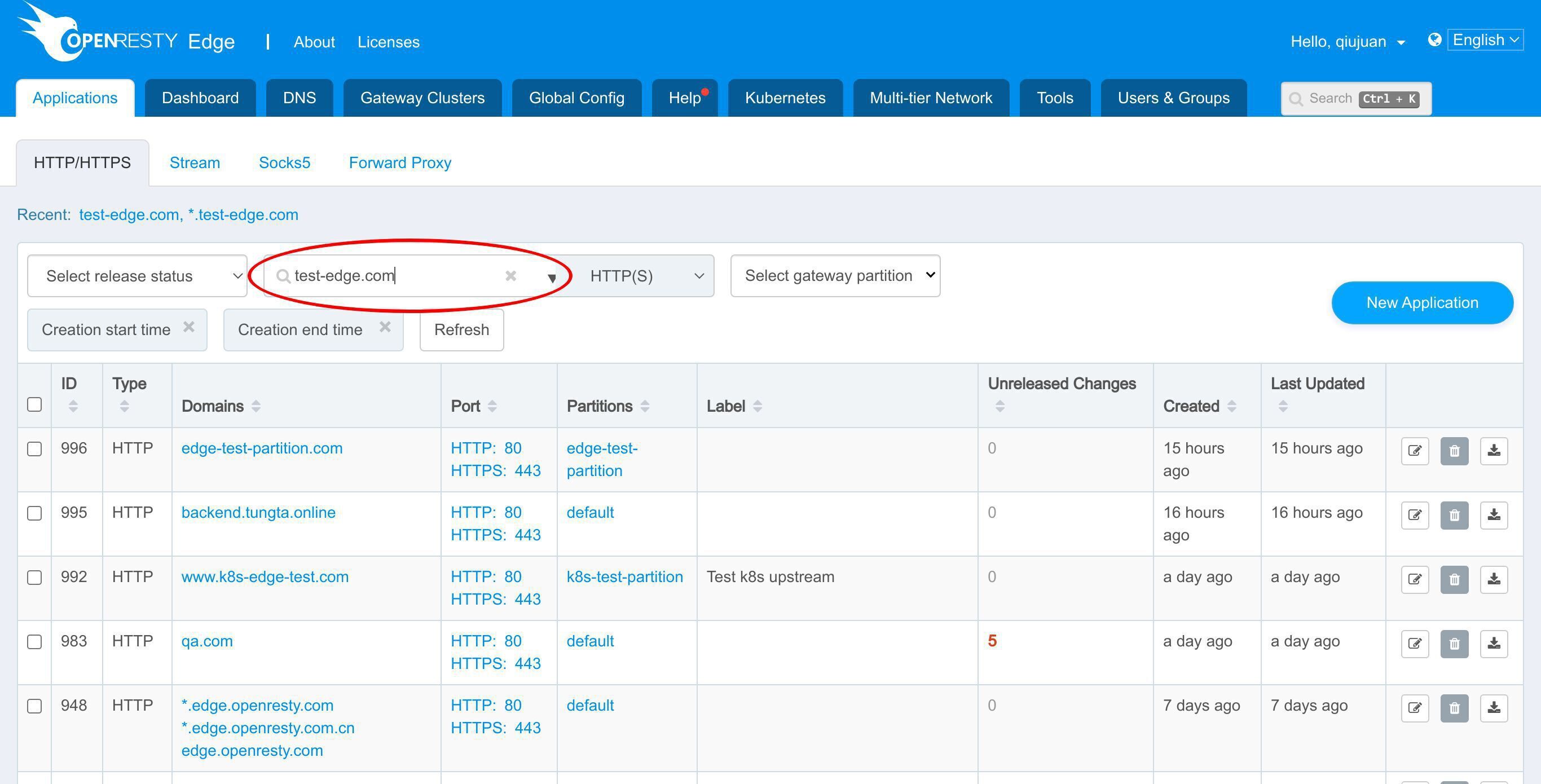
Enter this application.
Add a basic auth user group
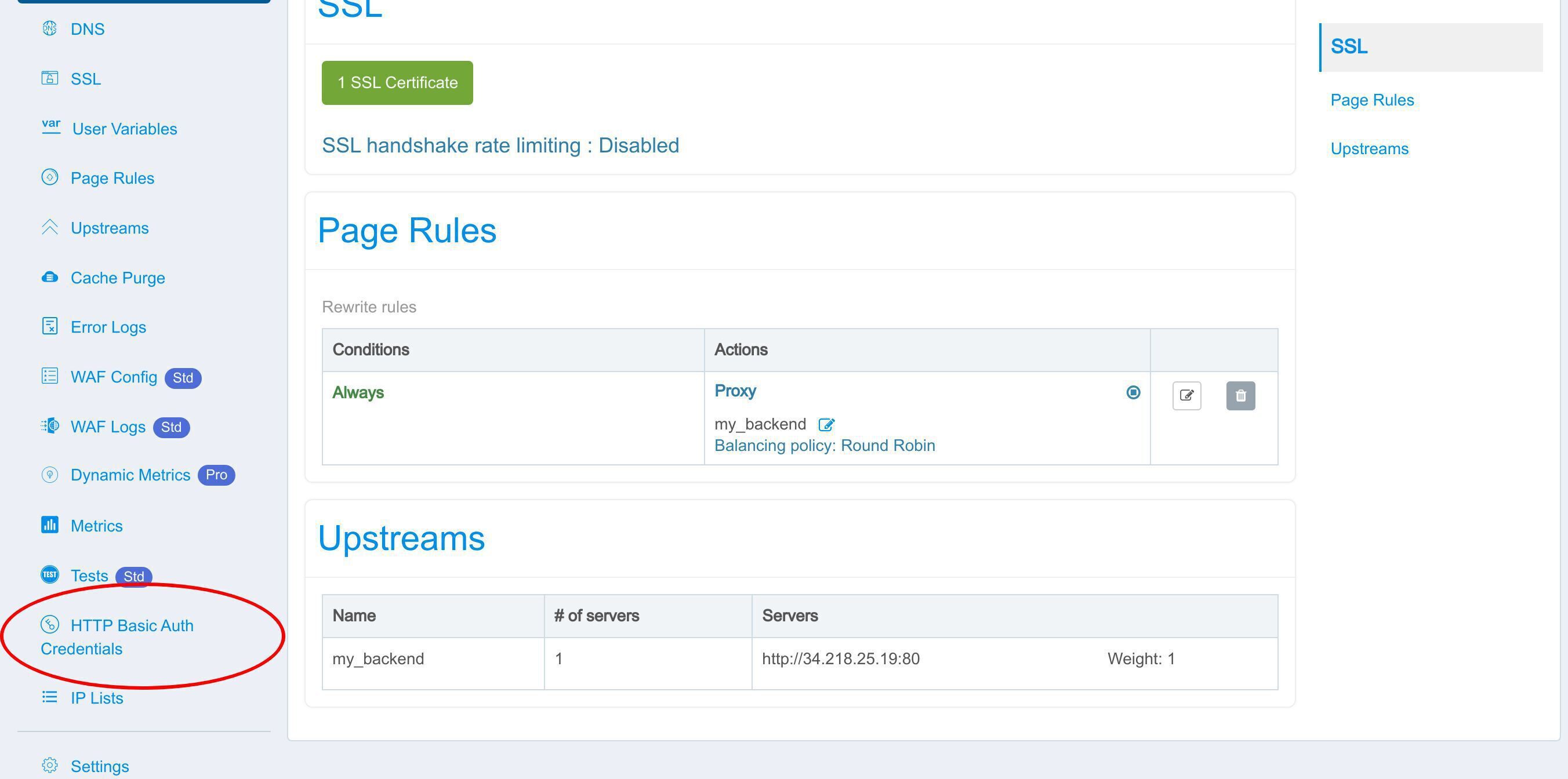
Go to the HTTP Basic Auth Credentials page.
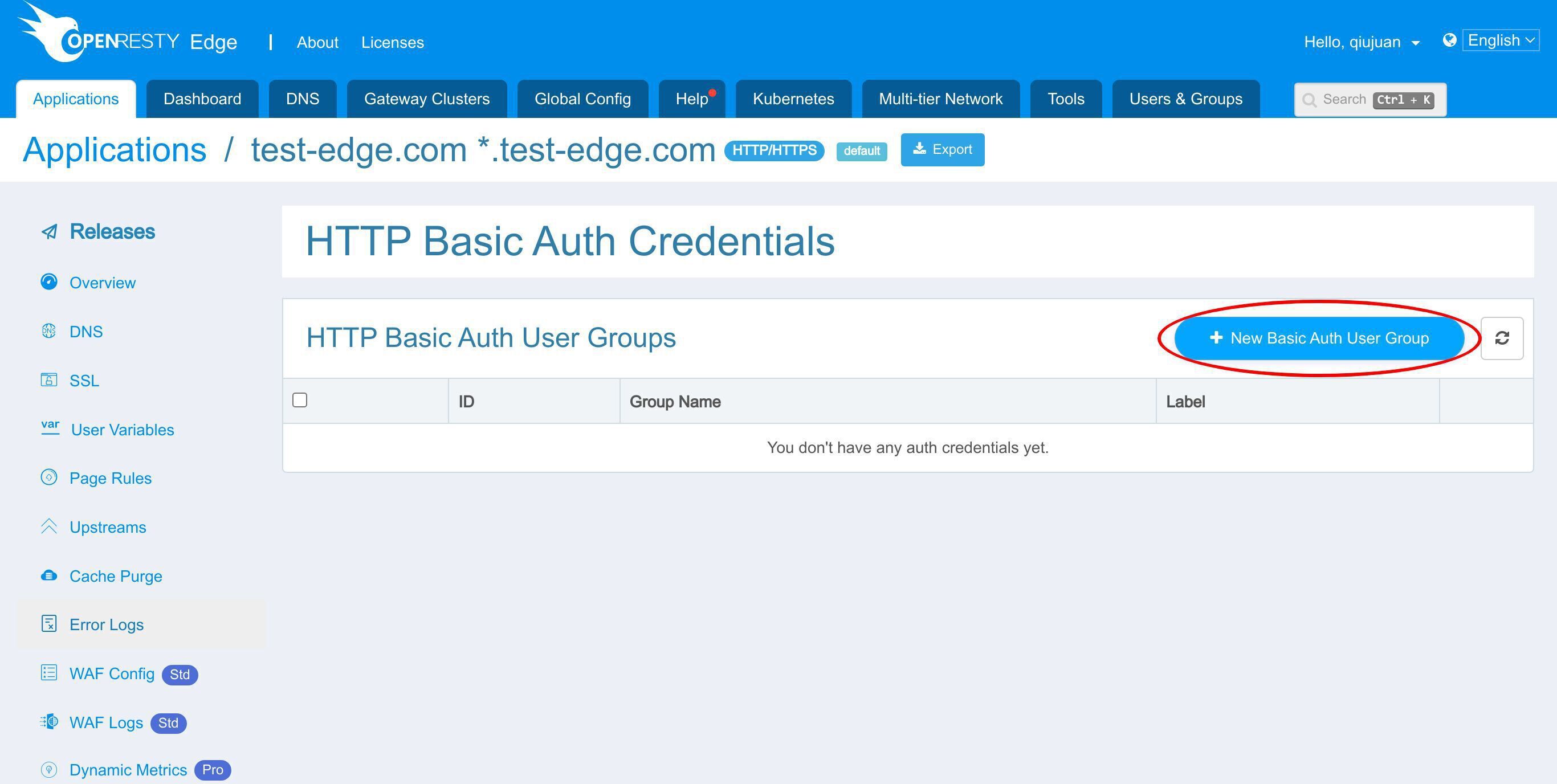
We support adding one or more basic auth user groups. Each user group can have one or more users.
Add a new Basic Auth user group.
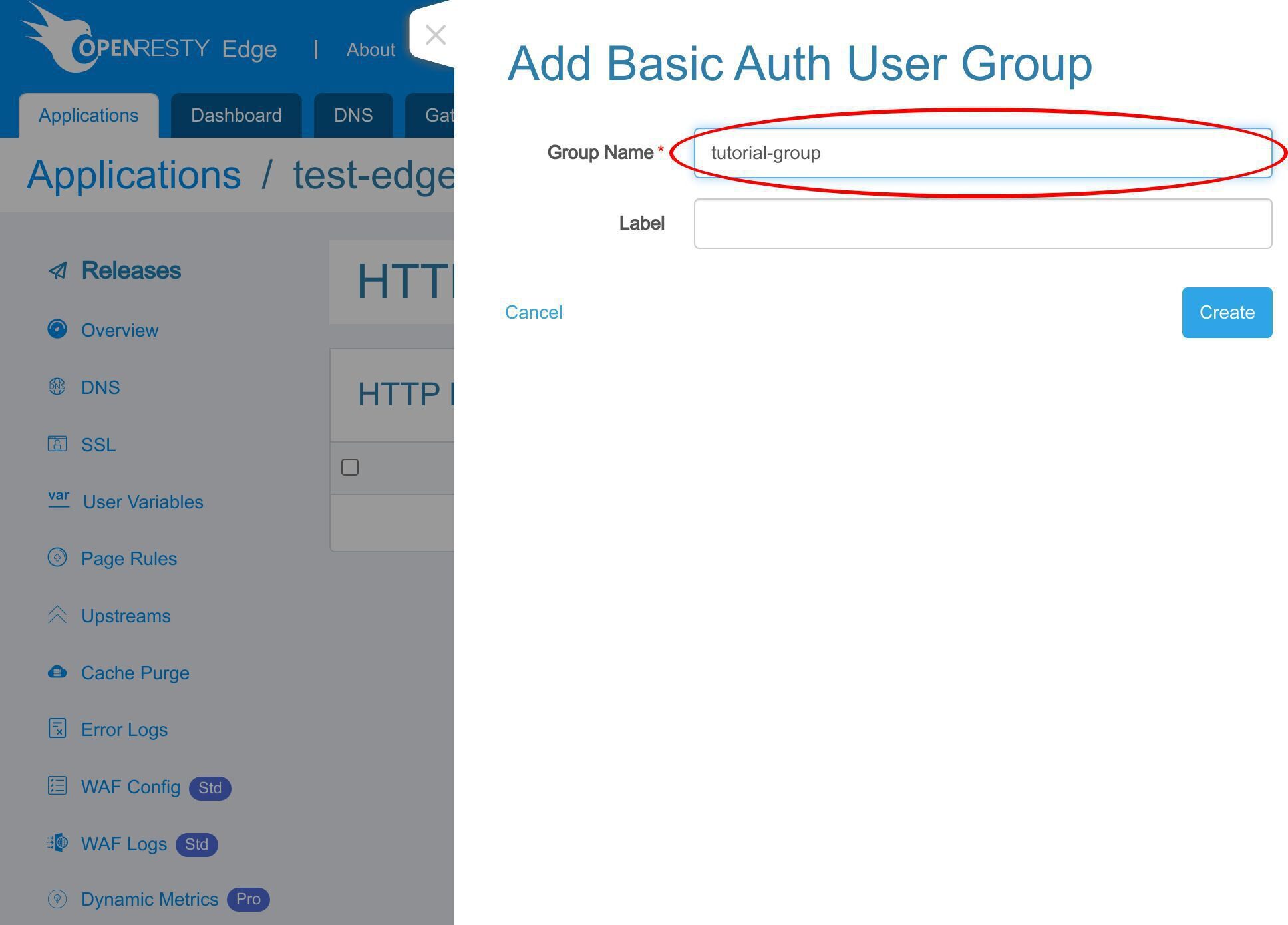
Enter the group name “tutorial-group”. This user group is merely for this tutorial.
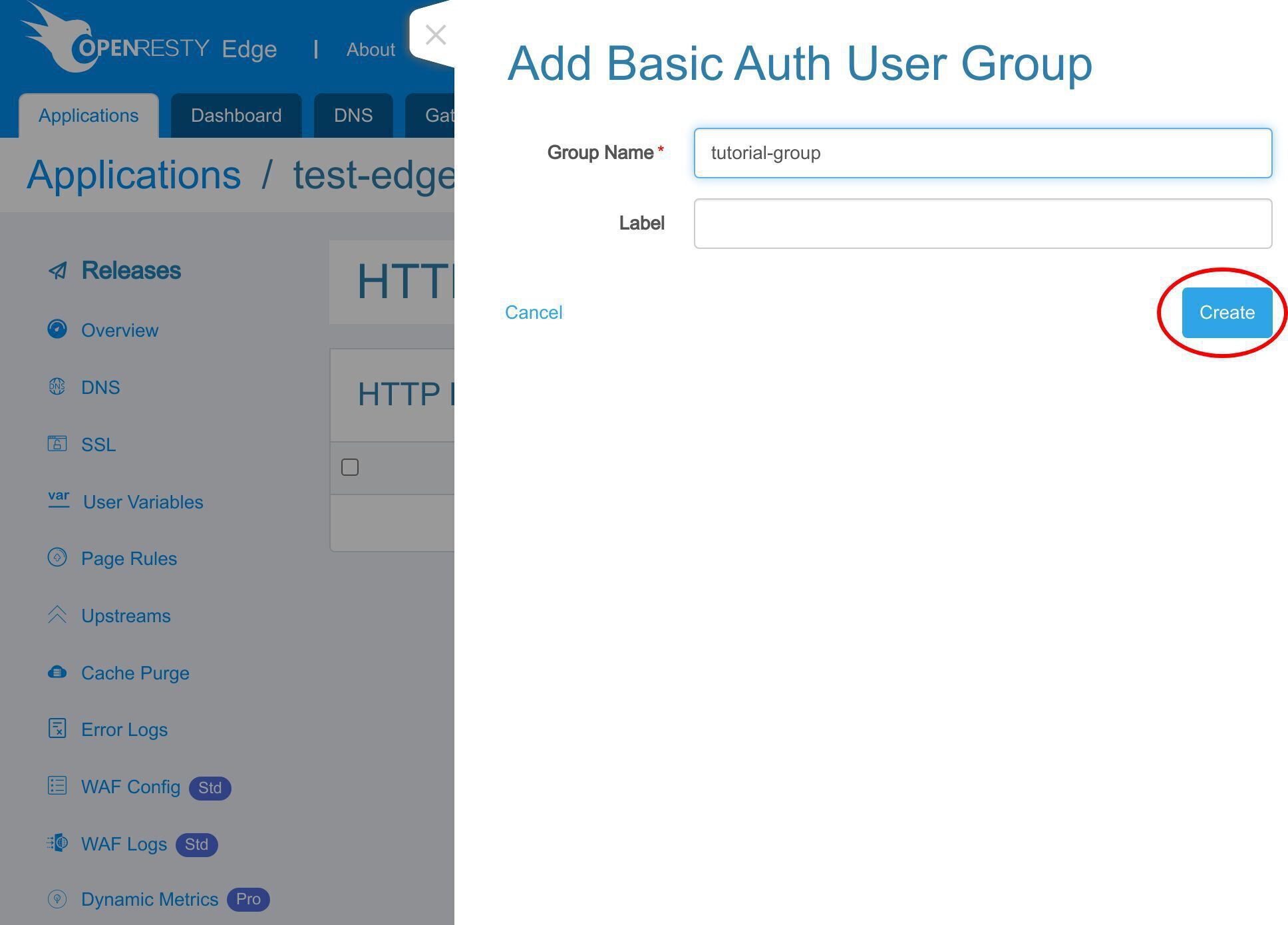
Save it.
Add a new Basic Auth user to this group.
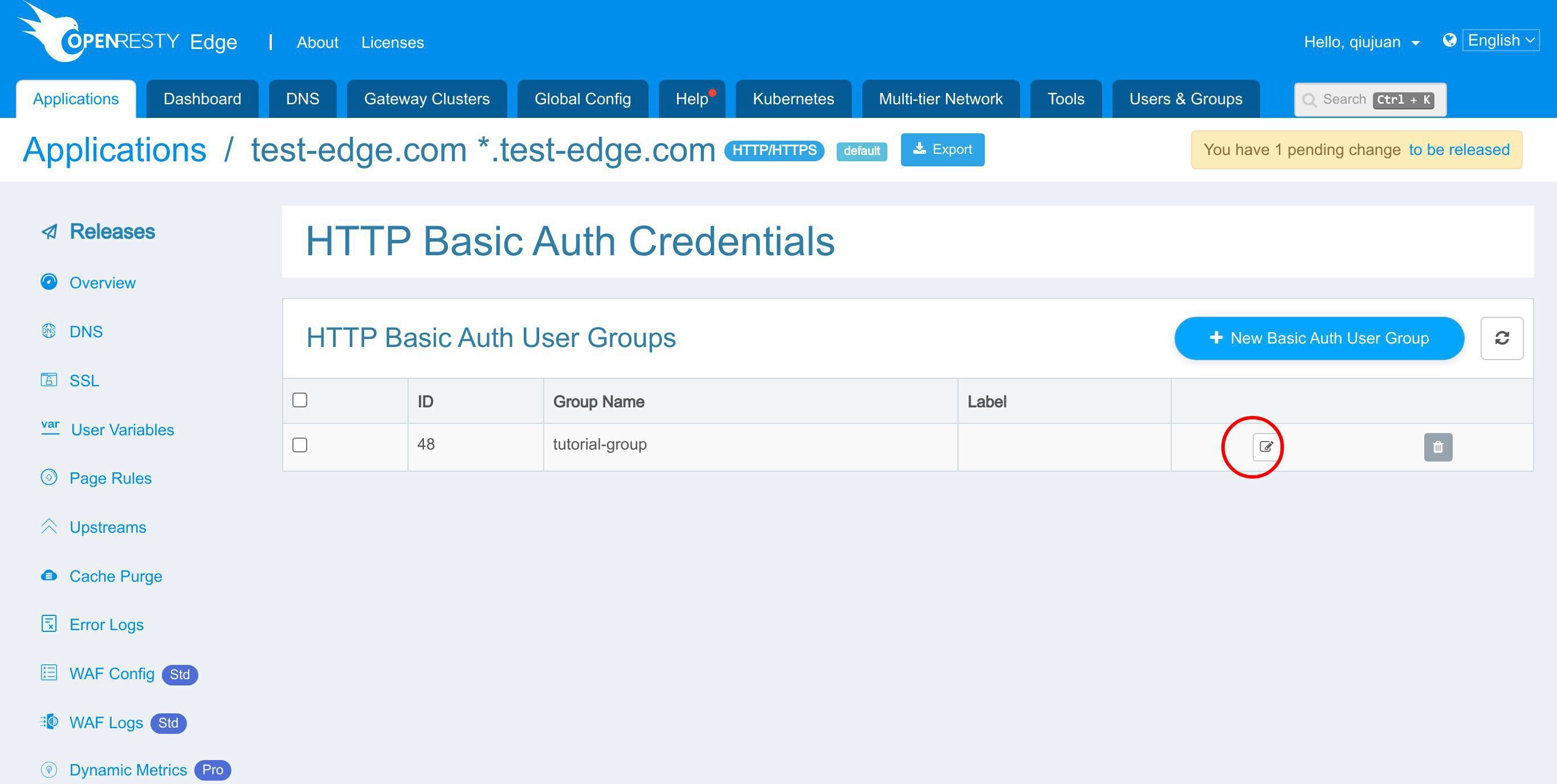
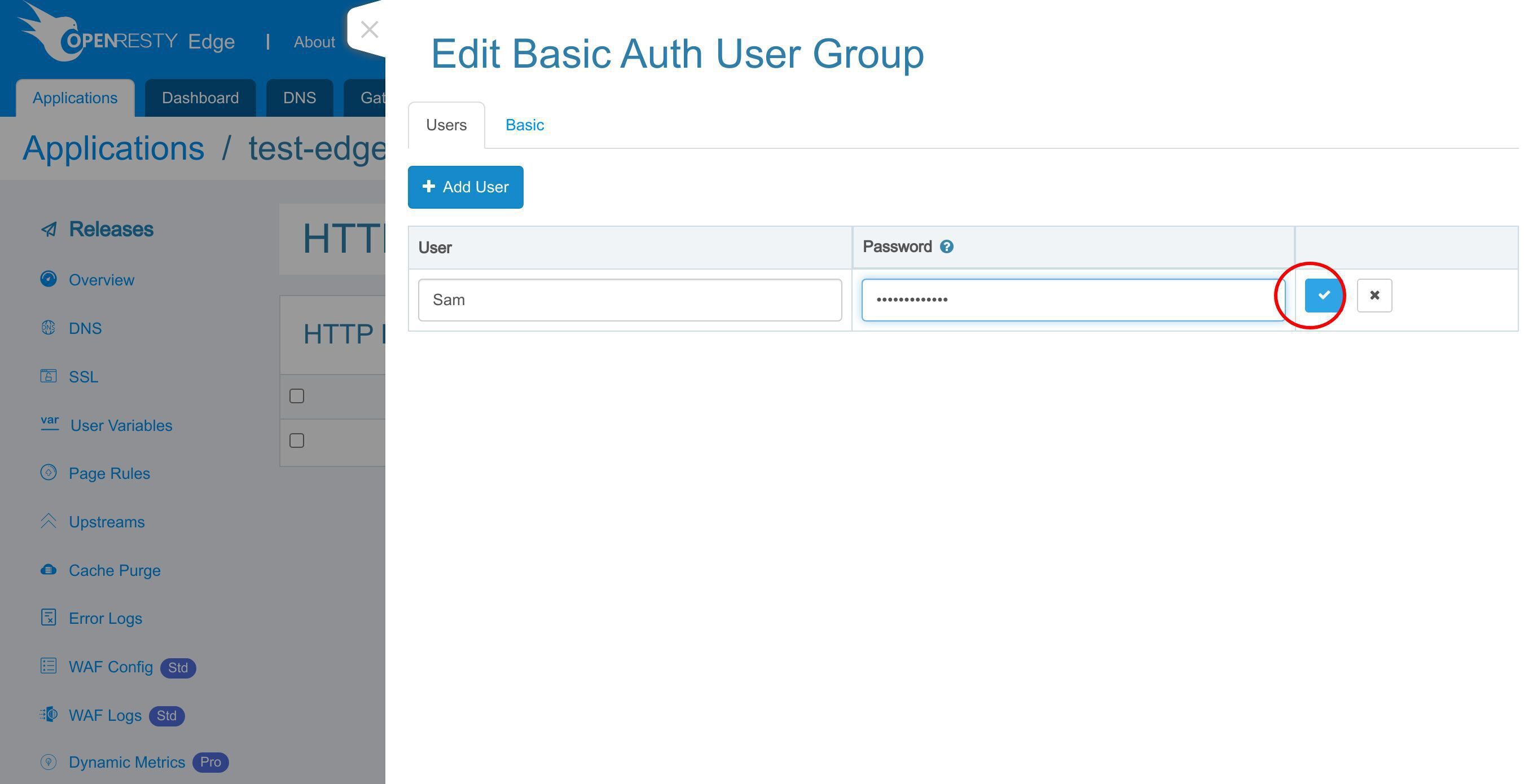
Click this button to add a new user.
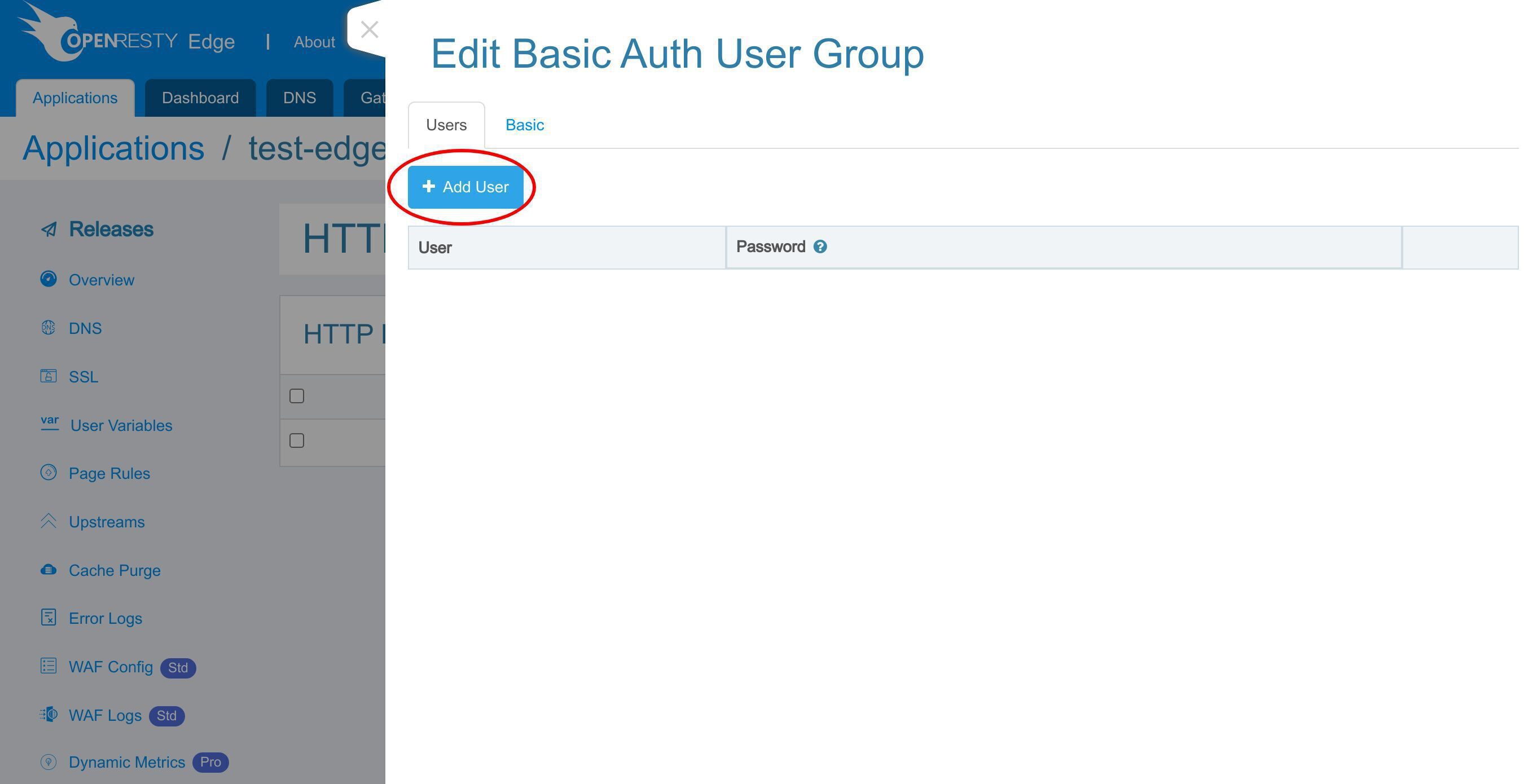
Type in the user name “Sam”.
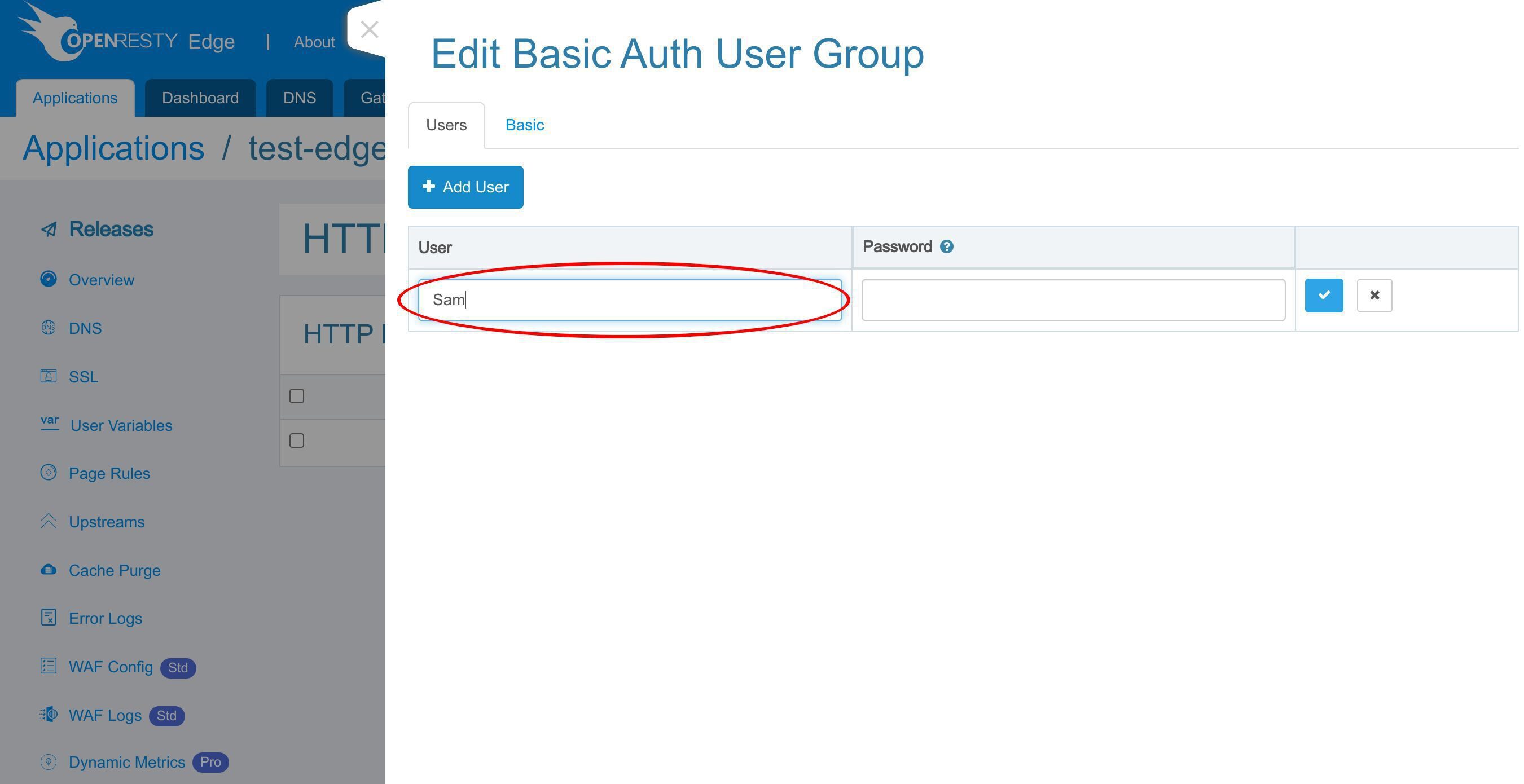
Enter the password.
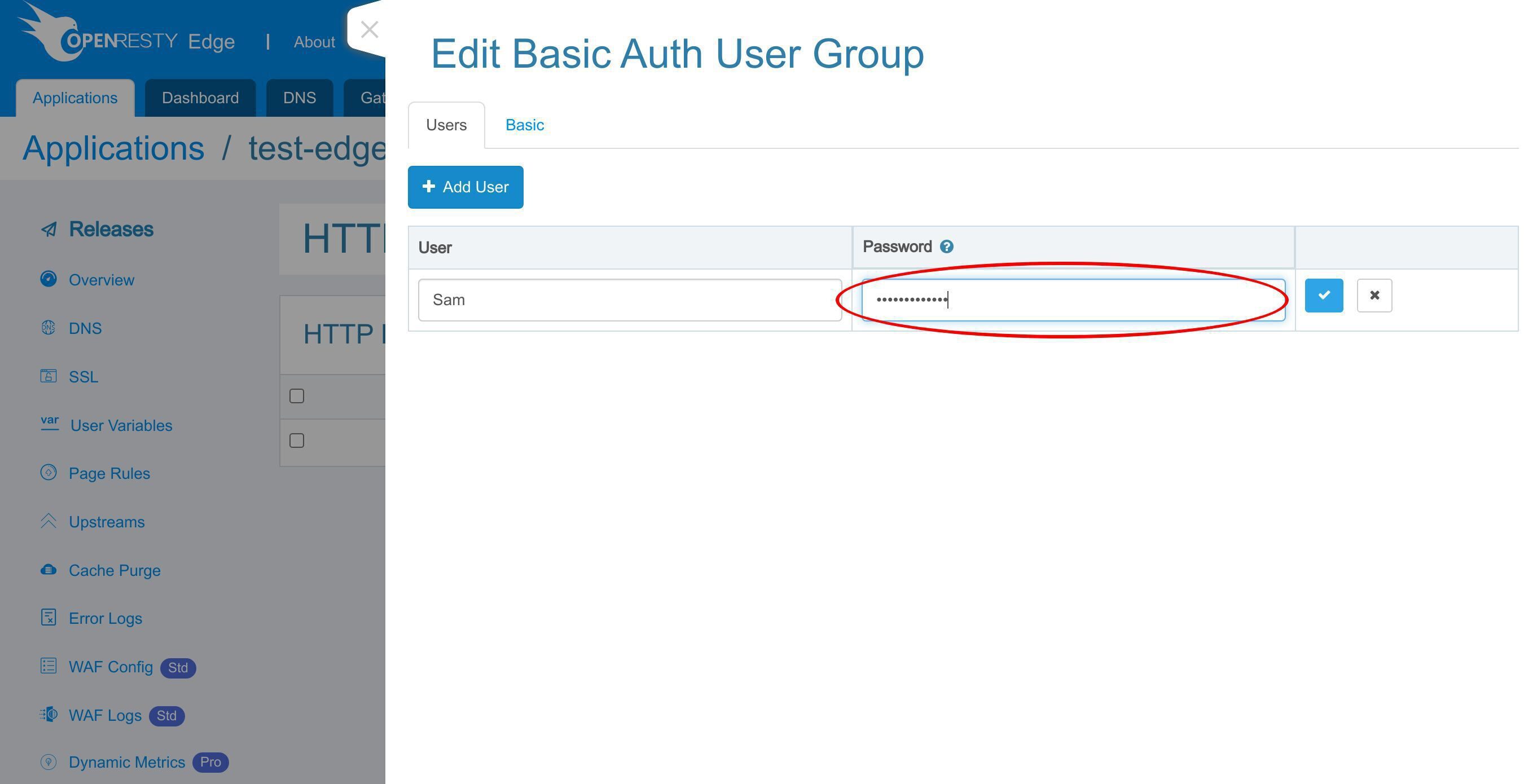
Save it.
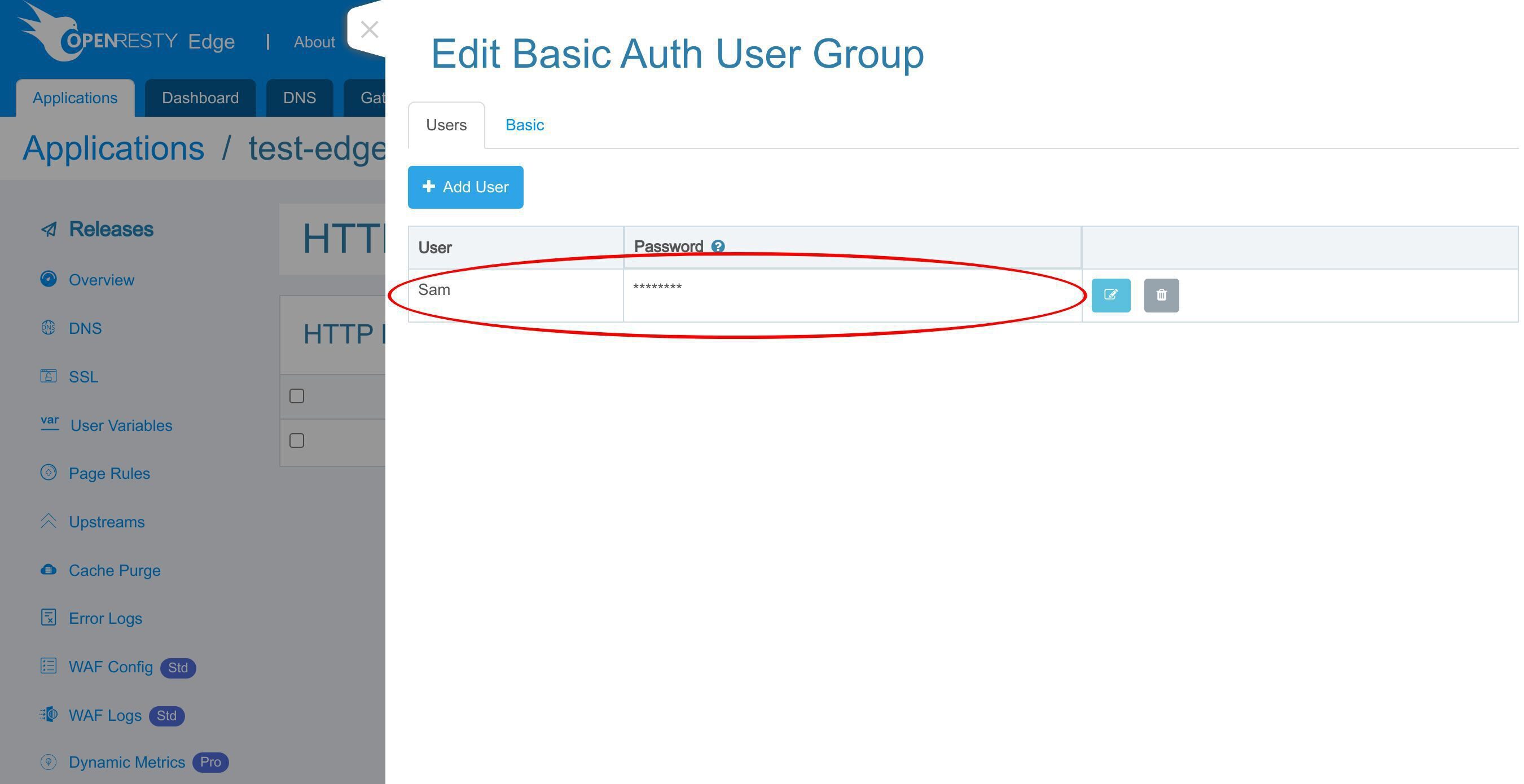
Now we have a new user in the “tutorial-group” user group.
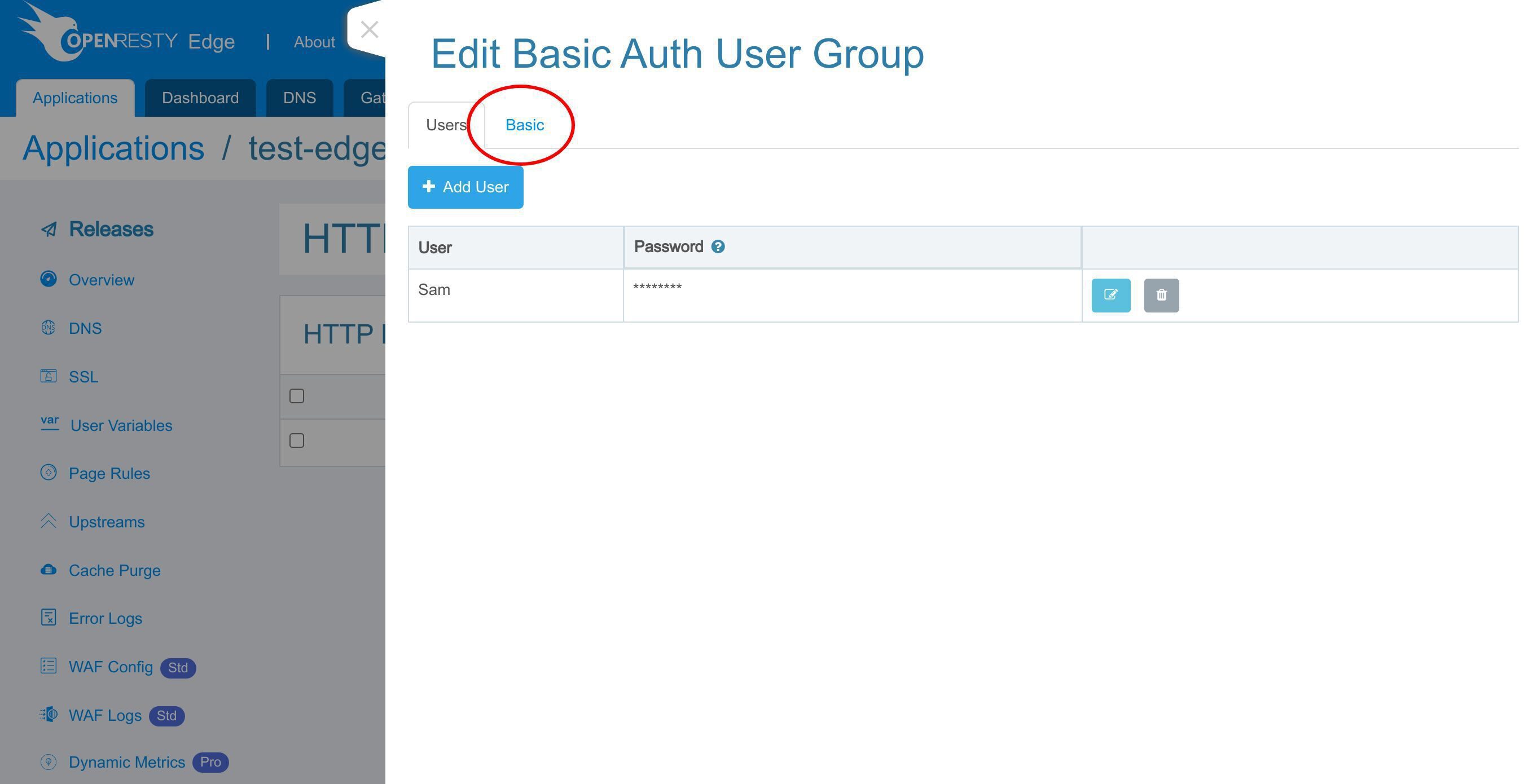
By the way, we can go to the Basic tab to edit the user group settings. Here we don’t bother.
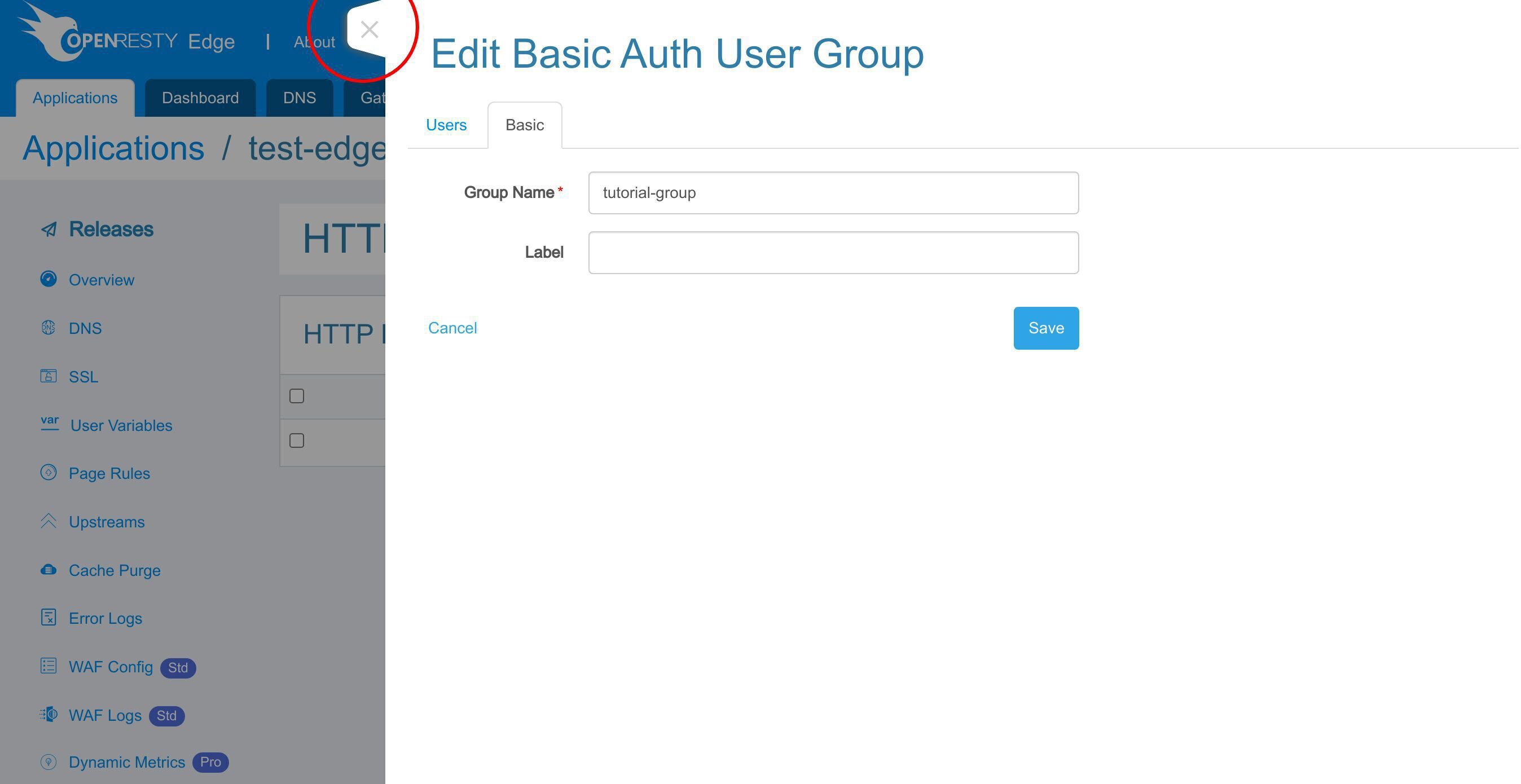
Close this page.
Enable basic auth with a page rule
Go to the Page Rules page to actually enable basic authentication.
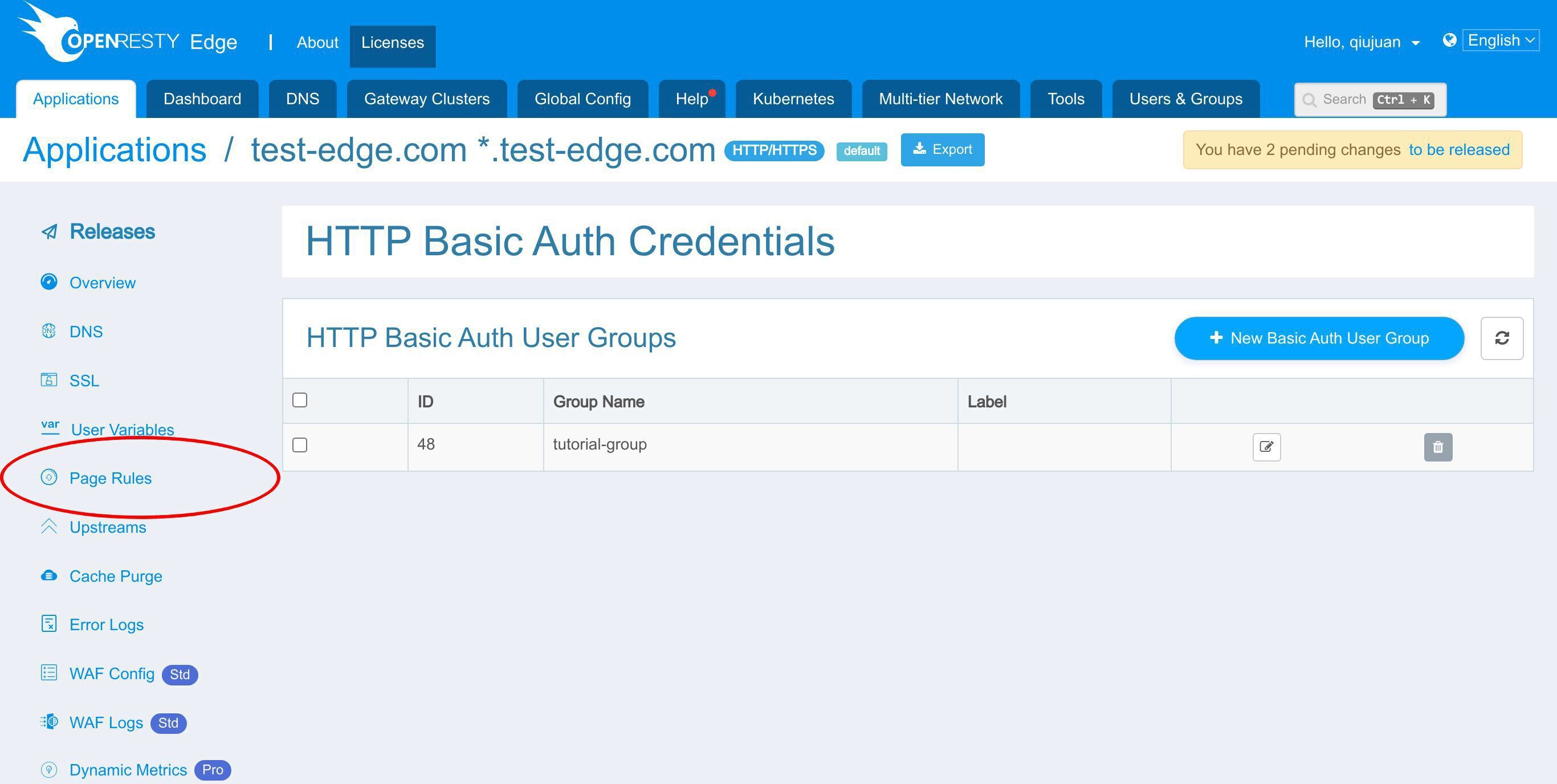
This existing page rule already sets up a reverse proxy to a pre-defined upstream. We covered this in an earlier tutorial.
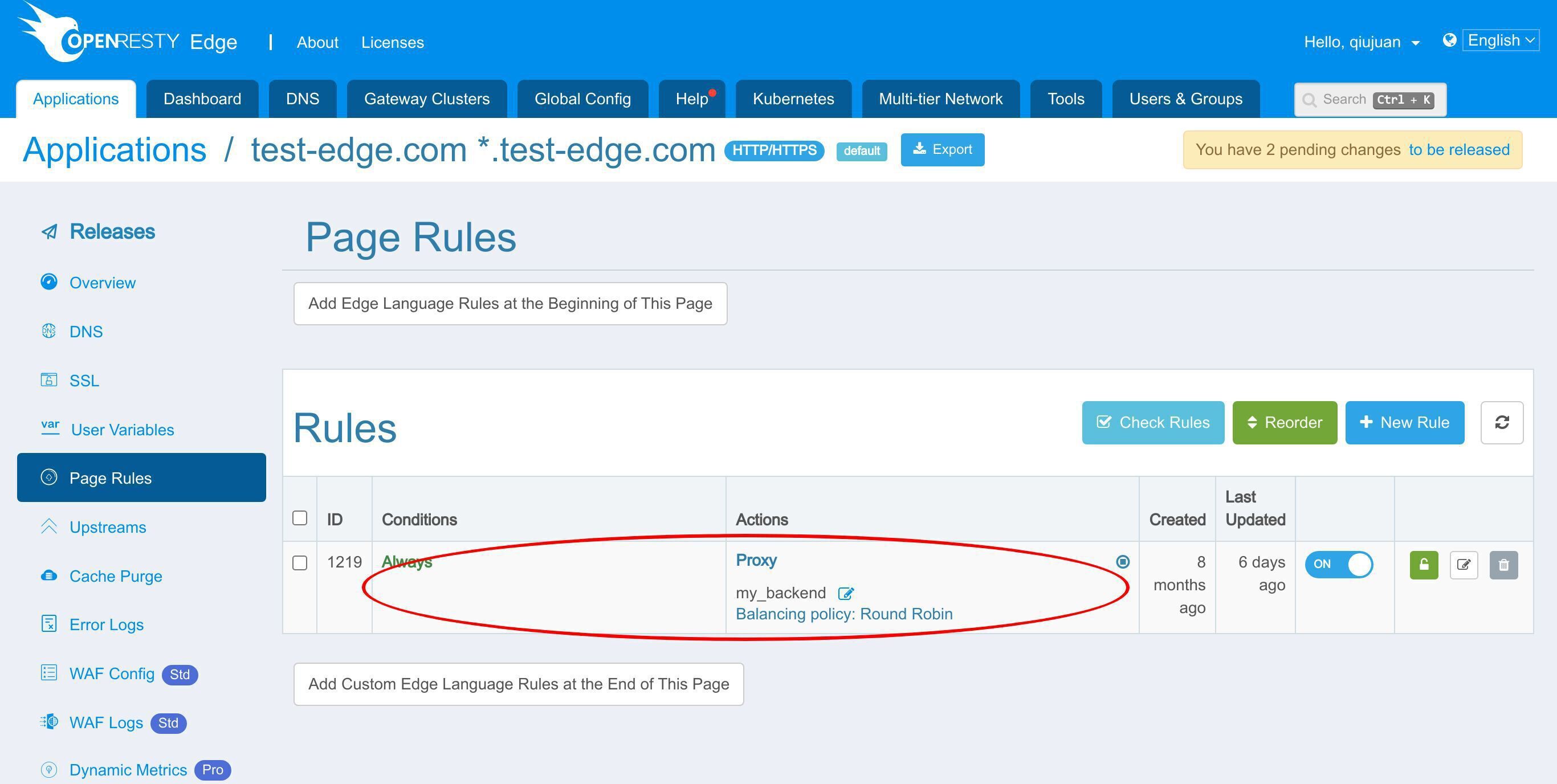
Let’s add a new page rule.
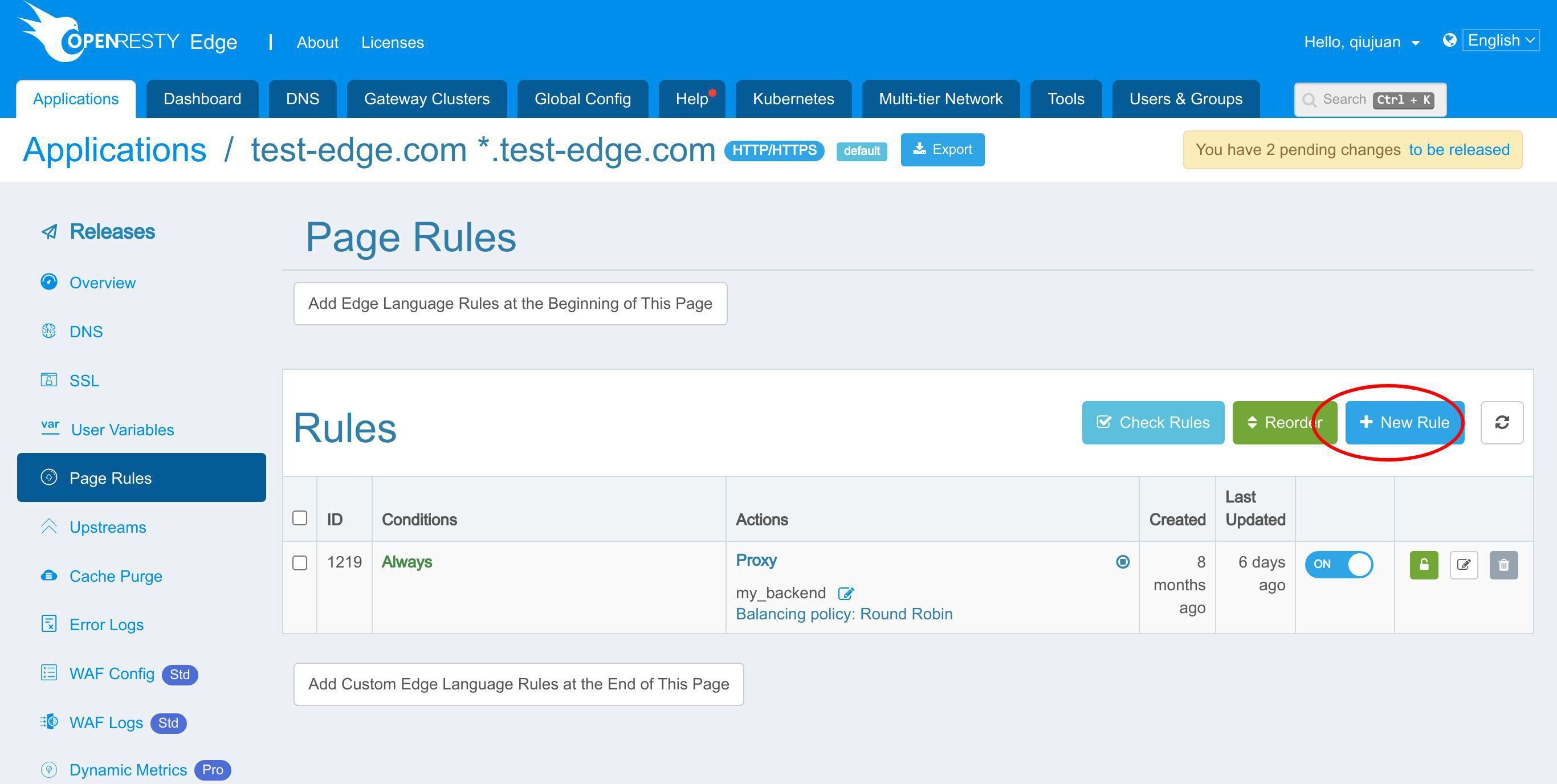
Add a new action.
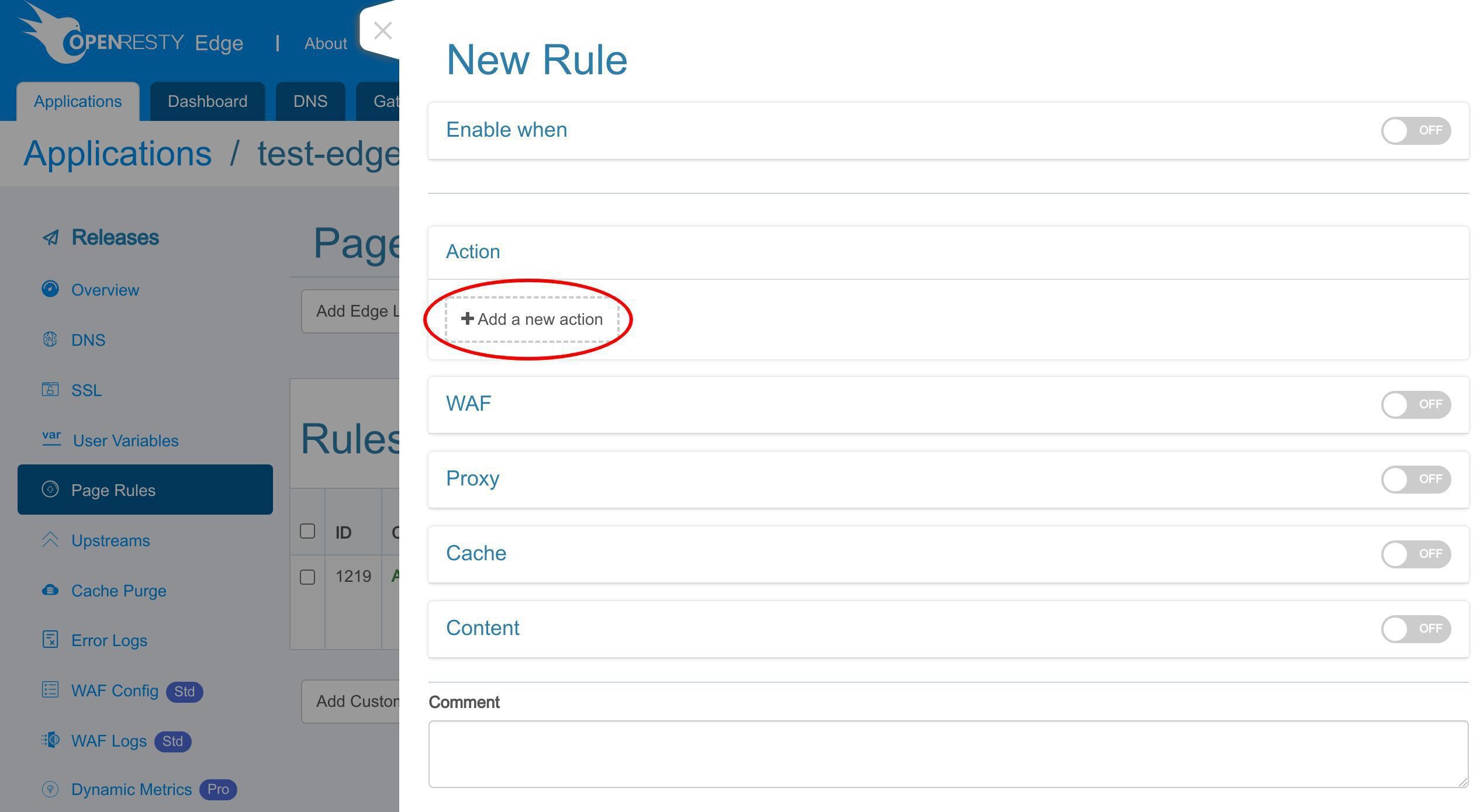
Type “basic auth” to search.
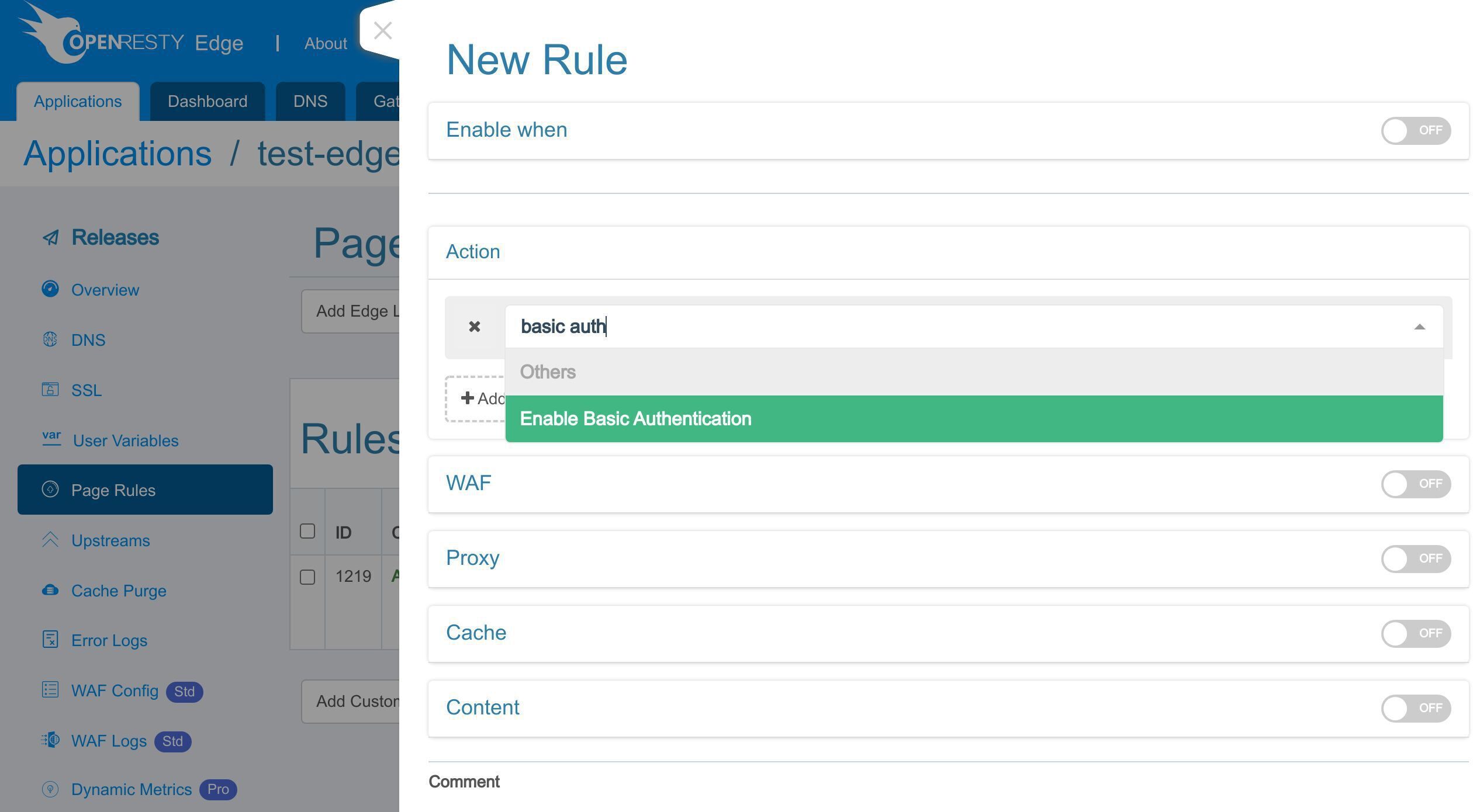
Select “Enable Basic Authentication” option.
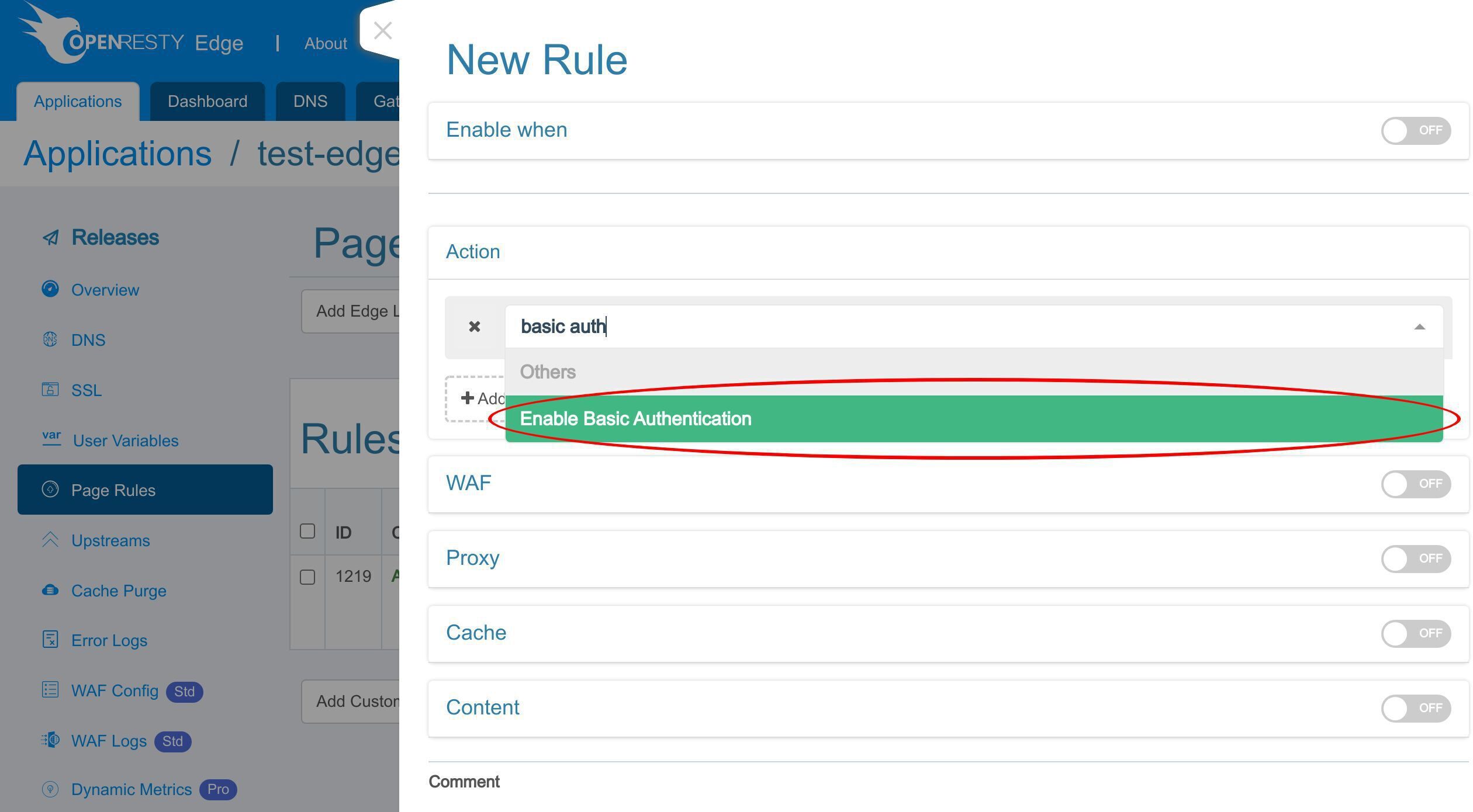
Select the Basic Auth user group we just created.
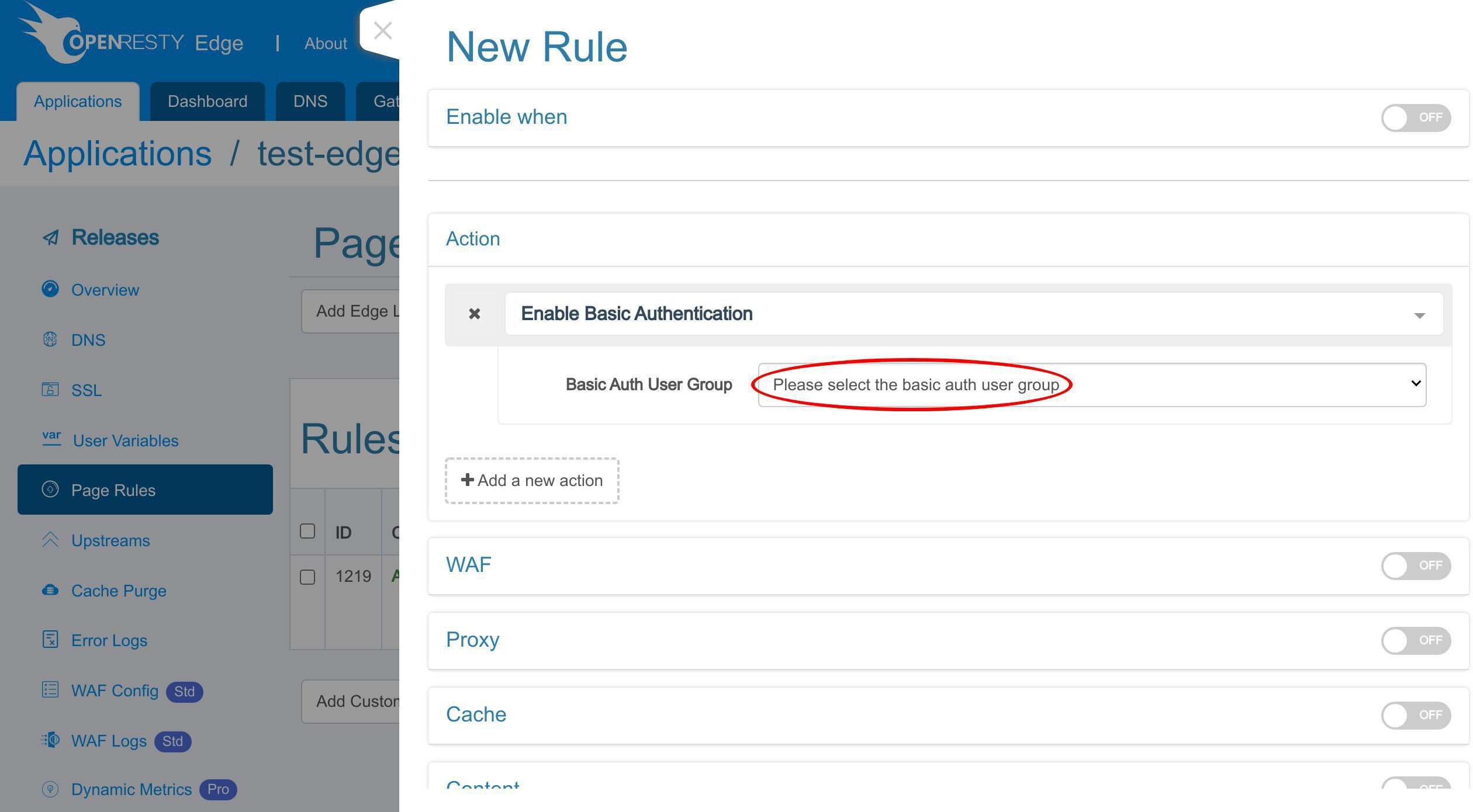
Select “app-tutorial-group”.
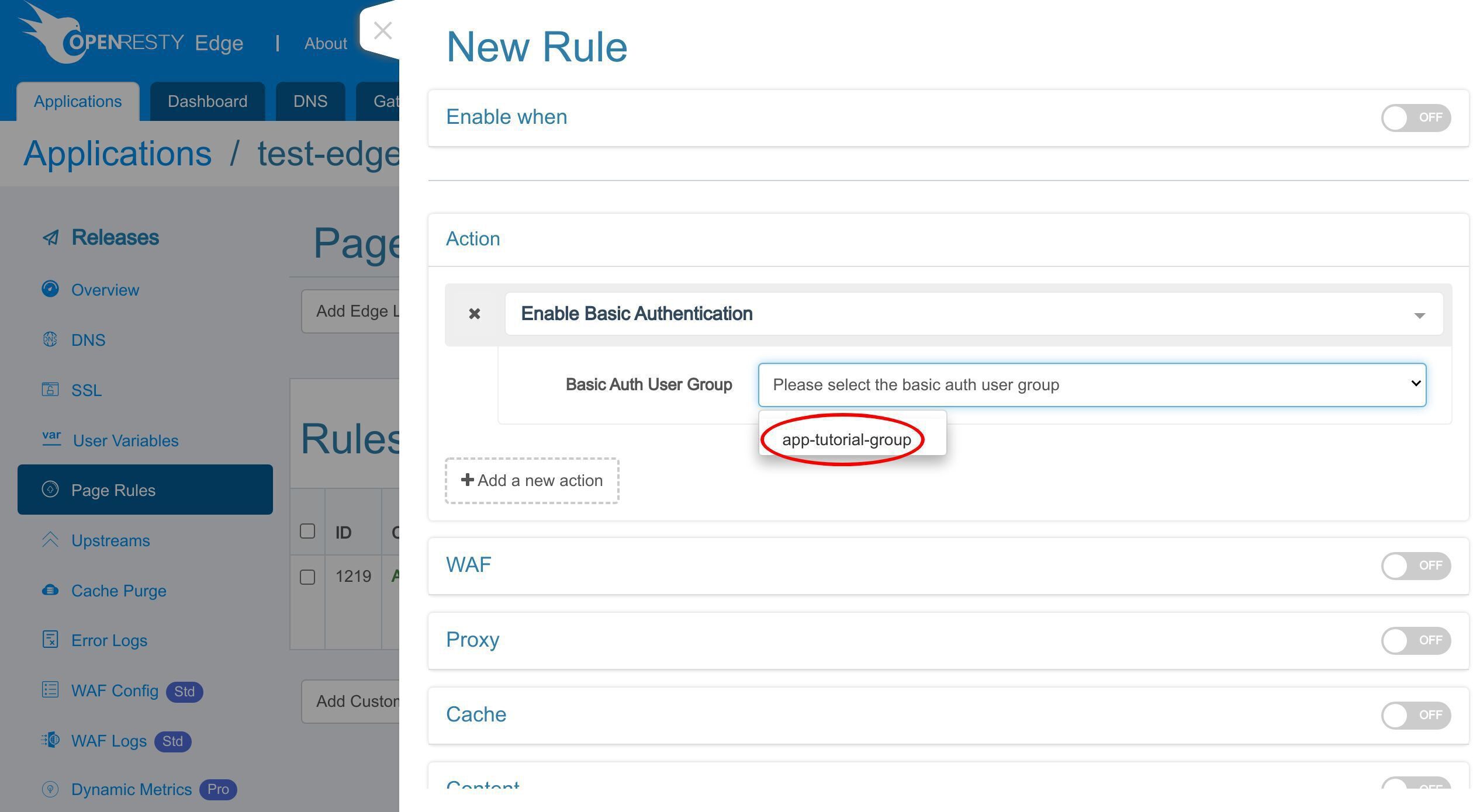
The extra “app-” prefix indicates that the user group is only in the scope of the current application. And global basic auth user group names will get the extra prefix “global-”. I will get to the global HTTP basic auth settings later.
We set this rule as an “Always Top” rule to ensure this rule is always executed first. You can choose any order you want though.
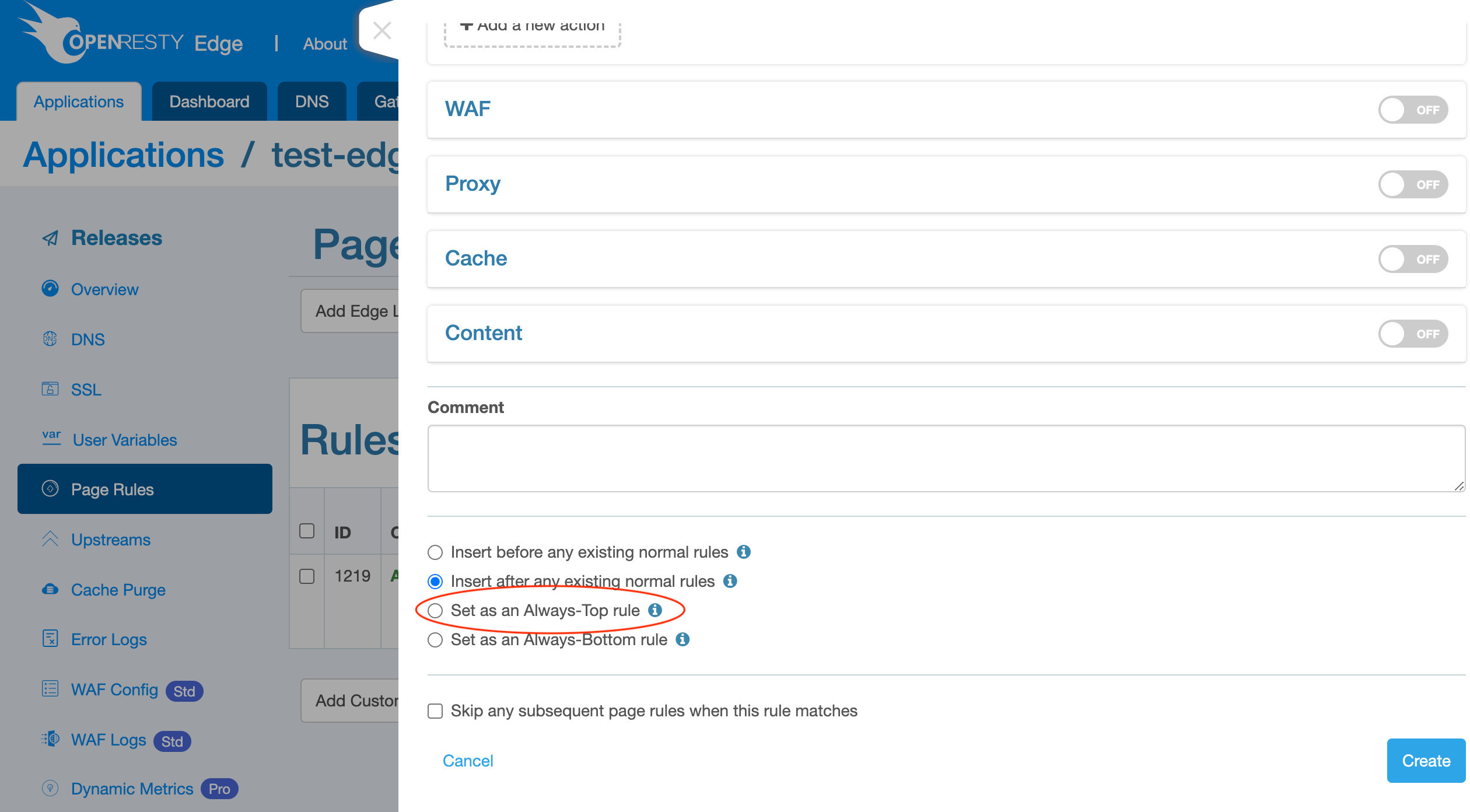
Save this rule.
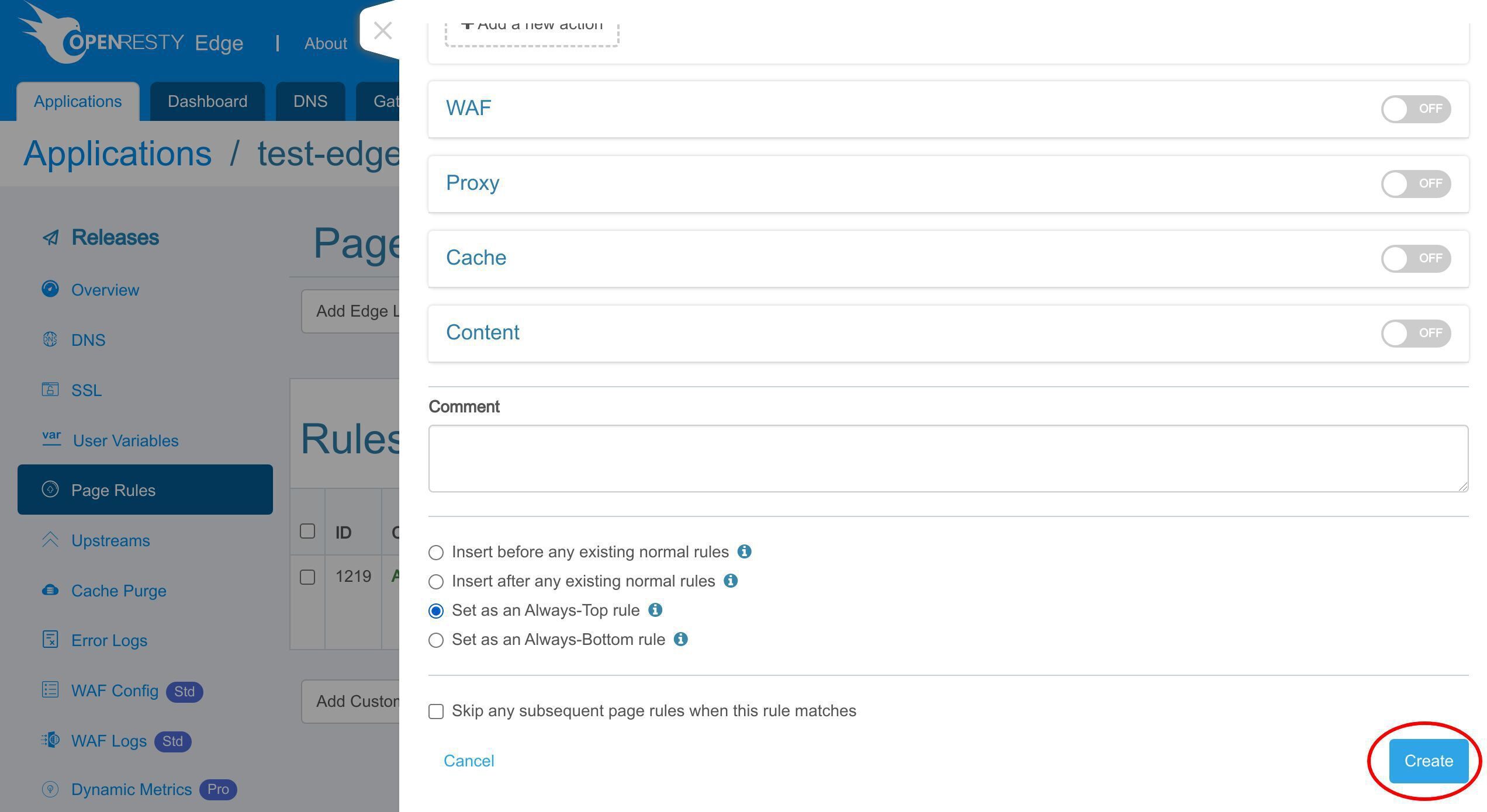
As always, we need to make a new configuration release to push out our edited page rule.
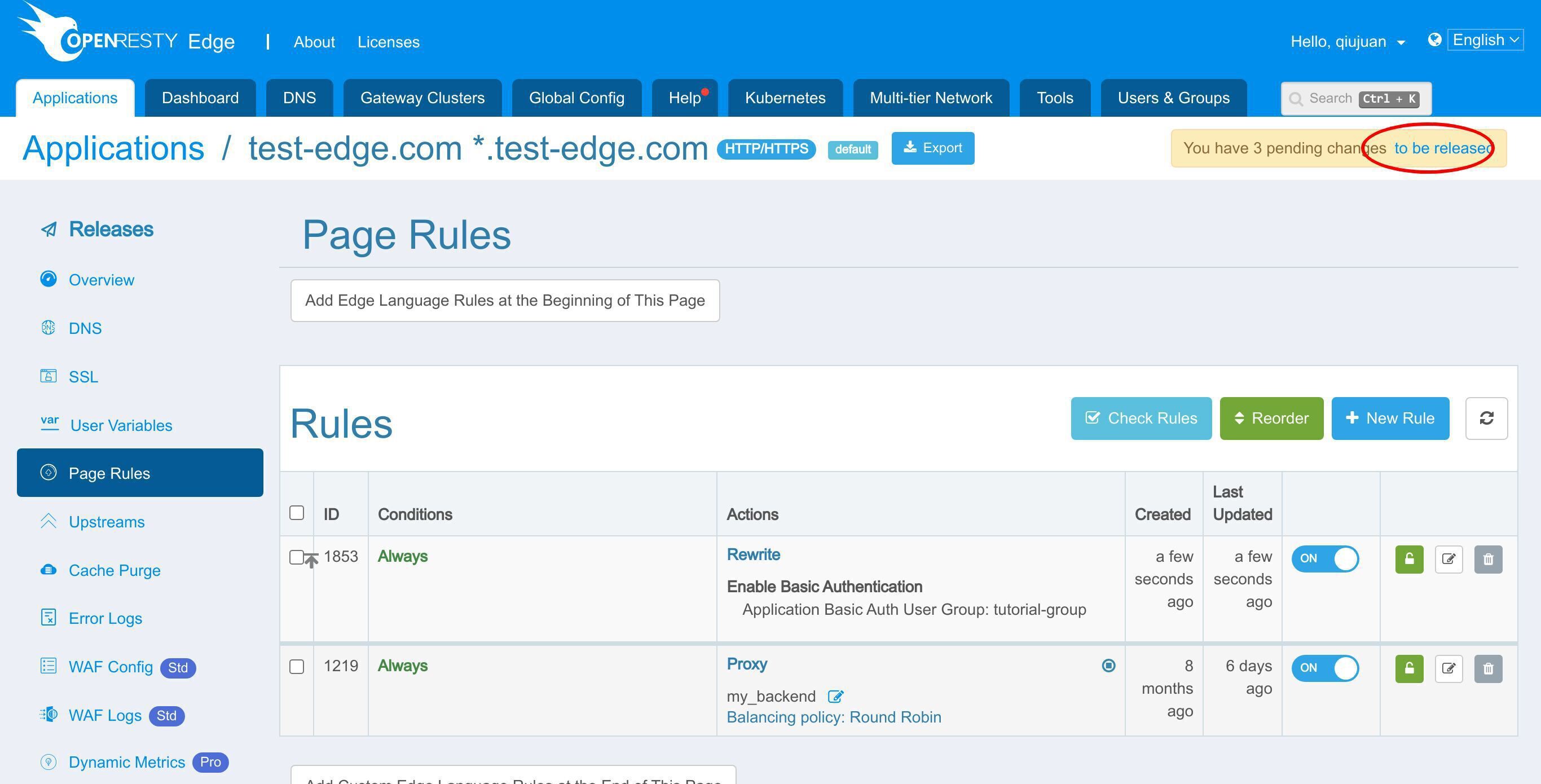
Click this button.
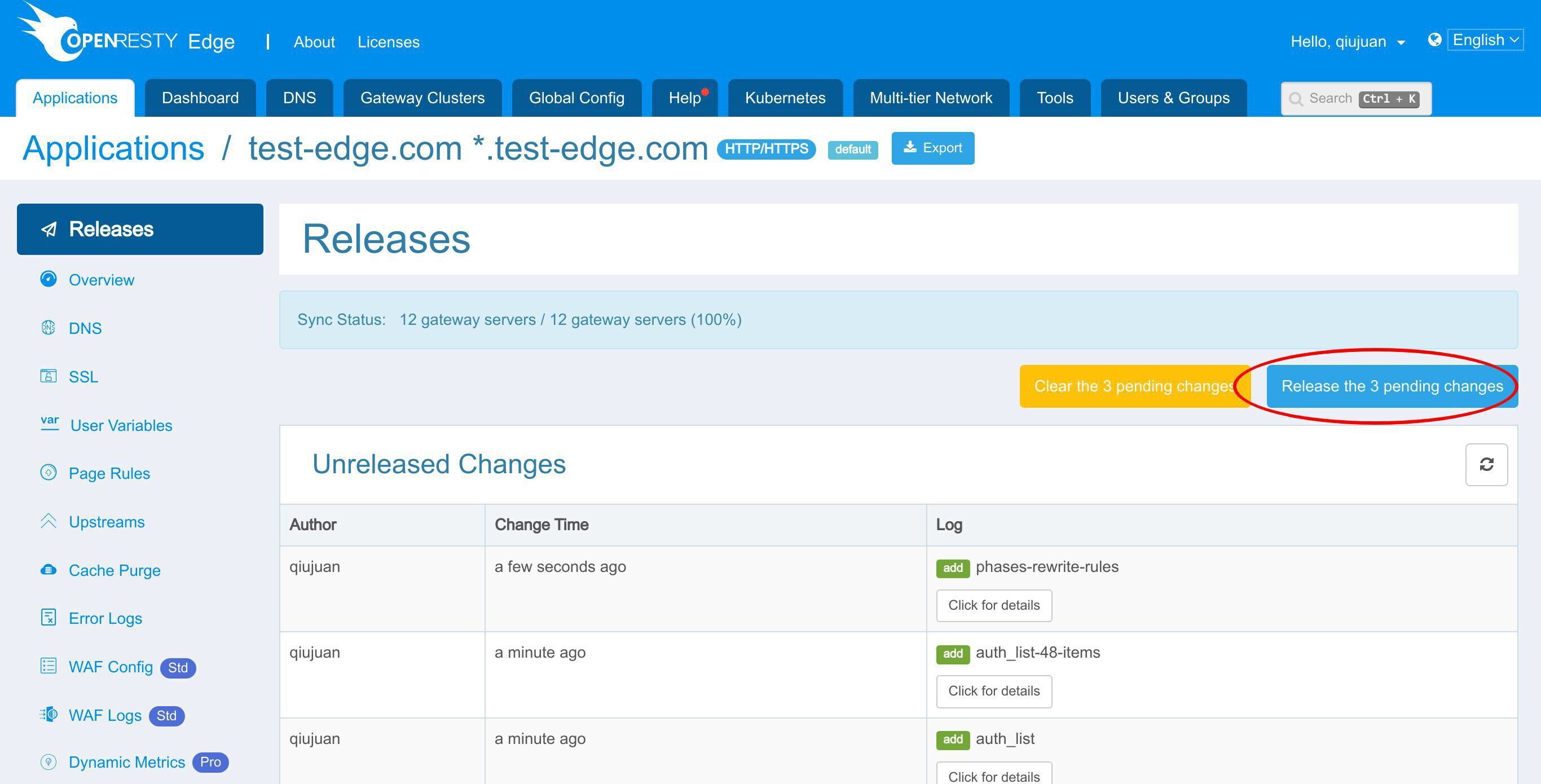
Ship it!
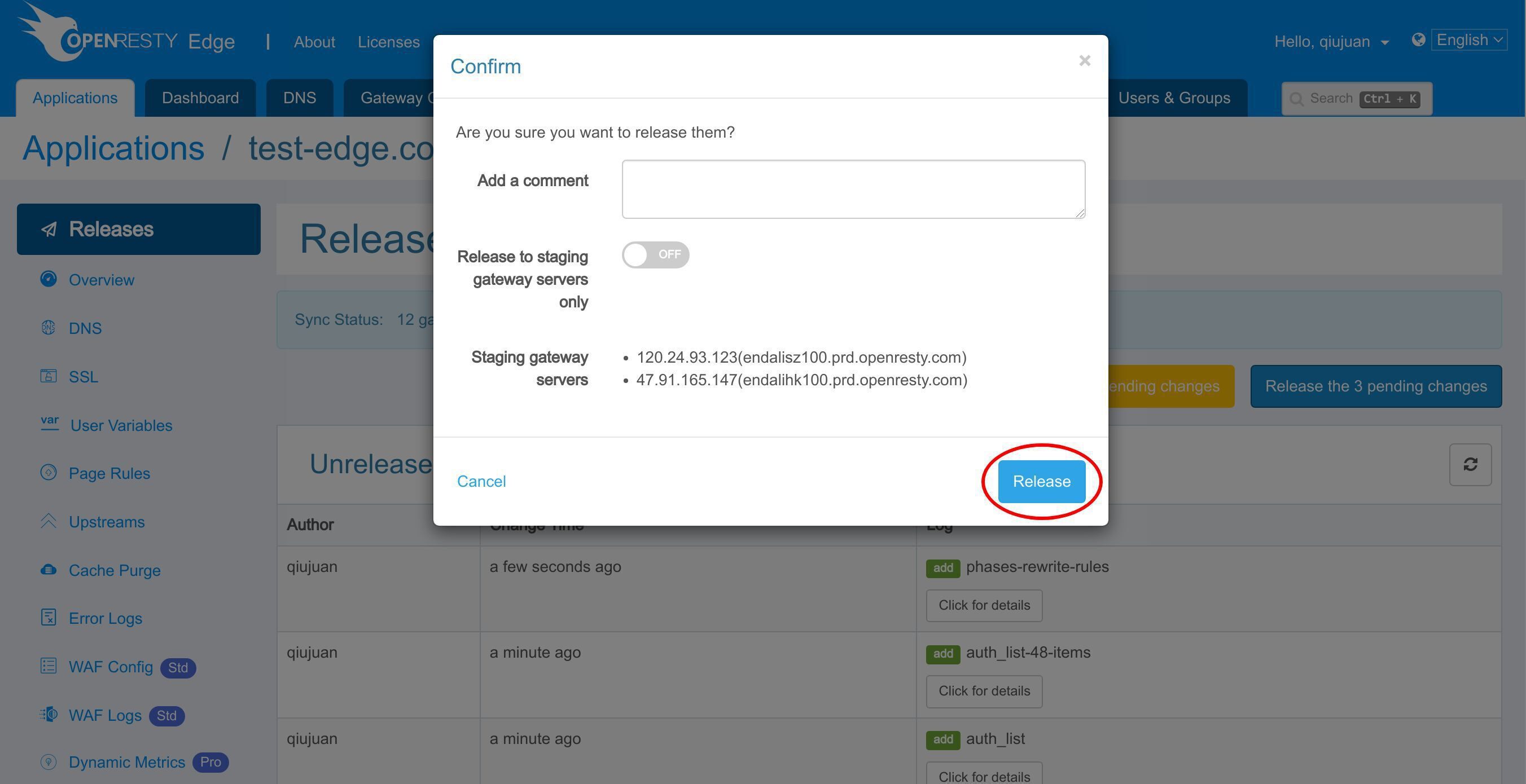
It is fully synchronized.
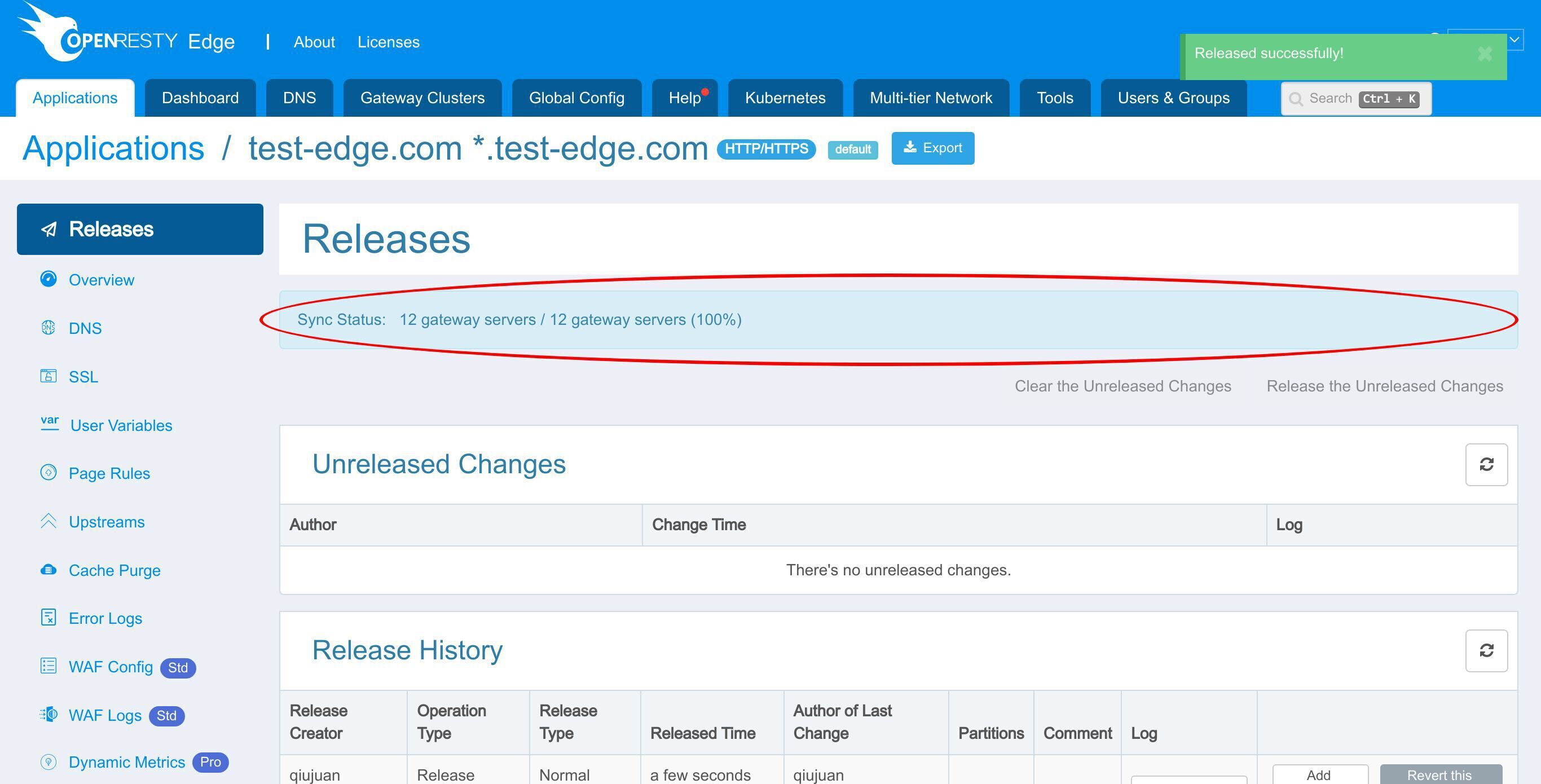
Now the new page rule has been pushed to all the gateway clusters and servers.
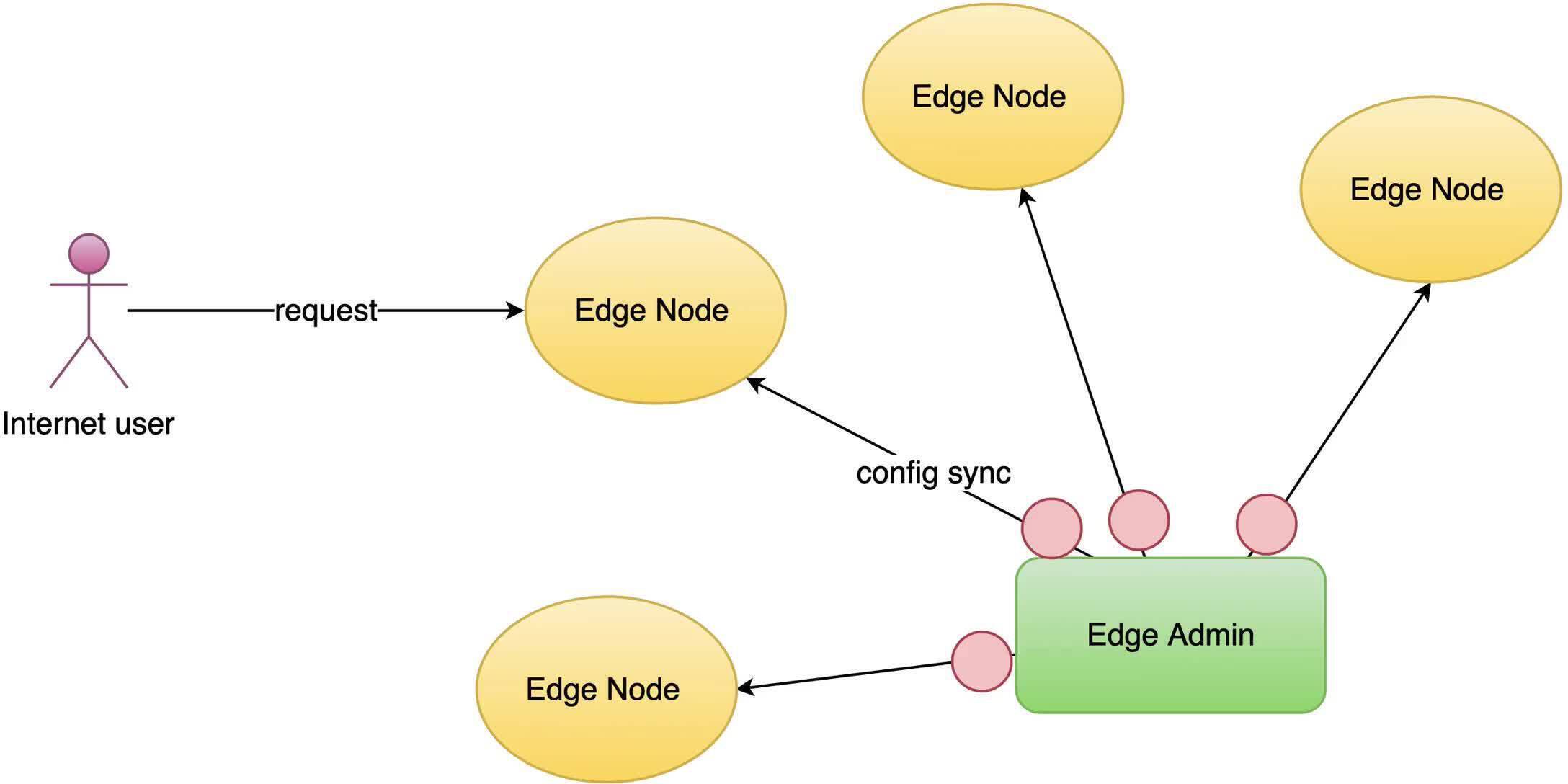
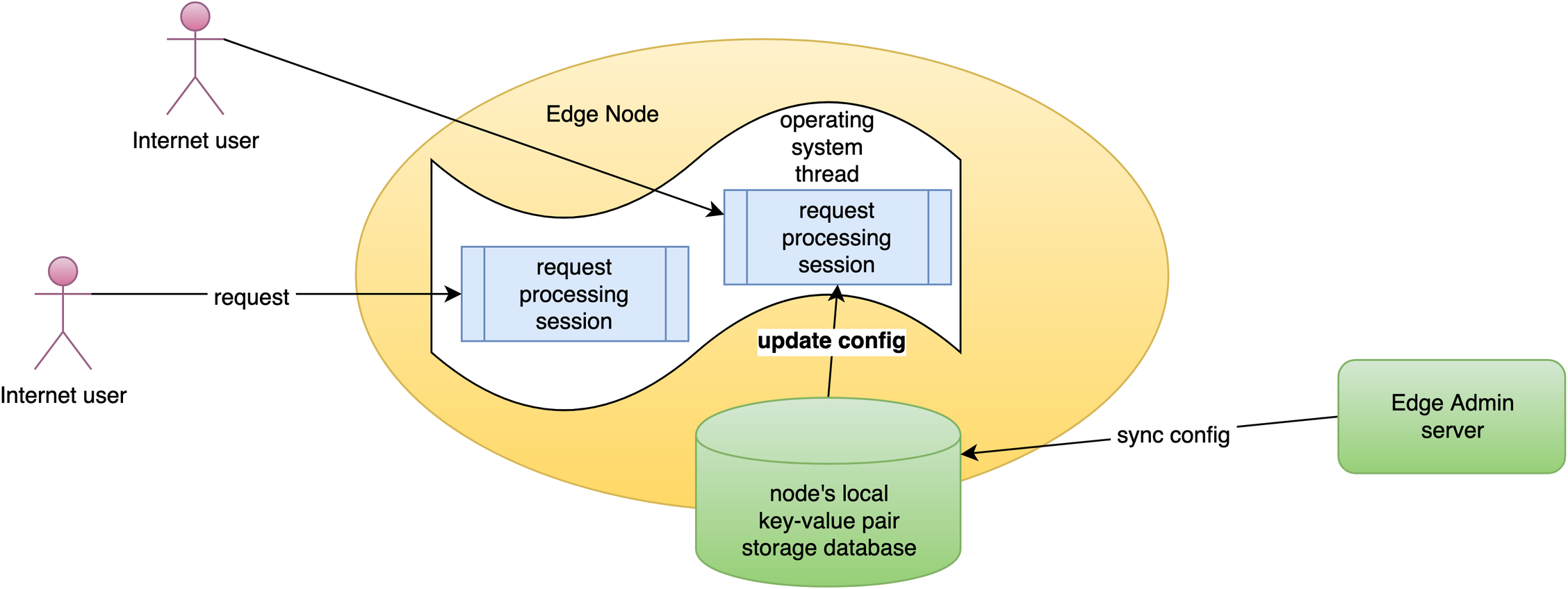
Our configuration changes do NOT require server reload, restart, or binary upgrade. So it’s very efficient and scalable.
Test basic auth in a browser and with curl
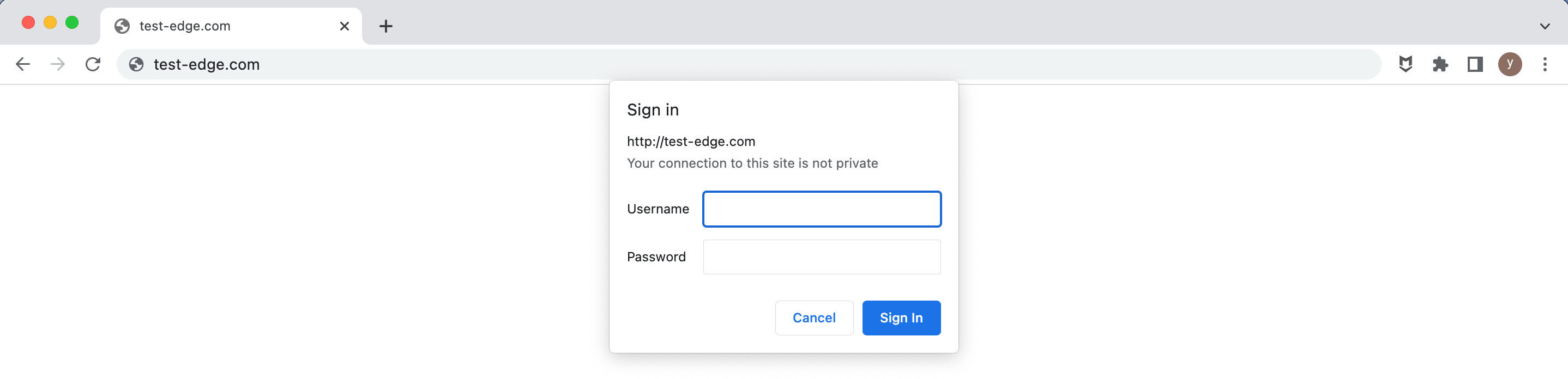
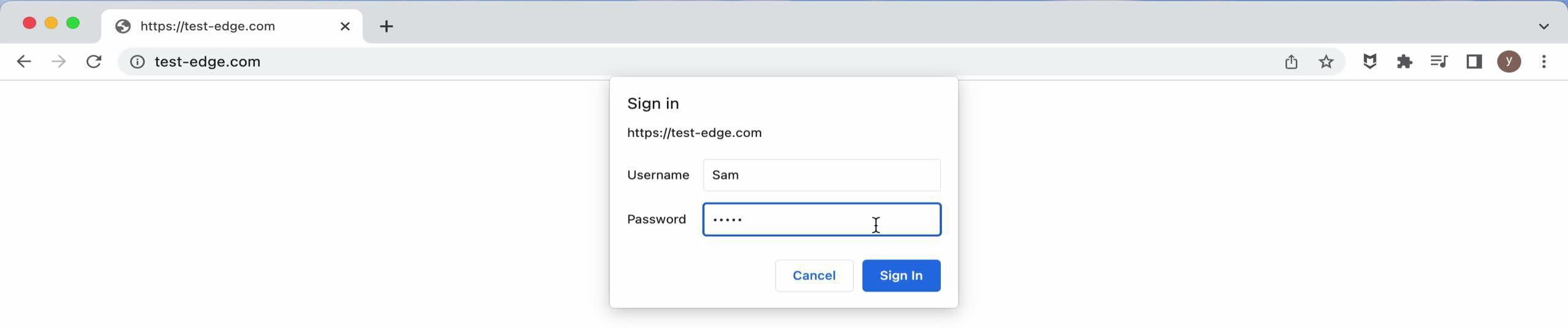
Let’s access the gateway application. We can see that the page triggers the web browser’s authentication dialog instead of showing the web page content.
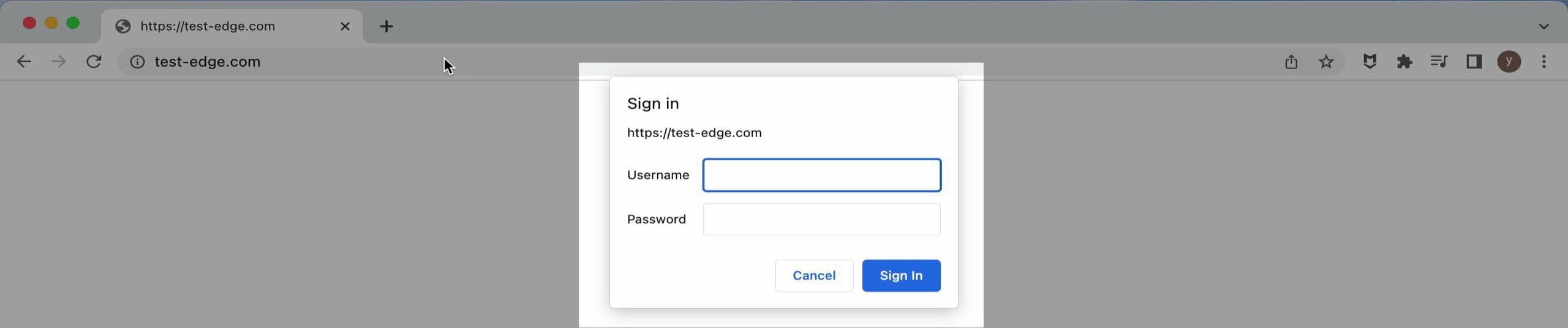
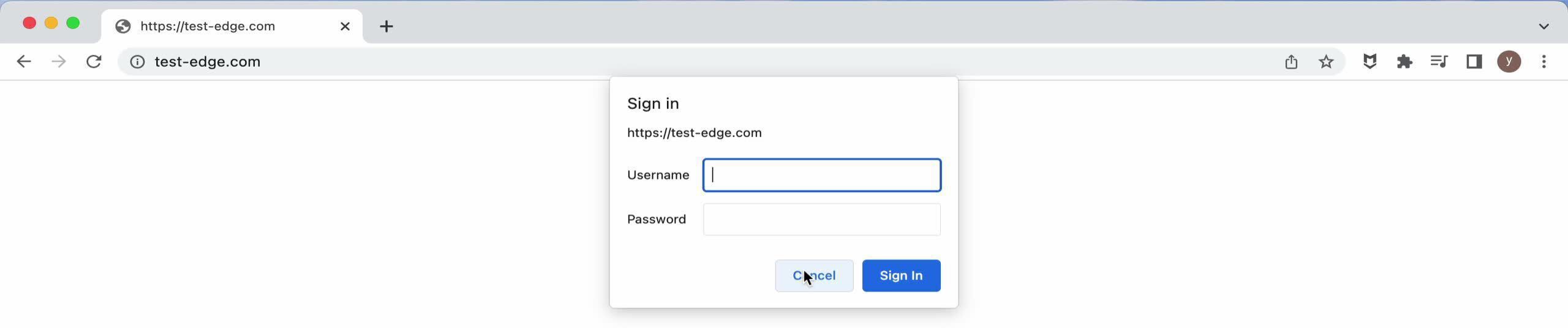
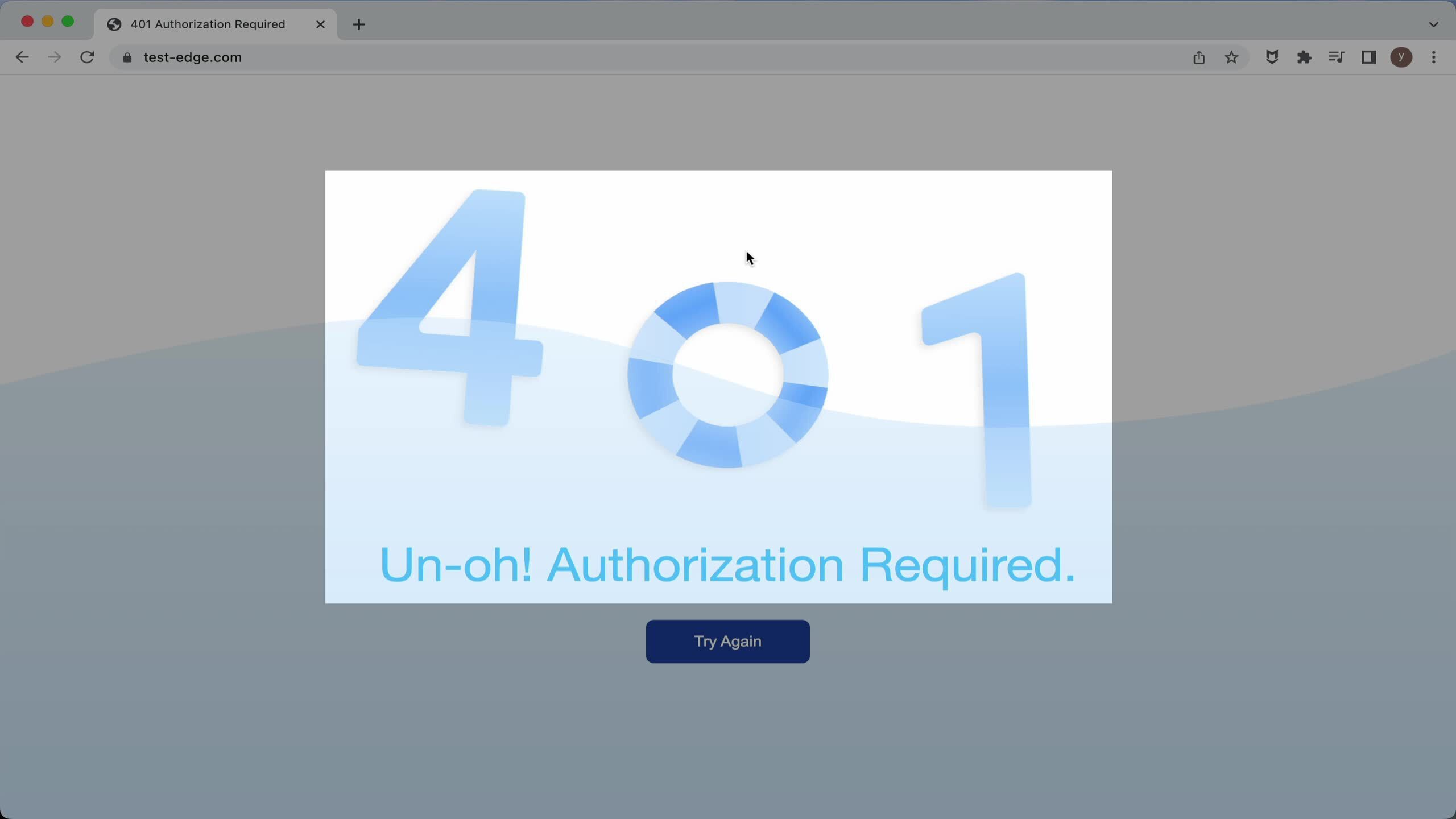
First, try clicking the Cancel button. We can see the page turns into a “401 Unauthorized” error page.
Refresh the page.
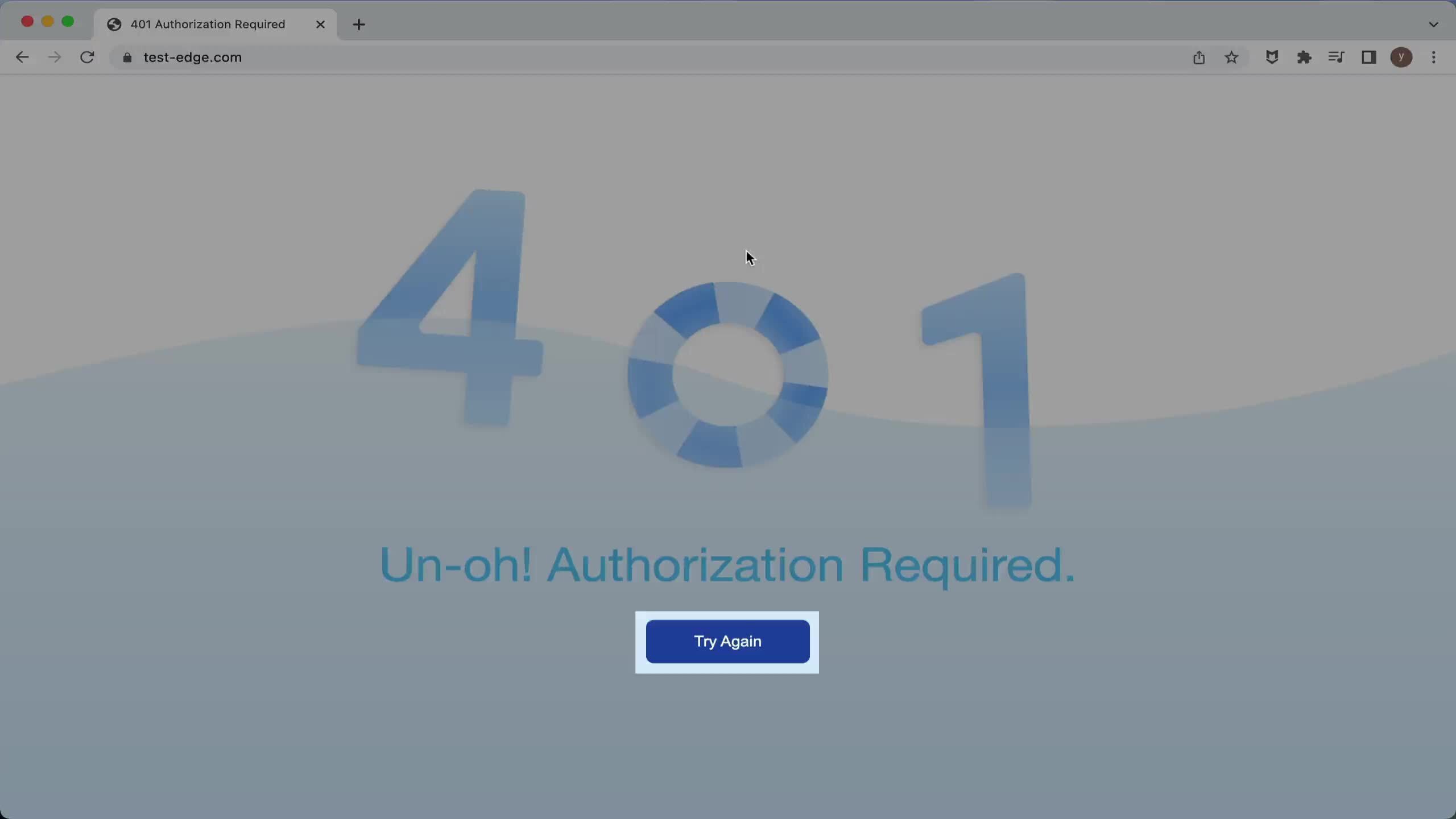
And this time, we enter the correct username and password we previously prepared.
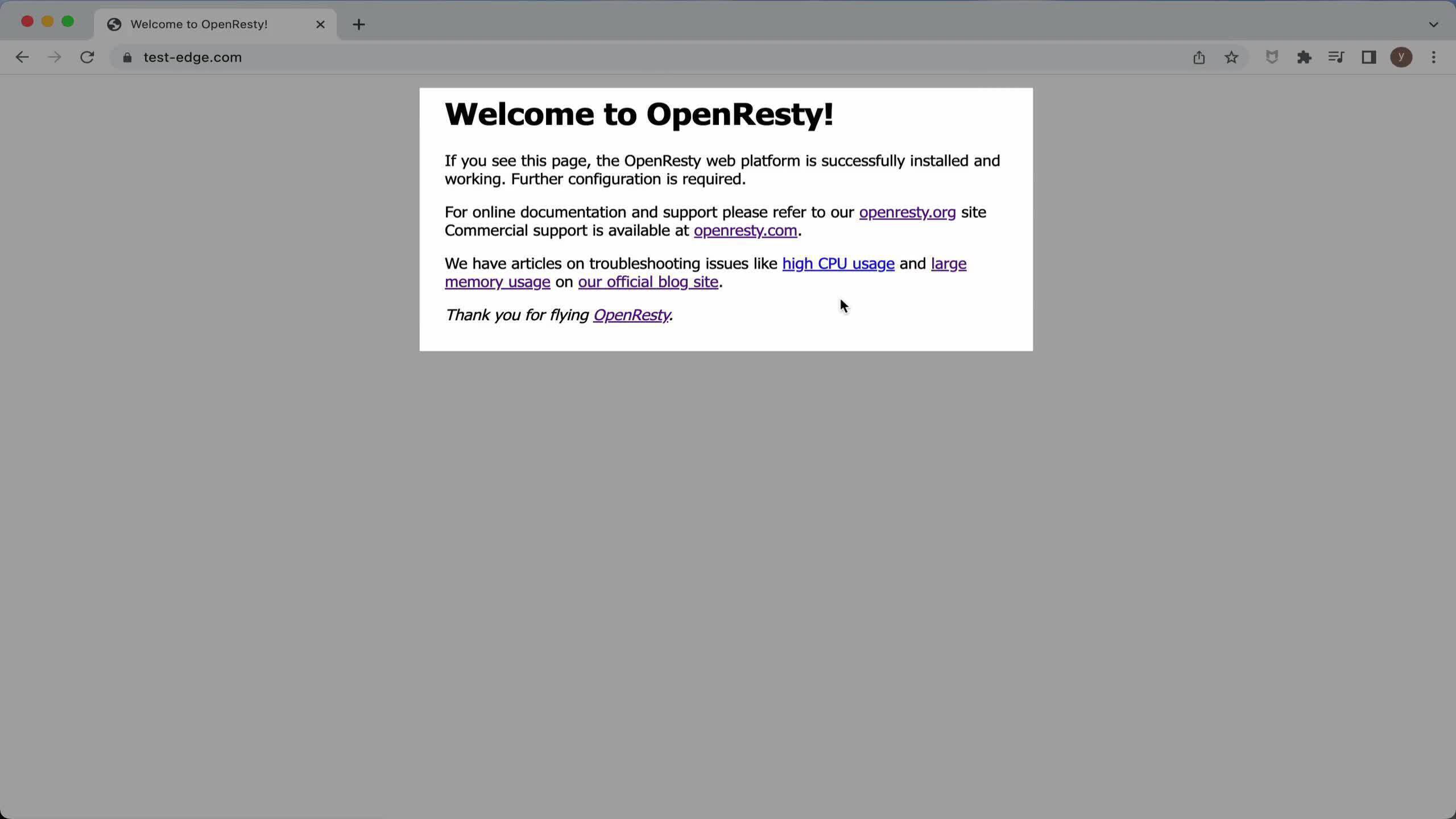
Now we can access the web page.
Next, let’s test the HTTP basic auth setting on the command line with the curl utility.
On the terminal, we send a test request.
curl -sSI http://test-edge.com
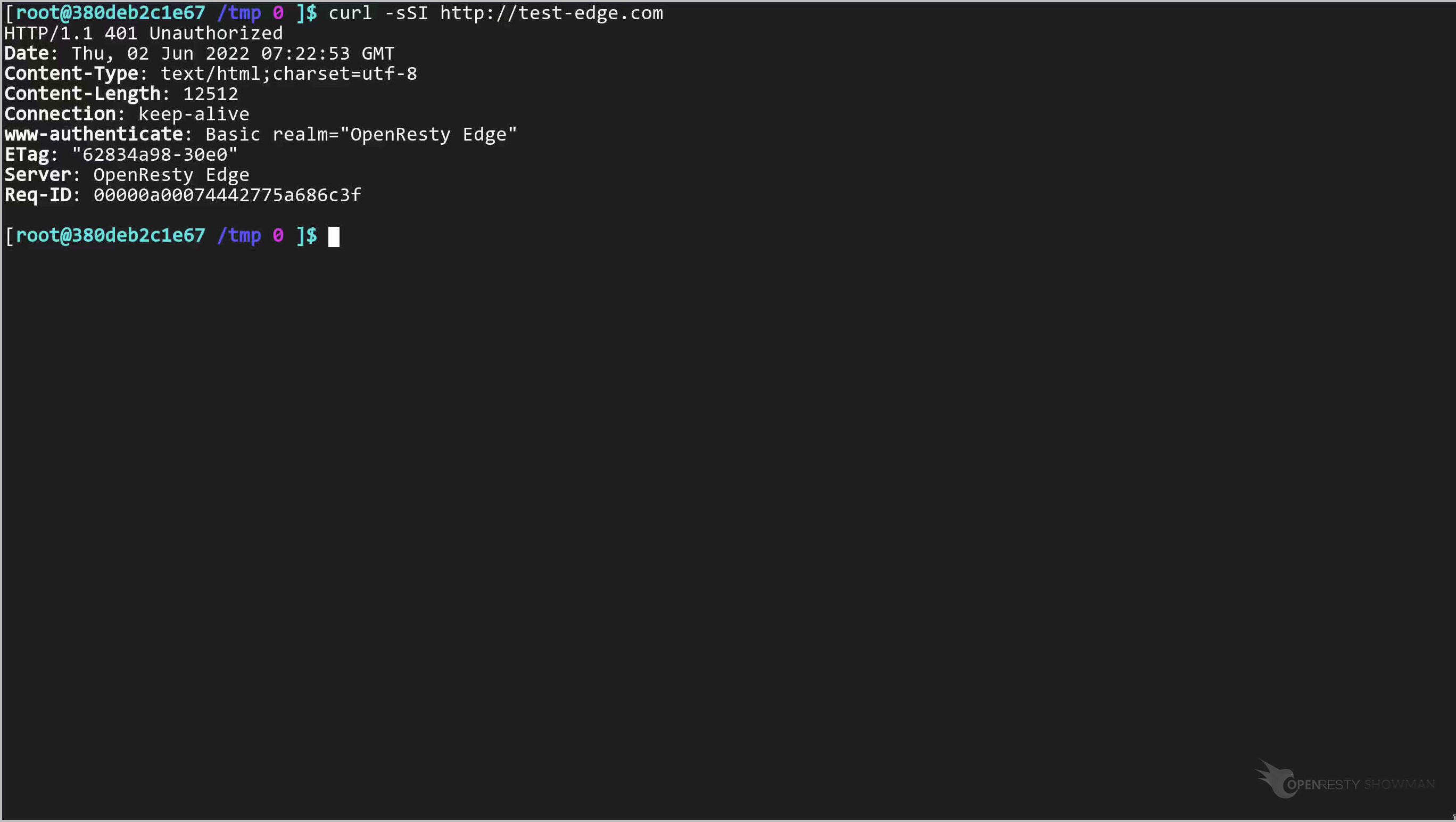
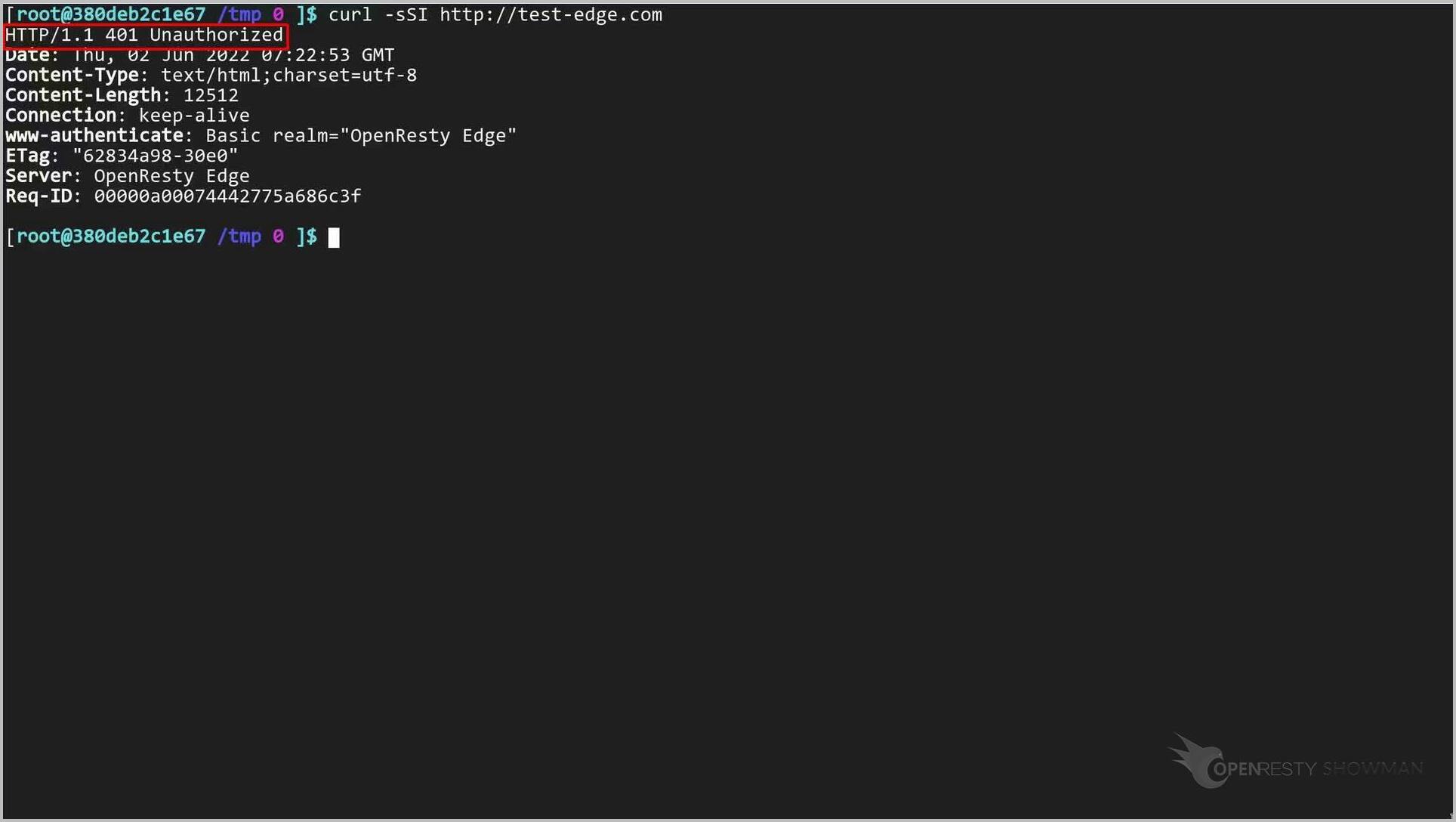
We can see that the response is 401 Unauthorized.
Let’s specify the basic auth credential with the “u” option this time.
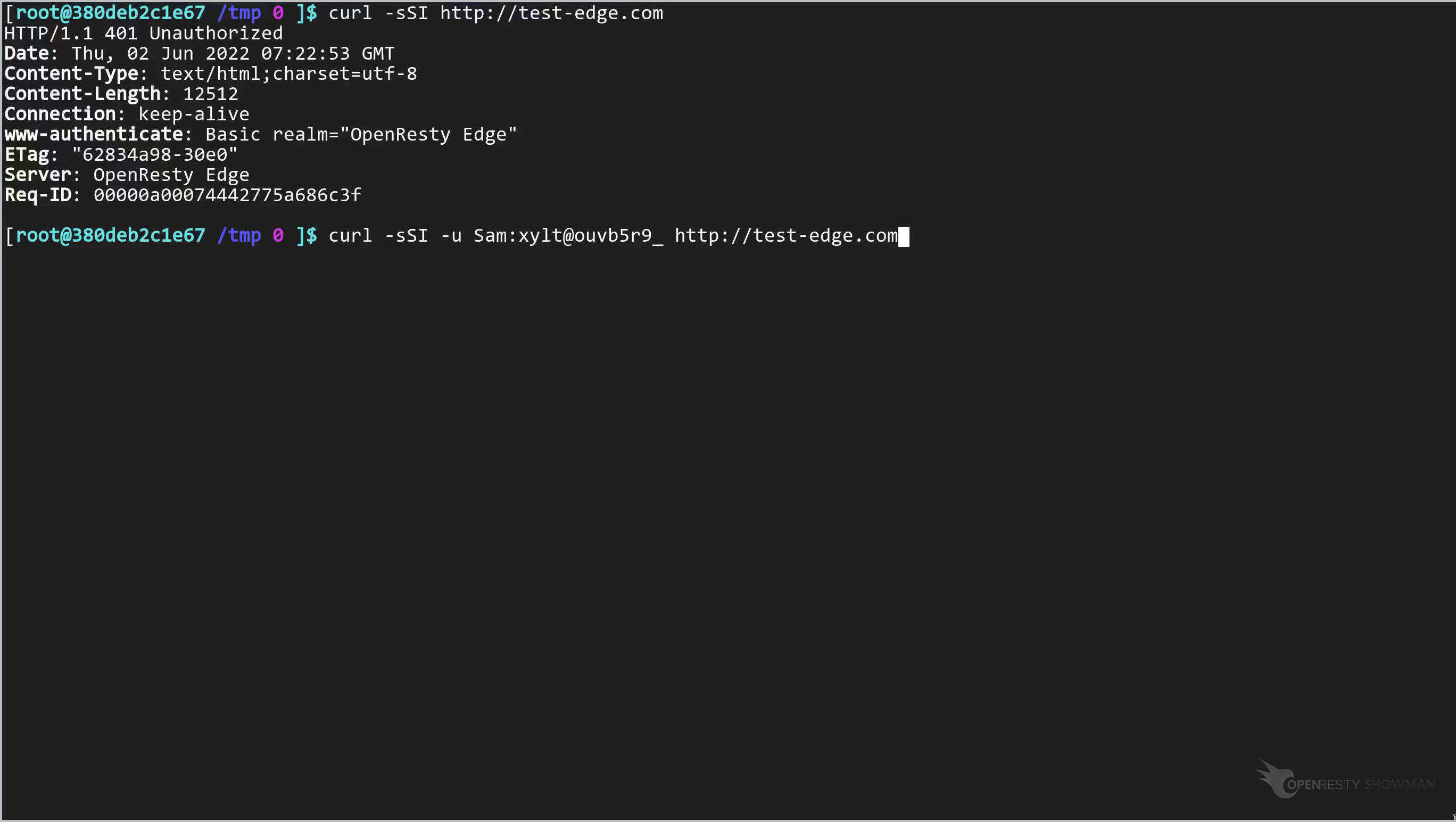
Here it is the user name.
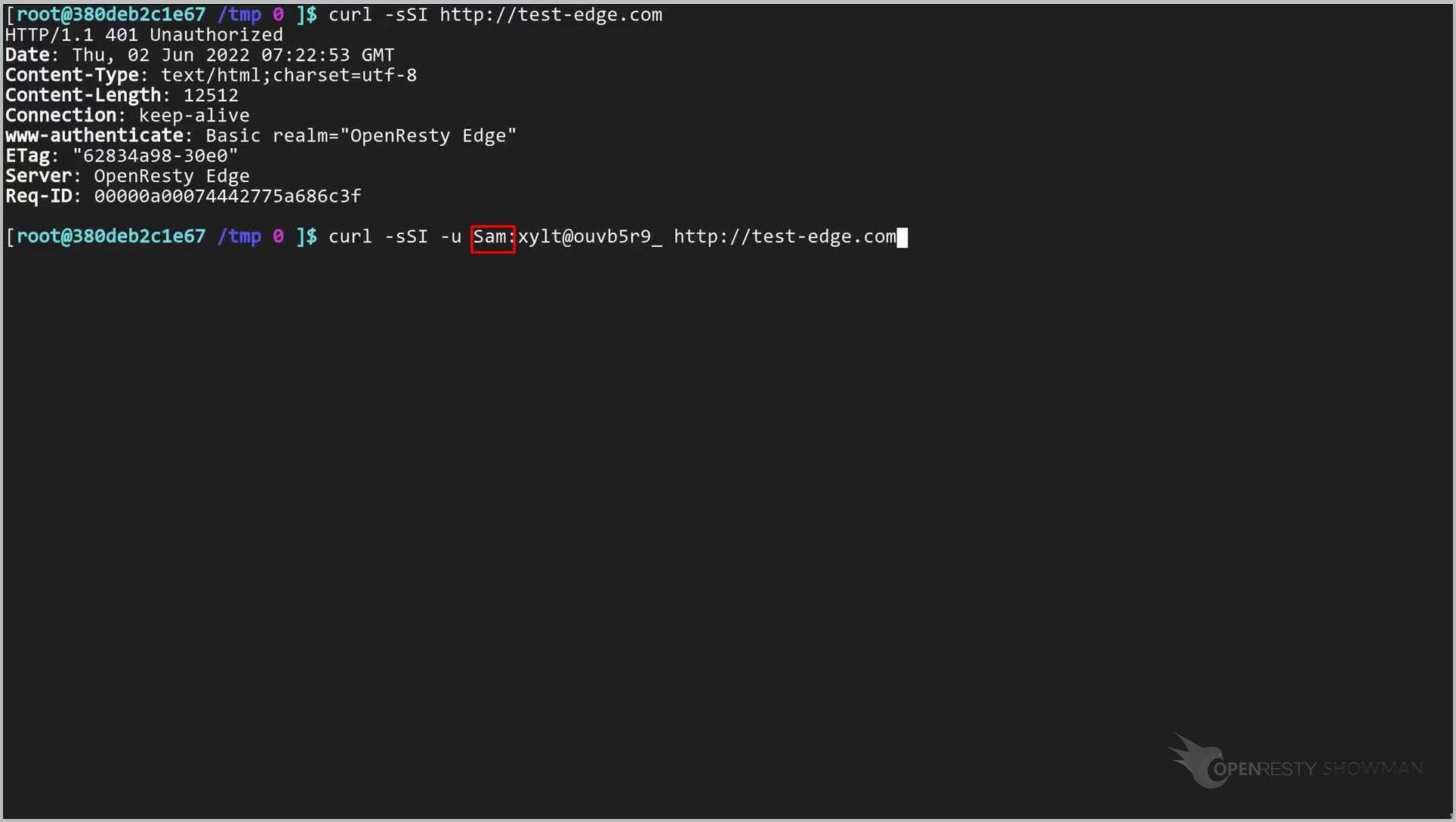
And here goes the password in clear text.
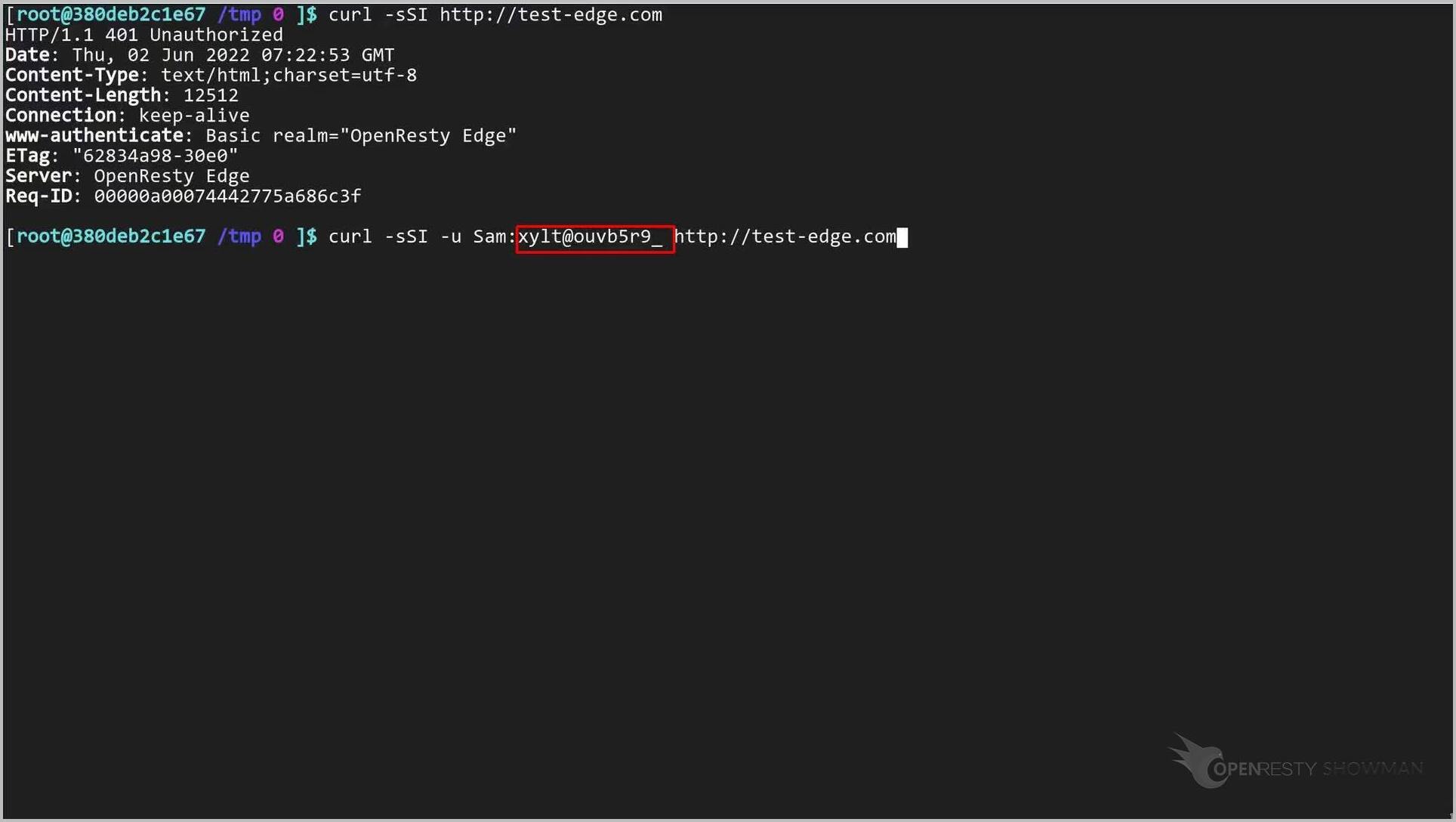
Run this command.
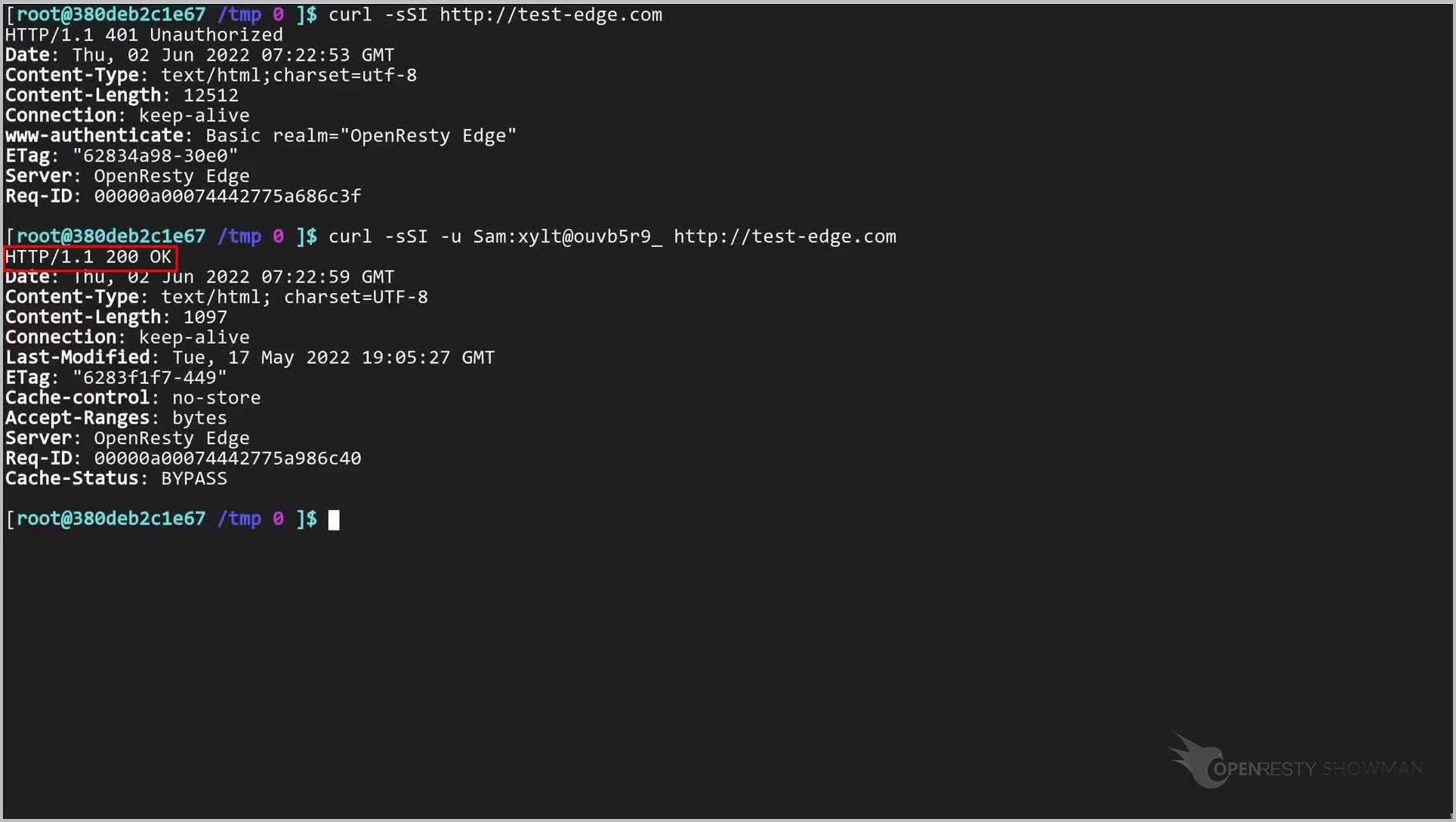
We can see that the response is 200 OK now. We passed the authentication, and the server returned the final response.
Configure global HTTP basic auth across all applications
In addition to configuring basic auth inside Edge applications, we can also configure it in Edge’s global configuration. Global auth user groups are visible to all the Edge applications.
Basic auth is one of several gateway-level security actions in OpenResty Edge. For stronger protection you can layer it with the built-in CAPTCHA to block bots or the Web Application Firewall, all enabled through the same page-rule mechanism.
Add a global basic auth user group
Go to the Global Config page.
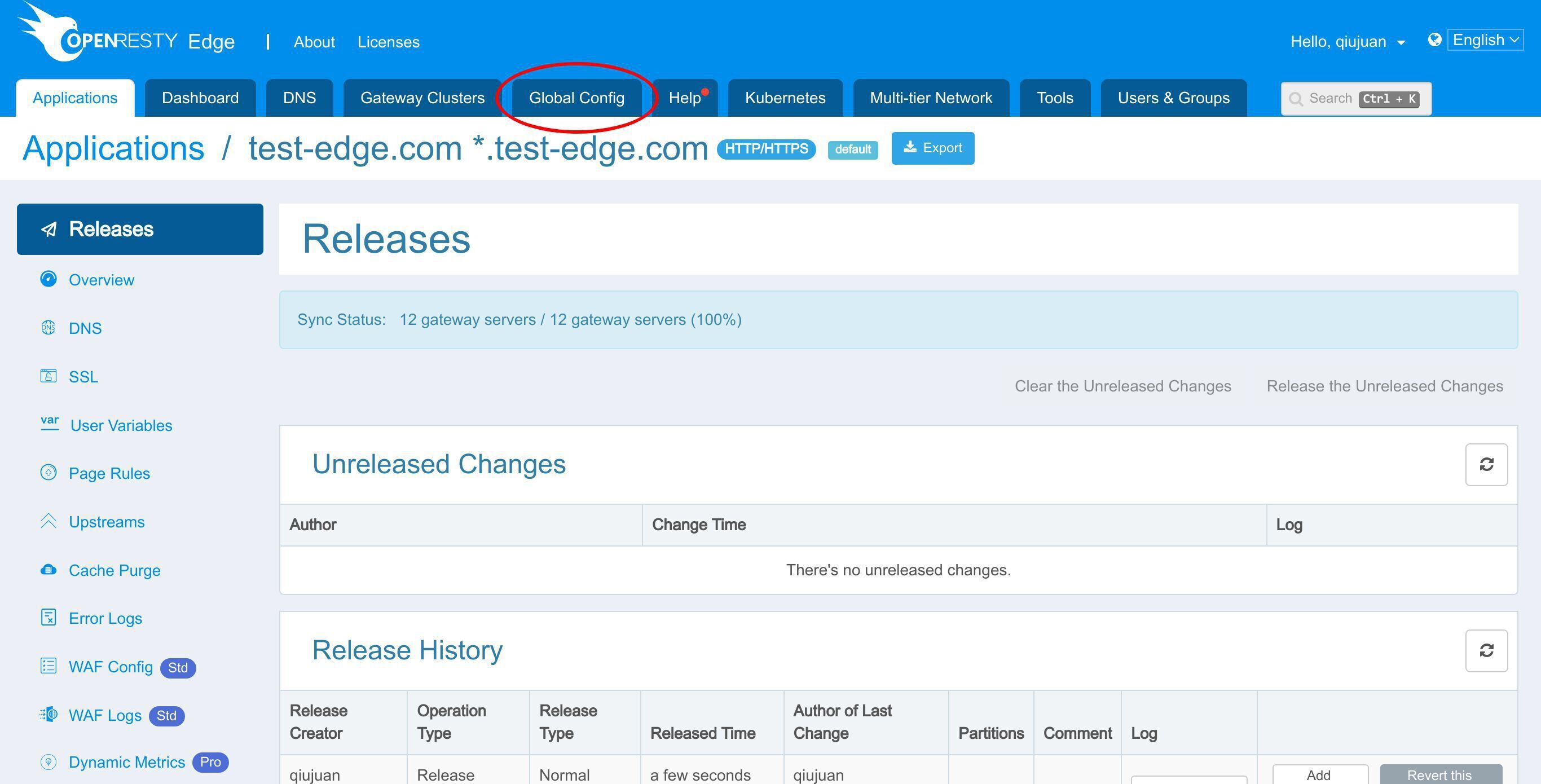
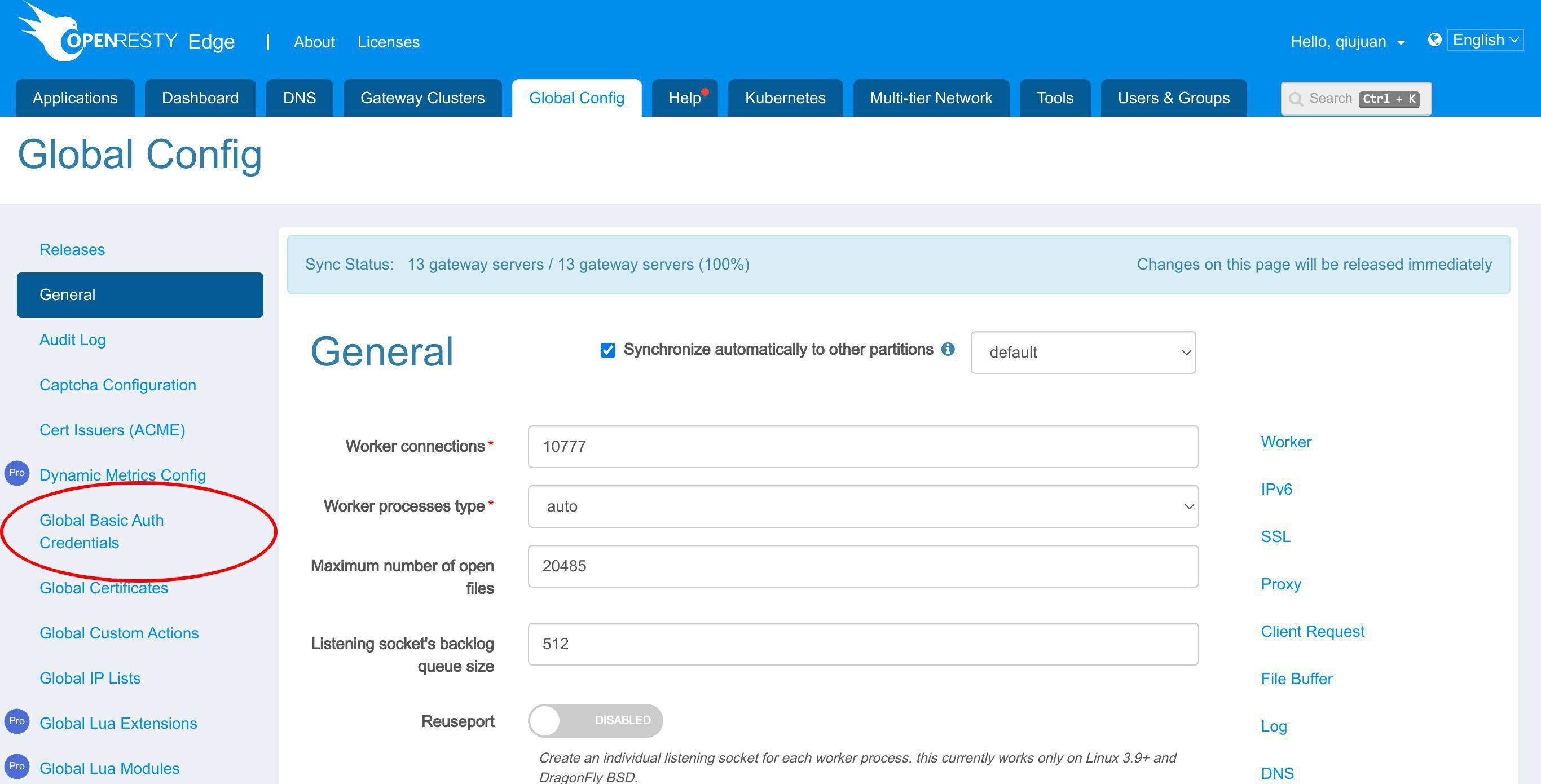
Enter the Global Basic Auth Credentials page.
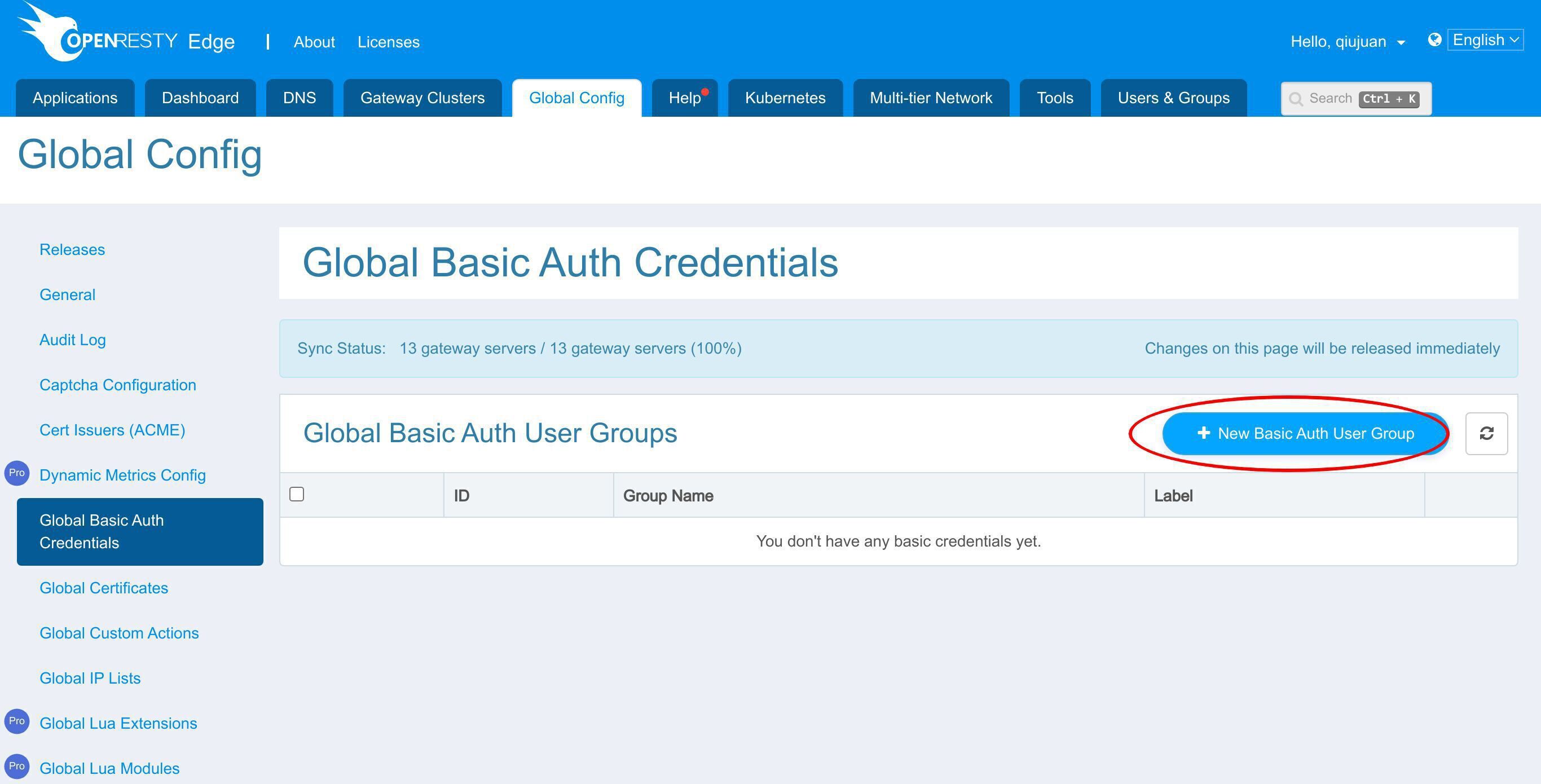
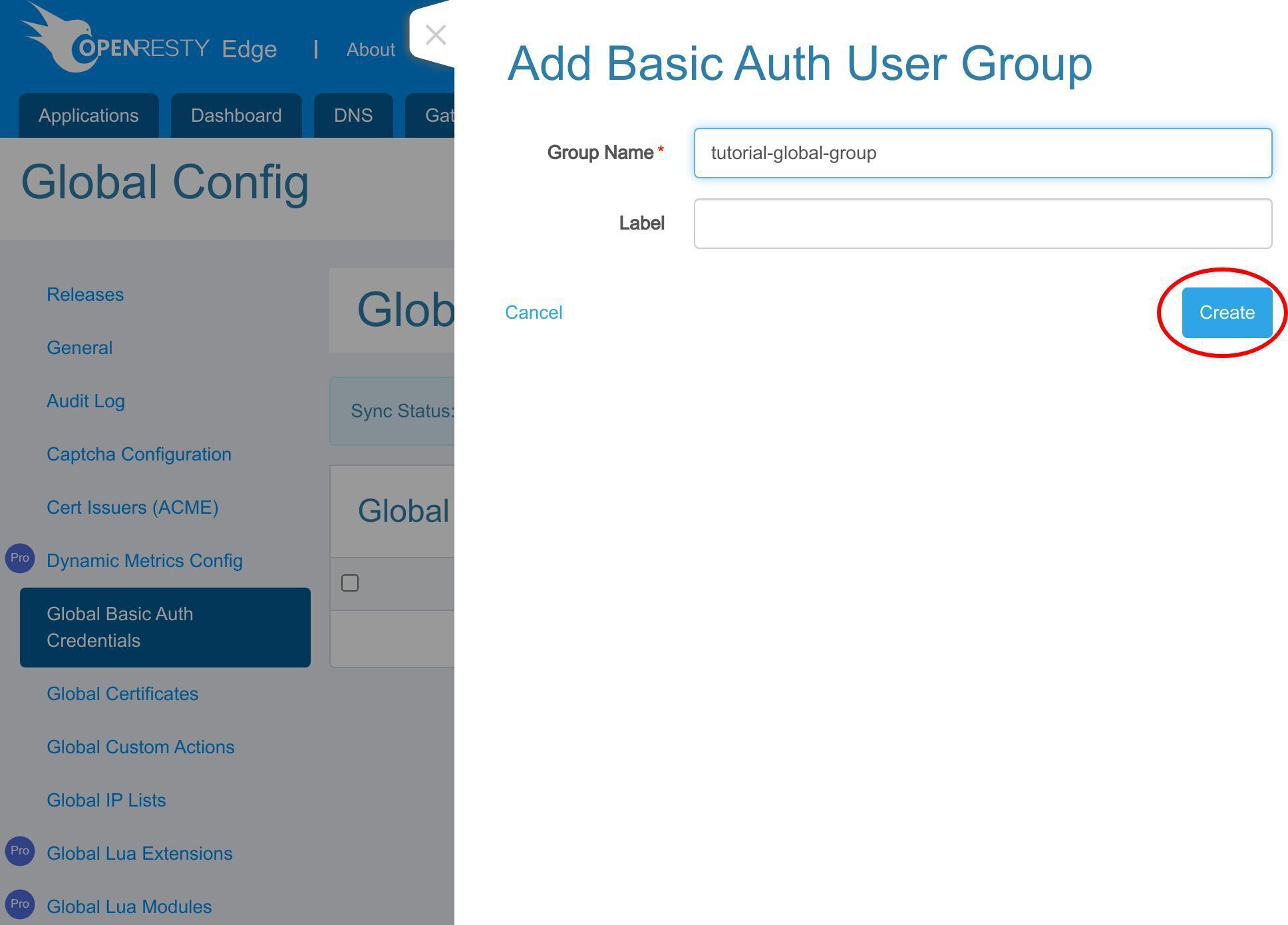
Click this button to add a new Basic Auth user group.
Type the group name.
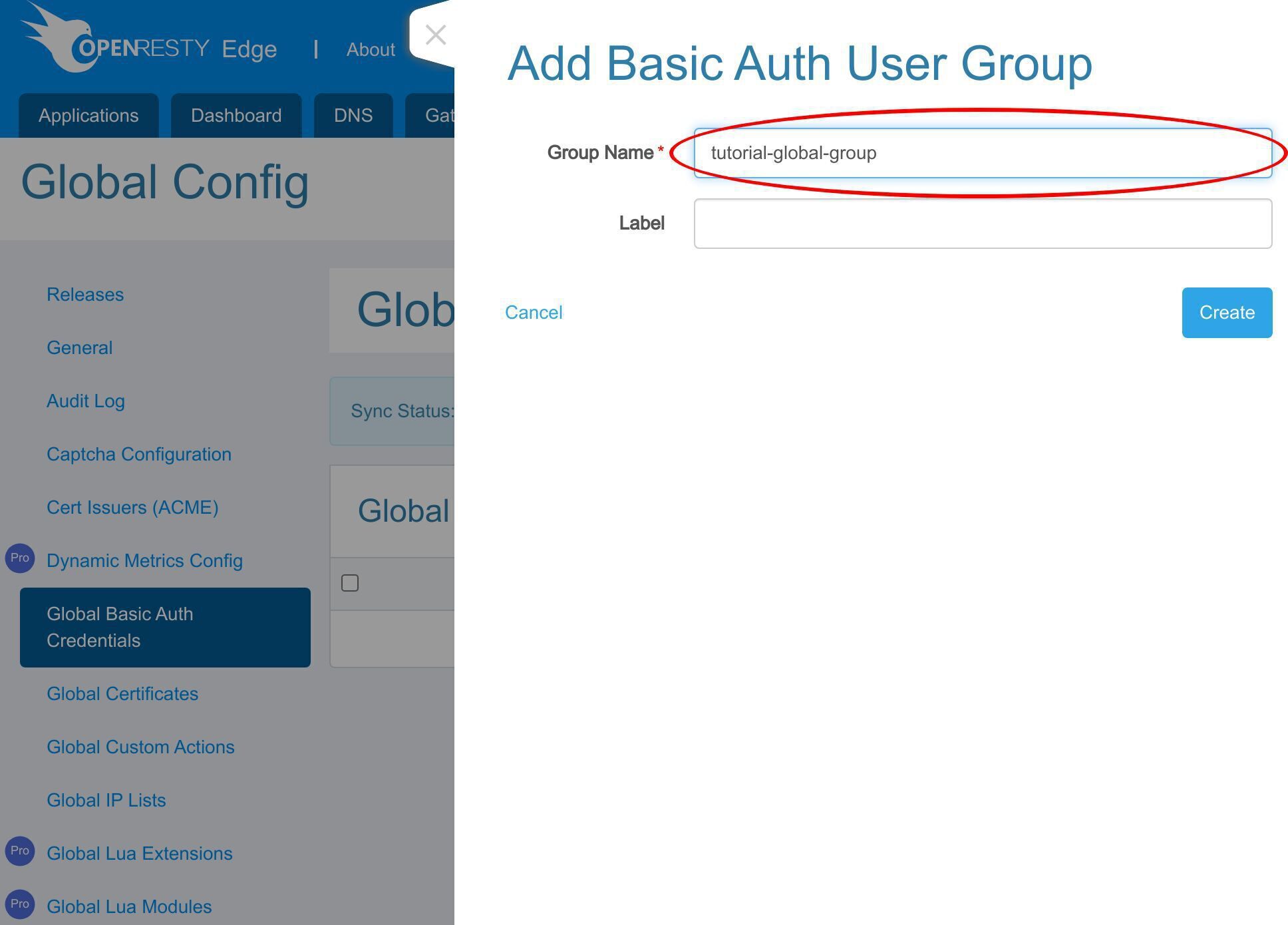
Save it.
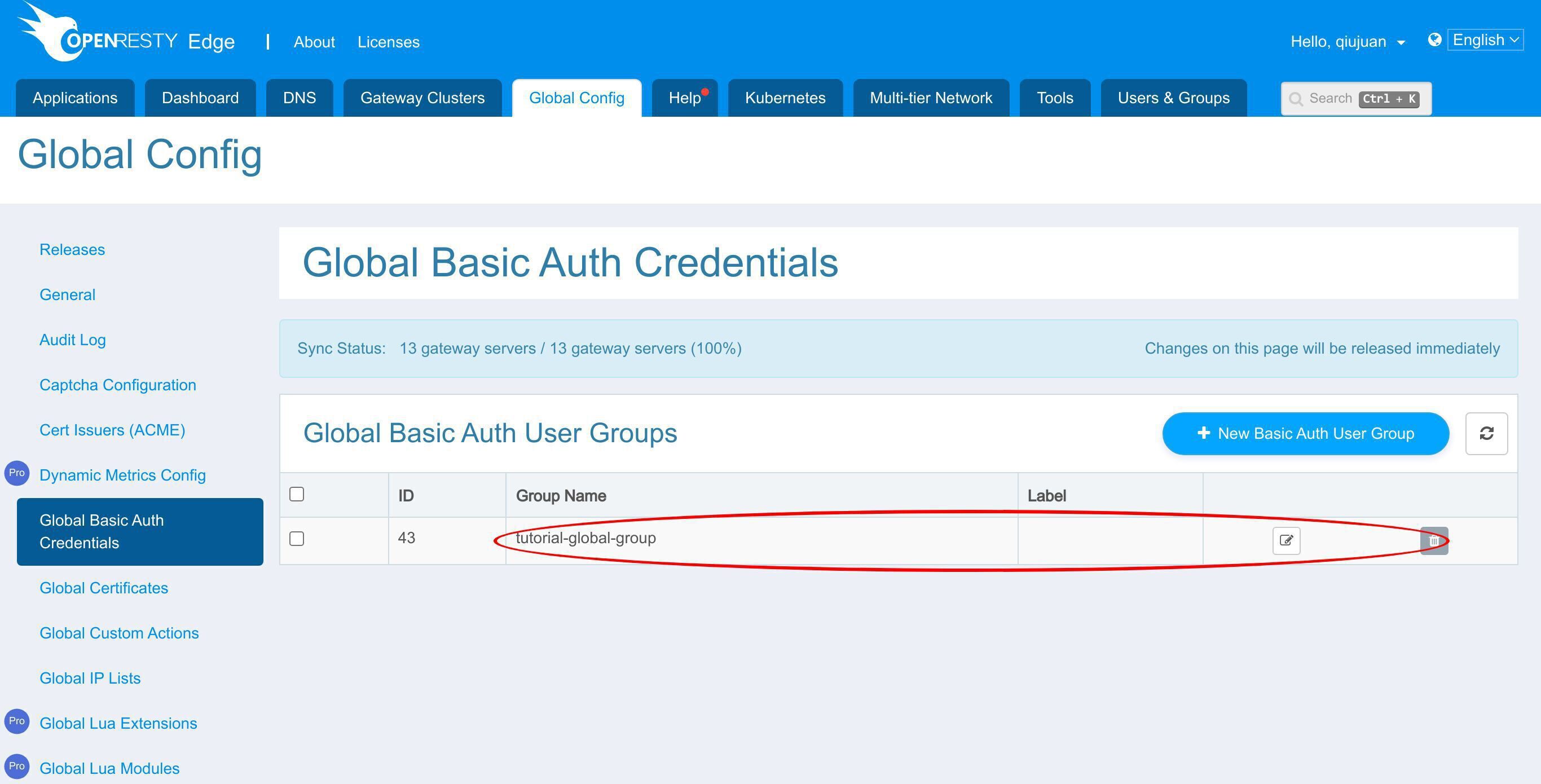
Now that we’ve created a new global Basic Auth user group.
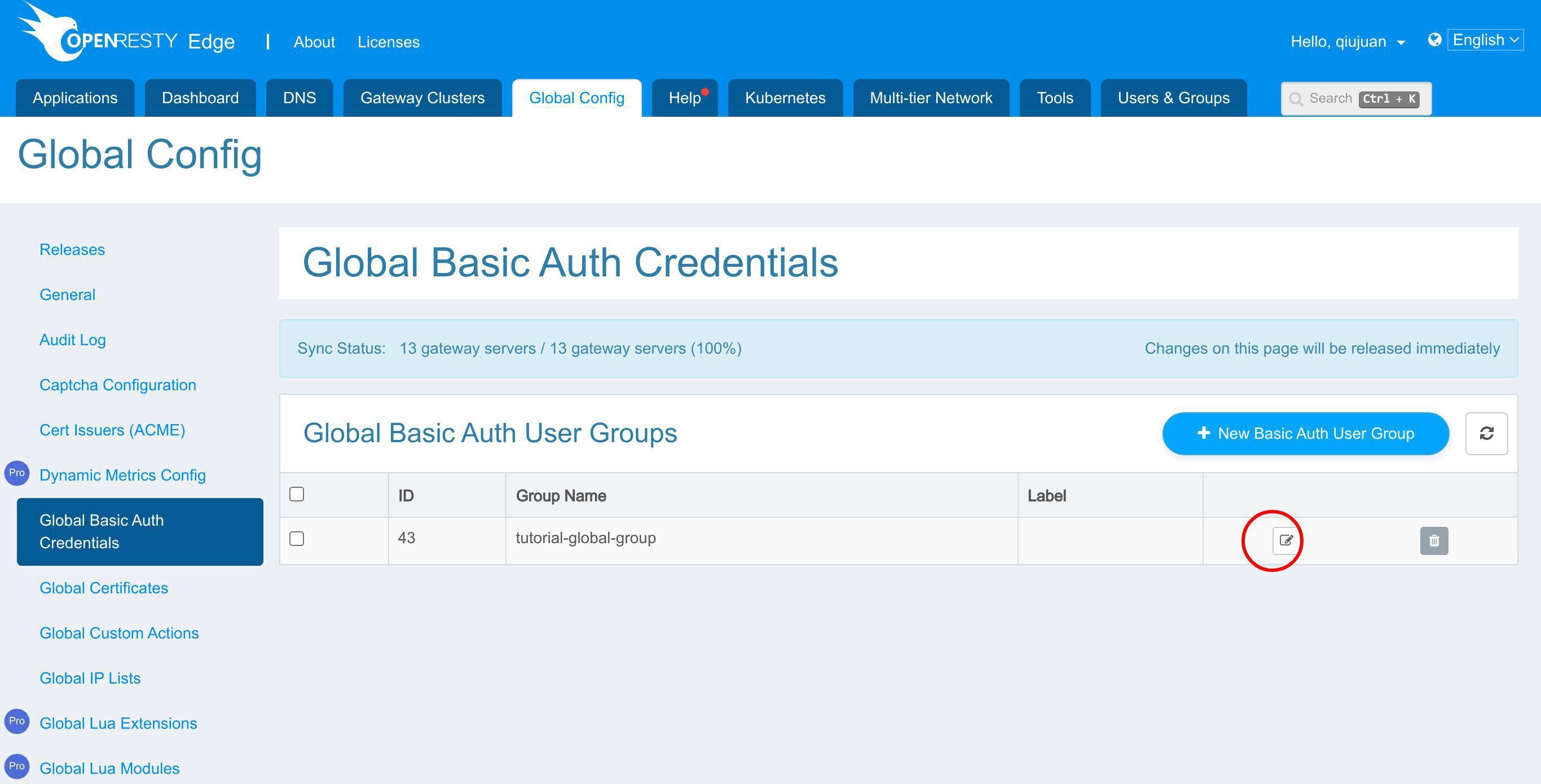
We can also click the edit button to add a new user for this group.
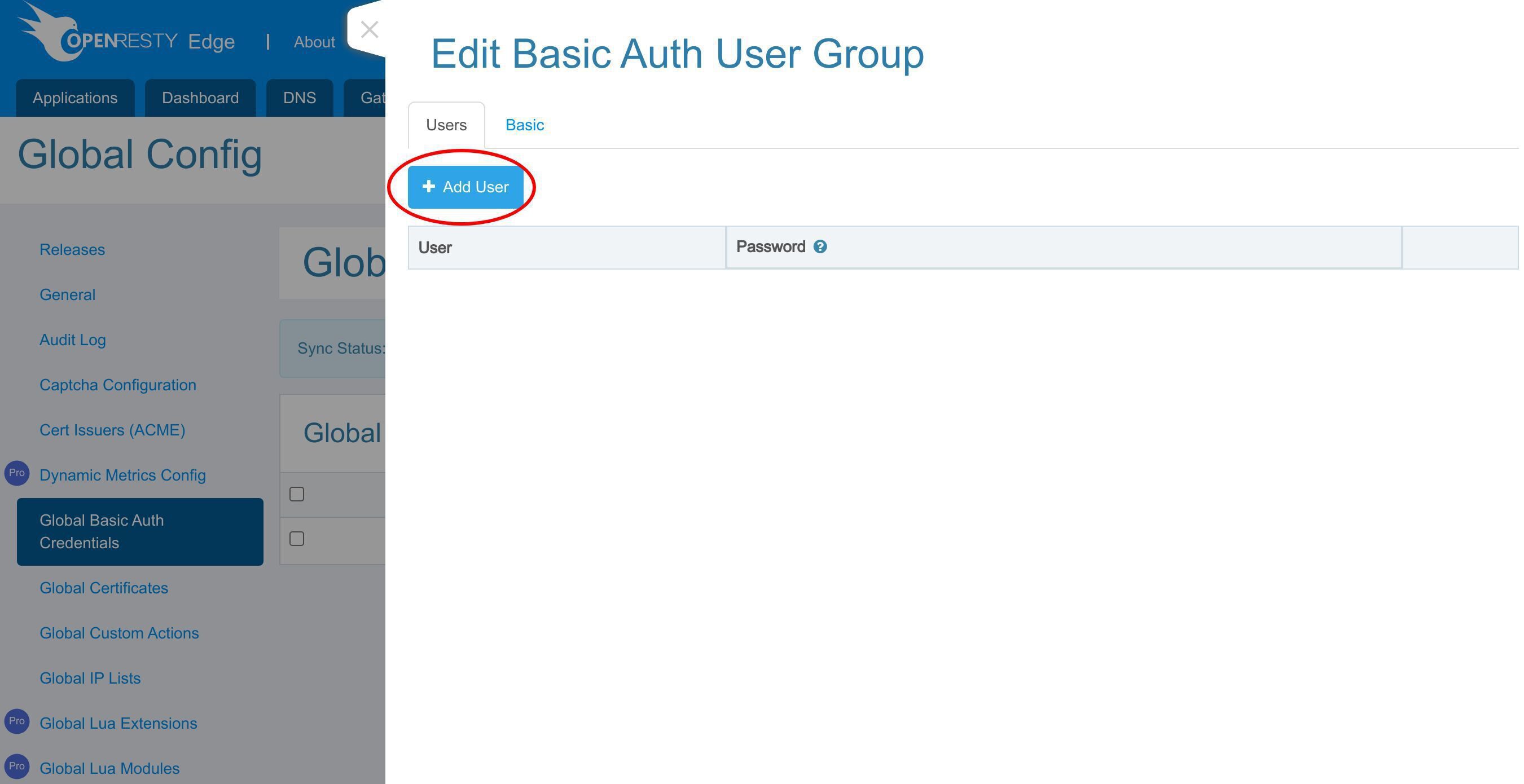
Click this button to add a new user.
Type in the user name “Kelly”.
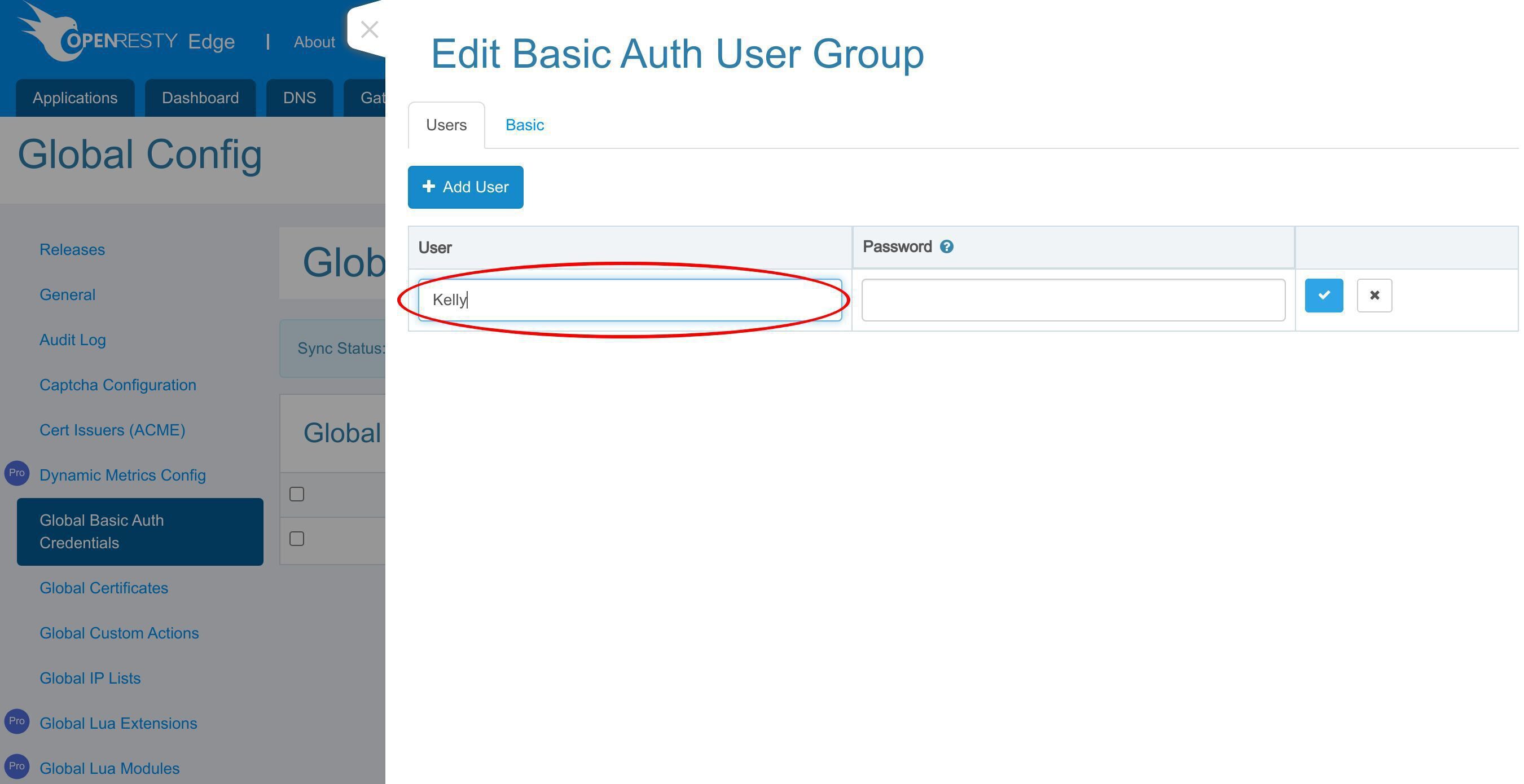
Enter the password.
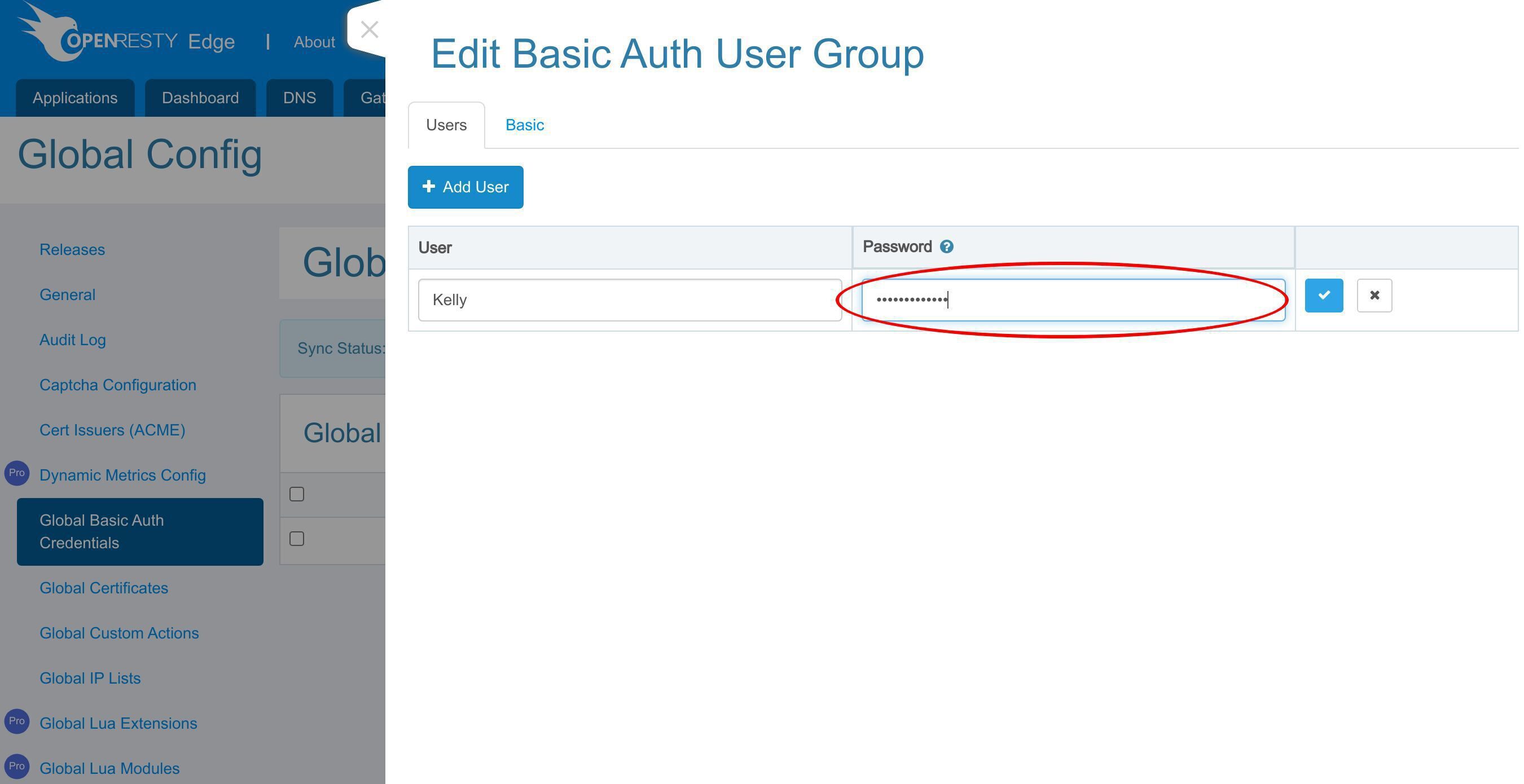
And save it.
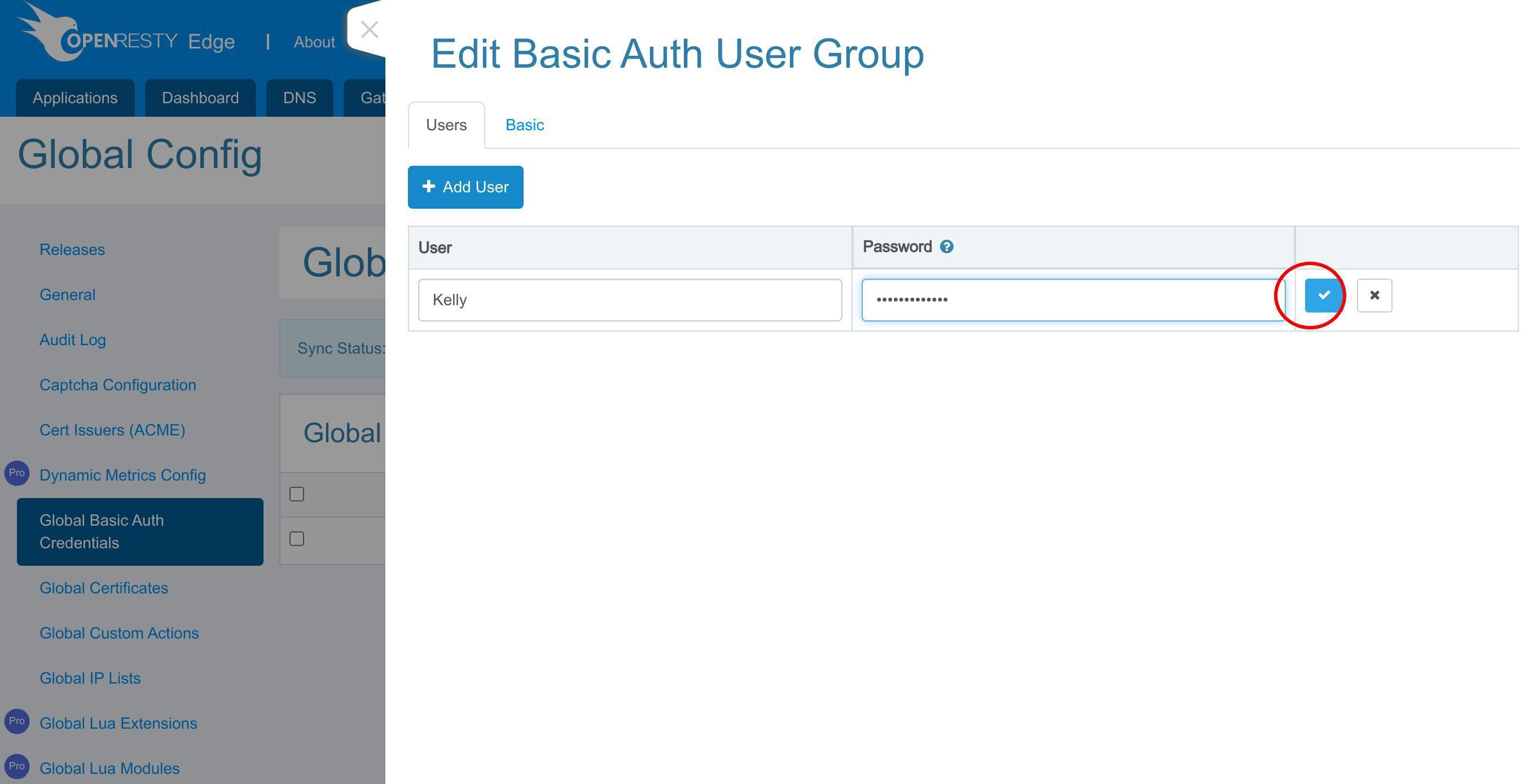
Configure the global auth for application
Now we have a new user in the “tutorial-global-group” user group. Let’s see how to configure the global credential for our gateway application.
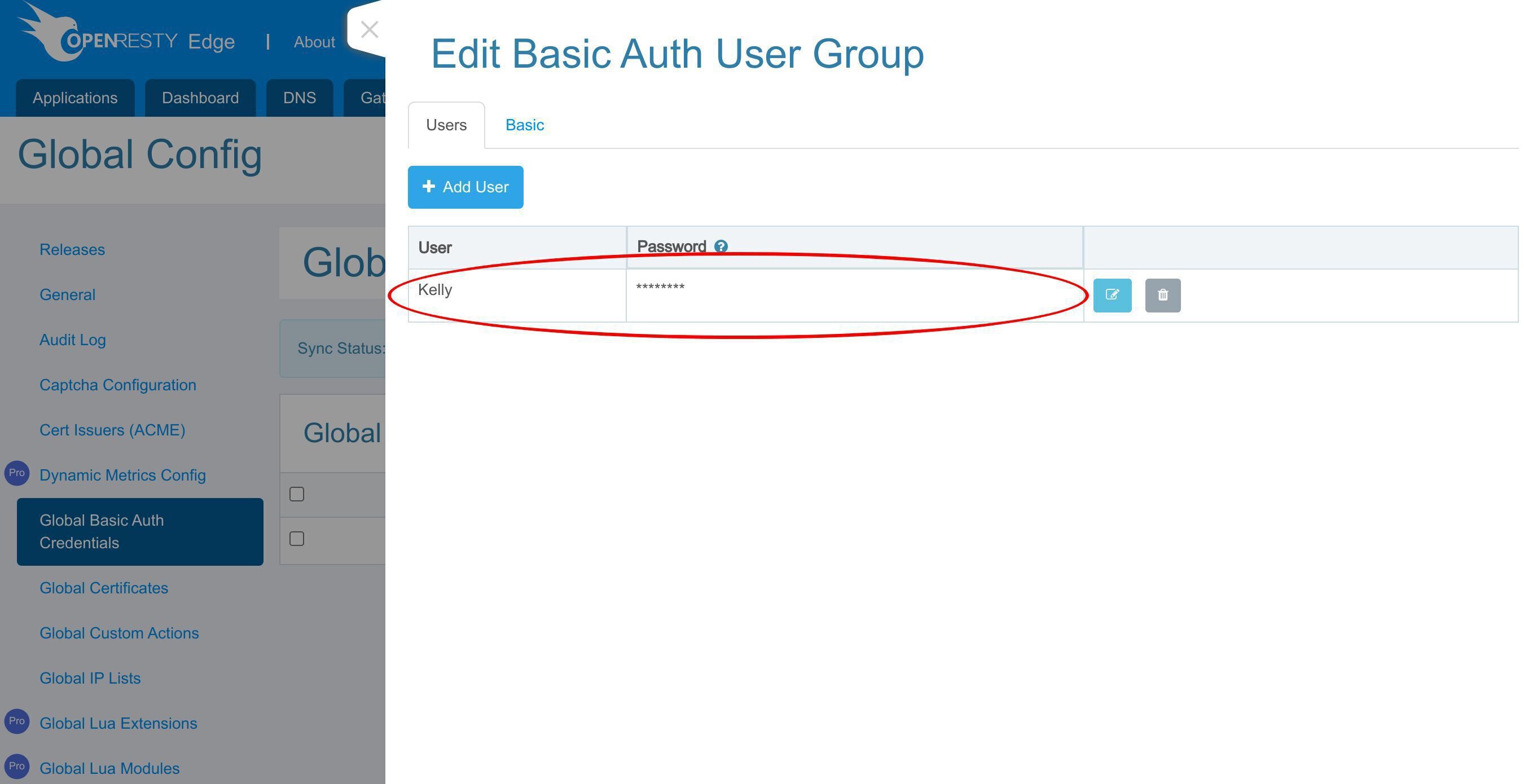
Close this page.
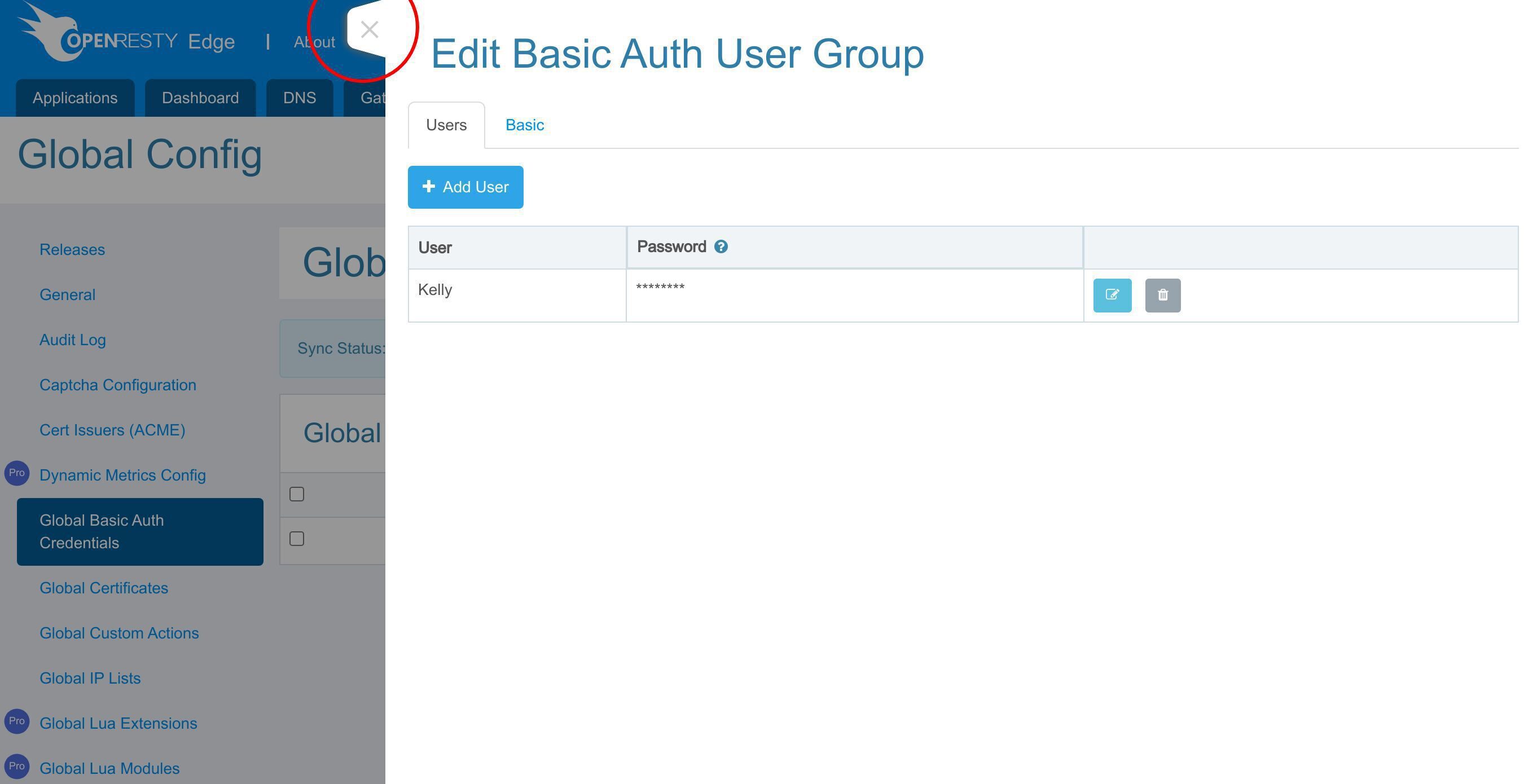
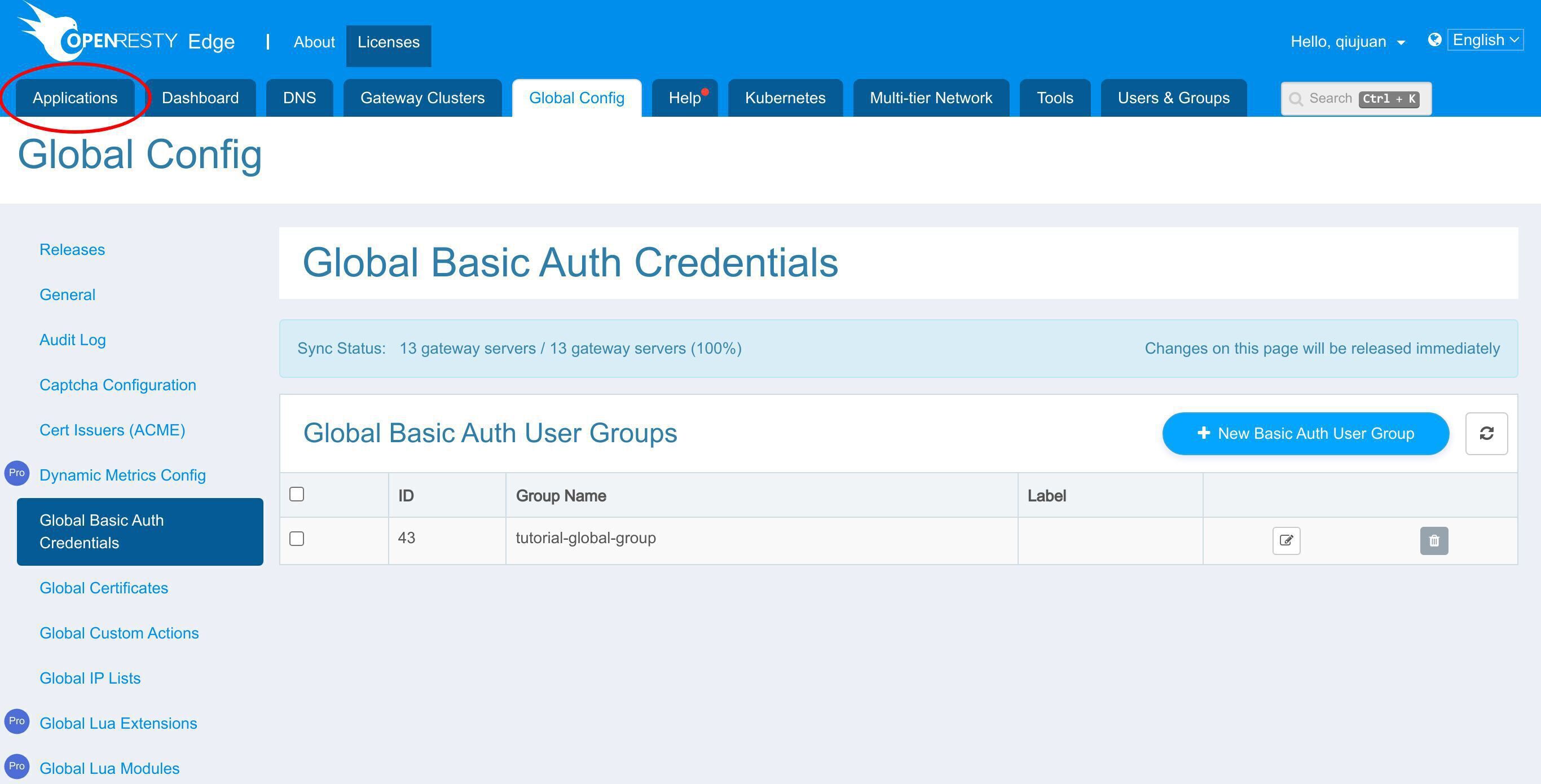
Go to the application list page.
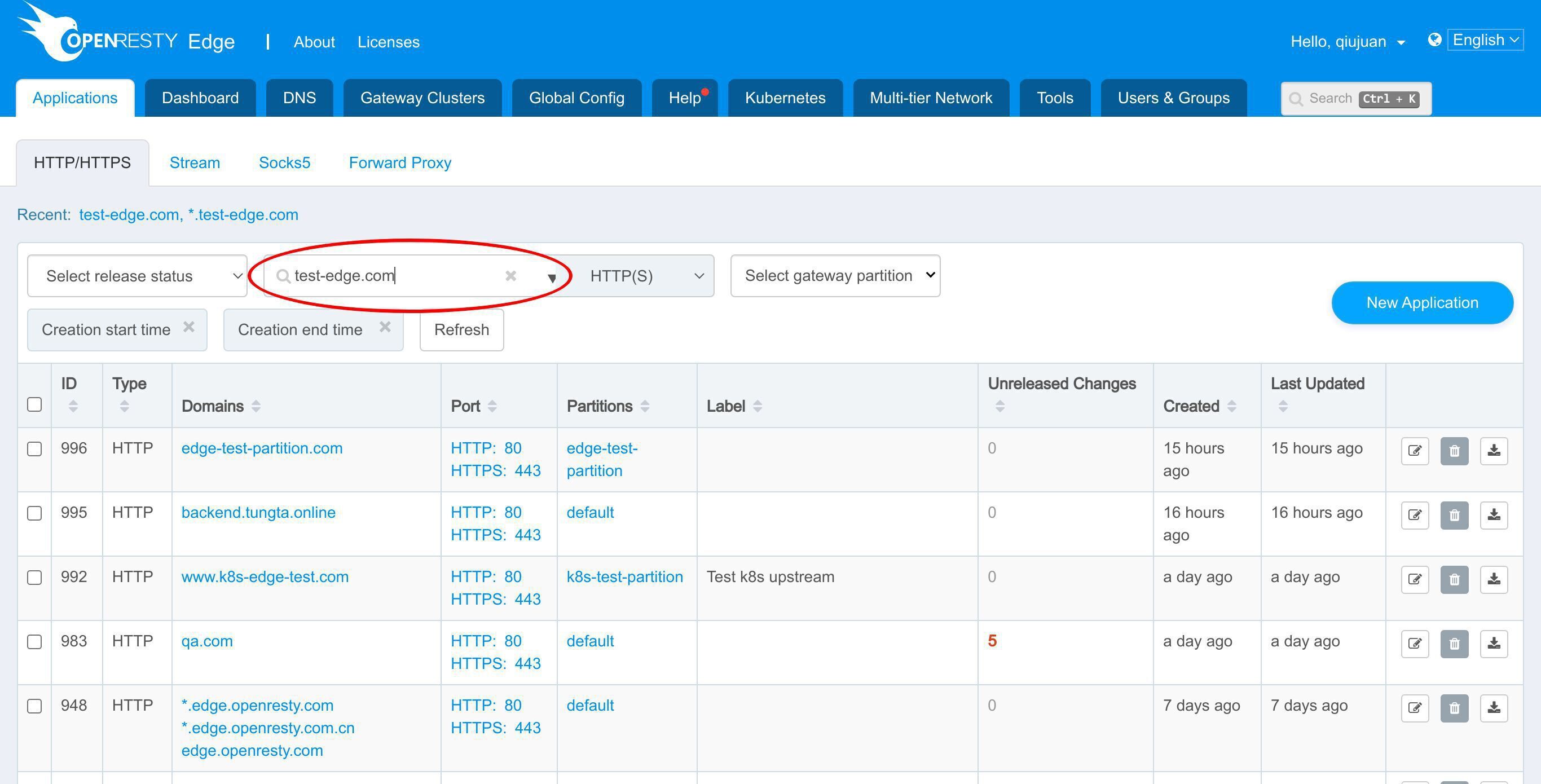
Search the test-edge.com domain.
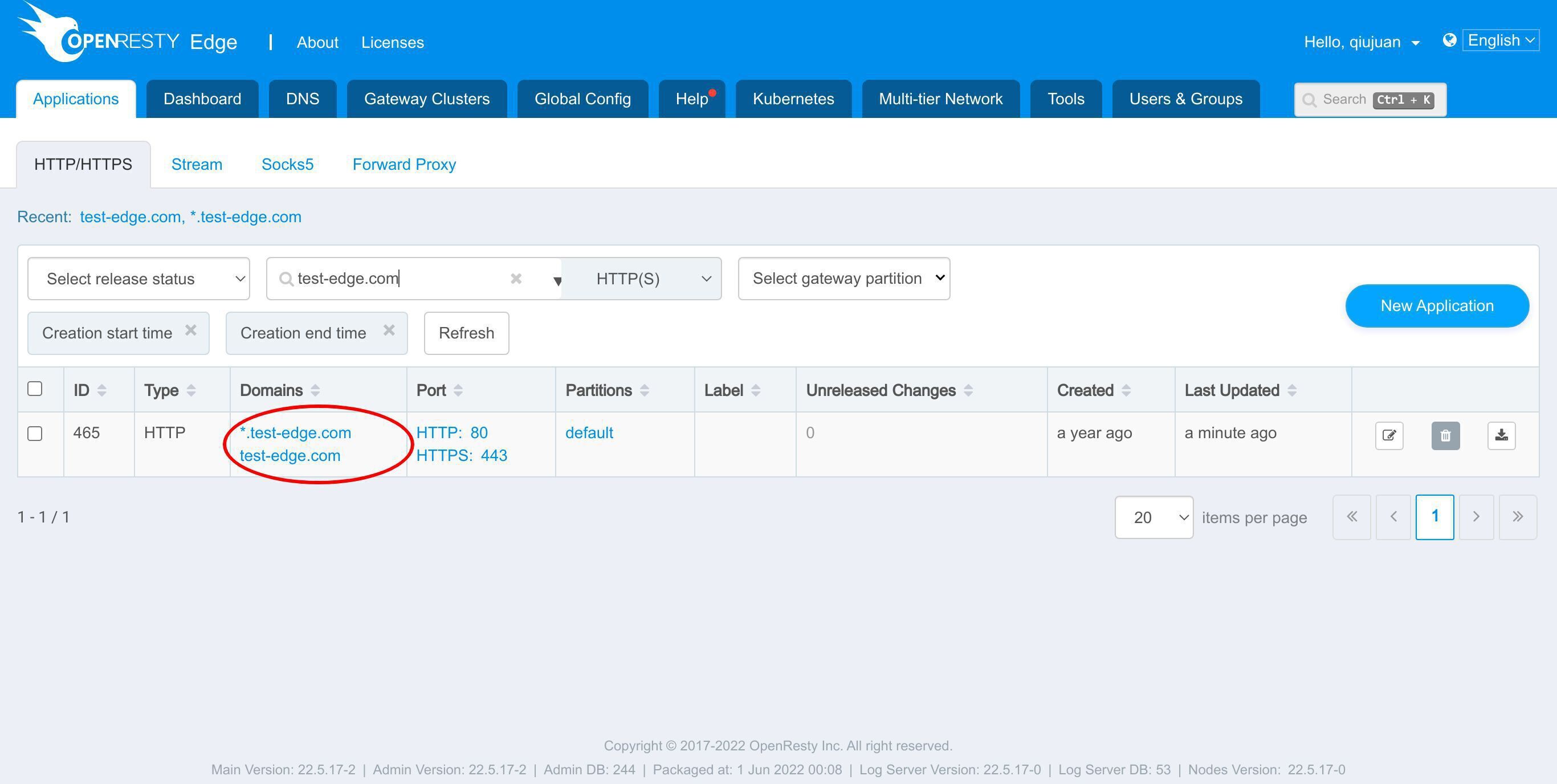
Let’s enter this application.
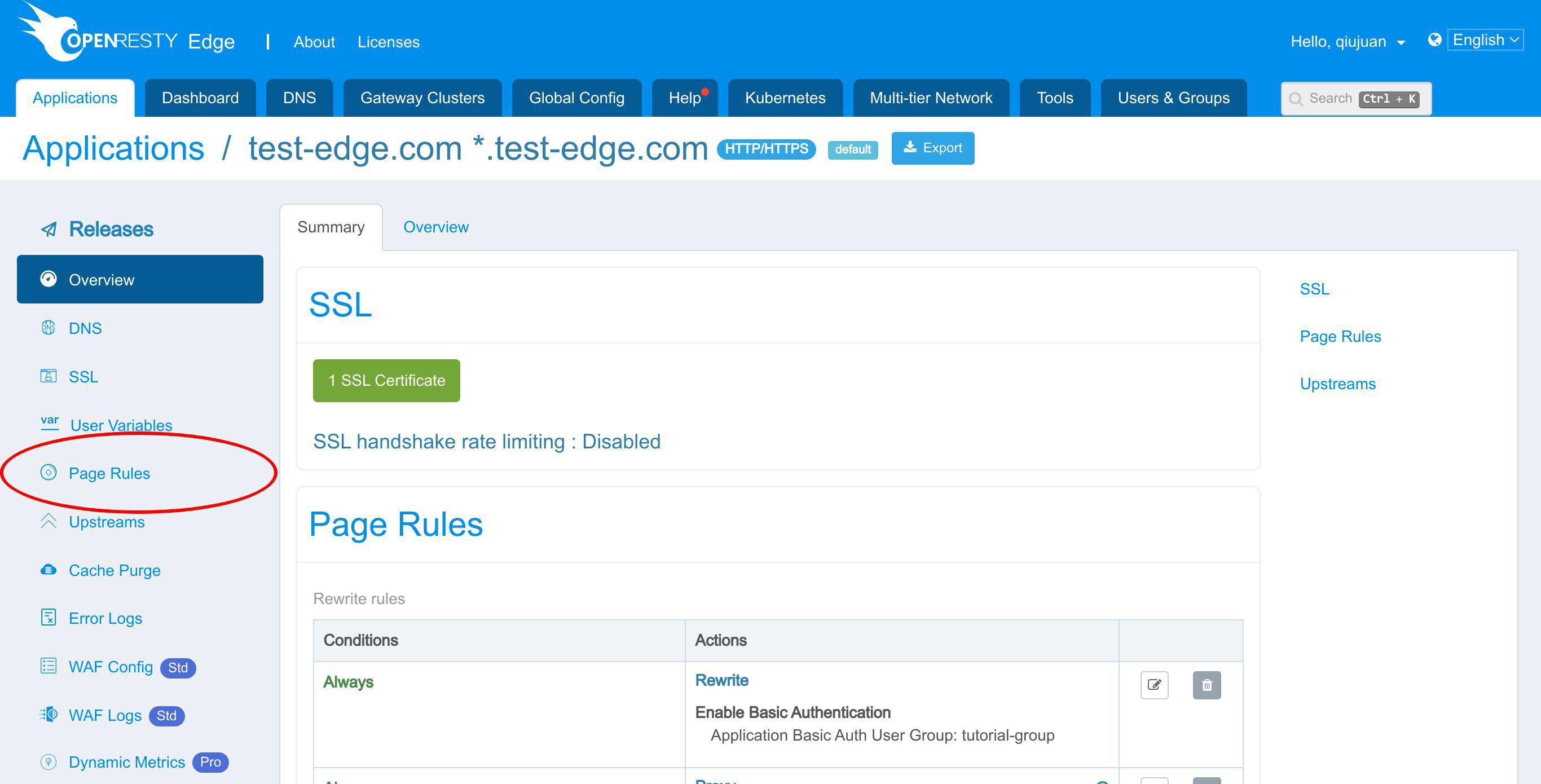
Go to the Page Rules page.
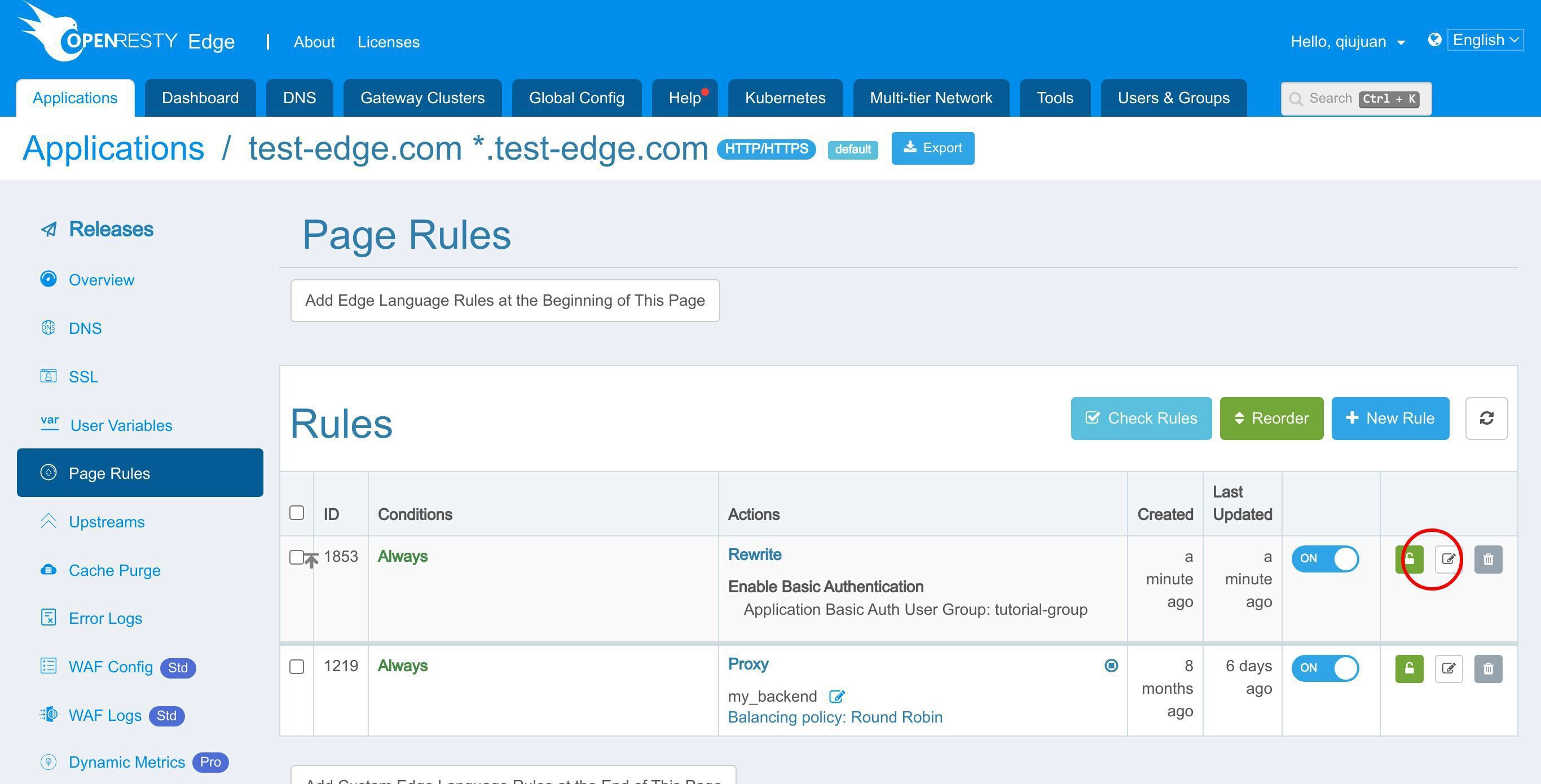
Edit this rule.
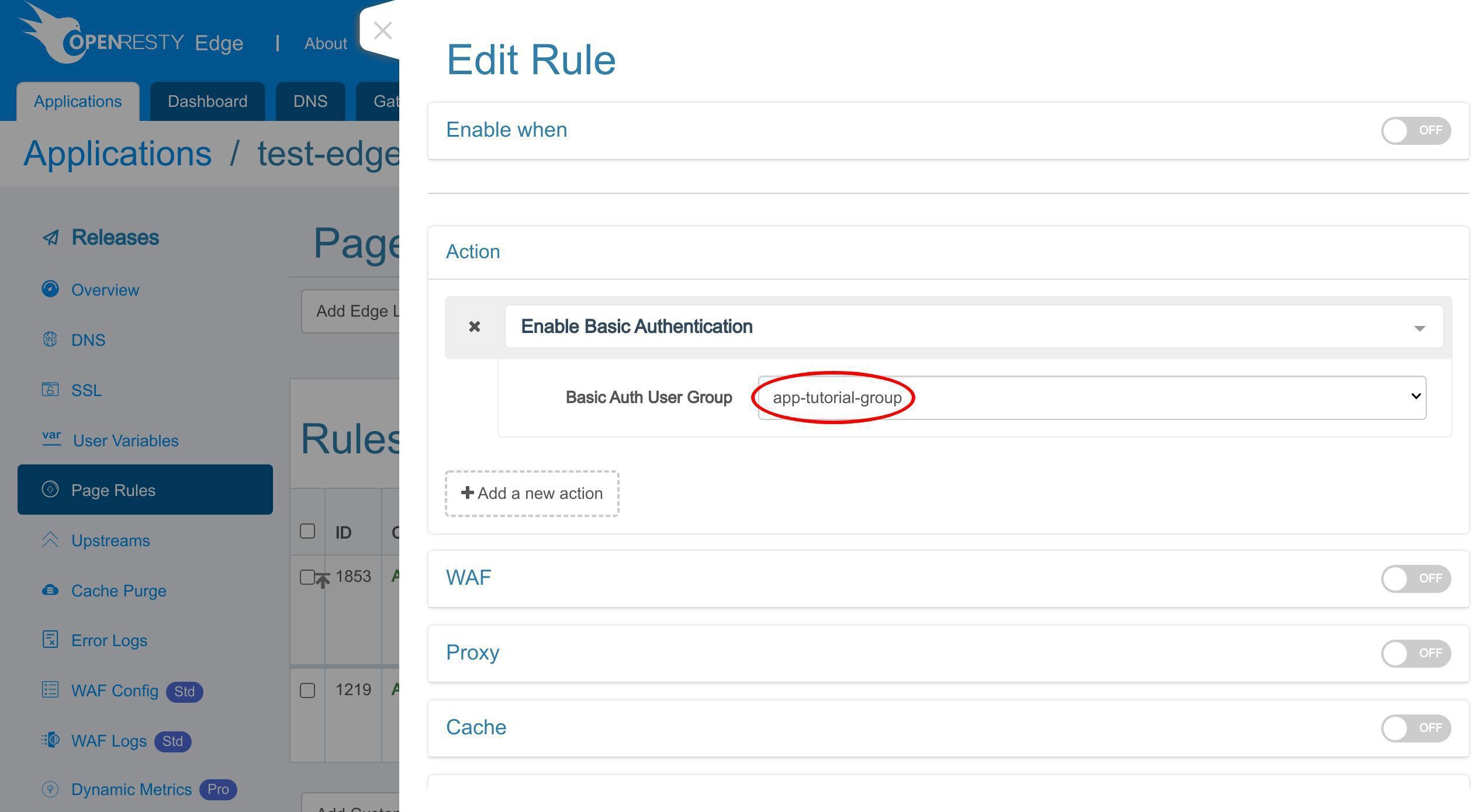
Click the drop-down list to switch the user group.
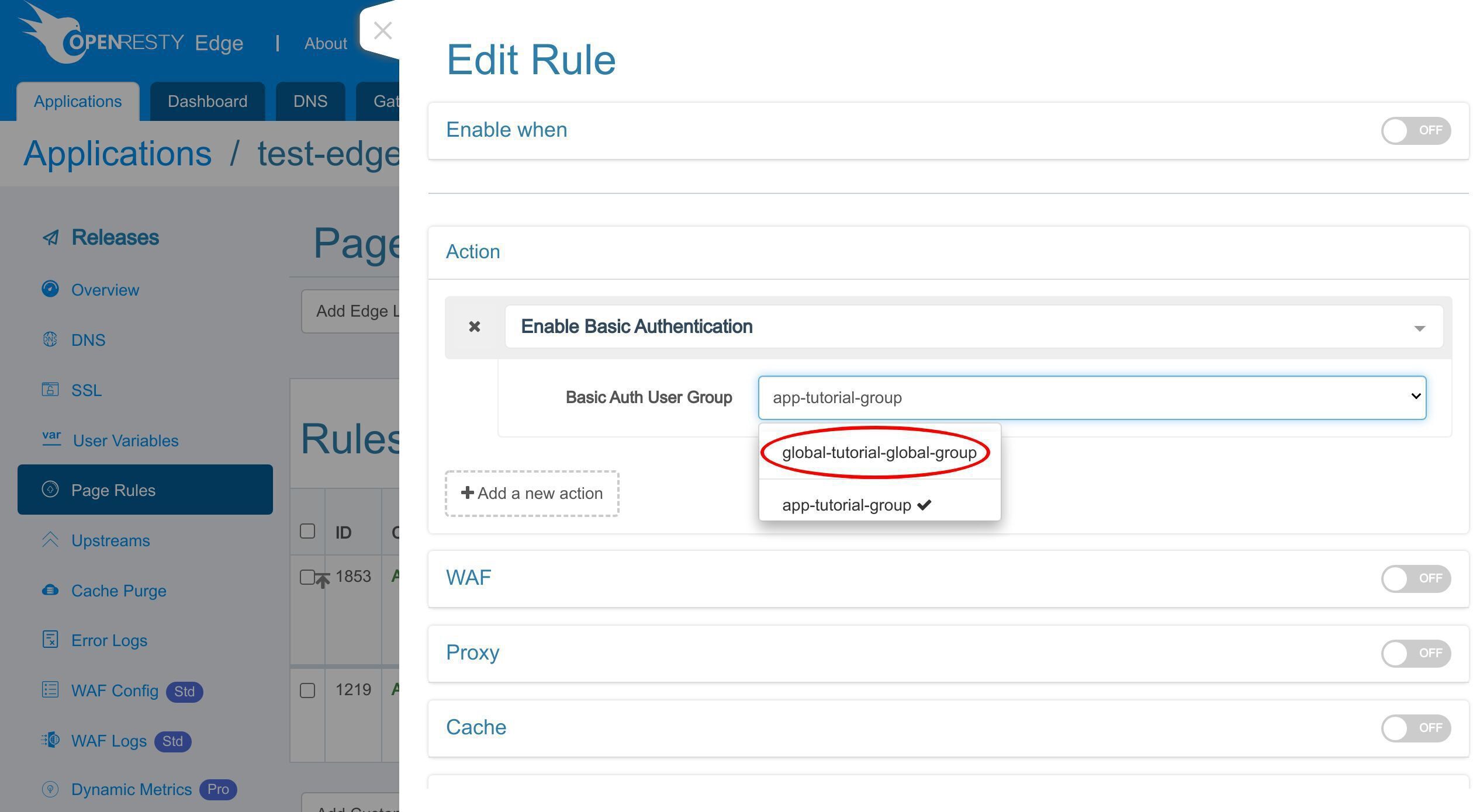
We can choose a global user group here. After the change is saved and released, the user credentials in that global user group are used instead.
Frequently asked questions
How do I enable HTTP basic auth in OpenResty Edge?
Create a Basic Auth user group and add users to it, then add a page rule with the “Enable Basic Authentication” action and select that user group. Make a configuration release to push the rule to your gateway servers. From then on the protected routes return a 401 until a valid username and password are supplied.
Does changing basic auth require a gateway reload or restart?
No. Releasing the configuration pushes the new page rule to all gateway clusters and servers without any reload, restart, or binary upgrade, so the change takes effect efficiently even at large scale.
How do I test HTTP basic auth with curl?
Send a plain request such as curl -sSI http://test-edge.com and you get a 401 Unauthorized response. Add credentials with the -u option — curl -sSI -u Sam:PASSWORD http://test-edge.com — and a correct username and password return 200 OK.
Why do I get a “401 Unauthorized” after enabling basic auth?
That is the expected behavior when no credentials, or wrong ones, are sent. A browser shows its authentication dialog; cancelling it renders the 401 page. Entering the username and password you configured in the user group lets the request through.
What is OpenResty Edge
OpenResty Edge is our all-in-one gateway software for microservices and distributed traffic architectures. It combines traffic management, private CDN construction, API gateway, security, and more to help you easily build, manage, and protect modern applications. OpenResty Edge delivers industry-leading performance and scalability to meet the demanding needs of high concurrency, high load scenarios. It supports scheduling containerized application traffic such as K8s and manages massive domains, making it easy to meet the needs of large websites and complex applications.
If you like this tutorial, please subscribe to this blog site and/or our YouTube channel. Thank you!
About The Author
Yichun Zhang (Github handle: agentzh), is the original creator of the OpenResty® open-source project and the CEO of OpenResty Inc..
Yichun is one of the earliest advocates and leaders of “open-source technology”. He worked at many internationally renowned tech companies, such as Cloudflare, Yahoo!. He is a pioneer of “edge computing”, “dynamic tracing” and “machine coding”, with over 22 years of programming and 16 years of open source experience. Yichun is well-known in the open-source space as the project leader of OpenResty®, adopted by more than 40 million global website domains.
OpenResty Inc., the enterprise software start-up founded by Yichun in 2017, has customers from some of the biggest companies in the world. Its flagship product, OpenResty XRay, is a non-invasive profiling and troubleshooting tool that significantly enhances and utilizes dynamic tracing technology. And its OpenResty Edge product is a powerful distributed traffic management and private CDN software product.
As an avid open-source contributor, Yichun has contributed more than a million lines of code to numerous open-source projects, including Linux kernel, Nginx, LuaJIT, GDB, SystemTap, LLVM, Perl, etc. He has also authored more than 60 open-source software libraries.
Related Articles
OpenResty XRay Jun 7, 2022

OpenResty XRay Mar 1, 2022

OpenResty XRay Jul 8, 2026

OpenResty XRay May 18, 2026

OpenResty XRay Dec 15, 2025